
Are you wondering if your CPU is running faster than it should? Knowing whether your CPU is overclocked can help you understand your computer’s performance and avoid potential risks.
You might not even realize your processor is pushed beyond its normal limits. You’ll learn simple, clear ways to check if your CPU is overclocked. By the end, you’ll feel confident about your system’s speed and stability. Let’s dive in and uncover the truth about your CPU’s clock speed!

Credit: www.reddit.com
Signs Of An Overclocked Cpu
Recognizing the signs of an overclocked CPU helps you understand your computer’s true performance. Overclocking pushes the processor beyond its factory speed. This change shows in several ways, both good and bad. Knowing these signs can help you spot an overclocked CPU quickly.
Performance Boost Indicators
An overclocked CPU runs tasks faster than usual. Programs open quicker. Games may show higher frame rates. Benchmark tests reveal better scores. This extra speed is often the first hint of overclocking. You might notice your computer feels snappier during use.
Increased Heat Output
Overclocked CPUs generate more heat than normal. The processor works harder, producing extra warmth. Fans may run louder or more often. Your computer case might feel warmer to touch. High temperatures can cause hardware to wear out faster.
Unstable System Behavior
Sometimes, an overclocked CPU causes crashes or freezes. Programs might close without warning. The system could reboot unexpectedly. Errors during gaming or heavy tasks are common. These issues hint that the CPU speed is beyond its stable limit.
Using Bios To Check Cpu Settings
Checking CPU settings in BIOS is a direct way to see if your processor is overclocked. BIOS holds detailed hardware data and controls. Accessing it lets you verify CPU speed and configuration easily.
You can confirm if the CPU runs faster than the factory default. This method does not need extra software. It gives clear and reliable information about your CPU’s current state.
Accessing Bios
Turn off your computer fully. Turn it on and press the BIOS key quickly. Common keys are Delete, F2, or Esc. Watch the screen for instructions during startup. If unsure, check your motherboard manual.
Wait a moment until the BIOS menu appears. Use keyboard arrows to navigate inside BIOS. Mouse use depends on BIOS type but often keyboard is needed.
Locating Cpu Frequency Settings
Find the menu named “Advanced,” “Overclock,” or “CPU Configuration.” These sections hold CPU speed details. Look for CPU base clock (BCLK) and multiplier settings.
CPU frequency is often shown as “CPU Ratio” or “CPU Multiplier.” The product of base clock and multiplier gives CPU speed. Note both values for comparison.
Identifying Overclock Values
Compare CPU frequency in BIOS to your processor’s stock speed. Stock speed is listed on the CPU box or manufacturer website. If BIOS frequency is higher, your CPU is overclocked.
Also check voltage settings. Increased voltage usually supports overclocking. Overclocked CPUs often have custom voltage and frequency settings.
Monitoring Software Tools
Monitoring software tools help check if a CPU is overclocked. These tools show important details about the processor’s speed and temperature. They provide real-time data to understand the CPU’s performance. Using these tools is simple and safe for beginners.
Cpu-z For Frequency Details
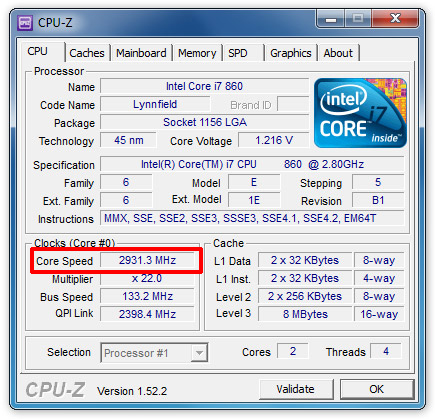
CPU-Z displays the exact speed of your CPU. It shows the core clock and multiplier settings. These numbers reveal if the CPU runs faster than its base speed. The tool updates data live, making it easy to spot changes in frequency. It also shows the processor model and other useful info.
Hwmonitor For Temperature
HWMonitor tracks the CPU temperature in real time. Overclocked CPUs often run hotter than normal. This tool lists temperature readings for each core. It also shows voltages and fan speeds. Watching the temperature helps avoid overheating and damage.
Task Manager And Resource Monitor
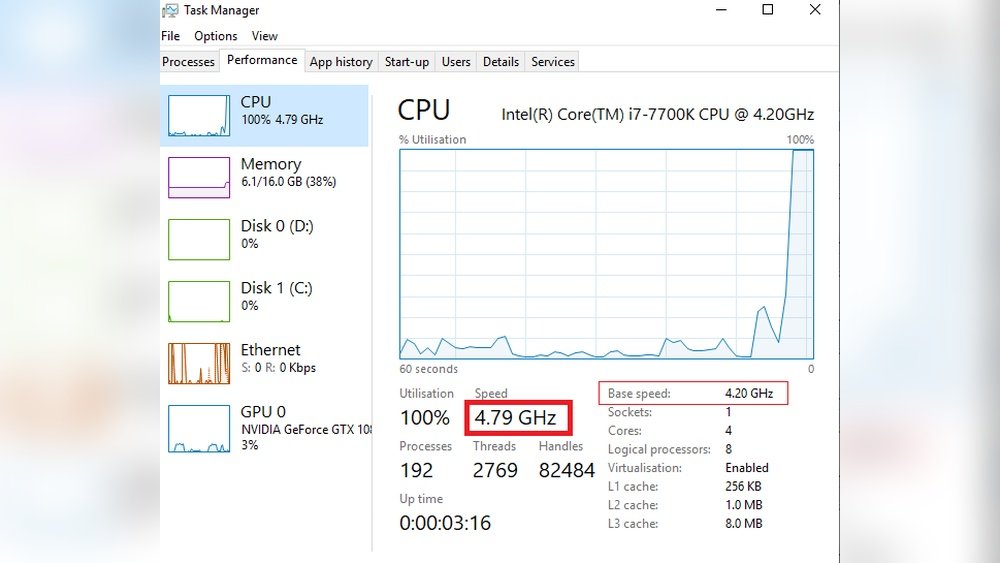
Task Manager shows CPU usage and speed at a glance. Resource Monitor gives more detailed info about CPU activity. These built-in Windows tools help observe CPU load and clock speed. They show if the processor runs at higher speeds under load. Both tools are easy to access and use.
Comparing Default And Current Speeds
Comparing your CPU’s default speed to its current speed helps you check for overclocking. The CPU speed shows how fast your processor runs. Each CPU model has a set default speed given by the manufacturer. When the current speed is higher than this default, the CPU might be overclocked.
This comparison is simple but important. It shows if your CPU is running beyond its normal limits. Knowing these speeds lets you understand your computer’s performance better.
Finding Manufacturer Specs
Start by finding your CPU’s default speed. Visit the manufacturer’s official website. Look for your CPU model and its listed clock speed. This speed is often called “base clock” or “base frequency.”
You can also check the CPU box or documentation if you have it. Write down the default speed for your model. This number is your baseline for comparison.
Matching Current Clock Speeds
Next, find your CPU’s current clock speed. Use software tools like Task Manager on Windows or CPU-Z. These tools show real-time speed data.
Compare this number to the default speed you found earlier. If the current speed is higher, your CPU may be overclocked. If it matches or is lower, it is running at normal speed or underclocked.
Stress Testing For Stability
Stress testing checks how stable your CPU is under heavy use. It helps find out if the CPU can handle high workloads without errors. Overclocked CPUs need stress tests to confirm they work well at higher speeds. This step is key to know if your CPU runs safely and reliably.
Using Prime95
Prime95 is popular for testing CPU stability. It pushes the processor to its limits by running complex calculations. Start a “Torture Test” to see how your CPU performs. Watch for errors or crashes during the test. If the system stays stable for hours, the CPU is likely stable.
Running Aida64
AIDA64 offers detailed stress tests and system monitoring. It tests CPU, memory, and cache under load. Run the “System Stability Test” to check overall performance. The program shows temperatures and voltage in real time. Stable readings mean the CPU can handle overclocking safely.
Observing System Behavior
Stress tests are not just about programs. Pay attention to how your system behaves too. Look for sudden shutdowns or restarts. Notice any unusual noises or overheating. These signs mean the CPU might be unstable or overclocked incorrectly.
Credit: cleanerone.trendmicro.com
Checking Operating System Reports
Checking your operating system reports can help you find out if the CPU is overclocked. The OS shows details about the processor speed and settings. These details may reveal if the CPU runs faster than the base clock speed. This method works on both Windows and Linux systems.
Windows System Information
Windows has a built-in tool called System Information. It shows the current processor speed. Press Windows + R, type msinfo32, and hit Enter. Look for the “Processor” entry. It shows the CPU model and speed.
Compare this speed with the CPU’s base clock speed from the manufacturer’s website. If the number is higher, the CPU might be overclocked.
Linux Cpu Info Commands
Linux users can run commands in the terminal to check CPU speed. The lscpu command shows detailed CPU info. Type lscpu and press Enter. Look for “CPU MHz”.
This value shows the current CPU frequency. Another command, cat /proc/cpuinfo, lists detailed processor info. Check the “cpu MHz” line for the current speed.
Compare these speeds to the official base clock. Higher speeds suggest overclocking.
Physical Inspection Tips
Physical inspection helps find signs of CPU overclocking. It shows clues not found in software. A careful look at the hardware can reveal changes. These signs often point to attempts to boost CPU speed. This section covers simple steps to spot these hints.
Examining Cooling Solutions
Overclocked CPUs run hotter than normal ones. Many users upgrade cooling to keep temperatures low. Look for large or unusual coolers on the CPU. Extra fans or liquid cooling systems are common upgrades. Stock coolers suggest the CPU might not be overclocked. Check if thermal paste looks freshly applied or changed. This can indicate recent hardware work for overclocking.
Looking For Bios Reset Signs
Resetting BIOS is common after overclocking changes. Look inside the case for a removed or moved CMOS battery. Some might use a jumper to clear BIOS settings. Scratches or marks near motherboard jumpers can be clues. BIOS resets erase old settings, often done to fix overclock errors. These signs suggest someone tried to change CPU speed.

Credit: www.reddit.com
Frequently Asked Questions
How Can I Check If My Cpu Is Overclocked?
You can check CPU overclocking by using system information tools like CPU-Z or BIOS. Look for clock speed higher than base specs. Overclocked CPUs run faster than their default frequency.
Does Overclocking Affect Cpu Temperature Readings?
Yes, overclocking increases CPU temperature. Higher clock speeds generate more heat. Monitoring temperature is crucial to avoid overheating and damage.
Can Windows Detect If Cpu Is Overclocked?
Windows alone doesn’t show overclock status clearly. Use third-party apps like CPU-Z or HWMonitor for accurate detection.
What Signs Indicate My Cpu Might Be Overclocked?
Signs include higher clock speeds in system info, increased fan noise, and elevated temperatures during use.
Conclusion
Knowing if your CPU is overclocked helps keep your computer safe. Check the CPU speed with simple tools or BIOS settings. Watch for unusual heat or noise; these can be signs. Overclocking can boost speed but may cause problems if done wrong.
Always monitor performance and temperature after checking. Taking these steps keeps your system running smoothly. Stay aware, and your computer will work well for years.
