
Is your computer acting strangely or refusing to turn on? You might be wondering if your CPU is dead.
Knowing how to tell if your CPU is truly damaged can save you time, money, and frustration. You’ll learn simple signs and easy tests to check your CPU’s health. By the end, you’ll be confident in diagnosing the problem and deciding your next step.
Don’t let uncertainty hold you back—let’s find out what’s really going on with your CPU.
Signs Of A Dead Cpu
Knowing the signs of a dead CPU helps save time and money. It lets you decide if a repair or replacement is needed. A dead CPU stops your computer from working properly. Some signs are easy to spot. Others need careful checking.
Watch for these common signs to find out if your CPU is dead. They tell you if the problem is serious or if other parts might be at fault.
No Power Or Boot Failure
The computer does not turn on or show any lights. The screen stays black without any startup sounds. Fans might not spin at all. The system may start but fail to show the BIOS screen. These are strong signs the CPU might be dead.
Error Beeps And Codes
Motherboards use beep codes to report hardware issues. A series of beeps at startup can mean CPU failure. Check your motherboard manual for beep code meanings. Some boards show error codes on a small display. These codes help identify the dead CPU quickly.
Overheating Symptoms
The CPU gets very hot and the computer shuts down suddenly. The system may restart often without warning. Fans run loudly but do not cool the CPU properly. Overheating can damage the CPU and cause it to die.
Physical Damage Indicators
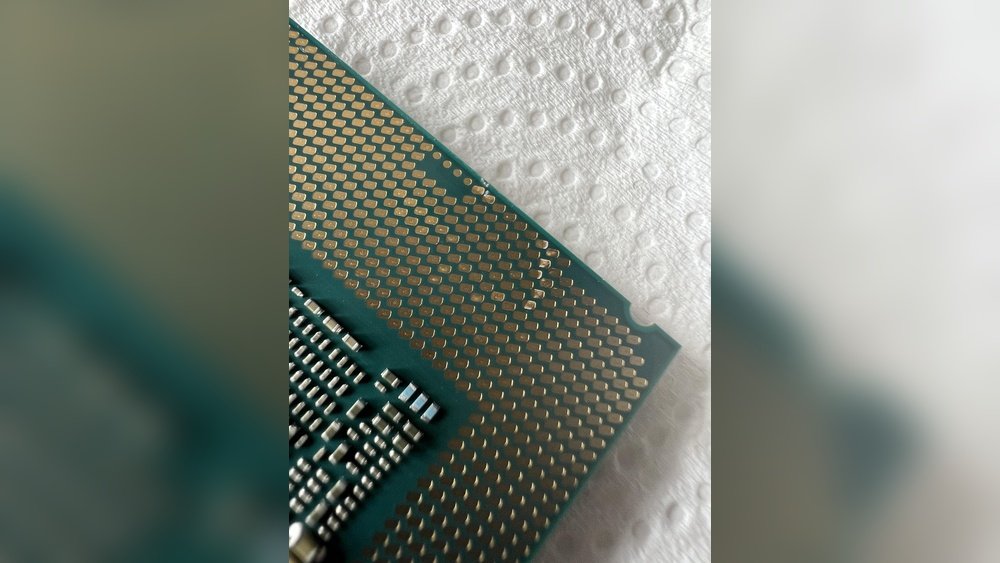
Look for burnt or scorched marks on the CPU or motherboard. Bent or broken pins on the CPU socket are signs of damage. Visible cracks or chips on the CPU surface mean it is dead. Physical damage almost always means the CPU needs replacing.
Basic Diagnostic Steps
Basic diagnostic steps help find if the CPU is dead or not. These steps check power, connections, and hardware parts. They show if the problem is with the CPU or another component. Follow these simple checks before replacing parts. It saves time and money.
Check Power Supply And Connections
Start by making sure the power supply is working well. Check if the power cable is plugged in tightly. Look at the connection between the power supply and the motherboard. Loose or broken cables can stop the CPU from working. Use a power tester or swap the power supply to confirm it works.
Inspect Motherboard And Cpu Socket
Look at the motherboard closely. Check the CPU socket for bent pins or dirt. Bent pins can stop the CPU from making contact. Clean the socket gently with a soft brush if needed. Make sure the CPU is seated correctly in its socket. A wrong fit causes no power or no display.
Test With Minimal Hardware Setup
Remove all extra hardware from the PC. Keep only the CPU, one stick of RAM, and the power supply connected. Turn on the computer to see if it posts or shows any light or sound. If it does, add parts one by one to find the faulty piece. This step helps isolate the CPU problem from other parts.
Using Software Tools
Using software tools is a practical way to check if a CPU is dead. These tools can help detect problems without opening the computer. They provide quick feedback on the CPU’s health. Software tests are easy for most users to run. They use the computer’s own systems to find errors.
Bios And Post Diagnostics
The BIOS runs a test called POST (Power-On Self-Test) every time the PC starts. POST checks if the CPU and other parts work properly. If the CPU is dead, the computer may beep or show error codes. These codes tell you what part has a problem. Watching the screen during startup can give clues about CPU issues.
Cpu Monitoring Utilities
CPU monitoring software shows real-time data about the processor. It tracks temperature, speed, and usage. Unusual readings, like no activity or very high temperature, may mean the CPU is faulty. Tools like CPU-Z or HWMonitor help check CPU status. These apps are free and simple to use for beginners.
Stress Testing Applications
Stress tests push the CPU to work at full power. This reveals hidden problems that normal tasks do not show. Programs like Prime95 or AIDA64 test CPU stability. If the CPU fails or crashes during the test, it might be dead or dying. Stress testing confirms if the CPU can handle heavy loads safely.

Credit: softwareg.com.au
Advanced Testing Methods
Advanced testing methods help find problems with a CPU that simple checks miss. These techniques give clear signs if the CPU is dead. They require some tools or parts but provide reliable results. Understanding these methods can save time and money on repairs.
Swapping With A Known Good Cpu
Replace the suspect CPU with a working one from a similar system. This test shows if the motherboard and other parts work fine. If the computer runs well with the new CPU, the old one is likely dead. This method is direct and easy to understand.
Using A Post Card For Error Codes
A POST card plugs into the motherboard and shows error codes. These codes help identify hardware problems during startup. The card displays numbers that point to CPU or other faults. Reading these codes helps diagnose if the CPU is not working.
Consulting Professional Diagnostic Services
Professional services use advanced tools to test the CPU deeply. Experts can find subtle faults that simple tests miss. They offer detailed reports and advice on repair or replacement. This option is best when other tests do not give clear answers.
Preventing Cpu Failure
Preventing CPU failure helps keep your computer running smoothly. A dead CPU can stop your work and cause data loss. Simple steps protect your CPU and extend its life. Focus on cooling, cleaning, and avoiding risky settings.
Maintaining Proper Cooling
CPUs generate heat while working. Too much heat can damage them. Use a good quality fan or liquid cooler. Make sure airflow inside the case is strong. Keep vents open and clear. Monitor CPU temperature with software tools. Stay below 80°C to avoid damage.
Regular Cleaning And Dust Removal
Dust blocks airflow and traps heat. Clean your computer’s inside every few months. Use a soft brush or compressed air. Avoid using a vacuum cleaner on parts. Remove dust from fans, heatsinks, and vents. A clean CPU stays cooler and lasts longer.
Avoiding Overclocking Risks
Overclocking pushes the CPU beyond its limits. It raises speed and heat. This can shorten CPU life or cause failure. Stick to manufacturer settings for safety. If overclocking, use better cooling solutions. Monitor temperatures closely and reduce speed if too hot.

Credit: www.reddit.com

Credit: www.youtube.com
Frequently Asked Questions
How Can I Check If My Cpu Is Dead?
You can check if your CPU is dead by observing no power, no BIOS beep, and no display. Testing with another CPU or motherboard helps confirm the issue.
What Are Common Signs Of A Dead Cpu?
Common signs include no POST, system not booting, no fan activity, and no display on the monitor. These indicate CPU failure or severe hardware issues.
Can A Dead Cpu Damage Other Components?
A dead CPU rarely damages other parts, but faulty CPUs can cause power surges. Always test components individually to avoid further damage.
How To Distinguish Cpu Failure From Motherboard Issues?
If the motherboard powers on but no POST or display occurs, CPU failure is likely. Testing with a known working CPU helps identify the faulty part.
Conclusion
Checking your CPU’s health saves time and money. Signs like no power or no display matter. Simple tests help find if the CPU is dead. Replace it only when sure of damage. Good care can extend your CPU’s life. Stay patient and follow steps carefully.
Your computer will thank you for it.
