
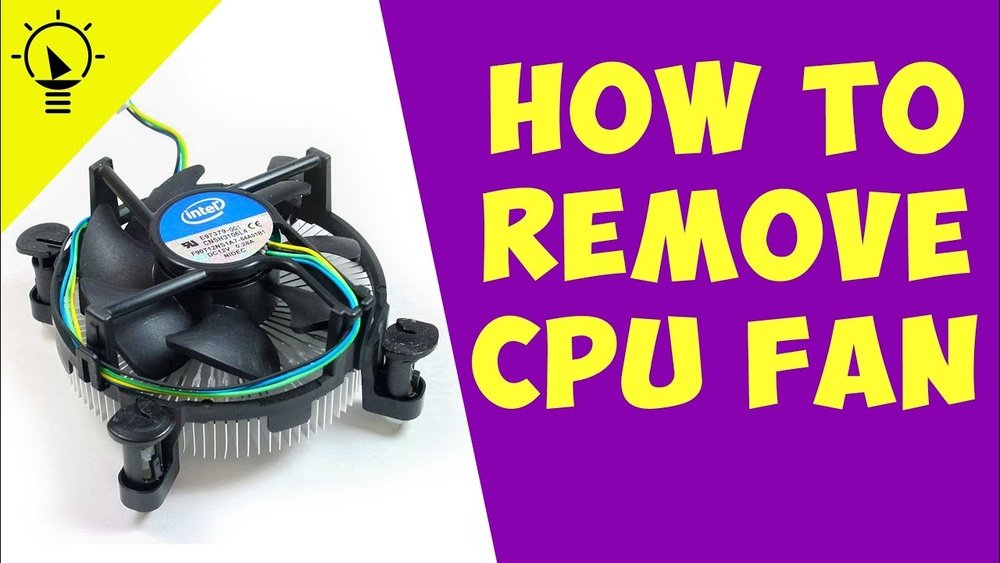
Are you struggling with a noisy or overheating computer? One common culprit is your CPU fan.
Knowing how to take out your CPU fan safely can save you time, prevent damage, and keep your system running smoothly. In this guide, you’ll learn simple, clear steps to remove your CPU fan without any hassle. Whether you’re cleaning dust, replacing a broken fan, or upgrading your cooling system, this article will make the process easy to follow.
Keep reading—you’ll gain the confidence to handle your CPU fan like a pro.

Credit: docs.oracle.com
Tools Needed
Removing a CPU fan needs the right tools. Using proper tools makes the task safe and easy. Preparing tools before starting saves time and avoids damage. The tools you need include screwdrivers, pliers, anti-static gear, and cleaning supplies.
Screwdrivers And Pliers
Screwdrivers are essential to remove screws holding the fan. Most CPU fans use Phillips-head screws. A small Phillips screwdriver fits most screws well. Pliers help to grip and pull connectors or clips. Needle-nose pliers work best in tight spaces. Using correct tools avoids stripping screws or breaking parts.
Anti-static Equipment
Static electricity can damage computer parts. Use an anti-static wrist strap to protect the CPU and motherboard. Attach the strap to a grounded metal part. An anti-static mat under your workspace adds more protection. These tools keep static away during fan removal.
Thermal Paste And Cleaning Supplies
After removing the fan, you must clean the CPU surface. Old thermal paste needs to be removed carefully. Use isopropyl alcohol and a lint-free cloth or cotton swabs. New thermal paste must be applied before reinstalling the fan. These supplies ensure proper cooling after fan replacement.

Credit: forums.tomshardware.com
Preparing Your Workspace
Preparing your workspace is the first step to safely remove a CPU fan. A clean and organized area helps you work faster. It also prevents damage to your computer parts. Take a few minutes to get everything ready before you start.
Power Off And Unplug
Turn off your computer completely. Do not just put it to sleep or in hibernation. Unplug the power cable from the wall socket or power strip. This stops electricity from flowing. It protects you and your computer from shocks.
Grounding Yourself
Static electricity can harm computer parts. Touch a metal surface, like the computer case, to remove static charge. You can also use an anti-static wristband. Keep yourself grounded while working on the CPU fan. This step is very important to avoid damage.
Clearing The Area
Clear your workspace of dust, liquids, and clutter. Use a flat surface with good lighting. Keep small tools handy, like screwdrivers and tweezers. Remove anything that might fall inside the computer. A tidy area helps you focus and work safely.
Accessing The Cpu Fan
Accessing the CPU fan is the first step in removing or cleaning it. This part keeps your computer cool and working well. You need to open your computer case carefully. Then, find the CPU fan inside. This guide shows how to do both tasks safely and simply.
Opening The Computer Case
Turn off your computer and unplug all cables. Place the computer on a flat surface. Find the screws or latches on the back of the case. Remove them to open the side panel. Slide or lift the panel away gently. Now you can see the inside parts of your computer.
Locating The Cpu Fan
Look for the big fan on top of the CPU. It is usually near the center of the motherboard. The fan is attached to a heat sink. The heat sink looks like a metal block with fins. The CPU fan blows air over this block to cool it down. Identifying this fan helps in removing or replacing it correctly.
Detaching The Cpu Fan
Detaching the CPU fan is a careful task. It requires patience and the right steps to avoid damage. This section explains how to remove the CPU fan safely.
First, you need to disconnect the power cable. This cuts off electricity to the fan, making it safe to remove. Next, remove the screws or clips that hold the fan in place. This frees the fan from the CPU. Follow these steps one by one.
Disconnecting The Power Cable
Locate the power cable attached to the CPU fan. It is usually a small, thin wire connected to the motherboard. Gently pull the connector straight out. Avoid pulling the wire itself to prevent damage. Once unplugged, the fan no longer receives power.
Removing Mounting Screws Or Clips
Look for screws or clips that secure the fan to the heatsink or motherboard. Use a screwdriver to carefully unscrew each screw. If clips hold the fan, gently press or lift them to release. Keep the screws or clips safe for reinstallation. After removal, the fan should come off easily.
Cleaning After Removal
Cleaning the CPU and fan after removal is very important. Dust and old thermal paste can reduce performance. Proper cleaning helps your computer run cooler and last longer.
Take time to clean carefully. This will protect your CPU and improve heat transfer. Use the right tools and materials for the best results.
Removing Old Thermal Paste
Old thermal paste must come off before applying new paste. Use isopropyl alcohol and a soft cloth or coffee filter. Gently wipe the CPU surface until it looks clean. Avoid using water or harsh chemicals. Be careful not to scratch the CPU.
Dusting The Cpu And Surrounding Area
Dust can block airflow and cause overheating. Use a small brush or compressed air to remove dust. Clean the CPU fan blades and heat sink well. Also, dust the motherboard around the CPU area. This helps keep your computer cool and running well.
Safety Tips
Removing a CPU fan requires care to avoid damage. Following safety tips protects both you and your computer parts. Small mistakes can cause big problems. Taking simple precautions helps keep everything safe.
Avoiding Static Damage
Static electricity can harm computer parts easily. Touch a metal object before handling components. This action discharges static from your body. Work on a non-carpeted surface to reduce static. Use an anti-static wristband if possible. Avoid sliding parts across surfaces to prevent static buildup.
Handling Components Carefully
Hold the CPU fan by its edges. Avoid touching the fan blades or wires. Use gentle force when unplugging connectors. Do not pull cables hard or twist them. Keep screws and small parts in a safe place. Place removed parts on an anti-static mat or clean cloth.

Credit: www.youtube.com
Frequently Asked Questions
How Do I Safely Remove A Cpu Fan?
First, power off and unplug your PC. Ground yourself to prevent static. Disconnect the fan’s power cable. Unscrew or unclip the fan carefully. Gently lift the fan away from the CPU heatsink. Avoid forcing it to prevent damage.
What Tools Are Needed To Take Out A Cpu Fan?
You typically need a Phillips-head screwdriver for screws. An anti-static wrist strap is recommended for safety. Sometimes, a plastic pry tool helps with clips. Having a clean workspace is also important to avoid losing small parts.
Can I Remove The Cpu Fan Without Damaging The Cpu?
Yes, by following proper steps. Power off and unplug the system first. Carefully disconnect cables and screws. Avoid using excessive force. Handle the fan and CPU area gently to prevent damage.
How Do I Disconnect The Cpu Fan Power Cable?
Locate the small connector on the motherboard. Gently grasp the plug, not the wires. Pull straight out with a firm but gentle motion. Avoid twisting or bending the connector to prevent damage.
Conclusion
Removing a CPU fan is easier than it seems. Take your time and follow each step carefully. Keep screws and parts safe to avoid losing them. Handle the fan and CPU gently to prevent damage. Clean the area before installing a new fan for better cooling.
A clean and working fan helps your computer run smoothly. Now, you can confidently remove and replace your CPU fan yourself. Simple, right?
