
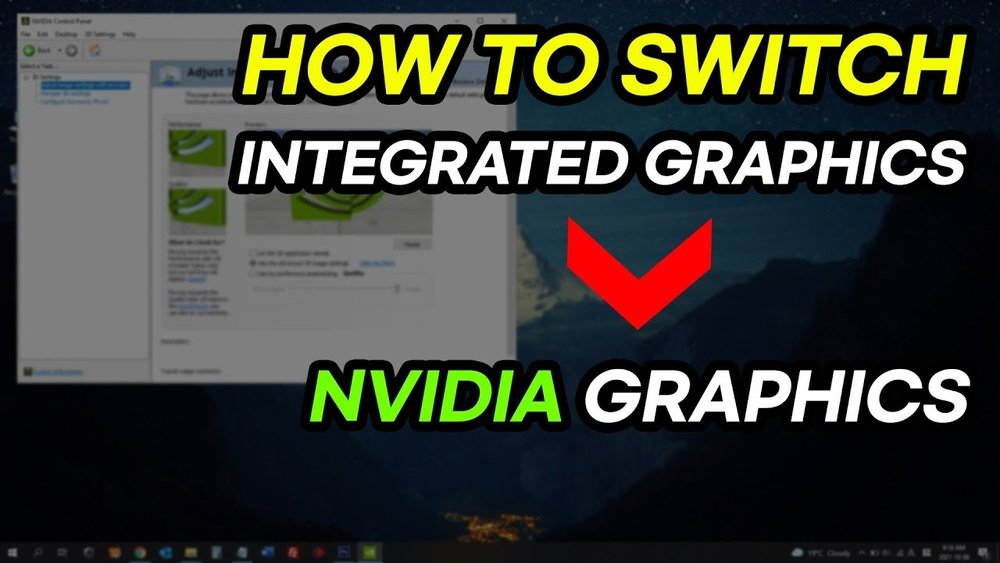
Are you ready to boost your computer’s performance and speed up your tasks? Switching to a GPU can make a huge difference, whether you’re into gaming, video editing, or running complex programs.
But how do you make the change without getting lost in complicated tech talk? This guide will walk you through every step, making it simple for you to upgrade your system and unlock its full potential. Keep reading, and you’ll discover how easy it is to switch to a GPU and transform your computing experience.
Benefits Of Using A Gpu
Using a GPU offers many benefits for computing tasks. GPUs handle many operations at once. This makes them faster than regular CPUs for certain jobs.
Switching to a GPU can improve speed, save energy, and support specific applications better. Below are key benefits of using a GPU.
Performance Improvements
GPUs process many tasks in parallel. This leads to faster computing for suitable jobs. Tasks like video editing and 3D rendering run much smoother. Programs that use GPU can finish work quicker than with only a CPU.
Energy Efficiency
GPUs perform heavy tasks using less power. They complete jobs faster, reducing overall energy use. This is important for long sessions and large projects. Using less energy also lowers heat output and saves electricity bills.
Applications That Benefit Most
GPUs excel at tasks needing many calculations at once. These include gaming, machine learning, and scientific simulations. Video editing and animation also gain speed. Any work with large data sets or graphics improves with a GPU.
Credit: www.esseg.eu
Check Your System Compatibility
Checking your system compatibility is the first step before switching to a GPU. It helps avoid issues and saves time. Knowing what your system supports ensures a smooth upgrade. Focus on hardware, software, and firmware to confirm compatibility.
Hardware Requirements
Your computer must have a PCIe slot for the GPU card. Check if your power supply can handle the GPU’s power needs. Look at the physical space inside your case for the GPU size. Make sure your cooling system is adequate to prevent overheating.
Operating System Support
The operating system must support the GPU drivers. Windows 10 and 11 support most modern GPUs. Linux users need to check for compatible drivers too. Keep your OS updated for better GPU performance and support.
Bios And Firmware Settings
Access your BIOS to enable the PCIe slot if disabled. Update your BIOS to the latest version for better GPU support. Some systems need specific settings to recognize the new GPU. Save changes and restart your computer after adjusting BIOS settings.
Choosing The Right Gpu
Choosing the right GPU is a key step in switching to a graphics card. The GPU affects your computer’s speed and how well it handles images and videos. Picking a suitable GPU depends on your needs and budget. This guide helps you understand what to consider before buying.
Integrated Vs Dedicated Gpus
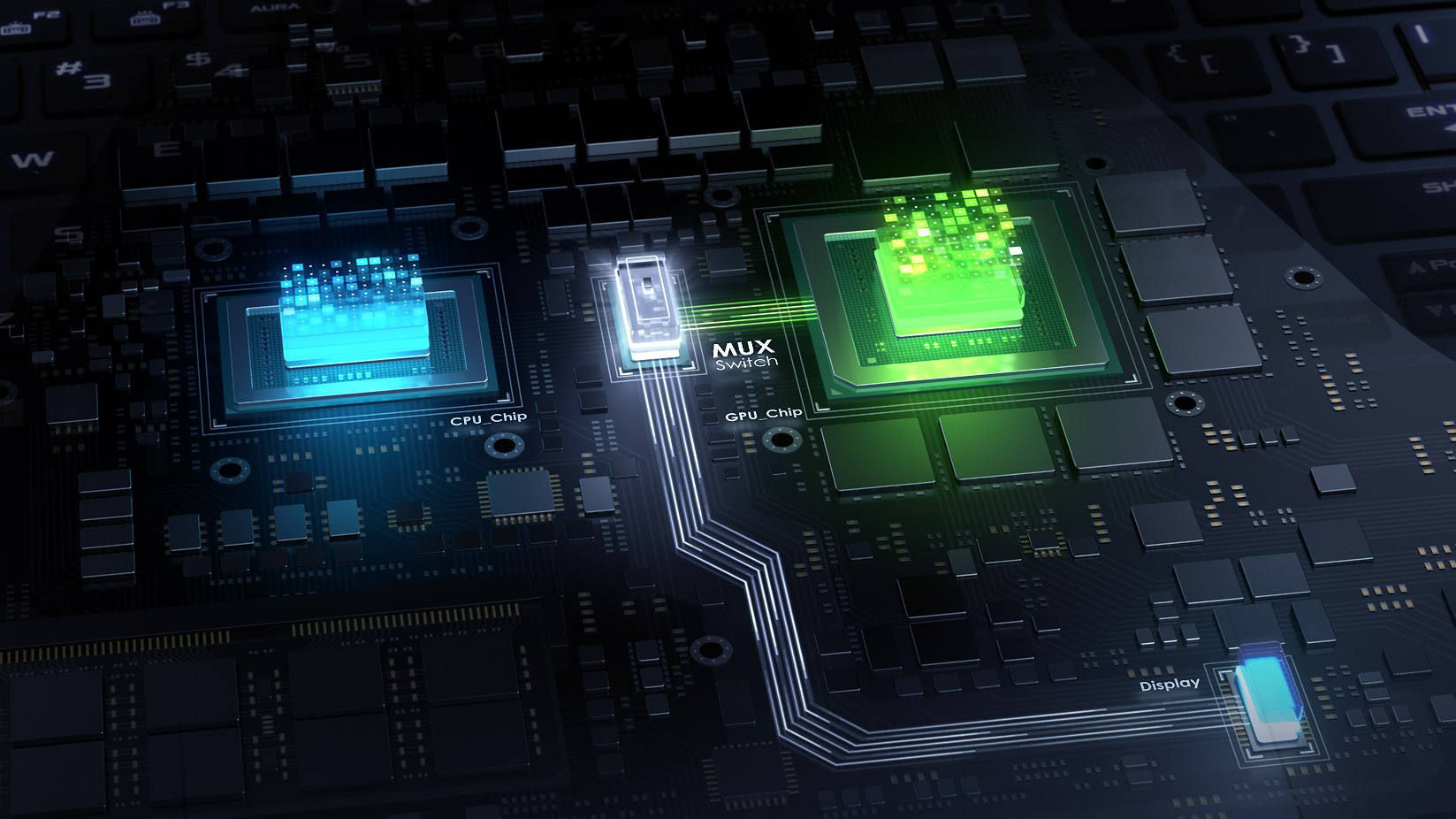
Integrated GPUs are built into the processor. They use the computer’s memory and work fine for basic tasks. Dedicated GPUs are separate cards with their own memory. They offer better performance for gaming and video editing. Choose integrated for simple use. Pick dedicated for higher power needs.
Popular Gpu Brands
NVIDIA and AMD lead the GPU market. NVIDIA cards often focus on high performance and advanced features. AMD offers good value and solid power. Both brands have models for different budgets. Research each brand’s options to find one that fits your needs.
Budget Considerations
Set a clear budget before buying a GPU. High-end cards cost more but give strong performance. Budget models handle everyday tasks and light gaming well. Remember to check power supply and size compatibility. Balance price with what you really need to avoid overspending.
Installing The Gpu Hardware
Installing the GPU hardware is the first step to boost your computer’s performance. It involves physical work inside your PC. You must be careful and follow the right steps. This guide helps you install your new GPU safely and correctly.
Preparing Your Pc
Start by turning off your PC. Unplug all cables to avoid electric shock. Open the case of your computer carefully. Find the PCIe slot on your motherboard. Remove any old GPU or covers blocking the slot. Check your power supply to ensure it can support the new GPU. Gather all tools like screwdrivers before starting.
Step-by-step Installation
Hold the GPU by its edges. Align it with the PCIe slot. Gently push it down until it clicks into place. Secure the card with screws on the case. Connect the necessary power cables from the PSU to the GPU. Close your computer case. Plug all cables back in and power on your PC.
Handling Common Issues
If the PC does not start, check the power connections again. Make sure the GPU is fully seated in the slot. Listen for beeps or check for error lights on the motherboard. Update your drivers after installing the GPU. Clean dust from inside the case to avoid overheating. Seek help if problems continue.
Installing Gpu Drivers
Installing GPU drivers is an important step to make your graphics card work properly. Drivers act as a bridge between your operating system and the GPU hardware. Without the right drivers, your GPU cannot perform at its best.
This section explains how to download, install, update, and fix issues with GPU drivers. Following these steps will help your computer use the GPU efficiently.
Downloading Official Drivers
Start by visiting the GPU maker’s official website. Common brands are NVIDIA, AMD, and Intel. Locate the drivers section and enter your GPU model details. Download the latest driver that matches your operating system. Avoid third-party sites to reduce risk of malware or wrong drivers. Always choose the most recent stable version for better performance.
Driver Installation Process
After downloading, run the driver installer file. Follow on-screen instructions carefully. The process may include agreeing to terms and choosing installation options. Select “Express” or “Recommended” install for most users. Wait for the installation to complete without interruptions. Restart your computer to apply changes fully.
Updating And Troubleshooting
Check for driver updates regularly. Updated drivers improve speed and fix bugs. Use the GPU software tool or official site to find updates. If the GPU does not work correctly, uninstall the current driver first. Then, reinstall the latest driver cleanly. Use device manager on Windows to help fix driver issues. Restart the system after any changes to ensure proper setup.
Configuring Gpu Settings
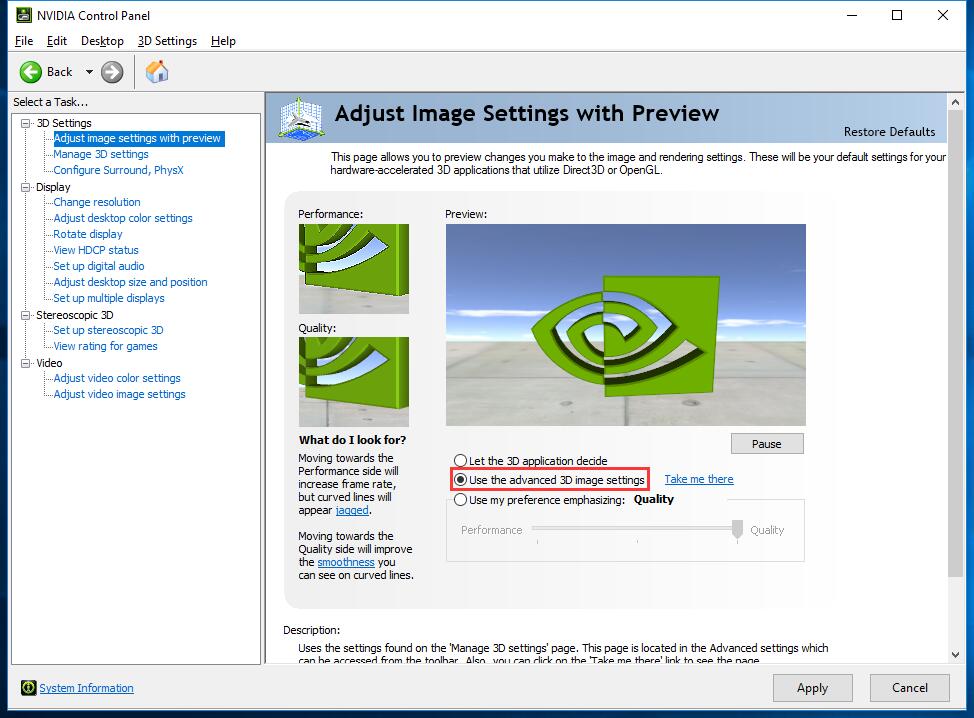
Configuring GPU settings is essential for better performance and smooth operation. Proper setup helps your computer use the GPU efficiently. It can improve speed and reduce lag in tasks like gaming, video editing, or 3D rendering.
This section explains how to adjust GPU settings for the best experience. Learn how to change performance options, optimize for specific apps, and use management tools. These steps help make the switch to GPU easier and more effective.
Adjusting Performance Settings
Start by opening your GPU control panel. Look for performance or power settings. Choose between modes like balanced, high performance, or power saving. High performance mode uses more power but runs faster. Balanced mode saves energy with good speed. Adjust settings based on your needs.
Set the refresh rate and resolution to match your display. Higher settings improve visuals but may slow down performance. Lower settings make your system run smoother. Test different options to find the best balance.
Optimizing For Specific Applications
Many GPUs allow custom settings for each program. Open the application profile section in your GPU software. Add the app you want to optimize. Change settings like texture quality or anti-aliasing per app. This helps apps run better without affecting others.
Some apps need more GPU power, while others do not. Set high performance for games or video editors. Use power-saving options for simple apps. This saves energy and extends hardware life.
Using Gpu Management Tools
GPU management tools help monitor and control your device. Tools like NVIDIA GeForce Experience or AMD Radeon Software provide easy access to settings. Use these to update drivers and optimize game settings automatically.
Check GPU temperature and usage regularly. Overheating can reduce performance and damage hardware. Use fan control features to keep your GPU cool. Proper management ensures longer GPU life and stable operation.
Testing And Monitoring Gpu Performance
Testing and monitoring GPU performance is important after switching to a new graphics card. It helps check if the GPU works well and stays cool under load. Monitoring tools show how much power the GPU uses and if it runs stable.
Regular checks can prevent crashes and overheating. They give clear information about speed and temperature. This way, you can keep your system safe and running smoothly.
Benchmarking Tools
Benchmarking tools measure the GPU’s speed and power. They run tests that stress the GPU and show its performance score. Popular tools include 3DMark, Unigine Heaven, and FurMark.
These tools compare your GPU to others and reveal any issues. Run benchmarks before and after switching to see the difference. Scores help decide if the GPU meets your needs.
Temperature And Usage Monitoring
Temperature monitoring is key to avoid overheating. High heat can damage the GPU and lower performance. Use apps like MSI Afterburner, HWMonitor, or GPU-Z to check temperature and usage.
These tools show real-time data about GPU load and fan speed. Aim to keep the temperature under 85°C for safe operation. Watch usage patterns during heavy tasks to spot problems early.
Ensuring Stability
Stability means the GPU works without crashes or errors. Run stress tests to confirm stability under long use. Tools like FurMark or OCCT push the GPU to its limits.
Stable GPUs keep your system reliable during gaming or work. If crashes happen, check drivers and cooling. Adjust settings to improve stability and avoid system failures.

Credit: softwareg.com.au
Tips For Maintaining Gpu Performance
Maintaining your GPU’s performance ensures smooth and fast operation. A well-kept GPU runs cooler, lasts longer, and handles tasks better. Follow these simple tips to keep your GPU in top shape.
Regular Driver Updates
Drivers act as a bridge between your GPU and computer. Updating them improves speed and fixes bugs. Check for updates from your GPU maker regularly. Use official websites or trusted software for updates. Keep your system drivers updated too for best results.
Cleaning And Cooling
Dust buildup can block airflow and cause overheating. Clean your GPU and case often with compressed air. Avoid using a vacuum as it may damage parts. Make sure your PC has good ventilation. Use extra fans or cooling pads if needed to reduce heat.
Avoiding Common Pitfalls
Overclocking can boost performance but may harm your GPU. Monitor temperatures closely if you overclock. Avoid running too many heavy programs at once. Use power settings that suit your GPU’s needs. Protect your computer from power surges with a surge protector.
Credit: rog.asus.com
Frequently Asked Questions
What Is The Easiest Way To Switch To Gpu Computing?
Switching to GPU computing involves installing compatible GPU drivers and software libraries. Then, configure your code or applications to utilize GPU resources for better performance.
How Do I Enable Gpu Support In My Programs?
Enable GPU support by using frameworks like CUDA, OpenCL, or TensorFlow with GPU options. Ensure your hardware and drivers are compatible with these frameworks.
Can Switching To Gpu Improve My Computer Speed?
Yes, GPUs handle parallel processing efficiently. This can drastically speed up tasks like gaming, video editing, and machine learning compared to CPUs.
What Hardware Do I Need To Switch To Gpu Computing?
You need a compatible GPU, updated drivers, and sufficient power supply. Also, ensure your motherboard supports the GPU for smooth integration.
Conclusion
Switching to a GPU can boost your computer’s power and speed. It helps with tasks like gaming, video editing, and AI work. Start by choosing the right GPU for your needs. Follow safe steps to install it correctly. Keep your drivers updated for best performance.
With patience and care, the switch is simple. Enjoy a faster and smoother experience on your PC.
