
Thinking about switching from an Nvidia GPU to an AMD one? You’re not alone.
Whether you want better performance, more features, or just a change, making the switch can seem tricky. But it doesn’t have to be confusing or stressful. In this guide, you’ll find simple steps to help you smoothly transition your system without losing time or data.
By the end, you’ll know exactly what to do to get your new AMD GPU up and running perfectly. Ready to make the switch? Let’s dive in.
Credit: forum.manjaro.org
Preparing Your System
Preparing your system is the first step to switch from Nvidia to AMD GPU. It ensures a smooth transition without losing important data or facing hardware issues. Taking time to get ready helps avoid mistakes and saves time later.
Backing Up Important Data
Back up all important files before starting the switch. Save your documents, photos, and any other personal data. Use an external drive or cloud storage to keep your backup safe. This step protects you from data loss during the hardware change.
Checking Hardware Compatibility
Check if your motherboard supports the AMD GPU you want. Look at the PCIe slot and power supply requirements. Make sure your case has enough space for the new card. Confirm your system meets all AMD GPU requirements for smooth operation.
Gathering Necessary Tools
Prepare the tools needed for the switch. A screwdriver is essential to open your PC case. Have an anti-static wrist strap to avoid damaging components. Keep a clean cloth to wipe dust and a container for screws handy.
Uninstalling Nvidia Drivers
Uninstalling Nvidia drivers is a key step before switching to an AMD GPU. Old drivers can cause conflicts and reduce system performance. Removing them completely helps ensure a clean installation of AMD drivers. Follow the steps below to uninstall Nvidia drivers safely and thoroughly.
Using Device Manager
Open Device Manager by pressing Windows + X and selecting it. Find the “Display adapters” section and expand it. Right-click on your Nvidia GPU and choose “Uninstall device.” Check the box to delete the driver software for this device. Click “Uninstall” to remove the driver. Restart your computer after this process.
Removing Drivers With Ddu
Display Driver Uninstaller (DDU) is a tool for complete driver removal. Download DDU from a trusted source and run it in Safe Mode. Select Nvidia drivers and click “Clean and restart.” DDU removes all Nvidia files and registry entries. This method prevents leftover driver issues and conflicts.
Cleaning Residual Files
After uninstalling, some files may remain on your system. Open File Explorer and go to C:Program Files and C:Program Files (x86). Delete any Nvidia folders found there. Check C:ProgramData and clear Nvidia-related files. Also, run a disk cleanup tool to remove temporary files. This step clears any driver traces for a fresh start.
Installing The Amd Gpu
Switching from Nvidia to AMD GPU starts with removing the old drivers. Next, install the AMD card carefully into your PC slot. Finally, download and install the latest AMD drivers for smooth performance.
Physically Removing Nvidia Card
Turn off your computer and unplug all cables. Open the case by removing screws or side panel. Find your Nvidia card on the motherboard. Unscrew the bracket holding the card in place. Gently press the latch on the PCIe slot. Carefully pull the Nvidia card straight out. Place the card on an anti-static surface. Avoid touching the gold connectors or chips.
Installing The Amd Graphics Card
Align the AMD card with the PCIe slot. Make sure the card fits securely and straight. Push down firmly until it clicks into place. Screw the bracket to the case for support. Double-check the card is stable and seated well. Close the case panel and secure screws.
Connecting Power And Display Cables
Locate the power connectors on the AMD card. Plug the correct power cables from your PSU. Ensure each connection is tight and secure. Connect your monitor cable to the AMD card port. Choose HDMI, DisplayPort, or DVI as needed. Confirm all cables are firmly attached before powering on.

Credit: www.youtube.com
Installing Amd Drivers
Installing AMD drivers is a key step after switching from Nvidia to an AMD GPU. These drivers help your new graphics card work correctly with your computer. Proper installation improves performance and stability. It also ensures you can use all AMD features smoothly.
Downloading Latest Drivers
Visit the official AMD website to get the latest drivers. Choose your GPU model from the list. Select your operating system carefully. Download the recommended driver version. This ensures compatibility and fewer issues during installation.
Running The Installation
Close all running programs before starting the installation. Double-click the downloaded file to begin. Follow the on-screen instructions step by step. Choose the custom install option for better control. The installer may ask to remove old drivers—allow it to do so.
Configuring Driver Settings
After installation, open the AMD Radeon software. Check the default settings first. Adjust display resolution and refresh rate if needed. Enable features like Radeon Anti-Lag or Enhanced Sync for smoother gameplay. Save your changes and restart your computer to apply them fully.
Optimizing Performance
Optimizing performance is key after switching from an Nvidia to an AMD GPU. This helps ensure smooth gameplay and faster processing. Small tweaks can improve your experience a lot. Let’s explore some important steps to get the best from your new AMD graphics card.
Adjusting Graphics Settings
Start by opening your game or application settings. Lower or change settings like shadows, textures, and anti-aliasing to find the right balance. AMD cards may handle some effects differently than Nvidia. Test different options to see which run smoother. Use AMD’s Radeon Software to customize settings easily.
Updating Firmware And Bios
Check for updates for your GPU’s firmware and your motherboard’s BIOS. These updates fix bugs and improve hardware compatibility. Visit the AMD website or your motherboard maker’s page. Follow instructions carefully to install updates. Updated firmware and BIOS help your system run stable and fast.
Testing With Benchmark Tools
Use benchmark tools to measure your GPU’s performance. Programs like 3DMark or Unigine Heaven show how well your card handles graphics. Run tests before and after changes to see improvements. Benchmark results help you understand if your tweaks work. They provide clear numbers to compare different settings.
Troubleshooting Common Issues
Switching from Nvidia to AMD GPU can cause some common issues. These problems may affect your display, drivers, or performance. Knowing how to fix them can save time and frustration. This section covers simple ways to solve typical troubles.
Fixing Display Problems
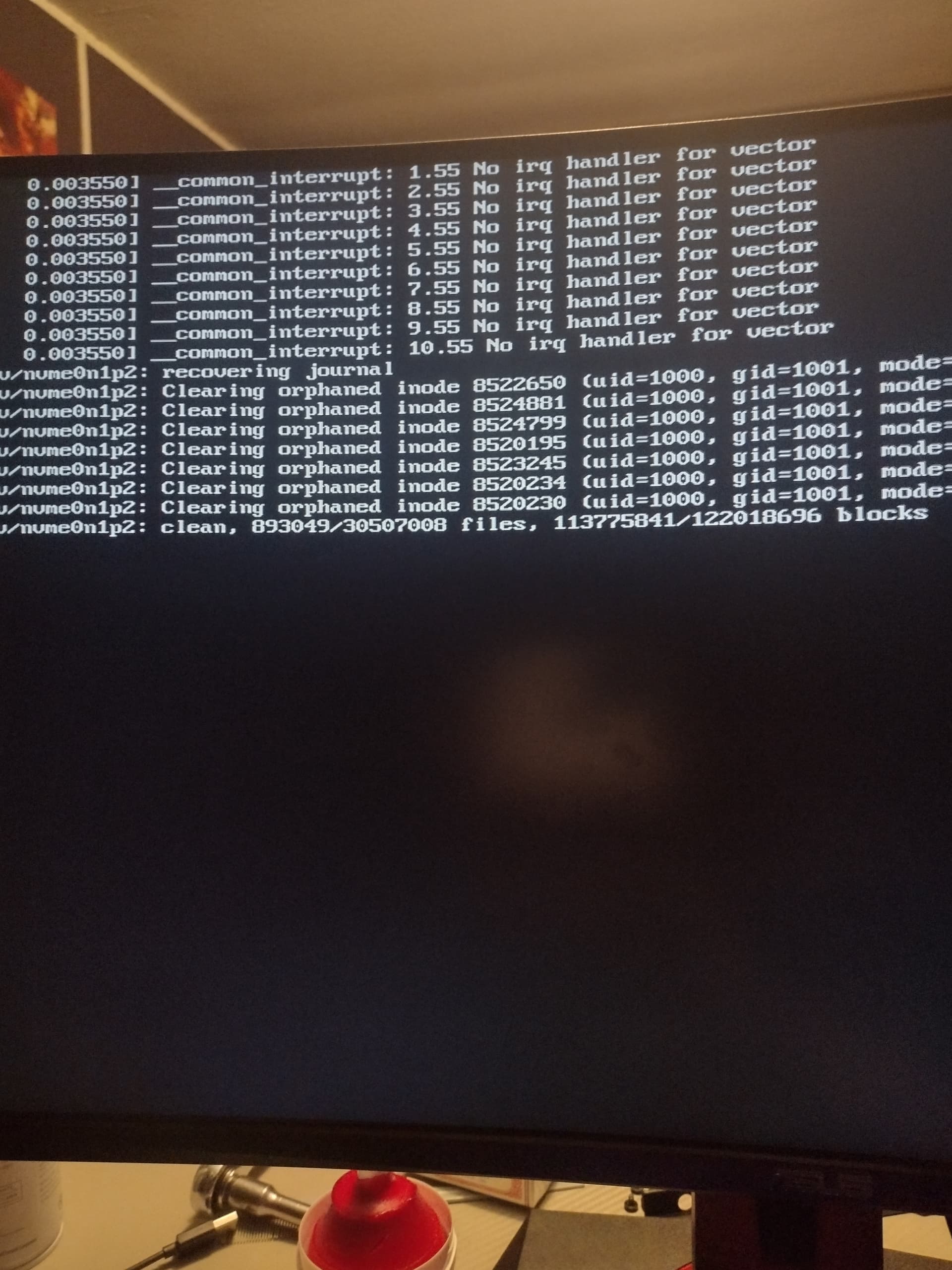
After installing the AMD GPU, the screen may flicker or stay black. Check that the monitor cable is securely connected. Try a different cable or port if needed. Make sure your display settings match the monitor’s resolution. Restart the computer to apply changes. Use AMD’s software to detect and fix display issues.
Resolving Driver Conflicts
Old Nvidia drivers can clash with AMD software. Remove all Nvidia drivers before installing AMD ones. Use a driver removal tool for a clean uninstall. Download the latest AMD drivers from the official website. Install these drivers carefully and restart the system. Update Windows to avoid compatibility problems.
Handling Performance Drops
Performance may drop after switching GPUs. Check if the AMD GPU is set as the main graphics processor. Adjust game or app settings for better performance. Update AMD drivers regularly to fix bugs. Monitor GPU temperatures to prevent overheating. Close unnecessary programs that use system resources.

Credit: www.preining.info
Frequently Asked Questions
How Do I Uninstall Nvidia Drivers Safely?
Use Display Driver Uninstaller (DDU) in safe mode to remove Nvidia drivers completely. This avoids conflicts when installing AMD drivers.
Can I Use Both Nvidia And Amd Gpus Together?
Most systems do not support simultaneous use of Nvidia and AMD GPUs. Choose one for optimal performance and compatibility.
What Steps Are Needed To Install Amd Gpu Drivers?
Download the latest AMD drivers from the official website. Run the installer and follow on-screen instructions for a smooth setup.
Will Switching To Amd Improve Gaming Performance?
Performance depends on specific GPU models and games. AMD often offers competitive pricing and features, but check benchmarks for your games.
Conclusion
Switching from Nvidia to AMD GPU is easier than it seems. Follow the steps carefully for a smooth change. Remove old drivers first to avoid conflicts. Install the new AMD drivers and restart your PC. Test your system to ensure everything works well.
Enjoy your new GPU with better performance options. Stay patient and take your time during the process. This change can improve your computer experience. Don’t rush; a careful switch brings the best results.
