
Thinking about upgrading your graphics card or fixing a problem with your current one? Swapping a GPU might sound tricky, but it’s easier than you think.
With the right steps, you can boost your computer’s performance without paying for professional help. In this guide, you’ll learn exactly how to swap your GPU safely and quickly. By the end, you’ll feel confident opening up your PC and making the change yourself.
Ready to give your system a powerful upgrade? Let’s dive in.

Credit: www.shoshitamam.com
Preparing For The Upgrade
Preparing for a GPU upgrade takes careful steps. These steps help avoid problems and save time. Follow a simple plan to make your upgrade smooth and safe.
Check Compatibility
Check if the new GPU fits your computer. Look at the size and power needs. Make sure your power supply can handle the new card. Verify your motherboard has the right slot. Confirm your case has enough space for the GPU.
Gather Necessary Tools
Get the tools ready before you start. A screwdriver is usually needed to open the case. Have a clean cloth or anti-static wristband to protect parts. Keep a small container for screws. Good lighting helps see small details clearly.
Backup Important Data
Save your important files before upgrading. Use an external drive or cloud storage. This protects your data in case of mistakes. Backups give peace of mind during hardware changes. It only takes a few minutes to secure your files.
Removing The Old Gpu
Removing the old GPU is the first step to upgrading your graphics card. It needs care and attention to avoid damage. Follow simple steps to safely take out the old GPU from your computer.
Take your time. Handling computer parts carefully protects your device and your new GPU.
Power Down And Unplug
Turn off your computer completely. Do not just sleep or hibernate it.
Unplug the power cable from the wall or power strip. This stops electricity flow and keeps you safe.
Open The Case
Find the screws or clips holding the computer case. Remove them carefully.
Slide or lift the side panel to open the case. Set the panel aside in a safe place.
Disconnect Power Cables
Locate the power cables connected to the GPU. Usually, they are near the top or side of the card.
Press the clip or latch on the power connector. Pull the cable gently to disconnect it.
Release The Gpu From Slot
Look for the small clip or latch at the end of the PCIe slot. Press or pull it to unlock the GPU.
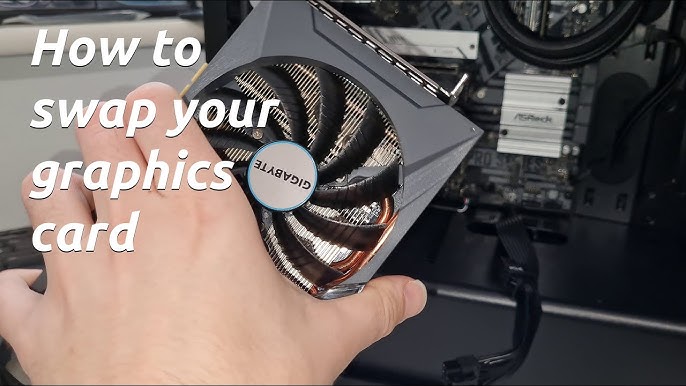
Hold the GPU firmly. Pull it straight out of the slot slowly and evenly.
Installing The New Gpu
Installing the new GPU is an important step in upgrading your computer. It needs care and attention to avoid damage. Follow these steps to place your new graphics card safely into your PC.
Align The Gpu With Slot
Hold the GPU by its edges. Find the PCIe slot on the motherboard. Line up the gold connectors on the GPU with the slot. The rear ports should fit into the back of the case. Gently push the card straight down into the slot. It should click into place without force.
Secure The Card In Place
Once the GPU is seated, secure it with screws. Use the screws from your old card or the case. Tighten screws into the metal bracket on the case. This holds the card firmly and stops it from moving. Do not overtighten screws to avoid damage.
Reconnect Power Cables
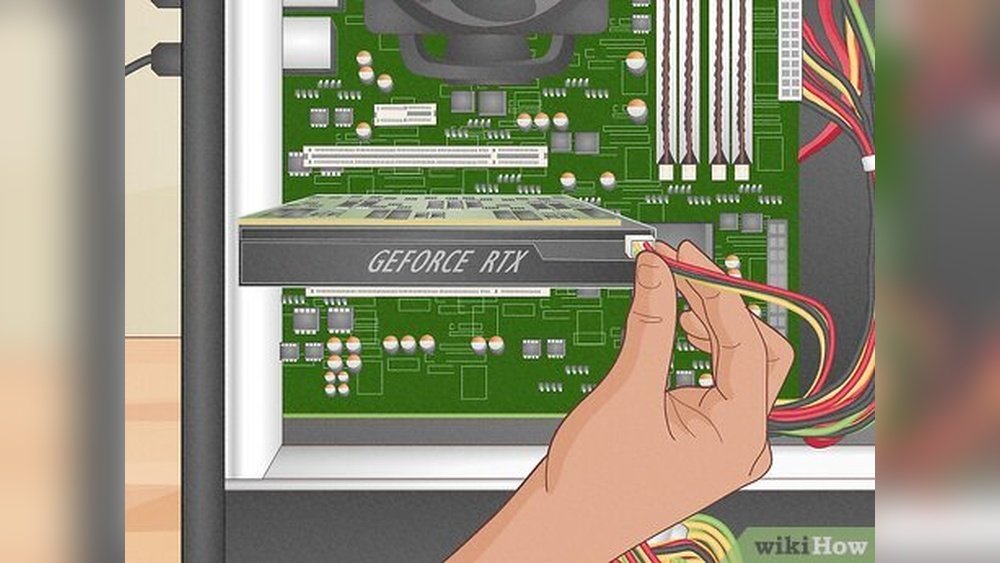
Locate the power connectors on the GPU. Connect the matching cables from the power supply. Make sure each cable snaps into place firmly. A loose connection can cause problems or prevent the card from working. Check all cables are secure before closing the case.

Credit: www.youtube.com
Post-installation Steps
After installing your new GPU, some important steps follow. These steps ensure your computer runs smoothly with the new graphics card. Taking time to complete these tasks helps avoid errors and improves performance.
Close The Case
Carefully put the side panel back on your PC. Make sure all screws are tight and the panel fits well. This protects your components from dust and damage.
Power On The Pc
Turn on your computer and watch for any unusual signs. Listen for strange noises and check if fans spin correctly. A normal startup means your GPU is likely installed well.
Install Or Update Drivers
Download the latest drivers from the GPU maker’s website. Drivers help your system use the new hardware fully. Install or update them to avoid bugs and improve graphics quality.
Check For Proper Functionality
Run simple tests or open games to check the GPU’s performance. Watch for smooth visuals and no crashes. This step confirms your new GPU works as expected.
Troubleshooting Common Issues
Swapping a GPU can sometimes cause problems that stop your computer from working properly. Troubleshooting these issues helps you fix them quickly. This section covers common problems and simple ways to solve them. Follow the tips to get your new GPU running smoothly.
No Display Output
No display after installing a new GPU is a common problem. Check if the card is firmly seated in the PCIe slot. Make sure the power cables are correctly connected. Verify your monitor cable is plugged into the GPU, not the motherboard. Try using a different cable or port. Reset the BIOS by removing the CMOS battery for a few minutes. This can clear any settings blocking the display.
Driver Conflicts
Old drivers can clash with new GPU software. Uninstall previous GPU drivers using a tool like Display Driver Uninstaller (DDU). Reboot your system before installing new drivers. Download the latest drivers from the GPU manufacturer’s website. Avoid using drivers from third-party sources. Keep your operating system updated to support the new drivers. This prevents crashes and improves performance.
Overheating Problems
New GPUs can run hot if cooling is poor. Check that all fans on the GPU spin freely. Clean dust from your case and vents. Apply fresh thermal paste if the card is old or used. Make sure your PC case has good airflow with enough intake and exhaust fans. Monitor GPU temperatures using software like MSI Afterburner. High temperatures cause crashes and reduce lifespan.
Tips For Maintaining Your Gpu
Maintaining your GPU is key to keeping your computer running smoothly. A well-maintained GPU lasts longer and performs better. Simple care steps can prevent overheating and crashes. Here are some important tips to help you take care of your GPU.
Regular Cleaning
Dust can build up on your GPU and block airflow. This causes the GPU to heat up and work harder. Use a soft brush or compressed air to clean dust from the GPU. Clean the fans and heat sink carefully. Do this every few months for best results.
Monitor Temperatures
High temperatures can damage your GPU over time. Use software tools to check the GPU temperature regularly. Keep the temperature below 85°C for safety. If temperatures rise too high, improve your PC’s cooling or reduce heavy use. Good airflow inside the case helps a lot.
Keep Drivers Updated
GPU drivers control how the card works with your computer. Updated drivers fix bugs and improve performance. Check for driver updates from the GPU manufacturer often. Install updates to ensure your GPU runs smoothly and supports new games or apps.
Credit: www.youtube.com
Frequently Asked Questions
How Do I Safely Remove My Old Gpu?
First, power off your PC and unplug it. Open the case, unscrew the GPU, and carefully unplug its power connectors. Gently release the PCIe slot latch and remove the GPU without forcing it.
What Tools Do I Need To Swap A Gpu?
You mainly need a Phillips-head screwdriver to remove screws. An anti-static wrist strap is helpful to avoid static damage. Optionally, use compressed air to clean dust before installing the new GPU.
How To Install A New Gpu Properly?
Align the new GPU with the PCIe slot and gently press until it clicks. Secure it with screws and connect the power cables. Close the case and power on your PC to check functionality.
Can I Reuse My Old Gpu Power Cables?
Yes, you can reuse them if they are compatible with the new GPU. Check the power connector type and wattage requirements to ensure proper connection and power delivery.
Conclusion
Swapping a GPU can improve your computer’s speed and graphics. Take your time and follow the steps carefully. Make sure your computer is off before you start. Handle the parts gently to avoid damage. Check that the new GPU fits your system.
After installing, update your drivers for best performance. Enjoy smoother games and faster video work. Practice makes this process easier next time. Stay safe and have fun upgrading your PC!
