

Is your computer suddenly running slower or shutting down without warning? Your CPU might be overheating, and it’s a problem you can’t afford to ignore.
When your processor gets too hot, it can cause serious damage and cut your device’s lifespan short. But don’t worry—you don’t need to be a tech expert to fix this. You’ll discover simple, effective ways to stop your CPU from overheating and keep your computer running smoothly.
Ready to protect your device and boost its performance? Let’s dive in.
Credit: www.youtube.com
Signs Of Cpu Overheating
Knowing the signs of CPU overheating helps protect your computer. Overheating can cause damage and reduce your PC’s life. Watch for early warnings to fix issues fast. Spotting these signs saves time and money.
Common Symptoms
Hot air blowing from your computer is a key sign. Fans running loudly means the CPU works hard to cool down. The case might feel warm or hot to touch. Sometimes, the screen flickers or shows strange colors. These symptoms show your CPU struggles with heat.
Performance Issues
Your computer may slow down without any clear reason. Programs take longer to open and run poorly. Games or videos might lag or freeze often. The CPU reduces speed to avoid damage from heat. This slowdown is the CPU protecting itself.
Unexpected Shutdowns
Your PC might shut down suddenly during use. This happens to stop overheating damage. It can occur during heavy tasks like gaming or video editing. Frequent shutdowns warn that the CPU temperature is too high. Immediate action is needed to prevent hardware failure.
Causes Of Excessive Heat
Excessive heat in a CPU causes many problems. It slows down your computer and may cause crashes. Understanding what causes this heat helps you fix the issue quickly.
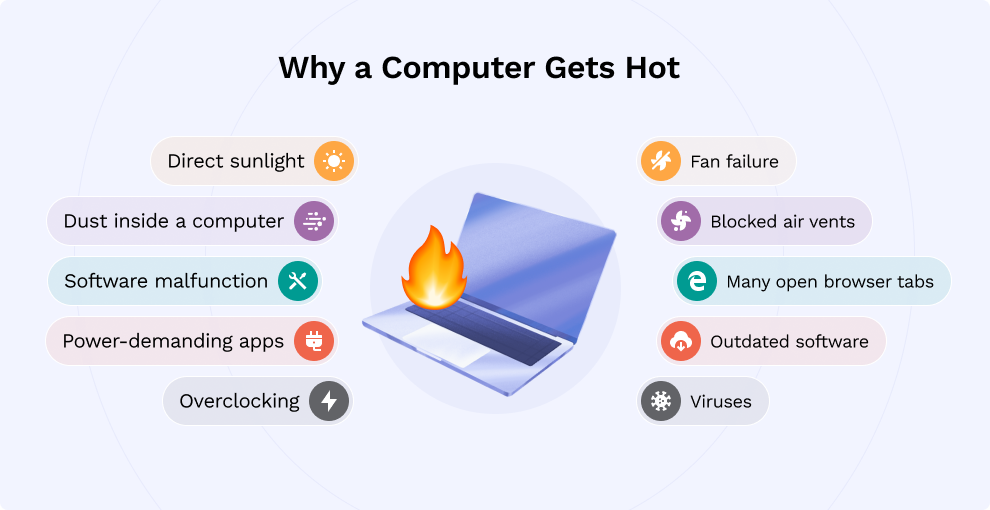
Several factors lead to your CPU getting too hot. Some are easy to fix, while others need more care. Knowing these causes stops damage and keeps your PC running well.
Poor Ventilation
Computers need good airflow to cool down parts. Poor ventilation traps hot air inside the case. This makes the CPU work harder and get hotter. Make sure your PC has enough space and fans to move air.
Dust And Debris
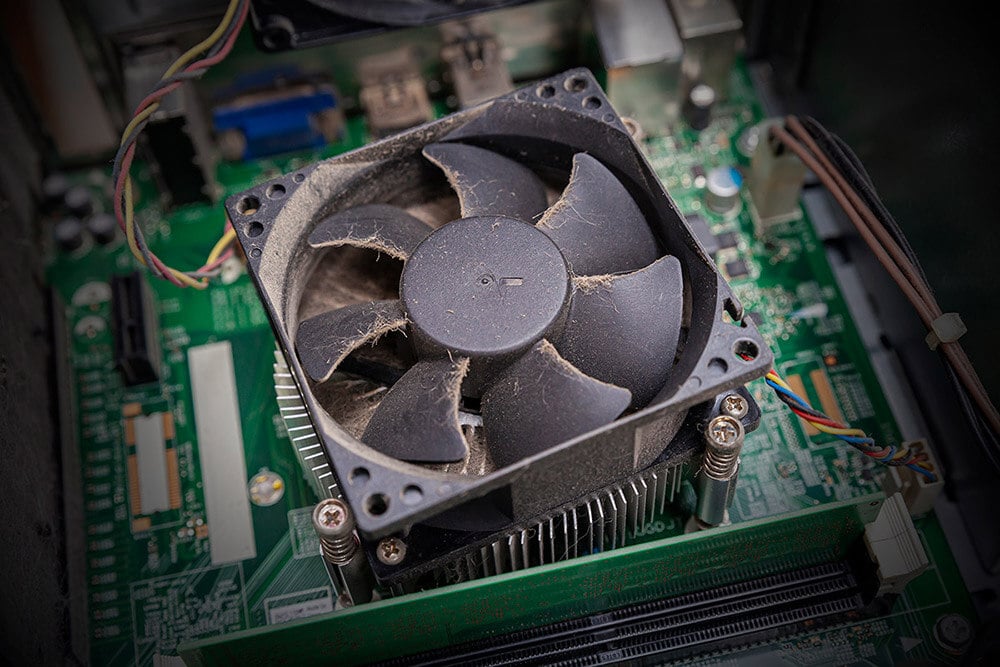
Dust builds up on fans and heat sinks over time. This blocks airflow and stops cooling parts from working well. Cleaning dust regularly helps keep temperatures low. Use a soft brush or compressed air to remove dirt.
Overclocking Effects
Overclocking pushes your CPU to run faster than normal. This creates extra heat that standard cooling can’t handle. It can cause overheating and damage if done without proper cooling. Use overclocking carefully or avoid it to keep your CPU safe.
Optimizing Airflow
Optimizing airflow inside your computer case is key to stopping CPU overheating. Good airflow moves hot air out and brings cool air in. This helps the CPU stay at a safe temperature. Small changes to airflow can make a big difference.
Proper Case Placement
Place your computer case in a spot with open space around it. Avoid tight corners or closed cabinets. These spots trap hot air and raise temperatures. Keep the case away from walls or objects that block air vents. A clear area lets air flow freely.
Fan Arrangement Tips
Set up your fans to create a smooth airflow path. Use intake fans at the front to pull cool air in. Place exhaust fans at the back or top to push hot air out. Make sure fans do not fight each other’s airflow. Balanced fan setup keeps air moving well.
Cleaning Air Vents
Dust and dirt block air vents and reduce airflow. Clean vents regularly using compressed air or a soft brush. Check all vents, including those on the case, CPU cooler, and power supply. Clean vents help keep air flowing and lower CPU temperature.
Upgrading Cooling Solutions
Upgrading your CPU cooling system is a smart way to stop overheating. Better cooling keeps your computer safe and fast. Simple fixes sometimes do not work well. Investing in good cooling parts can make a big difference. Choose the right cooling method for your needs and budget. This section explains how to upgrade your cooling system effectively.
Choosing The Right Cpu Cooler
Pick a cooler that fits your CPU socket type. Air coolers are easy to install and affordable. They use fans and heat sinks to move heat away. Bigger coolers usually work better but need more space. Check your computer case size before buying. Some coolers are very quiet, reducing noise while cooling.
Liquid Cooling Benefits
Liquid cooling uses water or coolant to carry heat away. It cools your CPU more efficiently than air. This method is quieter and keeps temperatures lower. Liquid coolers can handle high-performance CPUs well. They need more care and proper installation. Great for users who want better cooling performance.
Thermal Paste Application
Thermal paste helps transfer heat from CPU to cooler. Apply a small amount in the center of the CPU. Too much paste can reduce cooling efficiency. Too little paste causes poor heat transfer. Spread the paste evenly or let pressure spread it. Replace old paste every year for best results.
Managing Software And Settings
Managing software and settings plays a key role in stopping your CPU from overheating. Many people focus only on hardware, but software can also cause heat problems. Adjusting settings and keeping software updated helps the CPU run cooler and smoother.
Simple changes in your system can reduce the CPU load. Monitoring tools show how hot your CPU gets. Changing performance settings can lower energy use. Updating drivers and BIOS keeps your system stable and efficient.
Monitoring Cpu Temperature
Use software tools to check your CPU temperature regularly. Programs like HWMonitor or Core Temp give real-time readings. Watch for temperatures above 80°C; this means your CPU is too hot. Monitoring helps catch overheating early and avoid damage.
Adjusting Performance Settings
Lower CPU speed or power usage in your system settings. Windows users can change power plans to “Balanced” or “Power Saver.” This reduces heat by limiting CPU work. Avoid running many heavy programs at once. This keeps your CPU cooler for longer.
Updating Drivers And Bios
Keep your device drivers and BIOS up to date. Manufacturers release updates to fix bugs and improve efficiency. Updated drivers help your CPU communicate better with hardware. BIOS updates can improve cooling and performance controls. Check your PC or motherboard website for the latest versions.
Credit: www.avast.com
Routine Maintenance Practices
Keeping your CPU cool is key to good computer health. Routine maintenance helps prevent overheating and extends your PC’s life. Simple steps done regularly can keep your CPU running smoothly.
Regular Cleaning Schedule
Dust blocks airflow and traps heat inside your computer. Clean the fans, vents, and inside of the case often. Use compressed air or a soft brush. Avoid using a vacuum as it can cause static damage.
Inspecting Hardware Components
Check fans and heat sinks for damage or wear. Make sure fans spin freely and quietly. Replace any broken or noisy fans immediately. Ensure cables don’t block airflow around the CPU area.
Replacing Old Thermal Paste
Thermal paste helps transfer heat from the CPU to the heat sink. Over time, it dries out and loses effectiveness. Remove the old paste carefully and apply a fresh, thin layer. This improves heat transfer and lowers CPU temperature.
Credit: camomileapp.com
Frequently Asked Questions
How Can I Tell If My Cpu Is Overheating?
Check for frequent crashes, slow performance, or loud fan noise. Use software like HWMonitor to track CPU temperature. Temperatures above 80°C often indicate overheating. Monitoring helps prevent damage and maintain system stability.
What Causes A Cpu To Overheat Quickly?
Common causes include poor ventilation, dust buildup, inadequate cooling, or overclocking. Faulty thermal paste or a broken fan also raise temperatures. Identifying the cause is essential for effective cooling solutions and preventing hardware failure.
How Do I Improve My Cpu Cooling System?
Clean dust from fans and heatsinks regularly. Apply high-quality thermal paste between the CPU and cooler. Upgrade to a more efficient CPU cooler or add extra case fans for better airflow. Proper cooling boosts performance and longevity.
Is Overclocking Responsible For Cpu Overheating?
Yes, overclocking increases CPU speed and heat output. Without adequate cooling, it causes overheating risks. Always ensure enhanced cooling solutions when overclocking. Balancing performance and temperature keeps your system stable.
Conclusion
Keeping your CPU cool helps your computer work better and last longer. Clean fans and good airflow prevent heat build-up. Use quality thermal paste and check for dust often. Small steps make a big difference in stopping overheating. Stay aware of your CPU temperature to avoid problems.
Regular care keeps your system safe and fast. Simple habits protect your computer every day. Cooling your CPU is easy with these tips.
