
Is your computer suddenly slowing down or shutting off without warning? That’s often a clear sign your CPU is overheating.
When your CPU gets too hot, it can damage your computer and mess up your work or gaming. But don’t worry—you can stop this from happening. You’ll discover simple, effective ways to keep your CPU cool and your computer running smoothly.
Keep reading, and you’ll learn easy steps that save you time, money, and frustration. Your computer’s health depends on it!
Causes Of Cpu Overheating
CPU overheating happens for several reasons. Understanding these causes helps to keep your computer cool. Overheating can slow down your system or cause damage. Identifying the root problems can save you time and money.
Poor Airflow And Dust
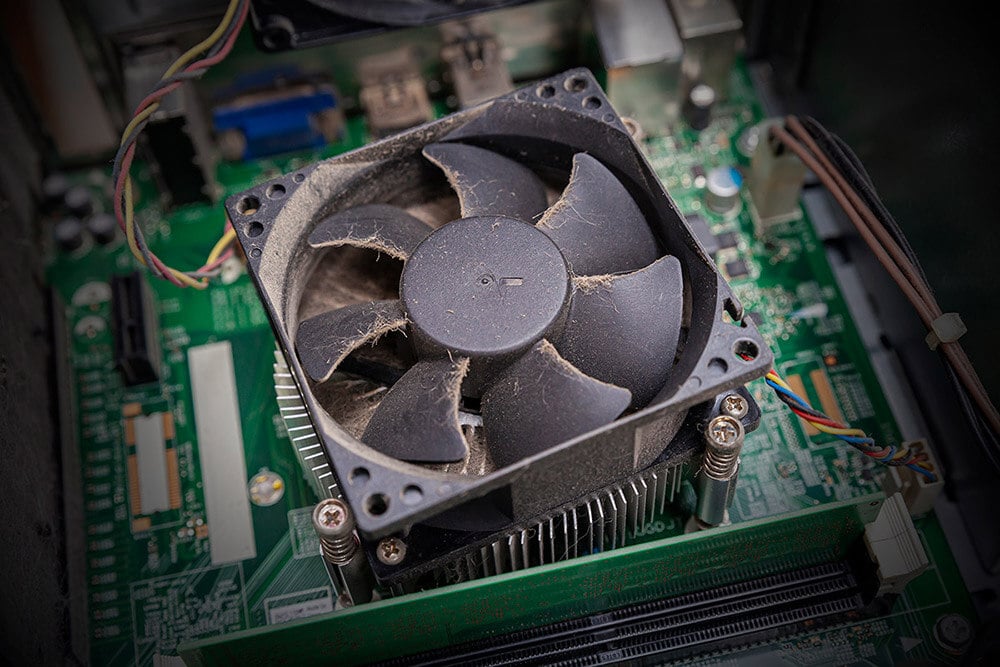
Computers need good airflow to stay cool. Dust blocks air vents and fans. This dust buildup traps heat inside. Poor airflow makes the CPU temperature rise quickly. Cleaning dust regularly improves cooling and prevents overheating.
Faulty Cooling System
The cooling system moves heat away from the CPU. Broken or weak fans fail to cool properly. Sometimes, liquid cooling systems leak or stop working. Without proper cooling, the CPU temperature spikes fast. Check your fans and coolers often for damage.
High Workload And Overclocking
Running many programs at once stresses the CPU. Overclocking pushes the CPU beyond its limits. Both cause the CPU to generate extra heat. This heat needs more cooling power. Reducing workload or avoiding overclocking helps maintain safe temperatures.
Old Thermal Paste
Thermal paste helps transfer heat from the CPU to the cooler. Over time, this paste dries out and loses effectiveness. Old thermal paste causes poor heat transfer and higher temperatures. Reapplying fresh thermal paste can lower the CPU heat significantly.
Signs Of An Overheating Cpu
An overheating CPU can cause many problems on your computer. Recognizing the signs early helps prevent damage. Below are common symptoms that show your CPU is getting too hot. Watch for these issues to keep your system safe.
Unexpected Shutdowns
Your computer may turn off without warning. This happens to protect the CPU from heat damage. Sudden shutdowns often mean the processor is overheating.
Slow Performance
The CPU slows down to reduce heat. Programs take longer to open. Your computer may lag or freeze during simple tasks. This slowdown is a clear sign of overheating.
Fan Noise Increase
The cooling fan works harder and gets louder. It spins faster to cool the CPU. A noisy fan often means the CPU is running too hot.
System Freezes
Your computer may stop responding completely. The screen freezes, and you cannot use the mouse or keyboard. Overheating causes these system freezes to protect the CPU.
Improve Airflow Inside The Case
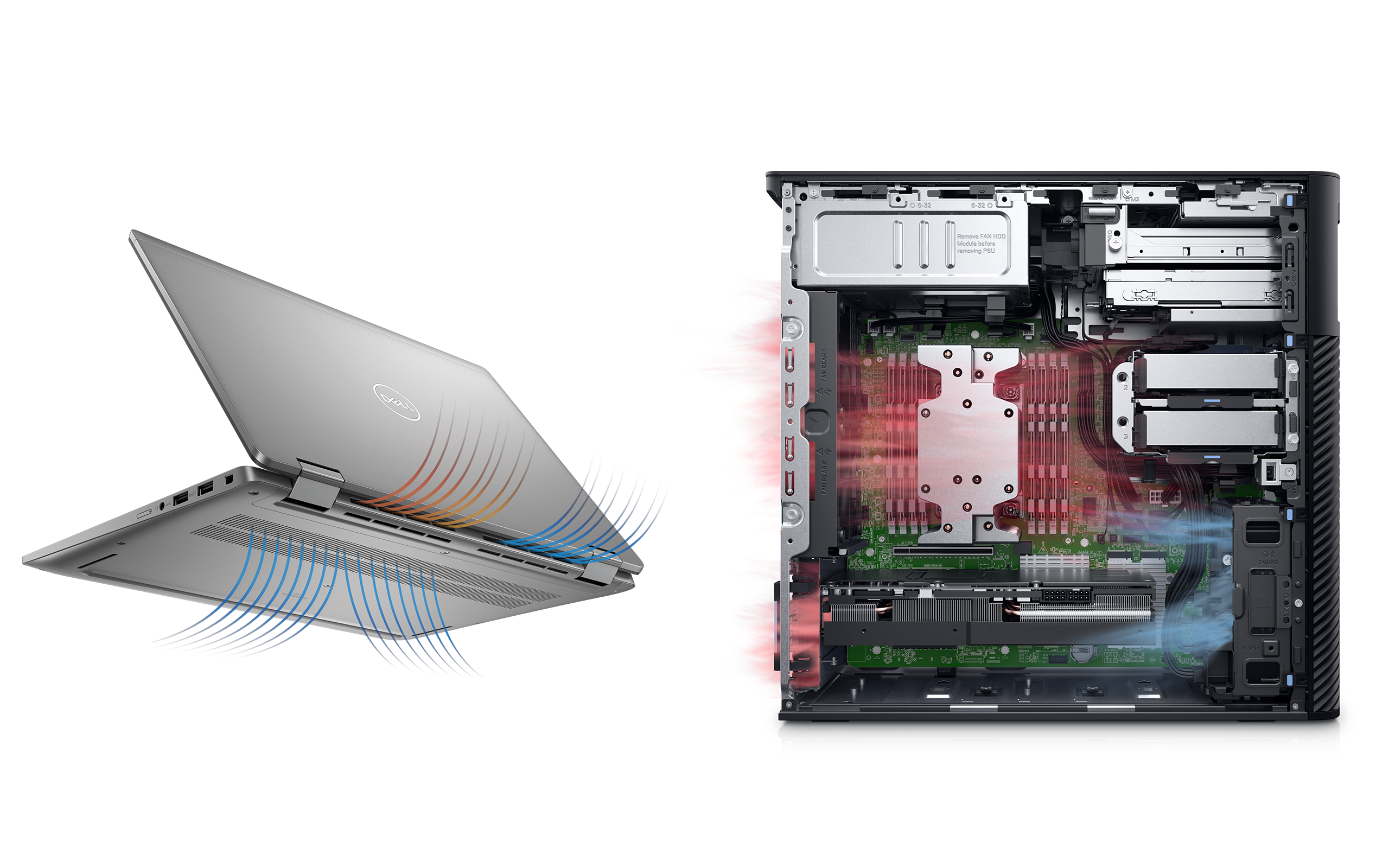
Improving airflow inside the computer case helps stop the CPU from overheating. Good airflow moves hot air out and brings cool air in. This keeps the CPU temperature low and the computer running smoothly.
Organize Cables Neatly
Cables can block air from flowing inside the case. Neat cables create clear paths for air. Use cable ties or clips to bundle cables together. Keep cables away from fans and vents. This small step improves airflow and reduces heat buildup.
Add Or Upgrade Fans
Fans push hot air out and pull cool air in. Adding more fans increases airflow. Place intake fans at the front and exhaust fans at the back. Choose fans with good airflow and low noise. Upgrading old fans can also improve cooling.
Choose A Well-ventilated Case
A case with many vents helps air move freely. Look for cases with mesh panels or large vents. Cases with good ventilation allow fresh air to enter easily. This reduces heat inside and helps keep the CPU cool.
Clean Dust And Debris Regularly
Dust and debris can block airflow inside your computer. This causes the CPU to get hotter than it should. Cleaning these particles out helps your CPU stay cool. It improves performance and extends the life of your computer.
Regular cleaning is simple and effective. It keeps fans and vents clear for proper air movement. This prevents overheating and protects your hardware from damage.
Tools For Cleaning
Use a soft brush to loosen dust gently. A can of compressed air helps blow dust away. Microfiber cloths work well for wiping surfaces. Avoid using vacuum cleaners as they may cause static.
Cleaning Frequency
Clean your computer every three to six months. In dusty or pet-friendly homes, clean more often. Regular checks help catch dust buildup early. This keeps your CPU cool and running well.
Areas To Focus On
Focus on CPU fans and heat sinks first. Clean air vents and intake grills thoroughly. Remove dust from power supply fans and case fans. These spots trap most dust and block airflow.
Replace Or Reapply Thermal Paste
Thermal paste plays a key role in keeping your CPU cool. It fills tiny gaps between the CPU and the cooler. This helps heat move away from the CPU efficiently. Over time, thermal paste can dry out or get dirty. This causes your CPU to run hotter than normal. Replacing or reapplying thermal paste can lower temperatures and stop overheating.
This task is simple and cost-effective. It can improve your computer’s performance and lifespan. Knowing when and how to replace thermal paste ensures your CPU stays cool.
Signs Thermal Paste Needs Replacement
High CPU temperatures are a clear sign. You may notice the fan running loudly more often. The computer might shut down suddenly to avoid damage. If you cleaned your CPU cooler recently, paste might need reapplying. Old computers with many years of use often need fresh thermal paste. Check these signs to avoid overheating problems.
How To Apply Thermal Paste Correctly
First, turn off your computer and unplug it. Remove the CPU cooler carefully. Clean old thermal paste from the CPU and cooler base using isopropyl alcohol and a soft cloth. Apply a small pea-sized dot of new thermal paste in the center of the CPU. Avoid using too much paste as it can reduce cooling. Reattach the cooler firmly to spread the paste evenly. Power on your computer and check the temperature again. Proper application keeps your CPU running cool and safe.
Credit: www.avast.com
Upgrade Cooling Solutions
Upgrading your CPU cooling solutions helps stop overheating. Good cooling keeps your computer safe and fast. It lowers the risk of damage and crashes. Choosing the right cooler is key for better performance and longer CPU life.
Air Coolers Vs Liquid Coolers
Air coolers use fans and heat sinks to move heat away. They are simple, easy to install, and cost less. Air coolers work well for most everyday tasks and light gaming.
Liquid coolers use water or coolant to carry heat away. They are quieter and cool better under heavy use. Liquid coolers suit high-performance CPUs and gaming setups.
Choosing The Right Cooler For Your Cpu
Check your CPU’s heat output before buying a cooler. Match cooler size with your computer case space. Consider noise levels if you want a quiet PC. Think about your budget and cooling needs. A good cooler fits well and keeps your CPU cool.
Manage Cpu Workload And Settings
Managing your CPU workload and settings plays a big role in stopping overheating. The CPU works best when it runs at a balanced pace. Overloading it causes heat to rise fast. Simple changes in settings can keep your processor cool and healthy.
Small adjustments help the CPU stay within safe temperature limits. These steps also improve your computer’s speed and lifespan. Let’s explore ways to manage CPU workload and settings effectively.
Avoid Excessive Overclocking
Overclocking makes the CPU run faster than its default speed. This creates more heat and stress on the processor. Excessive overclocking can cause permanent damage. Keep overclocking at safe levels or avoid it if overheating is a problem. Use cooling solutions if you must overclock.
Adjust Power Settings
Power settings control how much energy the CPU uses. Lower power modes reduce heat by limiting CPU speed. Use balanced or power saver modes to reduce overheating risks. Adjust these settings in your operating system for better temperature control.
Monitor Cpu Usage
Watch CPU usage regularly to find heavy tasks causing heat spikes. Use task manager or monitoring software to track usage. Close or pause programs that use too much CPU. This keeps the workload steady and prevents overheating.
Use Software To Monitor Temperatures
Using software to monitor CPU temperatures helps keep your computer safe. It shows real-time data about how hot your CPU gets. You can watch the numbers and act before things get too hot. This stops damage and keeps your PC running smoothly.
Temperature monitoring software runs quietly in the background. It gives you clear information on your CPU’s health. Some tools even send alerts if the CPU gets too hot. This way, you do not have to check manually all the time.
Recommended Monitoring Tools
Several tools show CPU temperature clearly and simply. Core Temp and HWMonitor are easy to use for beginners. Both display temperatures for each CPU core separately. SpeedFan also helps by showing fan speeds and temperatures.
These tools work well on most Windows computers. For Mac users, iStat Menus is a good choice. Linux users can try Psensor or lm-sensors. All these programs help track temperature without slowing the PC down.
Setting Temperature Alerts
Alerts warn you when the CPU temperature is too high. You can set a limit, for example, 80°C. Once the CPU reaches that, the software sends a warning. This lets you close heavy programs or turn off the PC to cool down.
Most monitoring tools have built-in alert systems. Customize alerts to suit your comfort level. Some send emails or show pop-up messages on screen. This keeps you safe without constant checking.
Keep Your Pc In A Cool Environment
Keeping your PC in a cool environment helps prevent the CPU from overheating. Heat builds up quickly inside a computer. This can slow it down or cause damage. By controlling the surroundings, you help your PC run smoothly and last longer.
Avoid Direct Sunlight
Place your PC away from windows or areas with bright sunlight. Direct sunlight heats the computer case and parts inside. This adds extra heat for the CPU to handle. A shaded spot keeps your PC cooler without extra effort.
Maintain Room Temperature
Keep the room where your PC sits at a steady, cool temperature. High room temperatures raise your computer’s heat levels. Use fans or air conditioning to lower the air temperature if needed. Cooler air helps the CPU stay at a safe temperature.

Credit: softwareg.com.au
Credit: www.dell.com
Frequently Asked Questions
How Can I Prevent My Cpu From Overheating?
To prevent CPU overheating, clean dust regularly, improve airflow, and use quality thermal paste. Also, avoid overclocking and ensure your cooling system works efficiently.
What Causes A Cpu To Overheat Quickly?
A CPU overheats quickly due to poor ventilation, dust buildup, failing fans, dried thermal paste, or high processing loads without adequate cooling.
Is Liquid Cooling Better Than Air Cooling For Cpus?
Liquid cooling generally offers better heat dissipation and quieter operation. However, air cooling is simpler, cheaper, and often sufficient for most users.
How Often Should I Clean My Cpu Cooling System?
Clean your CPU cooling system every 3 to 6 months. Dust buildup reduces efficiency and causes overheating, so regular maintenance is vital.
Conclusion
Keeping your CPU cool helps your computer run better and last longer. Clean dust from fans and vents often. Use good cooling tools and keep your computer in a cool place. Avoid blocking airflow and close unused programs to reduce heat.
Watch your CPU temperature regularly to catch problems early. Small steps can prevent big damage. Stay aware and protect your computer from overheating.
