
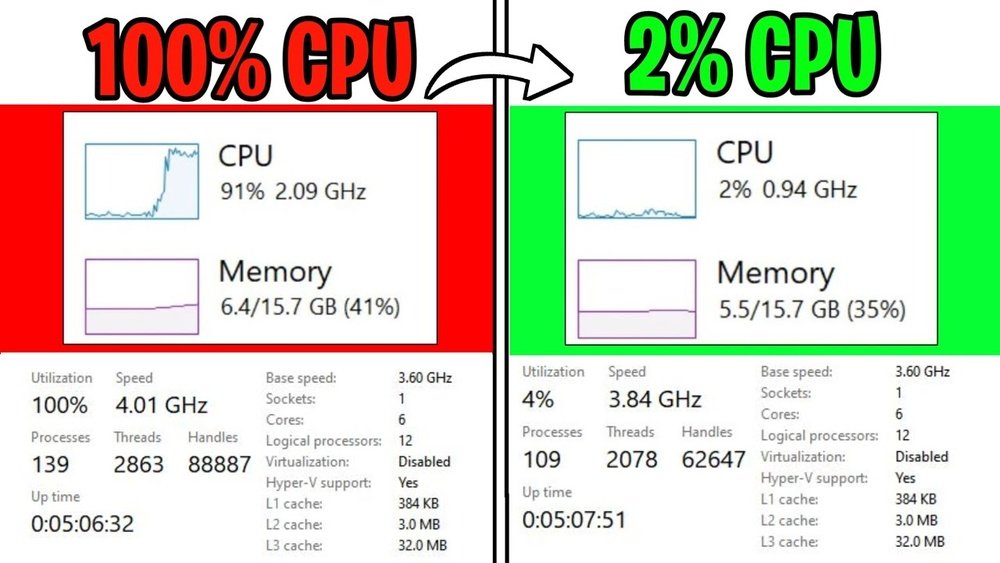
Are you tired of your computer slowing down when you’re trying to get things done? If your games lag or your programs freeze, it might be because your CPU is bottlenecking.
This means your processor can’t keep up with the rest of your system, holding everything back. But don’t worry—you can fix this. You’ll learn simple and effective ways to stop CPU bottlenecking and make your computer run smoother and faster.
Keep reading to unlock the full power of your PC.
Signs Of Cpu Bottleneck
CPU bottleneck happens when the processor limits your system’s overall speed. It stops your computer from using its full power. Recognizing signs of a CPU bottleneck helps you fix issues fast. Watch your system closely for these common symptoms.
Low Cpu Usage Vs High Gpu Usage
Check your CPU and GPU usage during tasks or games. If the CPU runs low but the GPU is almost full, a bottleneck exists. The processor cannot keep up with the graphics card’s demands. This mismatch slows your system down.
System Lag And Stuttering
Lag and stuttering are clear signs of a CPU bottleneck. Your screen freezes or skips frames even if the GPU works well. The CPU struggles to process data fast enough. This causes choppy gameplay or slow responses.
High Cpu Temperatures
High CPU temperatures may indicate a bottleneck. The processor works hard trying to catch up with other parts. Heat builds up quickly and affects performance. Overheating can cause crashes or throttling, making problems worse.
Causes Of Cpu Bottlenecks
CPU bottlenecking happens when the processor slows down the entire system. It limits the speed at which your computer runs. Knowing what causes this can help you fix the problem. Several factors lead to CPU bottlenecks. Understanding these causes helps improve your PC’s performance.
Outdated Processor
An old CPU struggles to keep up with new software and hardware. It processes data slower than modern components. This gap creates a bottleneck. Upgrading the processor often solves this issue.
Insufficient Cores And Threads
Some tasks need many cores and threads to run smoothly. A CPU with few cores may slow down multitasking or heavy programs. More cores and threads improve performance for demanding applications.
Background Processes
Many apps running in the background use CPU power. These processes reduce the CPU’s ability to handle main tasks. Closing unnecessary programs frees up CPU resources and speeds up the system.
Thermal Throttling
When the CPU gets too hot, it slows itself down to cool off. This is called thermal throttling. Poor cooling or dust buildup often causes this. Keeping the CPU cool prevents slowdowns and maintains performance.
Optimizing Cpu Settings
Optimizing CPU settings helps reduce bottlenecks and improve system speed. By tuning these settings, the CPU can work more efficiently. This section covers simple steps to adjust CPU performance safely.
Adjusting Power Plans
Power plans control how your CPU uses energy. Select the “High Performance” plan in your system settings. This stops the CPU from slowing down to save power. It helps maintain a steady, fast speed during heavy tasks.
Change power plans through the Control Panel on Windows or System Preferences on macOS. This setting is easy to change and can boost CPU output without extra cost.
Updating Bios And Drivers
BIOS and driver updates fix bugs and improve hardware communication. Check your motherboard or CPU manufacturer’s website for updates. Installing the latest BIOS can enhance CPU stability and speed.
Device drivers also need updates. Use official software tools or Windows Device Manager to check. Updated drivers help the CPU work well with other parts, reducing bottlenecks.
Overclocking Basics
Overclocking increases the CPU speed beyond its factory settings. This can boost performance but raises heat and power use. Start by raising the CPU clock speed slightly in BIOS settings.
Use good cooling systems to avoid overheating. Monitor temperatures and system stability during overclocking. If done carefully, it can reduce bottlenecks and improve your system’s response.

Credit: www.reddit.com
Software Tweaks To Reduce Bottlenecks
Software tweaks can help reduce CPU bottlenecks by improving how your system uses resources. These changes focus on optimizing the programs running on your computer. This way, the CPU can work more efficiently and avoid slowdowns.
Simple adjustments in your software setup can make a big difference. They help keep your CPU free to handle important tasks. Let’s explore some effective methods to reduce bottlenecks through software.
Managing Startup Programs
Many programs start automatically when your computer boots up. This uses CPU power right away. Disable unnecessary startup programs to free up CPU resources. Use the Task Manager or system settings to manage these programs. This helps your computer run faster and smoother.
Prioritizing Processes
You can control which programs get more CPU time. Set high priority for important tasks in Task Manager. Lower the priority for background or less important apps. This directs CPU power to where it is needed most. It reduces delays and improves performance.
Using Lightweight Applications
Heavy software uses a lot of CPU power. Choose lightweight apps that need fewer resources. These programs run faster and reduce CPU load. This change can make your system feel more responsive. Look for simpler versions or alternatives of your favorite apps.
Hardware Upgrades That Help
Hardware upgrades can reduce CPU bottlenecking and improve your computer’s speed. Changing key parts helps balance your system. It lets the CPU and other components work well together.
Choosing A Better Cpu
Pick a CPU with more cores and higher clock speed. This helps process tasks faster. Newer CPUs support better technology. They handle heavy programs and games smoothly. Check compatibility with your motherboard before buying.
Upgrading Ram
More RAM lets your system run many programs at once. It lowers the chance of slowdowns. Faster RAM improves data flow to the CPU. Choose RAM that matches your motherboard’s requirements. This upgrade often gives a quick boost in performance.
Improving Cooling Solutions
Good cooling keeps your CPU running at top speed. Overheating causes the CPU to slow down. Use better fans or liquid cooling systems. Keep your PC clean from dust. Cooler CPUs work more efficiently and last longer.
Credit: www.youtube.com
Balancing Gpu And Cpu Performance
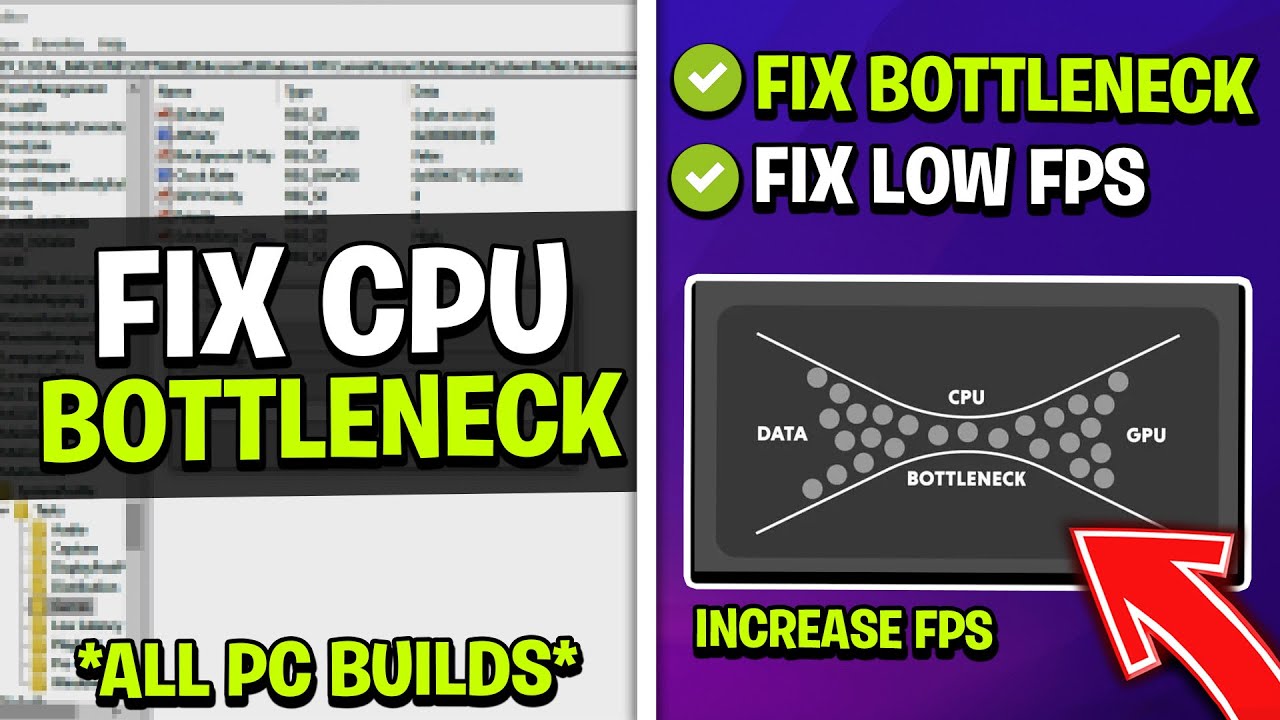
Balancing GPU and CPU performance is key to stopping CPU bottlenecking. A well-matched system runs smoothly and avoids slowdowns. Both parts must work together without one holding back the other.
Proper balance improves your computer’s speed and gaming experience. It helps you get the most from your hardware without extra cost or upgrades.
Matching Components
Choose a CPU and GPU that fit well together. Avoid pairing a strong GPU with a weak CPU or vice versa. This mismatch causes one part to wait for the other.
Check benchmarks and reviews to see how parts perform together. Aim for components with similar power and speed. This keeps your system balanced and efficient.
Optimizing Game Settings
Adjust game settings to reduce CPU load. Lower CPU-heavy options like shadows and draw distance. Increase GPU tasks such as texture quality to balance the work.
Use settings that match your system’s strengths. This prevents the CPU from slowing down the GPU. Smooth gameplay and better frame rates follow.
Using Performance Monitoring Tools
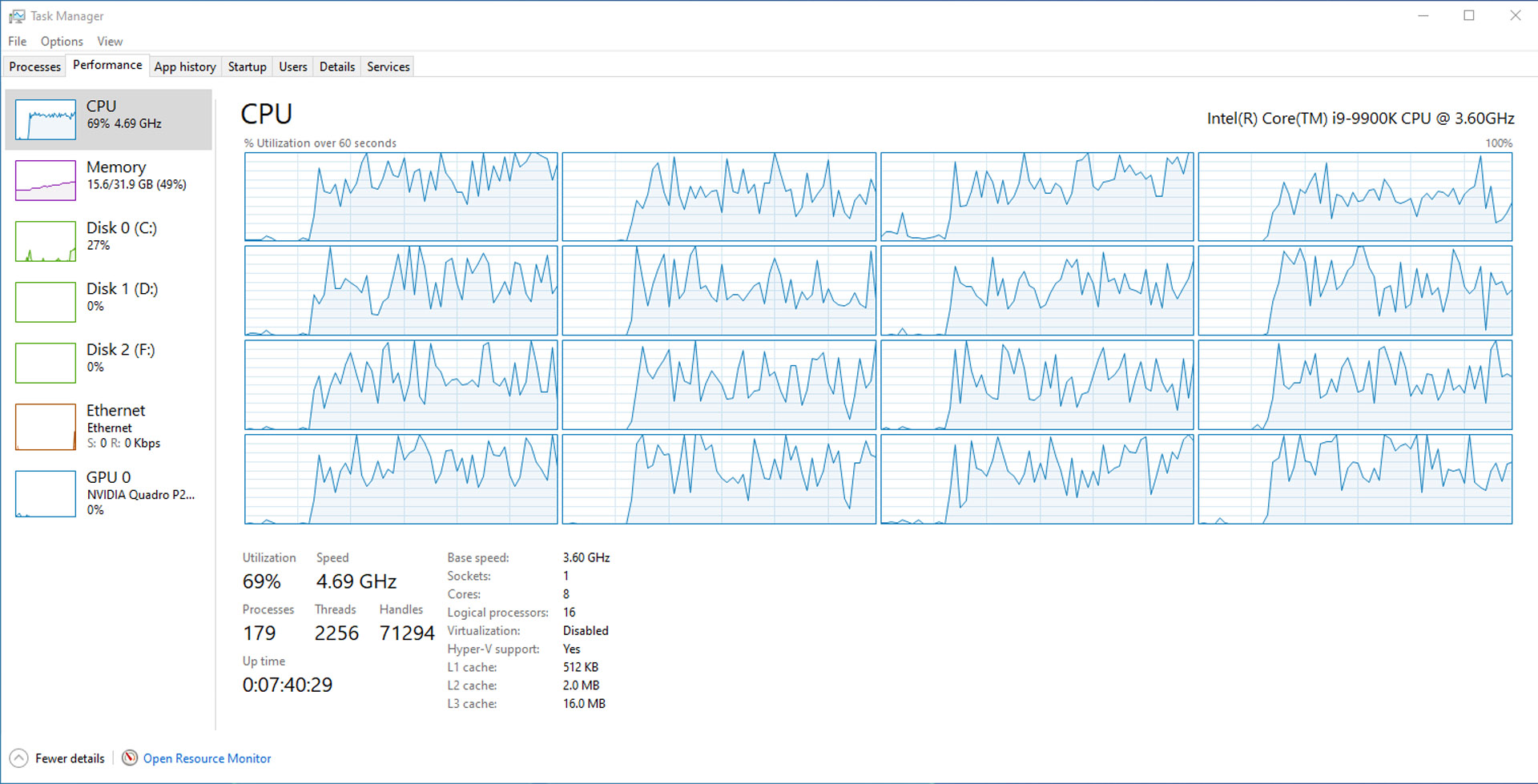
Use tools like MSI Afterburner or Task Manager to track CPU and GPU use. Watch for one part running at 100% while the other stays low. This shows a bottleneck.
Adjust settings or upgrade parts based on these reports. Regular monitoring helps keep your system balanced over time. It ensures smooth performance for all tasks.
Preventive Maintenance Tips
Preventive maintenance helps keep your CPU running smoothly. It reduces the chances of bottlenecks. Simple habits protect your system and improve performance. Small actions can make a big difference.
Regular System Cleanups
Dust and dirt block airflow inside your computer. This causes the CPU to overheat and slow down. Clean the fans and vents often. Use a soft brush or compressed air. Keep the inside of your PC free from dust. This helps the CPU stay cool and fast.
Monitoring Temperatures
High temperatures cause CPU bottlenecking. Check the CPU temperature regularly with free tools. Watch for spikes or constant high heat. If the CPU gets too hot, it slows down to protect itself. Keep temperatures below 80°C for best results. Cooling systems like fans or liquid coolers help a lot.
Keeping Software Updated
Old software can cause slowdowns and conflicts. Update your operating system and drivers regularly. Updated software fixes bugs and improves CPU efficiency. Many updates also enhance security, protecting your system. Set updates to happen automatically for ease.
Credit: develop3d.com
Frequently Asked Questions
What Causes Cpu Bottlenecking In Gaming Pcs?
CPU bottlenecking happens when the processor can’t keep up with the GPU. This limits overall system performance. It often occurs due to an older or slower CPU paired with a high-end graphics card. Balancing CPU and GPU power is key to avoiding bottlenecks.
How Can I Check If My Cpu Is Bottlenecking?
You can monitor CPU and GPU usage using tools like MSI Afterburner. If the CPU consistently hits 100% while the GPU stays lower, a bottleneck exists. Benchmarking your system and comparing component usage helps identify CPU bottlenecks effectively.
What Upgrades Reduce Cpu Bottlenecking Effectively?
Upgrading to a faster CPU with more cores and higher clock speeds reduces bottlenecking. Also, optimizing system cooling and updating drivers improves CPU efficiency. In some cases, upgrading the motherboard or RAM may help enhance overall CPU performance.
Does Overclocking Help Stop Cpu Bottlenecks?
Yes, overclocking can reduce CPU bottlenecks by increasing processor speed. However, it requires proper cooling and stable hardware. Overclocking might void warranties and risk system instability if done improperly. Always proceed with caution and monitor temperatures closely.
Conclusion
Stopping CPU bottlenecking helps your computer run smoother. Choose the right parts that work well together. Keep your drivers and software updated. Monitor your system to spot slowdowns early. Small changes can make a big difference in speed. A balanced setup lets your PC perform at its best.
Take time to check your hardware regularly. Avoid overspending on one part alone. A smooth computer means less frustration and more productivity.
