

Is your computer feeling slow and unresponsive? You might think the problem is your processor or hard drive, but your RAM could be the real culprit.
When your RAM isn’t running at its best, everything from opening apps to browsing the web can drag. The good news? You don’t have to buy new hardware right away. By making a few smart tweaks, you can speed up your RAM and give your computer a fresh boost.
Keep reading, and you’ll discover simple, effective ways to make your RAM work faster—so your device keeps up with you, not the other way around.
Credit: us.norton.com
Signs Of Slow Ram
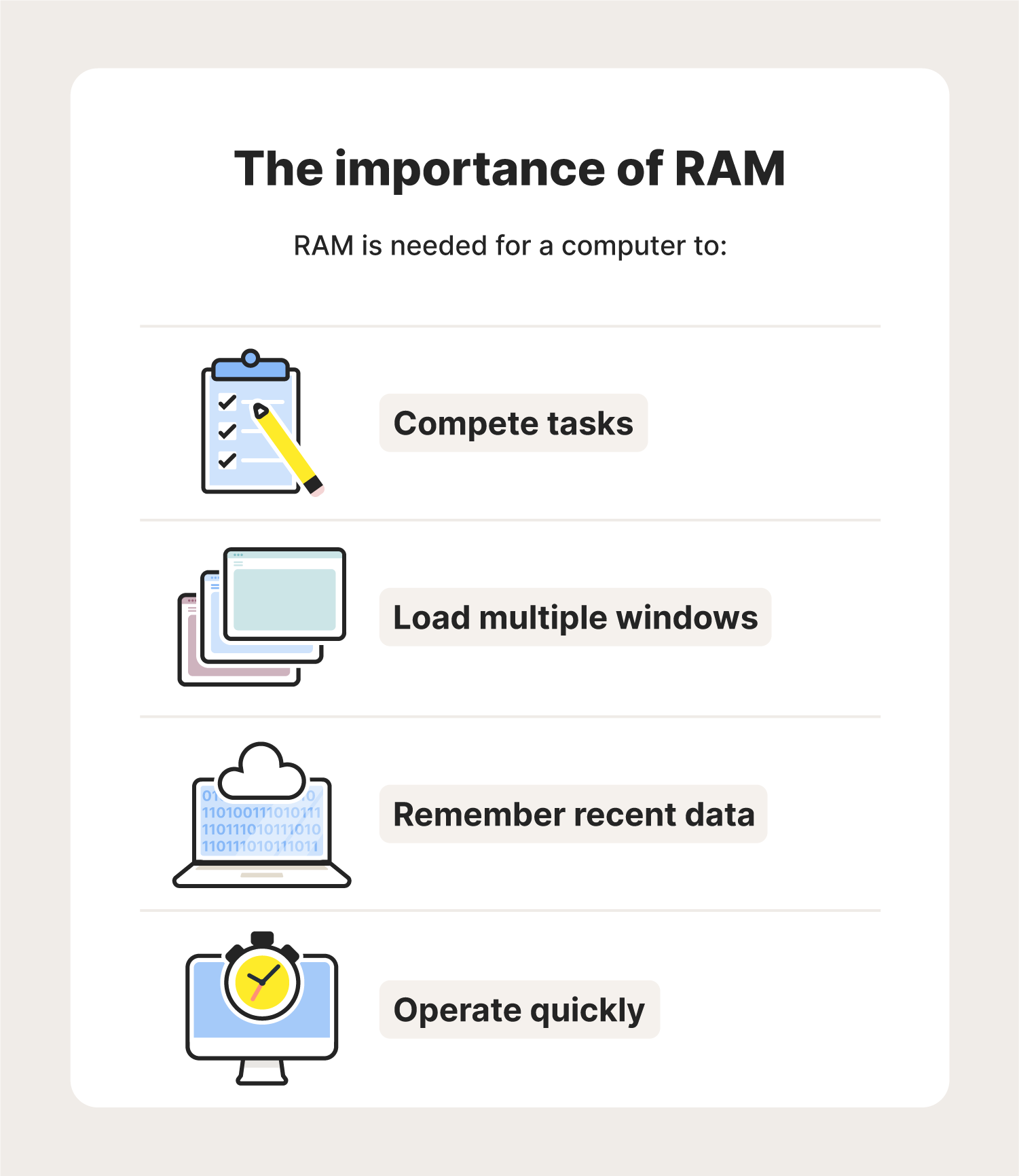
Slow RAM can make your computer feel tired and unresponsive. It affects how fast programs open and how smoothly they run. Knowing the signs of slow RAM helps you fix problems early. You can improve your computer’s speed by understanding these signs.
Common Performance Issues
Programs take longer to open. Switching between apps feels slow and jerky. Your computer freezes or crashes often. Videos and games lag or stutter. Sometimes, the system becomes unresponsive for a few seconds. These are typical signs of slow or overloaded RAM.
How To Check Ram Usage
Open Task Manager by pressing Ctrl + Shift + Esc. Click on the Performance tab, then select Memory. You see how much RAM is in use and how much is free. High RAM usage close to 100% means slow RAM performance. Close unused programs to free up memory. Monitoring RAM helps you spot problems early and act fast.
Credit: vicentetorns.com
Optimizing Ram Settings
Optimizing RAM settings can help your computer run faster and smoother. Many people do not realize that small changes in settings can improve performance. Adjusting virtual memory and disabling unnecessary startup programs are two easy ways to optimize RAM. These steps help free up memory and reduce lag.
Adjusting Virtual Memory
Virtual memory acts like extra RAM by using space on your hard drive. Increasing virtual memory helps when your physical RAM is full. To adjust virtual memory, open system settings and find the performance options. Set the paging file size to a value recommended by your system or slightly higher. This change lets your computer handle more tasks without slowing down.
Disabling Startup Programs
Many programs start automatically when your computer boots. These programs use RAM and slow down performance. Disabling unnecessary startup programs frees up memory right away. Use the task manager or system configuration tool to view startup programs. Turn off programs you do not need immediately. This simple step speeds up your computer and improves RAM usage.
Upgrading Ram Hardware
Upgrading your RAM hardware can significantly improve your computer’s speed. It helps your system handle more tasks at once. This upgrade is a common and effective way to boost performance without changing the entire PC.
Choosing the right RAM and installing it correctly are key steps. Both affect how well your computer will run after the upgrade.
Choosing The Right Ram
Check your computer’s specifications first. Find out the type and speed of RAM it supports. Popular types include DDR3, DDR4, and DDR5. Match your new RAM with these specs for best results.
Consider the size of RAM modules. More RAM means better multitasking. But your system might limit the maximum size it can use. Also, check how many RAM slots your motherboard has.
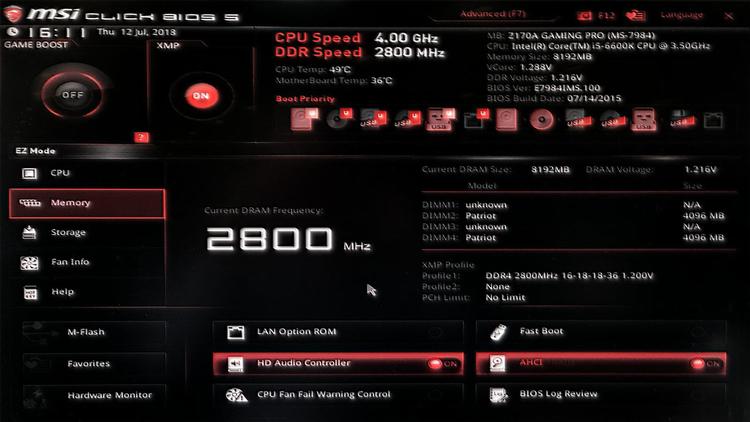
Look at the RAM’s speed, measured in MHz. Higher speed RAM can process data faster. This can improve overall system responsiveness. However, the motherboard and CPU must support this speed to benefit.
Installing Additional Modules
Turn off your computer and unplug it before installing RAM. Open the case carefully to access the RAM slots. Ground yourself to avoid static damage.
Locate empty RAM slots on your motherboard. Align the new RAM module with the slot. Press down firmly until the clips lock the RAM in place. Avoid forcing the module, as it can damage the slot.
After installation, close your computer case and plug it back in. Start your system and check if the RAM is recognized. Use system settings or BIOS to confirm the upgrade.
Cleaning And Maintenance
Cleaning and maintaining your RAM helps keep your computer fast and stable. Dirt and old software can slow down your memory. Regular care improves performance and extends RAM life. Follow simple steps to keep your RAM working well.
Removing Dust And Debris
Dust builds up inside your computer over time. It blocks airflow and causes heat. High heat slows down RAM speed and damages parts. Turn off your PC and unplug it first. Use a soft brush or compressed air to clean RAM sticks gently. Avoid touching the gold connectors. Clean the surrounding areas too. Keep your PC case open for a few minutes after cleaning to let dust settle.
Updating Bios And Drivers
BIOS controls hardware functions, including RAM settings. Old BIOS versions may not support your RAM fully. Visit your motherboard maker’s website to find BIOS updates. Download and install updates carefully. Also, update your chipset and memory drivers. These updates fix bugs and improve RAM compatibility. Restart your computer after updates. This step helps your RAM run at the best speed possible.
Using Software Tools
Using software tools is a simple way to improve your RAM’s speed. These tools help clean and manage memory. They free up space that apps and processes use but don’t need. This makes your computer faster and more responsive.
Many software tools are easy to use. They work in the background or with a click. They can also show you how your RAM is performing. This helps you understand when to take action.
Ram Boosters And Optimizers
RAM boosters clear unused memory automatically. They stop apps from taking too much space. This gives more room for important tasks. Optimizers also arrange memory for better efficiency. This can reduce slowdowns during heavy use.
Most RAM boosters have simple interfaces. You just run the program and it does the job. Some even schedule regular cleanups so you don’t have to think about it. This keeps your system running smoothly over time.
Monitoring Tools For Performance
Monitoring tools track how your RAM is used. They show real-time data about memory load. You can see which apps use the most RAM. This helps identify problems and fix them quickly.
These tools often provide alerts when RAM is low. You can then close unnecessary programs. Some tools also suggest ways to improve memory usage. This keeps your computer stable and fast.
Additional Tips For Speed
Improving RAM speed goes beyond hardware upgrades. Small habits can help your system run smoother and faster. These tips help free up memory and keep your computer healthy. They make a visible difference in daily use.
Closing Unnecessary Background Apps
Many apps run quietly in the background. They use RAM without you noticing. Closing these apps frees memory for tasks you care about. Check your task manager to see which apps use the most RAM. Close the ones you don’t need right now. This simple step can reduce lag and speed up your system.
Regular System Scans For Malware
Malware can slow down your RAM and overall system. It hides deep in your files and uses resources. Running regular scans helps find and remove malware. Use trusted antivirus programs for thorough checks. Clean systems use RAM more efficiently and respond faster. Keep your device safe to keep it fast.

Credit: www.youtube.com
Frequently Asked Questions
How Can I Check My Ram Speed?
You can check RAM speed using built-in tools like Task Manager on Windows. Look under the Performance tab, then Memory. Alternatively, use third-party apps like CPU-Z for detailed RAM specifications and speed information.
Does Upgrading Ram Improve Computer Speed?
Upgrading RAM can boost speed if your system has low memory. More RAM allows better multitasking and reduces slowdowns caused by insufficient memory. However, speed gains depend on your current RAM usage and system configuration.
What Settings Optimize Ram Performance?
Adjust virtual memory size, disable unnecessary startup programs, and close unused apps. Also, updating drivers and BIOS can improve RAM efficiency. These tweaks help your system use RAM more effectively, speeding up overall performance.
Can Ram Cleaning Software Speed Up My Pc?
RAM cleaning software frees up memory by closing background processes. It can temporarily improve speed but may not solve underlying issues. Use trusted tools carefully, as excessive cleaning might disrupt important tasks.
Conclusion
Speeding up your RAM helps your computer run smoother and faster. Small changes like closing unused programs can make a big difference. Upgrading RAM or adjusting settings also improves performance. Remember to keep your system clean and updated for best results.
Try these tips step by step and notice the change. Your computer will thank you with better speed and less lag. Simple actions can make your daily tasks easier and quicker. Keep your device running at its best with these easy steps.
