
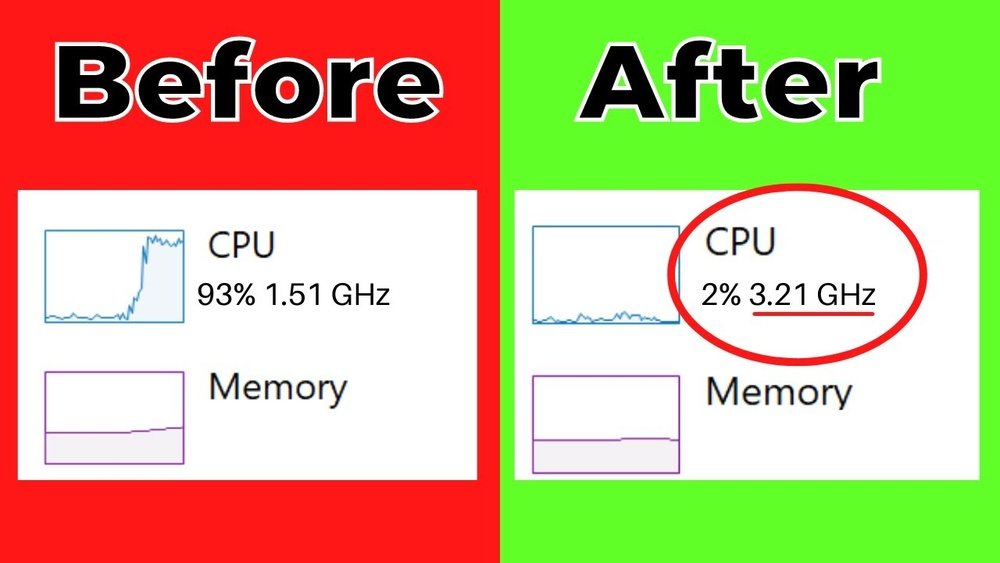
Is your computer feeling slow and frustrating to use? You’re not alone.
When your CPU lags, everything from opening apps to browsing the web can take forever. But what if you could speed up your CPU and make your computer run faster without buying new hardware? You’ll discover simple, effective ways to boost your CPU’s performance right now.
Keep reading, and you’ll learn easy steps that anyone can follow to get your computer back up to speed quickly.
Identify Performance Bottlenecks
Identifying performance bottlenecks is the first step to speed up your CPU. It helps you find what slows down your computer. Fixing these problems can improve your PC’s overall speed and response time.
Many things can cause slow CPU performance. It could be too many tasks running at once or old hardware that can’t keep up. Knowing the exact cause helps you focus on the right solution.
Monitor Cpu Usage
Check how much of your CPU’s power is in use. Use built-in tools like Task Manager on Windows or Activity Monitor on Mac. Look for processes that use a high percentage of CPU. This shows which programs slow down your computer the most.
Watch for spikes in CPU usage. These can cause your system to lag or freeze. Spotting these spikes helps you decide which apps to close or adjust.
Check Background Processes
Many apps run in the background without you knowing. These can use CPU resources and slow down your system. Open your system’s process manager to see all running tasks. Identify unnecessary programs running silently and close them.
Disable startup programs that you don’t need. They start automatically and use CPU power. This simple step frees up CPU resources for important tasks.
Assess Hardware Limitations
Sometimes, the CPU itself is the limit. Older CPUs may struggle with new software or multitasking. Check your CPU’s age and specs against the software you use. If your CPU is outdated, it might be time to upgrade.
Also, look at other hardware like RAM and storage. Limited memory or slow hard drives can cause the CPU to work harder. Upgrading these parts can reduce CPU load and improve speed.

Credit: softwareg.com.au
Optimize Software Settings
Optimizing software settings can help your CPU run faster and smoother. Many programs start automatically and slow down your system. Changing power settings can make your CPU work more efficiently. Keeping your drivers and software updated improves performance and fixes bugs.
These small changes make a big difference in speed and response time. Let’s explore simple steps to optimize your software settings.
Manage Startup Programs
Many programs launch when you start your computer. This uses CPU power and slows down your system. Open the Task Manager or System Configuration tool. Find the startup tab and disable programs you don’t need at startup. This frees up CPU resources and speeds up boot time.
Adjust Power Settings
Power settings control how your CPU uses energy. Choose a balanced or high-performance plan. This lets your CPU run at full speed when needed. Avoid power saver mode as it slows down the CPU to save energy. Adjust settings in the Control Panel or system settings for better speed.
Update Drivers And Software
Outdated drivers and software can cause slowdowns and errors. Check for updates regularly. Updated drivers improve communication between hardware and software. Software updates fix bugs and add performance improvements. Use official websites or update tools to keep everything current.
Clean Up Your System
Cleaning up your system is a simple way to help your CPU work faster. Over time, your computer collects many files and programs you no longer need. These take up space and slow down your CPU. Removing these items frees up resources and helps your system run smoothly.
Remove Unnecessary Files
Deleting old files can clear space on your hard drive. Look for downloads, documents, or videos you no longer use. Empty the recycle bin to fully remove deleted files. This step reduces the load on your CPU and speeds up your computer.
Uninstall Unused Applications
Many programs run in the background without your knowledge. These use CPU power and memory. Open your control panel or settings to find installed applications. Uninstall apps you never use to free up resources. This helps your CPU focus on important tasks.
Run Disk Cleanup Tools
Disk cleanup tools scan your system for junk files. They find temporary files, system caches, and other clutter. Use built-in tools like Windows Disk Cleanup or third-party apps. Regularly running these tools keeps your system clean and your CPU running faster.
Enhance Cooling And Hardware
Enhancing your CPU’s cooling and hardware can boost its speed and overall performance. Heat slows down processors and causes them to work less efficiently. Keeping your CPU cool helps maintain steady speeds and prevents damage. Upgrading parts also supports faster processing and better stability.
Improve Cpu Cooling
Good airflow inside your computer case lowers CPU temperature. Use extra fans to push hot air out and pull cool air in. Clean dust from vents and fans regularly. Replace old or noisy fans with better ones. Consider a liquid cooling system for more effective heat removal.
Check Thermal Paste
Thermal paste fills gaps between the CPU and cooler, helping heat transfer. Over time, paste can dry out and lose effectiveness. Remove the cooler and apply fresh thermal paste carefully. Use a small, pea-sized amount for best results. This simple step can reduce CPU temperatures significantly.
Consider Hardware Upgrades
Upgrading your CPU cooler to a higher-quality model improves cooling. Switching to a newer CPU can increase speed and efficiency. Adding more RAM helps your CPU run tasks faster. Faster storage like SSDs also reduces system lag. Choose upgrades that fit your budget and system needs.
Use Performance-boosting Tools
Using performance-boosting tools can help speed up your CPU effectively. These tools adjust your CPU’s settings and monitor its performance. They can make your computer run faster and smoother. Understanding how to use these tools is key for safe and effective CPU boosting.
Cpu Overclocking Basics
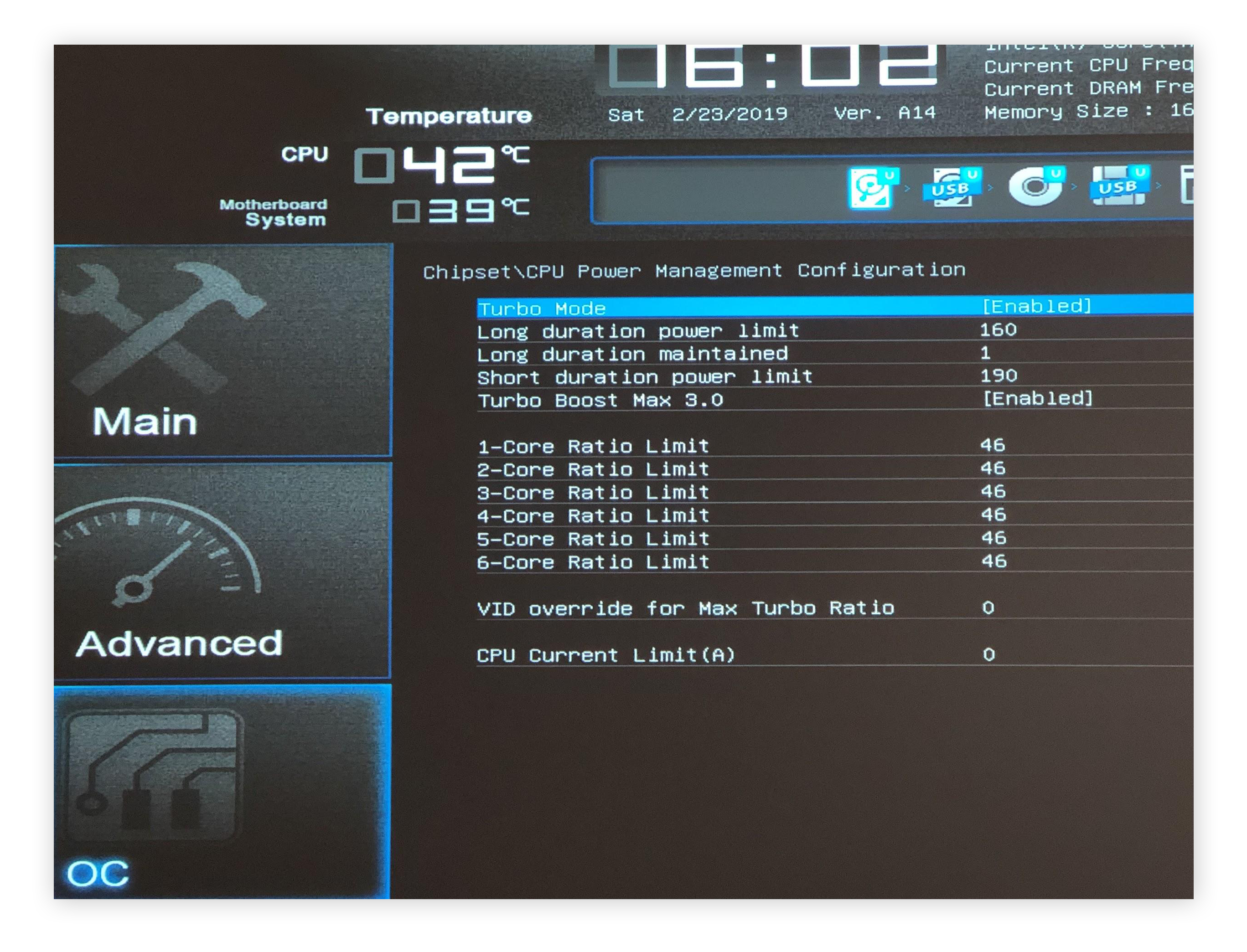
Overclocking means running your CPU at higher speeds than usual. It increases the clock rate to make the processor work faster. Most modern CPUs support overclocking but require specific settings. Overclocking can improve performance in tasks like gaming and video editing. It needs careful adjustments to avoid damage or crashes.
Safe Overclocking Practices
Start with small speed increases to keep the CPU stable. Monitor temperature closely to prevent overheating. Use reliable cooling systems like fans or liquid coolers. Avoid pushing the CPU beyond recommended limits to protect hardware. Save your original settings before making changes. This helps you revert if problems occur.
Benchmarking Tools To Test Speed
Benchmarking tools measure your CPU’s performance before and after changes. They show how much faster your CPU runs after overclocking. Popular tools include Cinebench, Geekbench, and CPU-Z. Run these tests to check stability and speed improvements. Regular benchmarking ensures your CPU stays efficient and safe.
Credit: www.avast.com
Maintain Regular System Care
Maintaining regular system care is key to keeping your CPU fast and efficient. It helps avoid slowdowns and keeps your computer running smoothly. Simple habits can protect your system and boost performance over time.
Schedule Routine Maintenance
Set a regular time to clean your system. Remove unnecessary files and clear cache. This frees up space and reduces CPU workload. Run disk cleanup and defragment your hard drive if needed. These tasks help your CPU access data faster.
Keep System Updated
Always install the latest updates for your operating system. Updates fix bugs and improve CPU efficiency. Drivers and software updates enhance hardware communication. An up-to-date system runs tasks more quickly and safely.
Protect Against Malware
Use trusted antivirus software to scan your computer regularly. Malware can use CPU power and slow your system. Remove any threats immediately to keep your CPU free. Staying protected helps maintain speed and stability.

Credit: www.youtube.com
Frequently Asked Questions
How Can I Clean My Cpu To Improve Speed?
Cleaning dust from your CPU and fans prevents overheating. Use compressed air to remove dust. This helps maintain optimal cooling and boosts performance.
Does Upgrading Cpu Cooling Help Speed Up Performance?
Yes, better cooling reduces CPU temperature. Cooler CPUs run faster and more stable. Consider installing a high-quality air or liquid cooler for improved speed.
Can I Overclock My Cpu Safely?
Overclocking can increase CPU speed but risks overheating. Ensure proper cooling and stable voltage. Monitor temperatures closely to avoid hardware damage.
Will Updating Drivers Speed Up My Cpu?
Updating CPU and chipset drivers can improve compatibility and efficiency. This may enhance overall system performance and resolve speed-related issues.
Conclusion
Speeding up your CPU can make your computer feel much faster. Simple steps like cleaning your system, closing unused apps, and updating software help a lot. Checking for viruses and managing startup programs also improves speed. Remember, regular maintenance keeps your CPU running smoothly.
Try these tips and enjoy a quicker computer experience. Small changes can bring big results. Keep your PC healthy and working well every day.
