
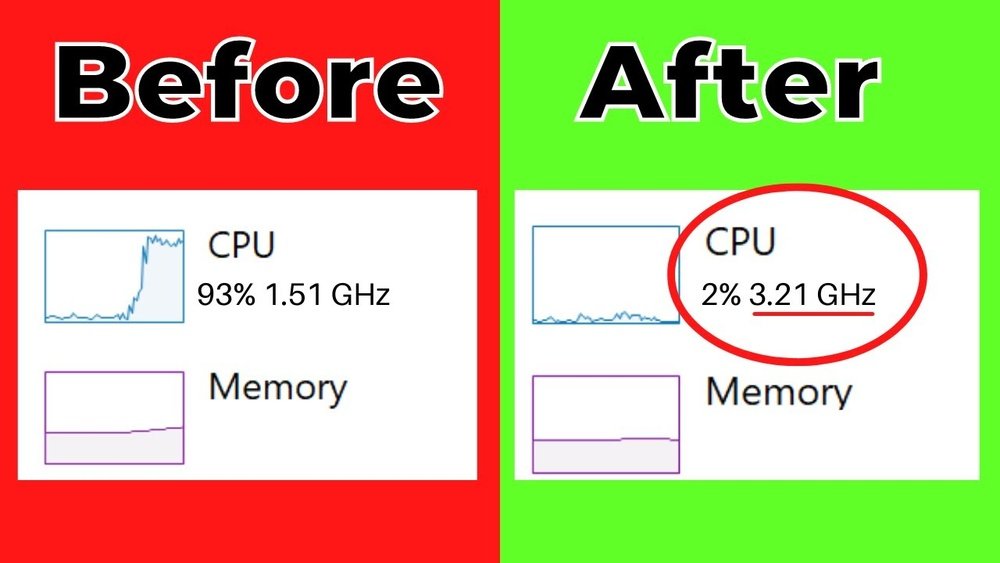
Is your computer running slower than it should? You’re not alone, and the good news is you can fix it.
Speeding up your CPU doesn’t require expensive upgrades or complicated tech skills. With a few simple steps, you can make your computer faster and more responsive. Ready to get your PC running like new again? Keep reading, because what you learn here will save you time, frustration, and maybe even money.
Check Current Cpu Performance
Checking your CPU’s current performance is the first step to speed it up. You need to know how your processor is working. This helps find problems that slow it down. Monitoring performance also shows if your CPU is used fully or not.
This process gives a clear picture of your computer’s power. It helps decide what changes can improve speed. Without this check, you might miss important issues or waste time on wrong fixes.
Use Built-in Performance Tools
Most computers have tools to check CPU performance. These tools show how much of the CPU is used. They also track the temperature and speed of the processor. Windows users can open Task Manager with Ctrl + Shift + Esc. The Performance tab shows CPU use in real time.
Mac users can use Activity Monitor in the Utilities folder. It lists all running processes and their CPU use. These tools are free and easy to use. They give quick information without extra software.
Identify Bottlenecks
Bottlenecks slow down your CPU’s performance. They can be caused by software or hardware issues. Check if some programs use too much CPU power. These heavy tasks reduce speed for other apps.
Look for high CPU temperature. Overheating forces the CPU to slow down. Dust in fans or poor cooling can cause this. Also, check if your RAM is full. Low memory makes the CPU wait and lowers speed.
Finding bottlenecks helps fix the exact problem. This step saves time and improves results. After removing bottlenecks, your CPU runs faster and smoother.

Credit: www.youtube.com
Close Unnecessary Programs
Closing unnecessary programs helps your CPU run faster. Many apps use CPU power even when not in use. This slows down your computer and makes tasks lag. Stopping unused programs frees up CPU resources. Your computer works better and faster.
Manage Startup Applications
Some programs start automatically with Windows. These apps run in the background and use CPU power. You can stop them from starting by managing startup applications. Open the Startup tab in Task Manager. Disable apps you don’t need at startup. This reduces CPU load when your PC boots up.
Use Task Manager Effectively
Task Manager shows all running programs and their CPU use. Press Ctrl + Shift + Esc to open it quickly. Look for apps using high CPU but not needed. Select the app and click “End Task” to close it. This frees CPU resources immediately. Check Task Manager often to keep your PC fast.
Update Drivers And Software
Updating drivers and software plays a key role in speeding up your CPU. Old drivers or outdated software can slow down your system. Keeping everything current helps your CPU run tasks smoothly and efficiently.
Keep Operating System Updated
Your operating system manages all hardware and software on your computer. Updates often fix bugs and improve performance. Installing the latest OS updates can prevent slowdowns and security risks. These updates optimize how your CPU communicates with other components. Check for updates regularly to keep your system running fast and stable.
Update Cpu Drivers
CPU drivers control how the processor works with your computer. Outdated or missing drivers can cause errors and reduce speed. Visit the CPU manufacturer’s website to download the newest drivers. Installing the correct drivers ensures your CPU performs at its best. Always choose drivers that match your CPU model and operating system.

Credit: www.researchgate.net
Optimize Power Settings
Optimizing power settings can help your CPU run faster and more efficiently. Many devices use balanced power modes to save energy. These modes limit CPU performance to save battery. Changing these settings can improve speed and responsiveness.
Adjusting power settings is simple and does not require extra software. It works well for laptops and desktops alike. Small changes can make a big difference in CPU speed and overall system performance.
Switch To High Performance Mode
High Performance mode lets your CPU use full power. This mode stops the system from slowing down the processor. It keeps the CPU running at its maximum speed.
To switch, go to your power options in Control Panel or Settings. Select the High Performance plan to boost CPU output. This change uses more power but improves speed.
Adjust Sleep And Display Settings
Sleep mode can reduce CPU activity to save energy. Adjusting sleep settings keeps your CPU active longer. Set the computer to sleep after a longer time or not at all.
Display settings also affect CPU load. Turning off the display quickly saves energy but can slow down processes. Set display timeout to a reasonable time to balance speed and power use.
Clean Up Your System
Cleaning up your system is a simple way to help your CPU run faster. Over time, your computer collects files and programs that take up space. These can slow down your CPU and make your computer less responsive. Removing these files and programs frees up resources and improves speed. Follow these steps to clean your system and boost your CPU performance.
Delete Temporary Files
Temporary files build up from daily computer use. These files are not needed after their initial use. Clearing them frees space and reduces CPU workload. Use built-in tools like Disk Cleanup on Windows or Storage Management on Mac. Delete browser caches, system logs, and leftover installation files. Regularly removing temporary files keeps your system tidy and fast.
Uninstall Unneeded Programs
Many computers have programs that are never used. These programs take up hard drive space and use CPU power in the background. Review your installed programs and remove the ones you do not need. This frees up memory and CPU cycles. Use your system’s uninstall tool or settings to remove these programs safely. A clean program list helps your CPU focus on important tasks.
Improve Cooling And Hardware
Improving your CPU’s speed often starts with better cooling and hardware care. A cool CPU runs faster and stays stable longer. Overheating can slow down your processor and cause errors. Taking simple steps to cool your CPU can make a big difference. This section explains easy ways to improve your CPU’s cooling and hardware.
Clean Dust From Fans
Dust blocks air and traps heat inside your computer. Fans covered in dust cannot cool your CPU well. Turn off your PC and open the case carefully. Use a soft brush or compressed air to remove dust from fans. Clean the heat sink and vents too. This helps air flow freely and cool your CPU better. Regular cleaning keeps your system running smoothly and fast.
Consider Upgrading Cooling Solutions
Stock coolers are often not enough for heavy CPU use. Upgrading to better cooling can lower CPU temperature significantly. You can choose a larger air cooler with better fans. Liquid cooling systems also offer strong cooling performance. They use water to carry heat away from the CPU quickly. Installing a new cooler reduces heat and improves CPU speed. Check compatibility with your CPU before buying any cooler.
Overclock Your Cpu
Overclocking your CPU can boost your computer’s speed beyond its factory settings. It allows the processor to run faster, improving performance for tasks like gaming and video editing. This process requires some knowledge and care to avoid damage. Understanding the basics and following safety tips is crucial before starting.
Basics Of Overclocking
Overclocking means increasing the CPU’s clock speed. This makes the processor handle more tasks per second. You adjust settings in the BIOS or use special software tools. Not all CPUs can be overclocked; check if yours supports it. Overclocking may increase heat and power use.
Start with small speed increases. Test your system stability after each change. If your computer crashes or shows errors, reduce the speed. Cooling is important. Good fans or liquid cooling help keep temperatures safe.
Safety Tips And Precautions
Monitor your CPU temperature closely during overclocking. High heat can damage the processor permanently. Use reliable software to track temperatures and system stability. Avoid pushing the CPU beyond safe limits.
Backup important files before you start. Overclocking can cause system crashes or data loss. Make changes slowly and test each step. If unsure, seek advice from experienced users or guides. Proper care ensures your CPU runs faster and lasts longer.
Use Performance-boosting Software
Performance-boosting software helps your CPU run faster and smoother. It manages tasks that slow down your computer. These tools free up resources and improve speed. Using the right software keeps your system healthy and responsive.
Cpu Optimization Tools
CPU optimization tools adjust how your processor works. They reduce background activities that waste CPU power. These tools balance the load, so your CPU runs efficiently. Some can change settings to prioritize important tasks. This leads to faster response and less lag.
System Cleaners And Boosters
System cleaners remove junk files and clear cache. This frees up memory and storage space. Boosters enhance system performance by closing unused programs. They also fix errors that slow down your PC. Regular use of cleaners and boosters keeps your system fast and reliable.
Monitor Cpu Temperature
Monitoring your CPU temperature is important for keeping your computer fast and safe. High temperatures can slow your CPU and cause damage. Checking the heat helps you avoid overheating and keeps your system running smoothly.
Recommended Temperature Ranges
A safe CPU temperature usually stays between 30°C and 50°C when idle. Under heavy use, it can rise to 70°C or 80°C. Temperatures above 85°C may cause problems. Keeping your CPU cooler improves speed and lifespan.
Tools To Track Cpu Heat
Many free tools show your CPU temperature in real time. Programs like HWMonitor and Core Temp are easy to use. They display current heat and warn you if it gets too high. Using these tools helps you act fast to cool down your CPU.

Credit: softwareg.com.au
Frequently Asked Questions
How Can I Improve My Cpu Speed Easily?
You can improve CPU speed by closing unused apps, cleaning temporary files, and updating drivers. Regular maintenance helps keep your CPU running smoothly and efficiently.
Does Upgrading Cpu Cooling Increase Performance?
Yes, better cooling prevents overheating, allowing the CPU to maintain higher speeds. Efficient cooling helps your CPU run faster without thermal throttling.
Can Software Updates Speed Up My Cpu?
Updating your operating system and drivers can optimize CPU performance. These updates fix bugs and improve system efficiency, enhancing overall speed.
Is Overclocking Safe To Speed Up Cpu?
Overclocking boosts CPU speed but may cause overheating and reduce lifespan. It requires proper cooling and caution to avoid hardware damage.
Conclusion
Speeding up your CPU can improve your computer’s overall performance. Simple steps like cleaning dust, updating drivers, and managing startup programs help a lot. Avoid overheating by checking your cooling system regularly. Overclocking can boost speed but requires caution to prevent damage.
Regularly scanning for malware keeps your system healthy. Small changes add up to faster, smoother computing. Keep your CPU running well and enjoy better speed every day.
