
Are you curious about how much of your computer’s power is being used right now? Knowing how to show CPU usage can help you spot problems before they slow you down.
Whether your laptop feels sluggish or you want to optimize your system’s performance, understanding CPU usage gives you the control you need. This guide will walk you through simple steps to check your CPU usage easily, so you can keep your computer running smoothly and avoid unexpected crashes.
Keep reading to discover how to take charge of your device’s performance today.
Credit: nektony.com
Check Cpu Usage On Windows
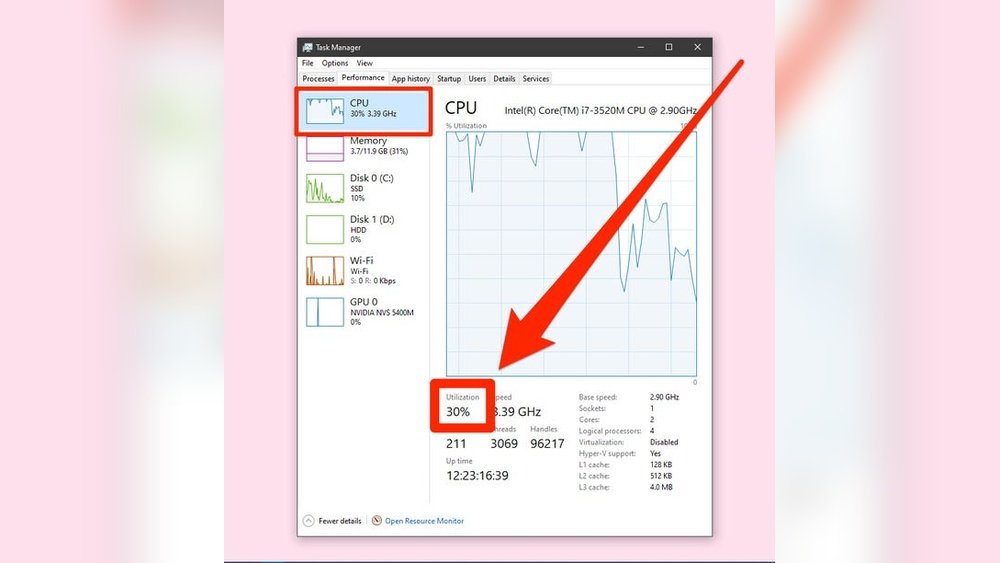
Checking CPU usage on Windows helps understand your computer’s performance. It shows how much work your CPU does at any time. High CPU usage may slow down your system. Low usage means your computer runs smoothly. Windows offers simple tools to view CPU activity. These tools give real-time data and help find problems fast.
Using Task Manager
Task Manager is the easiest way to see CPU usage. Press Ctrl + Shift + Esc to open it quickly. Click the “Performance” tab. Here, you see a graph showing CPU activity. It updates in real-time. You can also view CPU usage by apps in the “Processes” tab. This helps find apps using too much CPU power.
Using Resource Monitor
Resource Monitor gives detailed CPU information. Open it by typing “Resource Monitor” in the Start menu. Go to the “CPU” tab. It shows how each process uses the CPU. You can see services and threads too. This tool is useful for deeper system analysis. It helps track down heavy CPU users precisely.
Using Command Prompt
Command Prompt provides CPU data via simple commands. Open it by typing “cmd” in the Start menu. Type wmic cpu get loadpercentage and press Enter. The system shows current CPU load in percentage. This method is quick and needs no extra software. It suits users who prefer text-based tools.
Monitor Cpu Usage On Mac
Monitoring CPU usage on a Mac helps understand how the computer uses its power. It shows which apps or processes use the most CPU. This can help find slow programs or apps causing problems. You can check CPU usage easily using built-in tools on your Mac.
Using Activity Monitor
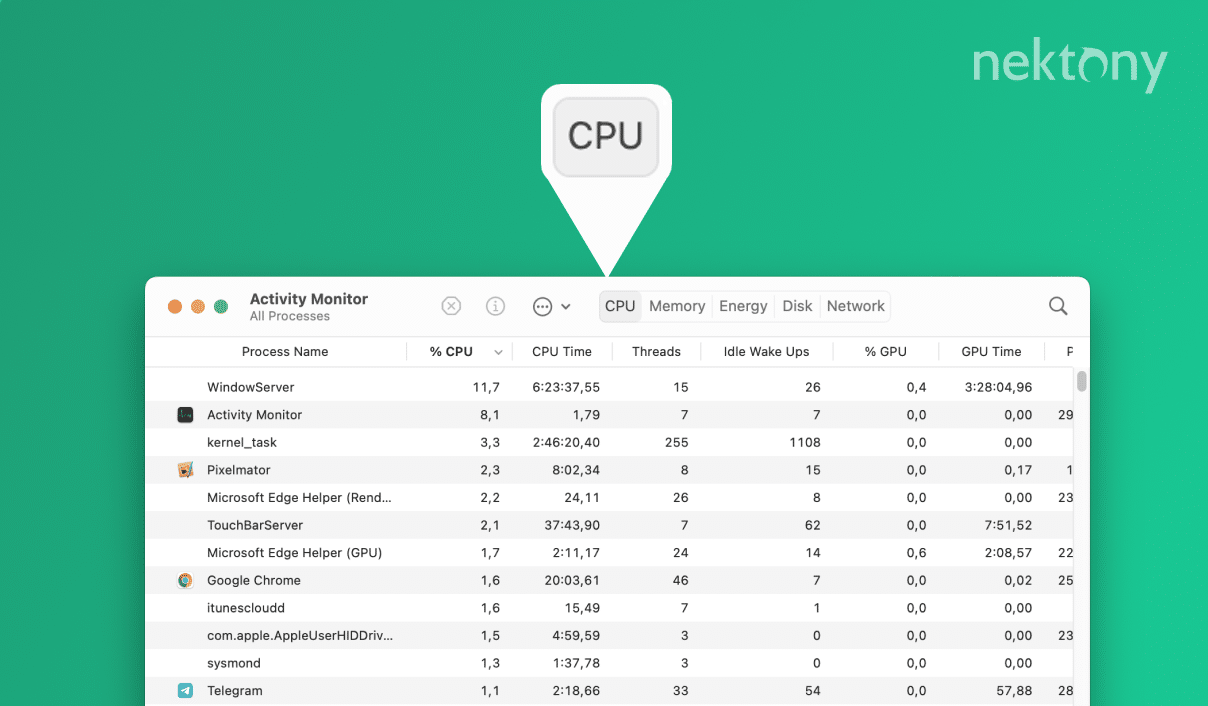
Activity Monitor is a simple app that shows CPU use in real time. Open it from the Utilities folder inside Applications. Click the CPU tab to see a list of all processes. Each process shows how much CPU it uses as a percentage.
The bottom part shows total CPU usage. It breaks down usage by system, user, and idle time. You can sort processes by CPU to find the heaviest ones. This helps to spot apps slowing down your Mac.
Using Terminal Commands
The Terminal app lets you check CPU usage with commands. Open Terminal from the Utilities folder. Type top -l 1 -s 0 | grep "CPU usage" and press Enter. This shows a quick summary of CPU use.
Another command is ps -A -o %cpu,command | sort -nr | head -10. It lists the top 10 processes by CPU use. This method is fast and does not need a graphic interface.
Track Cpu Usage On Linux
Tracking CPU usage on Linux helps you understand how your computer handles tasks. It shows which programs use the most power. This information helps keep your system fast and stable. Linux offers many tools to check CPU activity. Some are simple and work in the terminal. Others have a graphic interface that is easy to use. Below are two common methods to track CPU usage on Linux.
Using Top And Htop Commands
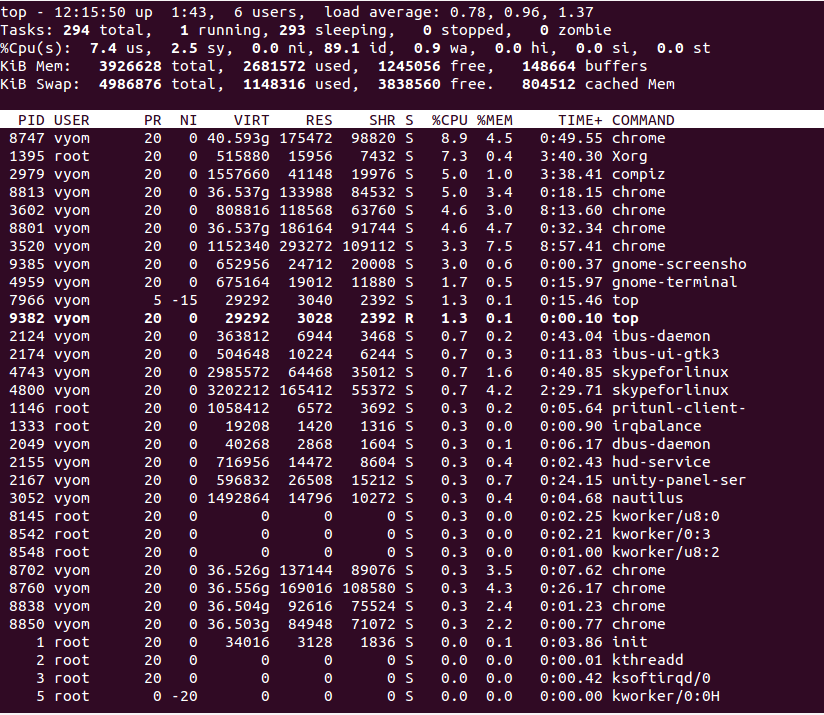
The top command is a quick way to see CPU usage in the terminal. It updates live and shows which processes use CPU the most. You type top in the terminal and press Enter. The list refreshes every few seconds. The CPU line shows overall use. Look for high percentages to find heavy tasks.
htop is a better version of top. It has color and is easier to read. You may need to install it first using your package manager. Run it by typing htop in the terminal. You see a bar graph for CPU usage. You can scroll and sort processes. It helps find problems fast.
Using System Monitor Tools
Most Linux desktop versions have system monitors with a graphic interface. These tools show CPU use with charts and graphs. They are easy for beginners to understand. Open the system monitor from the menu or search bar. Look for the CPU tab or section.
The system monitor shows CPU usage over time. It also lists running applications and their CPU use. You can click on processes to stop or prioritize them. This visual tool helps track CPU without commands. It suits users who prefer clicking over typing.
Credit: www.atlantic.net
Third-party Cpu Monitoring Tools
Third-party CPU monitoring tools offer detailed insights into your computer’s performance. They provide real-time data on CPU usage, temperature, and more. These tools often deliver better visuals and deeper analysis than built-in system monitors.
Many users prefer third-party apps for their ease of use and extra features. They help spot performance issues and manage system resources. This makes them valuable for both casual users and tech enthusiasts.
Popular Free Applications
Several free CPU monitoring tools are widely used. Programs like CPU-Z, HWMonitor, and Open Hardware Monitor stand out. They show CPU speed, core usage, and temperature in simple interfaces. These apps run quietly in the background and update data frequently.
Many of these free tools support multiple languages. This helps users worldwide understand CPU performance easily. They also work on different Windows versions, making them accessible to many.
Advanced Features And Customization
Third-party tools often include advanced options. Users can customize alerts for high CPU temperature or usage. Some apps allow logging data over time for detailed analysis.
Visual customization is common. Users choose graph styles, colors, and display formats. This helps create a CPU monitoring setup that fits personal preferences.
Some tools integrate with other system monitors. This creates a full overview of system health. Users can track CPU, memory, disk, and network stats in one place.
Interpreting Cpu Usage Data
Understanding CPU usage data helps you know how your computer works. It shows how much of the processor’s power is in use. This helps find problems or decide if the computer needs an upgrade. Knowing how to read this data saves time and prevents issues.
Normal Cpu Usage Ranges
CPU usage changes based on tasks. At rest, it should be low, around 1% to 10%. Simple tasks like web browsing or word processing usually use less than 20%. Heavy tasks like video editing or gaming can push usage to 70% or more. Short spikes above 90% are normal during big tasks. Constant high usage above 80% may cause slowdowns or heat.
Identifying High Cpu Usage Causes
High CPU usage can mean a problem. Running many programs at once uses more CPU power. Some apps may have bugs or run background tasks unknowingly. Malware or viruses often cause high CPU use. Old or poorly optimized software can also overload the CPU. Checking task managers helps find which apps use most CPU. Closing or updating these apps can lower usage.
Tips To Improve Cpu Performance
Improving CPU performance helps your computer run smoothly. A faster CPU means less waiting and better multitasking. Small changes can make a big difference in how your system works.
Here are simple tips to help your CPU work better and keep your computer healthy.
Closing Unnecessary Programs
Running many programs uses a lot of CPU power. Closing programs you do not use frees up resources. Check your task manager to see what is active. End tasks that slow down your system. This keeps the CPU focused on important jobs.
Updating Drivers And Software
Old drivers and software can cause slow CPU performance. Updates often fix bugs and improve speed. Check for updates regularly to keep your system current. Updated drivers help the CPU communicate better with hardware. This improves overall efficiency and stability.
Managing Startup Processes
Many programs start automatically with your computer. Too many startup processes can slow the CPU at boot time. Disable programs that you do not need right away. Use the system settings or task manager to manage these. A clean startup helps your CPU focus on essential tasks faster.
Credit: softkeys.uk
Frequently Asked Questions
How Can I Check Cpu Usage On Windows?
You can check CPU usage on Windows using Task Manager. Press Ctrl+Shift+Esc, then click the Performance tab. It shows real-time CPU usage and other system details.
What Tools Display Cpu Usage On Mac?
On Mac, use Activity Monitor to view CPU usage. Open it from Applications > Utilities. The CPU tab displays current usage per process and overall system load.
How To Show Cpu Usage In Linux Terminal?
Use commands like top or htop in the Linux terminal. They provide dynamic, real-time CPU usage details for all running processes.
Can I Monitor Cpu Usage With Third-party Apps?
Yes, third-party apps like HWMonitor, CPU-Z, and Rainmeter offer advanced CPU usage monitoring and detailed system statistics beyond built-in tools.
Conclusion
Monitoring CPU usage helps keep your computer healthy. It shows how hard your CPU works. You can avoid slowdowns and crashes this way. Tools like Task Manager or third-party apps make this easy. Check your CPU often to spot problems early.
A simple step that saves time and frustration. Keep your system running smoothly by watching CPU use. It’s a smart habit for all computer users.
