

Are you looking to boost your computer’s performance by setting up your RAM in the BIOS but don’t know where to start? You’re in the right place.
Getting your RAM settings right can make a huge difference in speed and stability. This guide will walk you through the simple steps to configure your RAM in the BIOS, even if you’re not a tech expert. Keep reading, and you’ll learn how to unlock your system’s full potential quickly and safely.
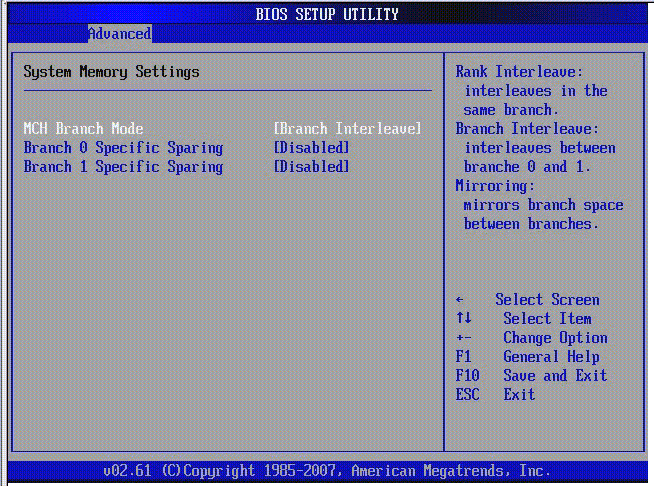
Credit: docs.oracle.com
Accessing The Bios
Accessing the BIOS is the first step to set up your RAM properly. BIOS stands for Basic Input/Output System. It controls the hardware settings of your computer. You must enter BIOS to change RAM settings like speed and timing.
Entering BIOS might seem tricky at first. The process is simple and fast. Follow the steps below to access BIOS on most computers.
Restarting Your Computer
Start by saving all your work. Close any open programs. Then, click on the restart option. Your computer will shut down and start again. This is necessary to access BIOS.
Key Combinations To Enter Bios
As your computer restarts, press the BIOS key. Common keys include Delete, F2, F10, or Esc. Press the key repeatedly until the BIOS screen appears. Timing is important. Press the key quickly after the restart.
Navigating Bios Menus
Use your keyboard to move through BIOS menus. Arrow keys help you scroll up, down, left, or right. Enter selects options. Escape returns to previous menu. BIOS menus vary by brand, but navigation is similar.
Credit: www.reddit.com
Locating Ram Settings
Finding the RAM settings in the BIOS is the first step to improve your computer’s memory performance. BIOS menus vary by manufacturer, but most have a dedicated section for memory. This section lets you check and adjust RAM speed, timings, and voltage. Understanding these options helps you get the best from your RAM modules.
Memory Configuration Section
The Memory Configuration section is where you control RAM settings. You can see the installed memory size and speed here. This section also shows the current timings and voltage. Some BIOS versions label it as “DRAM Configuration” or “Memory Settings.” Navigate through the BIOS tabs, often under “Advanced” or “Overclocking.”
Xmp Profiles And Their Role
XMP stands for Extreme Memory Profile. It is a preset profile stored in your RAM modules. Enabling XMP allows the BIOS to set RAM speed and timings automatically. This makes your RAM run faster than the default settings. Look for “XMP,” “DOCP,” or “EOCP” options in the memory section. Turn on XMP to boost performance safely.
Manual Memory Timing Options
Manual memory timing lets you fine-tune RAM performance. You can adjust values like CAS latency and tRCD. These settings affect how fast your RAM responds. Changing timings requires careful steps. Start with small changes and test stability. This option is for advanced users who want custom setups.
Adjusting Ram Frequency
Adjusting the RAM frequency in BIOS can improve your computer’s speed and performance. The frequency controls how fast your RAM works. Setting it correctly helps your system run smoother and faster. But setting it too high may cause crashes or errors. You need to find the right balance for your system.
Choosing The Right Frequency
Check your RAM’s rated speed on its label or box. Use this as a starting point for your BIOS setting. Do not set the frequency higher than what your RAM supports. Also, check your motherboard’s maximum RAM speed. Choose a frequency that fits both your RAM and motherboard limits.
Balancing Speed And Stability
Higher RAM speeds can improve performance slightly. But pushing frequency too high may cause system instability. Test your system after changing frequency by running basic tasks. If the system crashes or freezes, lower the frequency. Stability is more important than speed for daily use.
Saving Frequency Changes
After setting the new RAM frequency, save your BIOS changes. Usually, press F10 or use the Save & Exit menu. Your computer will restart with the new settings. If it fails to boot, enter BIOS again and lower the frequency. Always save changes to apply the new RAM speed.
Setting Ram Timings
Setting RAM timings in BIOS can improve your computer’s speed and stability. RAM timings control how fast your memory responds to commands. Adjusting these settings can make your system run smoother or faster. It is important to understand each timing and its effect before changing values. Simple changes can lead to better performance without risking damage.
Primary Timings Explained
Primary timings are the most important RAM settings. They include CAS latency (CL), RAS to CAS delay (tRCD), Row Precharge time (tRP), and Active to Precharge delay (tRAS). CAS latency is how many clock cycles it takes to access data. Lower numbers mean faster memory response. tRCD, tRP, and tRAS control how the RAM manages rows and columns in memory. These values work together to affect speed and stability.
Using Manufacturer Specs
Check your RAM’s manufacturer specs for recommended timings. These values are tested for stability and performance. Most BIOS settings allow you to enter these numbers manually. Using the correct timings helps avoid errors and crashes. Sometimes, the BIOS sets timings automatically but they may not be optimal. Entering the manufacturer’s specs ensures reliable performance.
Testing Stability After Changes
Test your system after changing RAM timings. Use tools like MemTest86 or Prime95 to check for errors. Run tests for several hours to ensure stability. If the system crashes or shows errors, reset timings to previous values. Small adjustments can cause instability if not tested properly. Always save your BIOS settings before making changes.
Configuring Voltage Settings
Configuring voltage settings in BIOS is a key step to optimize your RAM’s performance. Voltage controls the power supplied to the memory modules. Proper voltage settings help keep your system stable and prevent hardware damage.
This process requires caution. Small changes in voltage can impact speed and stability. Understanding default and manual voltage options is essential before making adjustments.
Default Vs. Manual Voltage
The BIOS usually sets RAM voltage automatically. This default voltage is safe for most users. It ensures stable operation without extra effort.
Manual voltage lets you set a specific power level. This option suits advanced users who want to overclock RAM. Manual settings may improve speed but need careful tuning.
Safe Voltage Ranges
Most DDR4 RAM modules work well between 1.2V and 1.35V. Staying in this range avoids risks and keeps hardware safe. Check your RAM’s specifications for exact values.
Exceeding recommended voltage can cause overheating and reduce lifespan. Always start with the lowest stable voltage and increase slowly.
Avoiding Overvoltage Risks
High voltage can damage RAM and motherboard components. It may cause system crashes or hardware failure. Watch temperatures closely after any voltage change.
Use stress tests to confirm stability after adjusting voltage. Reset to default if problems appear. Safety first to protect your PC investment.
Saving And Exiting Bios
Saving and exiting the BIOS is the last step after setting up your RAM. This step makes sure the changes you made are stored. Without saving, your computer will not use the new RAM settings. You must exit the BIOS correctly to avoid problems during startup.
The BIOS screen usually shows options to save and exit. Use the keyboard keys to select “Save & Exit” or similar. This action writes the new settings to your system memory. Then, your computer restarts to apply these changes.
Confirming Changes
After choosing to save and exit, the BIOS often asks for confirmation. This prevents accidental changes. Read the message on the screen carefully. Press the key shown to confirm saving. If you cancel, your changes will be lost.
Rebooting For Effect
Once you confirm, the computer restarts automatically. This reboot lets the system apply the new RAM settings. During startup, your RAM runs with the updated parameters. Watch for any unusual messages or errors on the screen.
Troubleshooting Boot Issues
Sometimes, the computer may not start after saving BIOS changes. If this happens, enter BIOS again by pressing the setup key. Check if the RAM settings are correct. Reset to default if unsure. Save and exit again to try rebooting.
Verifying Ram Performance
After setting up RAM in BIOS, verifying its performance is essential. This step ensures the RAM runs correctly and at the right speed. Checking RAM performance helps avoid system crashes and slowdowns. It also confirms that your system uses the RAM effectively.
Using System Monitoring Tools
System monitoring tools show real-time RAM usage and speed. Tools like Task Manager or Resource Monitor are easy to use. They provide details on how much RAM is active and available. Monitoring tools help detect any unusual RAM behavior. This quick check can reveal if BIOS settings apply correctly.
Running Memory Benchmarks
Memory benchmarks test RAM speed and performance under load. Popular benchmark tools include MemTest86 and AIDA64. These tests give scores to compare RAM performance. Benchmarks highlight if RAM runs at expected speeds. Running benchmarks ensures your RAM delivers good results.
Checking For System Stability
System stability tests reveal if RAM causes crashes or errors. Use stress testing software like Prime95 or Windows Memory Diagnostic. These tools push RAM to its limits to check for faults. Stable RAM means fewer blue screens and freezes. Stability checks confirm your system runs smoothly with the new settings.

Credit: www.youtube.com
Troubleshooting Common Issues
Troubleshooting common issues is key when setting up RAM in BIOS. Problems can stop your computer from working properly. Knowing how to fix these helps save time and stress.
This section covers three main fixes: handling boot failures, resetting BIOS to defaults, and updating BIOS firmware. Each step is simple and clear.
Handling Boot Failures
Boot failures often happen after changing RAM settings. The computer may fail to start or show error messages. Check if the RAM is seated correctly in the slots. Remove and reinsert the RAM sticks firmly.
Try lowering the RAM speed in BIOS. Some RAM modules cannot run at high speeds. Save the changes and restart the PC. This can help the system boot normally.
Resetting Bios To Defaults
Resetting BIOS to default settings clears wrong RAM configurations. Enter the BIOS menu during startup by pressing the correct key. Find the option to “Load Setup Defaults” or “Reset to Default.”
Confirm the reset and save changes. This step removes any custom RAM settings causing problems. Your computer will reboot with safe, default values.
Updating Bios Firmware
Outdated BIOS firmware can cause RAM compatibility issues. Visit the motherboard manufacturer’s website to download the latest BIOS version. Follow their instructions carefully to update the BIOS.
Updating BIOS improves hardware support and system stability. Do not turn off the computer during this process. After updating, recheck RAM settings to ensure they work well.
Frequently Asked Questions
How Do I Access Bios To Set Up Ram?
Restart your computer and press the BIOS key (usually F2, Del, or Esc). Enter BIOS settings to configure RAM.
What Settings Should I Change For Ram In Bios?
Adjust RAM frequency, timings, and voltage to match your RAM specifications for optimal performance.
Can Bios Recognize All Installed Ram Automatically?
BIOS usually detects installed RAM, but manual configuration may be needed for custom settings.
How To Enable Xmp Profile For Ram In Bios?
Find the XMP option in BIOS memory settings and enable it to use RAM’s rated speed.
Conclusion
Setting up RAM in BIOS is simple and helpful. Adjusting RAM settings can improve your computer’s speed and performance. Always save changes before exiting BIOS to keep your settings. Take time to check each step carefully. This guide helps you make smart choices with RAM setup.
Feel confident managing your computer’s memory now. Keep learning to get the best from your PC.
