
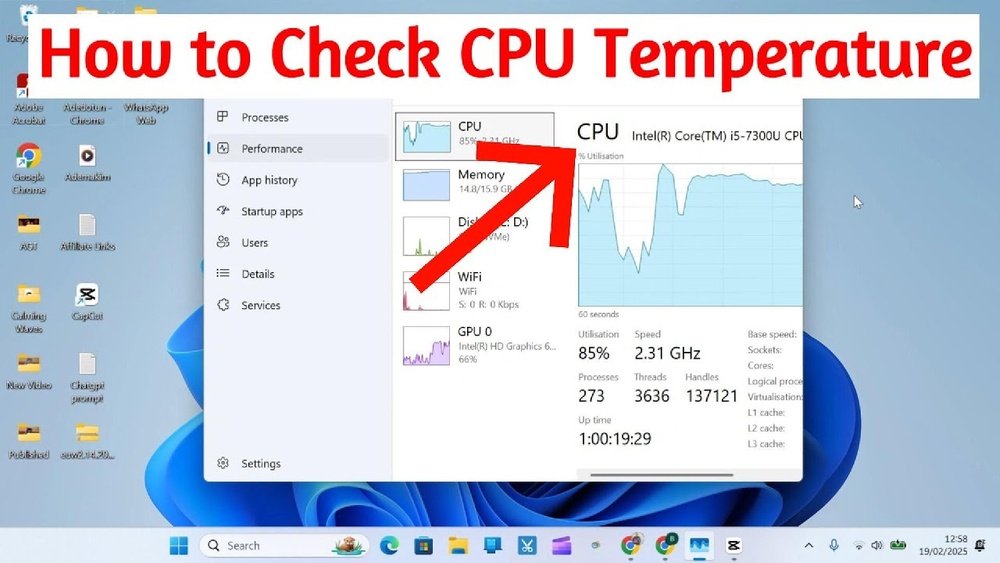
Are you worried that your computer might be overheating? Knowing how to see your CPU temp is one of the easiest ways to keep your device running smoothly and avoid sudden crashes.
When your CPU gets too hot, it can slow down your work, damage important parts, or even cause permanent problems. But don’t worry—checking your CPU temperature is quick and simple, and this guide will show you exactly how to do it.
Keep reading, and you’ll learn the best tools and tips to protect your computer right now.

Credit: softwareg.com.au
Why Monitor Cpu Temperature
Monitoring your CPU temperature helps keep your computer safe and fast. It shows how hard your CPU works and if it gets too hot. Watching this temperature can stop problems before they start. It helps your computer last longer and run smoothly.
Impact Of Overheating On Performance
High CPU temperature makes your computer slow. The CPU lowers its speed to cool down. This causes lag and delays in tasks. Overheating can also cause crashes and freezes. It can damage the CPU over time. Preventing high temperatures keeps your computer working well.
Signs Of High Cpu Temperature
Your computer may feel very hot to touch. Fans run loudly and non-stop. Programs start to freeze or close suddenly. The screen might flicker or go black. These signs mean your CPU needs attention. Checking temperature helps catch these problems early.
Benefits Of Regular Monitoring
Tracking CPU temperature helps avoid damage. It keeps your computer running at top speed. You can fix cooling problems quickly. It saves money by preventing costly repairs. Regular checks give peace of mind. Your computer stays healthy and reliable longer.

Credit: www.youtube.com
Tools To Check Cpu Temperature
Knowing your CPU temperature helps keep your computer safe. Too much heat can slow down your system or cause damage. Various tools show your CPU temperature clearly. These tools range from built-in utilities to apps for your phone.
Built-in System Utilities
Most computers have basic tools for checking CPU temperature. For Windows, you can use the BIOS or UEFI settings. Restart your PC and enter the BIOS to see temperature stats. Mac users can check the Activity Monitor for some system info. These utilities give a quick look at your CPU heat.
Popular Third-party Software
Many free programs provide detailed CPU temperature readings. Apps like HWMonitor, Core Temp, and SpeedFan are common choices. They offer real-time data and alert you if the CPU gets too hot. These tools often show temperatures for each CPU core. They help track your system’s health easily.
Mobile Apps For Remote Monitoring
Mobile apps let you check CPU temperature from your phone. Apps such as AIDA64 and HWiNFO have companion mobile versions. You install software on your PC and connect it to the app. This way, you can watch your CPU temperature without sitting at your computer. Handy for remote monitoring and quick checks.
Step-by-step Guide To Check Cpu Temp
Checking your CPU temperature is important to keep your computer safe. High CPU temps can cause slowdowns or damage. This step-by-step guide shows simple ways to check your CPU temperature. You can use your computer’s built-in tools or special software.
Follow these easy steps to find out your CPU temperature fast and clearly.
Using Bios/uefi Interface
Restart your computer and enter the BIOS or UEFI menu. Usually, press Delete, F2, or F10 during startup. Look for a tab named “Hardware Monitor” or “PC Health.” Here, you will see the current CPU temperature. This method works without extra software. It gives a quick temperature check before the system boots fully.
Checking With Windows Software
Download a free CPU temperature tool like HWMonitor or Core Temp. Install the program and open it. The software shows real-time CPU temperature in Celsius or Fahrenheit. You can also see other details like fan speed and voltage. This method is easy and works while you use your computer.
Monitoring On Mac And Linux
Mac users can download apps like iStat Menus or Macs Fan Control. These apps show temperature and fan speed clearly. For Linux, use commands like “sensors” in the terminal. First, install the lm-sensors package. Then type “sensors” to get temperature readings. Both systems offer reliable ways to monitor CPU heat.
Interpreting Cpu Temperature Readings
Understanding CPU temperature readings helps keep your computer safe and fast. It shows how hot your processor is running. Knowing these numbers helps avoid damage and slowdowns. Let’s explore how to read and understand these temperatures properly.
Normal Vs Critical Temperature Ranges
Most CPUs run safely between 30°C and 60°C when idle. During heavy use, temperatures up to 80°C are usually okay. Temperatures above 90°C can harm the CPU. Consistently high heat may cause crashes or hardware failure. Check your CPU model for its specific safe temperature range.
Factors Affecting Cpu Temperature
Room temperature impacts how hot your CPU gets. Poor airflow inside the case raises heat levels. Dust buildup can block fans and vents. Running many programs at once pushes the CPU harder. Overclocking increases heat beyond normal limits. Using a good cooling system keeps temperatures lower.
When To Take Action
Take action if your CPU temperature stays above 85°C for long. Clean dust from fans and vents regularly. Ensure your computer case has good airflow. Replace old thermal paste between CPU and cooler if needed. Lower the number of running programs to reduce load. Consider upgrading your cooling system if heat persists.
Tips To Lower Cpu Temperature
Keeping your CPU cool is very important for your computer’s health. High temperatures can slow down your PC or cause damage. Here are some simple tips to help lower your CPU temperature and keep your system running smoothly.
Improving Airflow And Cooling
Good airflow helps cool your CPU faster. Make sure your computer case has enough fans. Place the fans so air flows in from the front and goes out the back. Use a quality CPU cooler or consider upgrading your current one. Liquid cooling is an option for better heat removal. Keep cables tidy to avoid blocking airflow inside the case.
Cleaning Dust And Debris
Dust blocks air and traps heat inside your PC. Open your computer case carefully and use compressed air to clean dust from fans, vents, and heatsinks. Clean your CPU cooler regularly to keep it working well. Dust buildup can cause your CPU to overheat quickly. A clean PC runs cooler and lasts longer.
Updating Bios And Drivers
Outdated BIOS or drivers can cause poor CPU performance and higher temperatures. Check your motherboard’s website for BIOS updates. Update your CPU and chipset drivers to the latest versions. New updates often include fixes for temperature management. Keeping your software current helps your CPU run cooler and more efficiently.

Credit: www.alcpu.com
Preventing Future Overheating
Preventing future overheating is key to keeping your CPU safe and running well. Heat can damage parts and slow down your computer. Watching your CPU temperature helps you avoid problems before they start. Follow these simple steps to keep your system cool.
Regular Maintenance Schedule
Clean your computer inside and out often. Dust blocks air and makes heat build up fast. Use a soft brush or compressed air to clear dust from fans and vents. Check thermal paste between the CPU and cooler every year. Replace it if dried out. This helps heat move away from the CPU better.
Choosing Quality Cooling Solutions
Pick a good cooler that fits your CPU type and size. Stock coolers might not be enough for heavy use. Consider air coolers with big fans or liquid coolers for better heat control. Good cooling helps the CPU stay at safe temperatures during work or play. Make sure your computer case has enough airflow too.
Avoiding Overclocking Risks
Overclocking runs the CPU faster than normal. This creates extra heat that can harm parts. If you overclock, use strong cooling and watch the temperature closely. Lower the clock speed if temperatures rise too high. Keeping your CPU at its normal speed is safer and reduces overheating risk.
Frequently Asked Questions
How Can I Check My Cpu Temperature On Windows?
You can check CPU temperature using third-party apps like HWMonitor or Core Temp. These tools display real-time temperature data clearly.
What Is A Safe Cpu Temperature Range?
A safe CPU temperature usually ranges from 30°C to 70°C. Temperatures above 80°C may cause overheating issues.
Why Is My Cpu Temperature So High?
High CPU temperature can result from poor ventilation, dust buildup, or faulty cooling systems. Check fans and clean your PC regularly.
Can I Monitor Cpu Temperature Without Software?
Most BIOS or UEFI firmware setups display CPU temperature. Restart and enter BIOS to view basic temperature info without software.
Conclusion
Knowing your CPU temperature helps keep your computer safe. High temperatures can cause damage or slow down your PC. Regular checks let you fix problems early. Use simple tools to see your CPU temp fast. Keep your system cool by cleaning fans and avoiding dust.
Watch your computer’s health to prevent crashes. Staying aware means your PC runs smoothly longer. Small steps make a big difference in performance. Keep an eye on your CPU temperature every now and then.
