
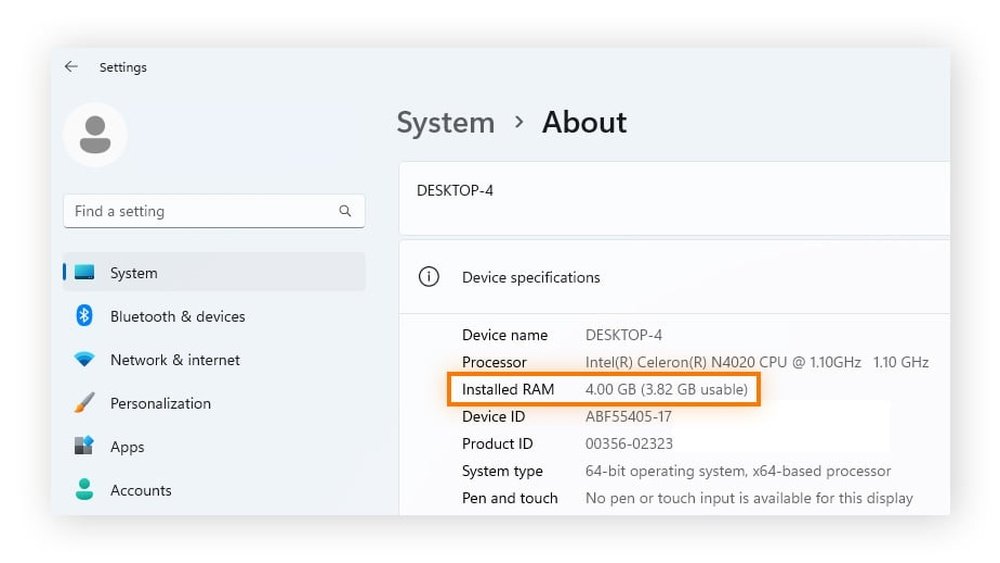
Do you ever wonder how much RAM your computer really has? Knowing exactly what kind of RAM is installed can help you boost your device’s speed and performance.
Whether you want to upgrade or just need to check, finding this information is easier than you think. In this guide, you’ll learn simple ways to see what RAM is installed on your system—no tech degree required. Keep reading, and you’ll be able to unlock your computer’s full potential in just a few steps.
Check Ram On Windows
Checking the RAM installed on your Windows computer is simple and quick. Knowing your RAM helps you understand your system’s performance. It also helps when you plan to upgrade or troubleshoot your PC.
Windows offers several easy ways to see your RAM details. You can use built-in tools without needing extra software. Here are three common methods to check RAM on Windows.
Using System Information
Open the Start menu and type System Information. Click the app from the list. In the window, find Installed Physical Memory (RAM). This shows the total RAM on your PC. You can also see other system details here.
Through Task Manager
Right-click the taskbar and select Task Manager. Click the Performance tab. Select Memory from the left panel. Here, you see your RAM usage and total capacity. It updates in real time as your system runs.
Command Prompt Method
Press Windows + R, type cmd, and hit Enter. In the Command Prompt, type wmic memorychip get capacity and press Enter. It shows the size of each RAM stick in bytes. Add them up to get total RAM size.

Credit: www.vicentetorns.com
Check Ram On Mac
Checking the RAM on a Mac helps you know how much memory your computer has. This info shows how fast your Mac can run programs. There are simple ways to find this data right on your Mac.
Two main tools give clear details about your RAM. You can use About This Mac or dig deeper with System Report. Both show important facts in easy steps.
About This Mac
Click the Apple icon in the top-left corner of your screen. Select “About This Mac” from the menu. A window appears showing an overview of your Mac’s specs.
Look for the “Memory” or “RAM” section. It tells you the total amount of RAM installed. You can also see the type, like DDR4 or DDR5. This quick view helps you understand your Mac’s memory at a glance.
System Report Details
For more details, click the “System Report” button in the About This Mac window. This opens a new window with detailed hardware info.
In the sidebar, select “Memory” under the Hardware section. Here, you find info about each memory slot. It shows size, type, and speed of the RAM modules installed.
This tool helps check if your RAM is working well. It also shows if all slots have memory or if any are empty. This can be useful for upgrades or troubleshooting.
Check Ram On Linux
Checking RAM on Linux is simple and quick. It helps you know how much memory your system has. This information is useful for managing your computer’s performance.
You can check RAM using commands in the terminal or by using graphical tools. Both methods give you details about your installed memory.
Using Terminal Commands
Open the terminal to start. Type free -h and press enter. This command shows total, used, and free RAM in a human-readable format.
Another useful command is cat /proc/meminfo. It gives detailed memory information, including cache and buffer sizes.
You can also use vmstat -s for a summary of memory stats. These commands work on almost all Linux systems.
Graphical Tools Available
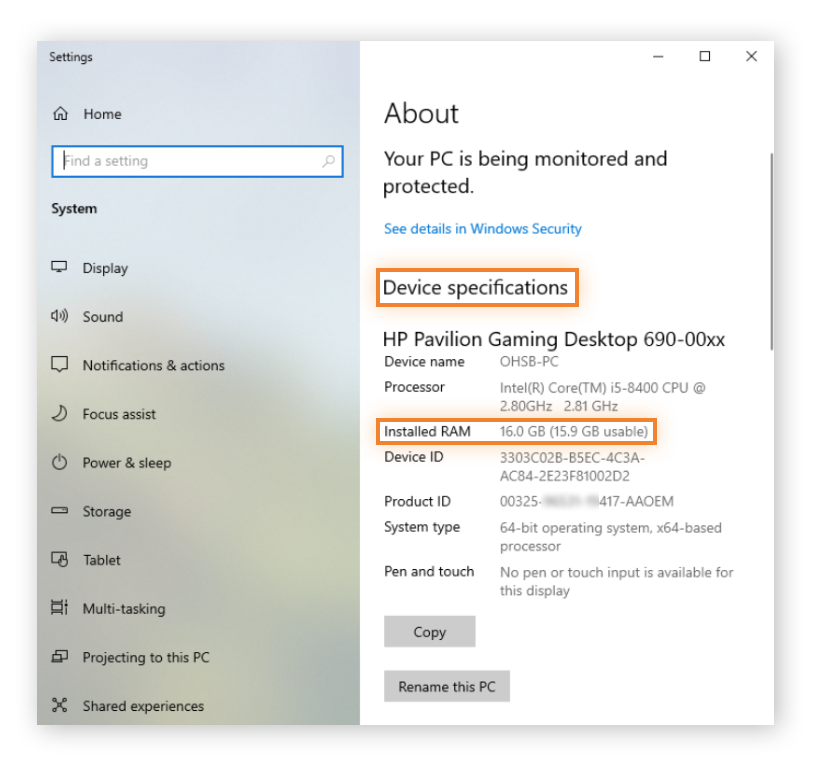
Linux offers graphical tools to check RAM easily. One popular tool is “System Monitor.” It shows memory usage in real time.
On Ubuntu, open “System Monitor” from the app menu. Go to the “Resources” tab to see RAM details. It displays total memory and current usage.
Other desktop environments have similar apps. They provide a clear view of your RAM without using the terminal.
Credit: www.avast.com
Third-party Tools For Ram Info
Third-party tools offer a simple way to check your RAM details. These programs provide clear and detailed information about your installed memory. They help users who find built-in system tools confusing or limited. Using these tools gives more data about RAM speed, type, and usage.
Many tools are free and easy to download. They work on most Windows versions and some support Mac and Linux. These applications often show real-time memory usage and other hardware stats.
Popular Software Options
CPU-Z is a popular choice for viewing RAM details. It shows memory type, size, and speed clearly. Speccy provides a full system overview, including RAM info. It is user-friendly and fast. HWMonitor not only shows RAM but also monitors temperature and voltages. These tools have simple interfaces and do not need installation in some cases.
Benefits Of Using Tools
Third-party tools give more detailed RAM data than basic system tools. They help users understand their memory’s performance and health. These programs can spot issues like incorrect RAM speed or errors. They also assist in planning upgrades by showing current specs. Using these tools saves time and avoids guesswork about your RAM.
Interpreting Ram Specifications
Understanding RAM specifications helps you know your computer’s memory limits. It tells you how much memory you have and how fast it works. This knowledge guides your decisions for upgrades and improves performance. Below are key points to check when reading RAM details.
Capacity And Speed
Capacity shows the amount of RAM installed. It is measured in gigabytes (GB). More capacity allows your computer to run more apps at once. Speed measures how fast RAM processes data. It is shown in megahertz (MHz). Higher speed means quicker data handling and better multitasking.
Type And Form Factor
Type refers to the RAM generation, like DDR3 or DDR4. Newer types offer better performance and power efficiency. Form factor means the physical size and shape of the RAM. Common types include DIMM for desktops and SO-DIMM for laptops. Knowing these helps you find compatible memory for upgrades.

Credit: www.liftingitalia.com
Troubleshooting Ram Issues
RAM problems can cause your computer to slow down or crash. Identifying and fixing these issues can improve your device’s performance. Troubleshooting RAM helps keep your system stable and fast.
Understanding how to find and test your RAM is key. It saves time and avoids unnecessary upgrades. Let’s explore ways to detect faulty RAM and decide when to upgrade.
Detecting Faulty Ram
Faulty RAM causes errors and random crashes. Your computer may restart often or freeze without warning. A common sign is the “blue screen of death.”
Run memory tests to check for bad RAM. Tools like Windows Memory Diagnostic or MemTest86 scan your RAM. These tools find errors that cause problems.
Test each RAM stick separately. This helps find which one is faulty. Replace any RAM that fails the test to avoid issues.
When To Upgrade
Upgrade RAM if your computer runs slow with many apps open. More RAM lets your system handle multiple tasks smoothly. Check your current RAM size before buying more.
If your software needs more memory than you have, it’s time to upgrade. Older computers may also benefit from more RAM to run new programs. Increasing RAM can boost speed and reduce crashes.
Frequently Asked Questions
How Do I Check Installed Ram On Windows?
Open Task Manager by pressing Ctrl+Shift+Esc. Go to the Performance tab. Click on Memory to see RAM size, type, and speed.
Can I Find Ram Details On Macos Easily?
Yes, click the Apple menu, select About This Mac. The Overview tab shows RAM size and type information clearly.
What Tool Shows Ram Info On Linux Systems?
Use the command free -h or sudo dmidecode –type 17 in Terminal. These commands display RAM size and specs.
Why Should I Know My Installed Ram Type?
Knowing your RAM type helps with upgrades compatibility and system performance. It ensures buying the right memory sticks.
Conclusion
Knowing how to check your installed RAM helps you understand your computer better. It guides you when upgrading or troubleshooting performance issues. Use simple tools or built-in settings to find this information quickly. This knowledge makes managing your device easier and saves time.
Keep your system running smoothly by staying informed about your RAM. Small steps like these improve your computer experience every day.
