

Are you curious about how much RAM your computer has? Knowing your RAM is key to understanding your device’s speed and performance.
Whether you want to upgrade, troubleshoot, or just learn more about your system, finding out your RAM details is the first step. In this guide, you’ll discover simple ways to check your RAM quickly and easily. Keep reading—you’ll have all the answers in just a few minutes!

Credit: fundacioninbursa.org
Check Ram On Windows
Checking the amount of RAM on your Windows computer is simple. RAM, or Random Access Memory, affects how fast your PC runs programs. Knowing your RAM size helps you decide if you need more memory for better performance.
Windows offers several easy ways to see your RAM details. Each method works on most Windows versions. Pick the one that feels easiest for you.
Using System Properties
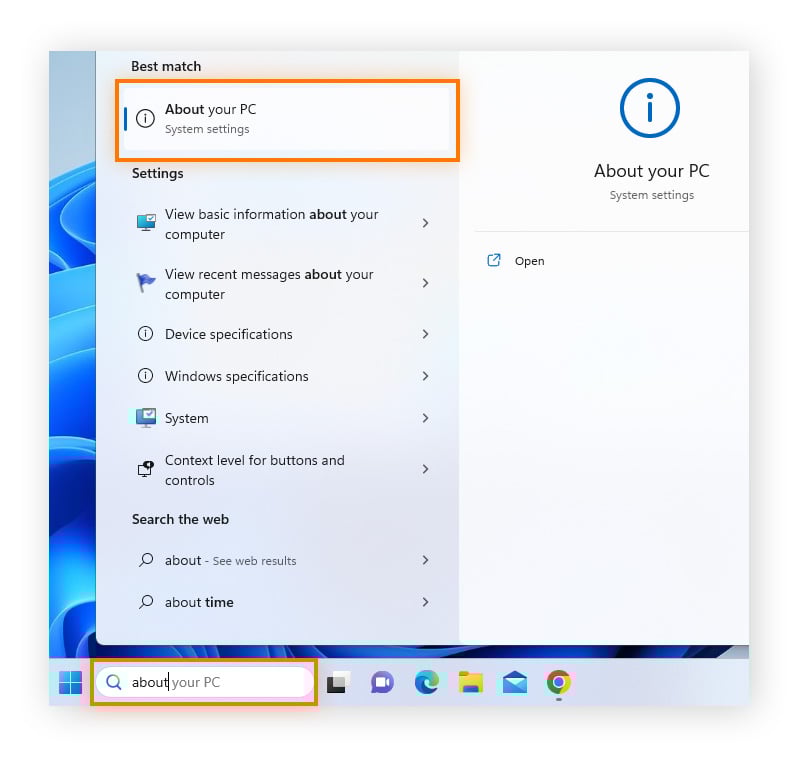
Right-click on the Start button or press Windows key + Pause/Break. This opens the System Properties window. Look under the “Device specifications” section. You will see “Installed RAM” showing the total memory available. This method shows basic RAM info quickly.
Via Task Manager
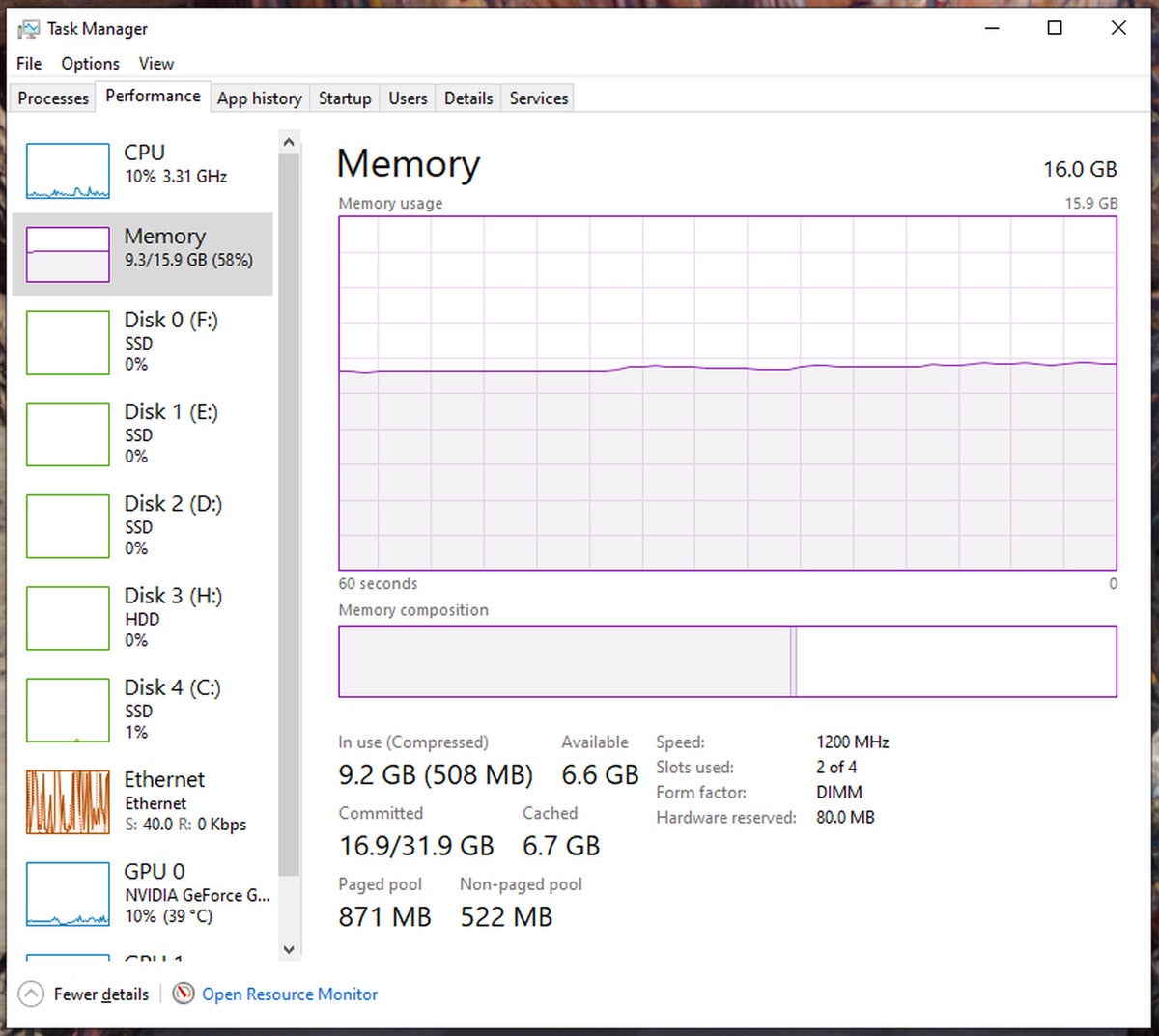
Press Ctrl + Shift + Esc to open Task Manager. Click the “Performance” tab. Choose “Memory” from the left panel. Here, you find detailed RAM info like total size, speed, and usage. This method helps monitor RAM while using your PC.
Through Command Prompt
Open Command Prompt by typing “cmd” in the search bar and pressing Enter. Type the command wmic MEMORYCHIP get Capacity, Speed and press Enter. This shows the size and speed of each RAM module. This method gives precise technical details.
Find Ram On Mac
Finding out how much RAM your Mac has is simple. Knowing your RAM helps you understand your Mac’s speed and performance. It also guides you when installing new software or upgrading your system.
About This Mac
Click the Apple icon at the top left of your screen. Select “About This Mac” from the drop-down menu. A window appears showing an overview of your Mac.
The “Memory” section tells you the total RAM installed. It shows the size in gigabytes (GB). This quick check helps you know your Mac’s memory at a glance.
Using System Report
From the “About This Mac” window, click the “System Report” button. This opens a detailed view of your Mac’s hardware. Look for the “Memory” option in the sidebar.
Here, you see the exact details about each memory slot. It shows how much RAM is in each slot and its type. This information helps with memory upgrades or troubleshooting.
Identify Ram On Linux
Identifying RAM on a Linux system helps you understand your computer’s memory capacity. This information is useful for troubleshooting and upgrading your system. Linux offers simple ways to check RAM using built-in tools. Let’s explore how to find RAM details quickly.
Using Terminal Commands
Open the terminal to start checking your RAM. Type free -h and press Enter. This shows total, used, and free memory in a human-readable format. Another command, cat /proc/meminfo, displays detailed memory info. Use vmstat -s for a quick summary of memory stats. These commands work on most Linux distributions and give accurate RAM data.
Checking System Monitor
Most Linux desktops come with a System Monitor tool. Open it from your applications menu. Look for the “Resources” or “Memory” tab. You will see your RAM usage and total memory here. This method is easy for users who prefer graphical interfaces. It provides real-time updates about your system memory.
Using Third-party Tools
Using third-party tools is a simple way to check your computer’s RAM. These tools offer detailed information about your memory. They show more than just the size. You can see speed, type, and usage too. Many of these apps are free and easy to use. They work on different operating systems and devices.
Popular Ram Diagnostic Apps
CPU-Z is a well-known app. It provides detailed RAM data. You can check RAM size, frequency, and manufacturer. Speccy is another popular choice. It gives an overview of your whole system, including RAM. For Windows, HWiNFO offers deep insights. It shows real-time memory usage and specs. On Mac, you can try iStat Menus. It tracks memory and other hardware stats.
Benefits Of External Software
Third-party apps offer more details than built-in tools. They show exact RAM speed and timings. These tools help identify faulty memory modules. They also track RAM usage over time. This helps diagnose performance issues. Some apps provide alerts for memory problems. They often include extra features like CPU and GPU info. Many apps have simple interfaces for beginners.
Tips For Reading Ram Specs
Reading RAM specs helps you understand your computer’s memory better. It guides you in making smart upgrades and fixes. Knowing key details about RAM avoids buying incompatible parts. This section breaks down important tips to read RAM specs clearly.
Understanding Ram Size And Speed
RAM size shows how much data your memory can hold. It is measured in gigabytes (GB). More RAM size means your computer handles more tasks at once. RAM speed tells how fast data moves to and from memory. It is measured in megahertz (MHz). Higher speed makes your computer work smoother and faster.
Look for the size and speed on your RAM label or system info. Both numbers affect your computer’s performance. Balance size and speed for the best results.
Checking Ram Type And Slots
RAM type means the technology your memory uses. Common types are DDR3, DDR4, and DDR5. Your motherboard supports only certain RAM types. Check your RAM type before buying new sticks.
RAM slots are the places on your motherboard where memory fits. Count the slots to know how many RAM sticks you can add. Some computers have empty slots for upgrades. Always match new RAM type with existing ones for compatibility.
Credit: www.avast.com
Credit: www.acquetech.com
Frequently Asked Questions
How Do I Check Ram Size On Windows?
You can check RAM size on Windows by opening Task Manager. Press Ctrl+Shift+Esc, go to the Performance tab, and select Memory. Your total RAM size and usage details will be displayed clearly.
How To Find Ram Type And Speed On Mac?
On a Mac, click the Apple menu and select About This Mac. Under the Memory tab, you will see RAM type, size, and speed information.
Can I See Ram Details Using Command Prompt?
Yes, open Command Prompt and type wmic memorychip get capacity, speed, memorytype. This command shows RAM size, speed, and type on Windows systems.
What Tools Help Identify Ram On A Pc?
Tools like CPU-Z and Speccy provide detailed RAM info. They display size, type, speed, and manufacturer, helping you identify your RAM easily.
Conclusion
Knowing how to check your RAM helps you understand your computer better. It shows how much memory you have and if it meets your needs. You can find this information quickly on Windows, Mac, or Linux. This simple step helps you decide if you need an upgrade.
Now, you can feel confident managing your device’s memory. Keep this guide handy for future reference. Your computer’s performance depends on knowing your RAM. Easy and useful knowledge for every user.
