

Wondering what CPU powers your computer? Knowing your CPU is key to understanding your device’s speed, performance, and upgrade options.
But don’t worry—it’s easier than you think to find out. You’ll discover simple, step-by-step ways to check your CPU quickly. By the end, you’ll have the exact details you need, without any confusion. Ready to unlock the full potential of your computer?
Let’s get started!
Check Cpu On Windows
Checking your CPU on Windows is simple and quick. Knowing your CPU helps with software choices and upgrades. Several built-in tools show detailed information about your processor.
Use System Information Tool
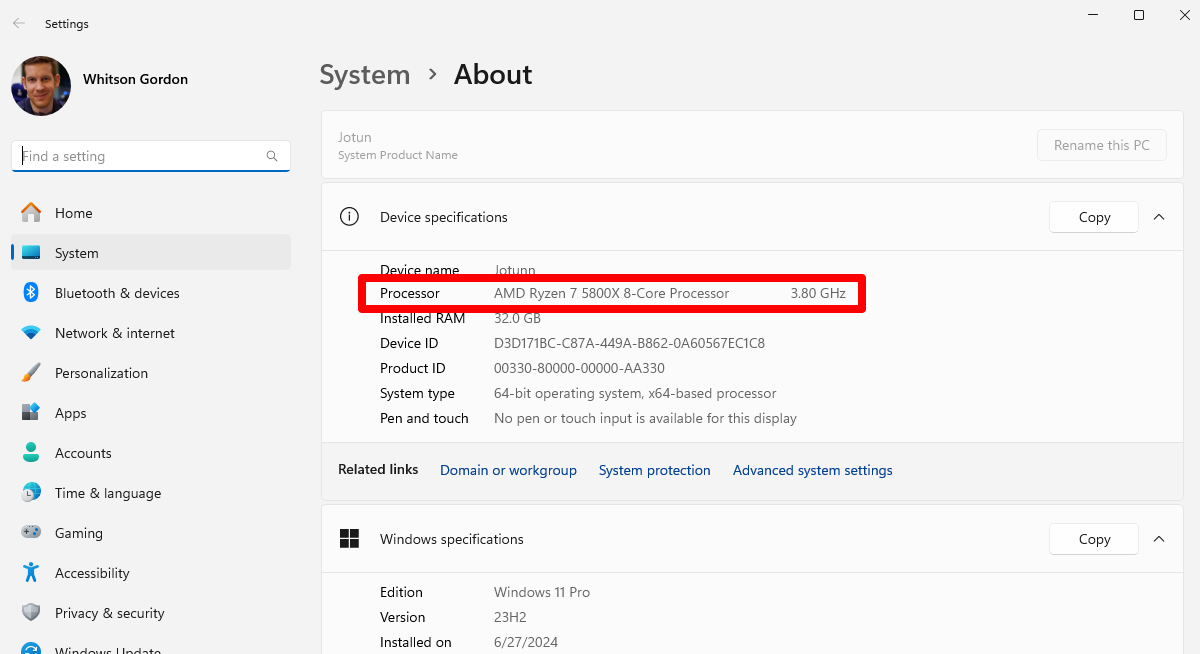
Press Windows + R to open the Run box. Type msinfo32 and hit Enter. The System Information window appears. Look for “Processor” in the summary. It shows the CPU model and speed clearly.
Access Task Manager
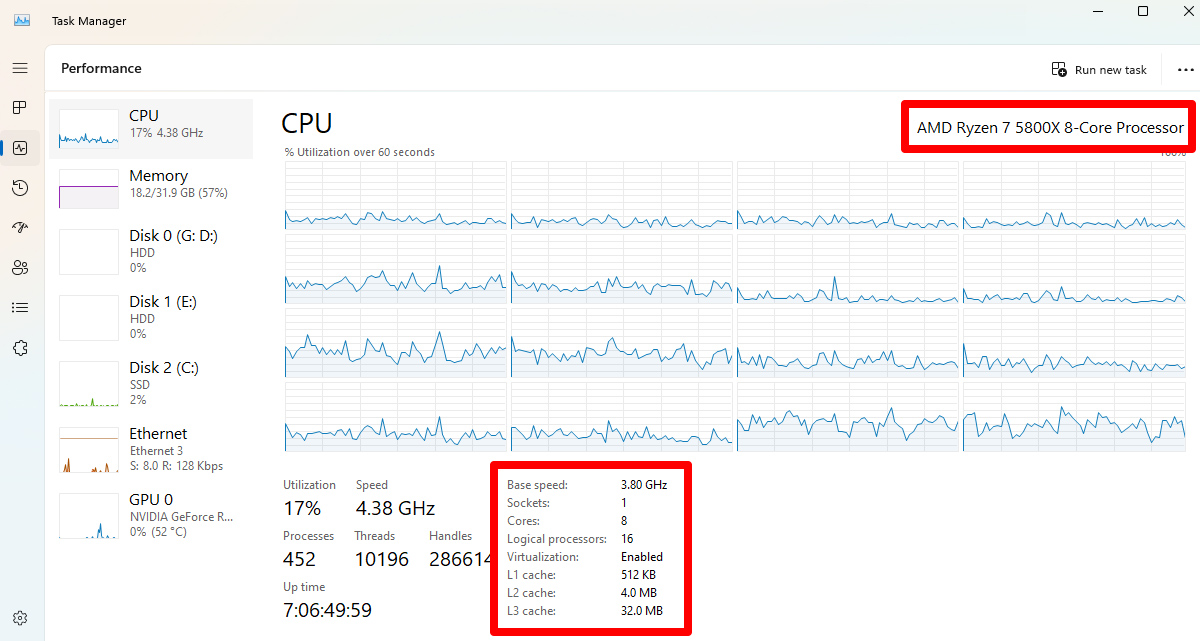
Right-click the taskbar and select Task Manager. Click the Performance tab at the top. Choose CPU from the list on the left side. You will see the CPU name and usage details here.
Try Command Prompt
Open Command Prompt by typing cmd in the search bar. Enter the command wmic cpu get name and press Enter. The CPU name will display immediately in the window.
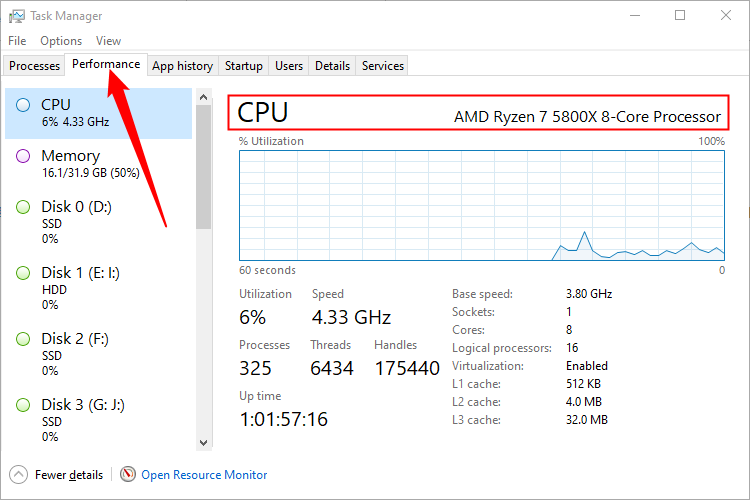
Credit: www.howtogeek.com
Find Cpu On Mac
Finding out what CPU your Mac has is simple. Knowing your CPU helps you understand your Mac’s speed and power. This guide shows easy steps to check your CPU on a Mac.
Use About This Mac
Click the Apple icon at the top left of your screen. Select “About This Mac” from the menu. A window will open, showing your Mac’s overview. You will see the processor type listed here. This tells you the exact CPU model inside your Mac.
Check System Report
Inside the “About This Mac” window, click the “System Report” button. A new window opens with detailed info about your Mac. Look for “Hardware Overview” on the left side. The processor name and speed appear here. This section gives more details about your CPU.
Identify Cpu On Linux
Finding out which CPU your Linux system uses is simple. You can check details about your processor quickly using built-in tools. These methods work on almost all Linux versions and give clear information about your CPU.
Use Terminal Commands
Open your terminal to begin. Type lscpu and press enter. This command shows detailed CPU info like model name, speed, and cores.
Another command is cat /proc/cpuinfo. It lists all CPUs and their details. These commands help you see the exact CPU type and features.
Check /proc/cpuinfo File
The file /proc/cpuinfo stores CPU information. You can view it by running cat /proc/cpuinfo in the terminal.
This file displays the processor model, number of cores, and cache size. It provides a clear snapshot of your CPU’s specifications.
Credit: rog.asus.com
Use Third-party Software
Using third-party software is an easy way to find out what CPU your computer has. These tools provide detailed information about your processor and other hardware. You do not need to open your computer or check technical documents. Just install the software, and it shows everything you need to know.
Popular Cpu Identification Tools
CPU-Z is a widely used tool that shows your CPU model, speed, and cache size. It works on Windows and is free to download. Speccy provides a simple overview of your CPU and other parts like RAM and storage. It also highlights temperature and health status. Another option is HWiNFO, which offers deep details about your CPU and system sensors. These tools are user-friendly and quick to install.
Benefits Of Using Software
Third-party software gives accurate and detailed CPU information. You can check processor speed, cores, and architecture easily. These tools also show real-time data like temperature and usage. They help you monitor your CPU performance and health. Using software saves time and avoids confusion. It works for all computer brands and models. No technical knowledge is needed to use these programs.
Tips For Accurate Cpu Info
Getting accurate CPU information is important for many tasks. It helps with upgrades, troubleshooting, and software compatibility. Sometimes, the details shown can be confusing or wrong. Follow simple tips to avoid errors and get correct CPU info.
Avoiding Common Mistakes
Do not rely only on one tool to check your CPU. Some programs show outdated or generic info. Avoid guessing based on speed or brand alone. Check system settings carefully. Avoid third-party apps from unknown sources. They may give false data or harm your PC.
Verifying Cpu Details
Use built-in system tools for the most reliable info. On Windows, open Task Manager or System Information. On Mac, use About This Mac. Cross-check CPU name, speed, and cores. Match these details with official manufacturer specs online. This confirms accuracy and prevents errors.
Credit: rog.asus.com
Frequently Asked Questions
How Can I Check My Cpu On Windows?
Open Task Manager by pressing Ctrl + Shift + Esc. Go to the Performance tab. Click on CPU to see its name and details.
What’s The Easiest Way To Find Cpu On Mac?
Click the Apple menu, then About This Mac. The Overview tab shows your Mac’s processor information clearly.
Can I Find Cpu Info Using Command Prompt?
Yes, open Command Prompt and type wmic cpu get name. Press Enter to see your CPU model instantly.
How Do I Identify My Cpu On Linux?
Open Terminal and type lscpu. Press Enter to display detailed CPU information in your Linux system.
Conclusion
Knowing your CPU helps you understand your computer better. It guides you in choosing the right software and upgrades. Checking the CPU is quick and easy on any device. Use simple tools or built-in settings to find this info. Keep this knowledge ready for troubleshooting or buying parts.
Now, you can confidently see what CPU you have anytime. This small step makes your tech life smoother and clearer.
