
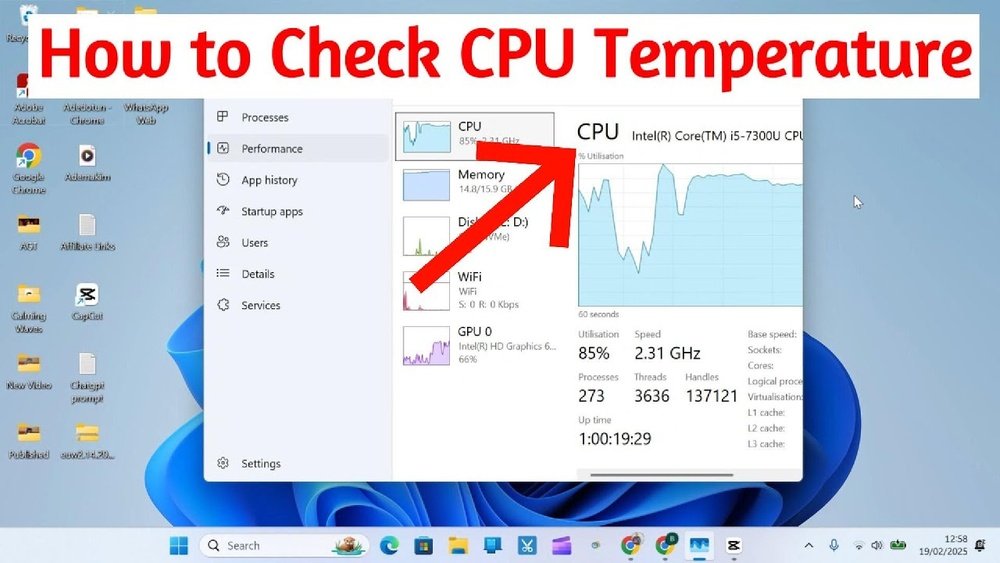
Are you curious about how hot your CPU is running? Knowing your CPU’s temperature is key to keeping your computer fast and safe.
If your processor gets too hot, it can slow down or even get damaged. But don’t worry—it’s easier than you think to check your CPU temperature. You’ll learn simple, step-by-step ways to see your CPU’s temp right now. Keep reading, and you’ll never have to guess if your computer is overheating again.
Credit: www.youtube.com
Why Monitor Cpu Temperature
Monitoring your CPU temperature is important for keeping your computer safe and fast. The CPU, or central processing unit, does many tasks inside your computer. It gets hot while working. Knowing its temperature helps you avoid problems.
Impact On Performance
High CPU temperature can slow down your computer. The CPU reduces speed to cool down. This is called throttling. It makes your computer less responsive. Keeping the CPU cool helps your computer run smoothly and fast.
Preventing Overheating Damage
Too much heat can damage the CPU and other parts. Overheating may cause your computer to shut down suddenly. This protects the hardware from harm. Watching the temperature helps you fix cooling issues early. It extends the life of your computer.
Credit: www.ionos.com
Signs Of High Cpu Temperature
High CPU temperature can harm your computer. It causes problems that slow down your work. Knowing the signs helps you act fast. This section shows common signs of high CPU temperature.
System Slowdowns
Your computer may become very slow. Programs take longer to open or run. This happens because the CPU tries to cool down. It reduces speed to avoid damage. Slow performance is a clear warning.
Unexpected Shutdowns
The computer can turn off without warning. This protects the CPU from getting too hot. Sudden shutdowns mean the temperature is too high. Do not ignore these shutdowns. They protect your hardware from damage.
Unusual Fan Noise
Fans make louder or strange noises. They spin faster to cool the CPU. Loud fans signal that the CPU is hot. Check your computer if you hear this noise. It shows the cooling system is working hard.
Built-in Tools To Check Cpu Temp
Checking your CPU temperature is important to keep your computer running smoothly. Many computers have built-in tools to help you see this information. These tools do not need extra software. You can access them directly through your system settings or hardware menus.
Built-in tools offer a simple way to monitor CPU temperature. They provide basic but useful data. This helps you know if your CPU is working too hard or overheating. Here are some common built-in options for different systems.
Bios/uefi Interface
The BIOS or UEFI is the first screen you see when you start your computer. It holds important hardware information, including CPU temperature. To check, restart your PC and press the key shown on the screen, like F2 or Delete.
Navigate to the hardware or status menu. You will find the CPU temperature listed there. This method works even if your operating system has issues. It shows real-time data right from the motherboard.
Windows Task Manager
Windows Task Manager shows CPU usage but not temperature by default. Some newer versions offer basic temperature data for supported CPUs. Open Task Manager by pressing Ctrl + Shift + Esc.
Go to the Performance tab and select CPU. If temperature data is available, it will show here. If not, use BIOS or third-party apps for accurate reading.
Mac Activity Monitor
Mac Activity Monitor tracks CPU usage but does not show temperature. Apple does not include CPU temperature in this tool. To check CPU temperature on Mac, use the built-in System Information app to see hardware details, but temperature is not listed.
For temperature monitoring, you need third-party apps on Mac. Still, Activity Monitor helps track CPU load and system performance easily.
Popular Third-party Software
Third-party software offers simple ways to check your CPU temperature. These tools work on most computers and show real-time data. They help you keep your computer safe from overheating. Here are some popular options to consider.
Core Temp
Core Temp is a lightweight program that shows the temperature of each CPU core. It updates the data every second. The interface is clean and easy to understand. Core Temp also logs temperature data for later review. It supports most Intel and AMD processors.
Hwmonitor
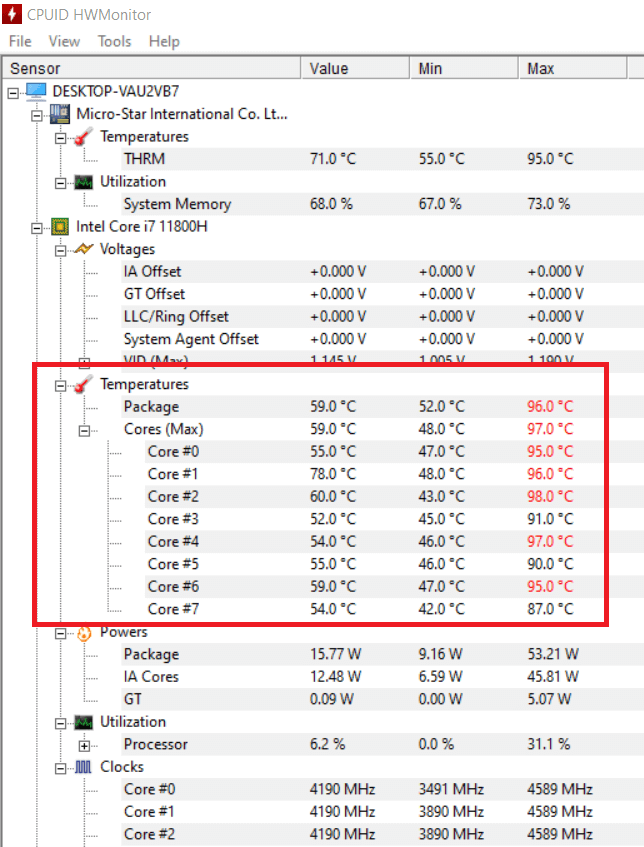
HWMonitor displays detailed information about your CPU and other hardware. It shows temperature, voltage, and fan speed. The software is simple to use and free. It works with many types of sensors on your motherboard. HWMonitor helps you spot overheating problems early.
Speccy
Speccy offers a full overview of your PC’s hardware. It shows CPU temperature along with other system details. The program has a friendly design and clear labels. Speccy can save reports for troubleshooting or sharing. It’s a good choice for beginners.
Safe Practices For Temperature Monitoring
Monitoring your CPU temperature is important to keep your computer safe and running well. High temperatures can cause damage and slow down your system. Follow simple safe practices to protect your CPU and avoid costly repairs.
Regular Checks
Check your CPU temperature often. Use easy tools like HWMonitor or Core Temp. Watching temperature helps spot problems early. Set reminders to check weekly or after heavy use. This habit keeps your PC healthy and avoids sudden crashes.
Avoiding Overclocking Risks
Overclocking increases CPU speed but raises temperature too. It can cause overheating and damage your CPU. Avoid overclocking unless you know how to cool your system well. Keep your CPU at factory speed for safety and longer life.
Maintaining Proper Cooling
Good cooling keeps CPU temperature low. Clean dust from fans and vents often. Use quality thermal paste between CPU and cooler. Ensure your case has enough airflow. Proper cooling stops overheating and keeps your PC fast and stable.
Adjusting Settings To Lower Cpu Temp
Adjusting settings to lower your CPU temperature helps protect your computer. It also improves performance and extends hardware life. Simple changes can reduce heat and keep your CPU running cool.
Optimizing Fan Speeds
Fans move hot air away from your CPU. Adjusting fan speeds increases airflow and cools your system faster. Use software tools to control fan settings. Set higher speeds when the CPU heats up. Balance noise and cooling for comfort.
Cleaning Dust And Debris
Dust blocks air vents and slows cooling fans. Clean dust regularly from your computer’s inside. Use compressed air to blow out dust. Focus on fans, vents, and heat sinks. Clean equipment keeps airflow smooth and CPU cooler.
Upgrading Cooling Systems
Stock coolers may not cool well under heavy use. Upgrade to better cooling systems for lower temperatures. Consider larger fans, liquid coolers, or heat sinks. Better cooling parts lower CPU heat and improve stability.
When To Seek Professional Help
Knowing how to check your CPU temperature is useful. But sometimes, problems need a professional’s eye. Some signs show that your CPU might have serious issues. Acting early can stop damage to your computer. Here are clear signs that you should get expert help.
Persistent High Temperatures
High CPU temperature is normal during heavy use. But if it stays high all the time, this is a problem. Your CPU may overheat even when not busy. This can cause crashes and slowdowns. Cleaning dust or changing thermal paste may not fix it. A technician can find hidden causes and cool your CPU properly.
Hardware Malfunctions
Strange noises from fans or sudden shutdowns suggest hardware trouble. Faulty cooling parts or damaged sensors can raise CPU heat. Sometimes the motherboard or power supply causes issues. These need special tools and skills to diagnose. A professional can replace or repair damaged parts safely.

Credit: www.alcpu.com
Frequently Asked Questions
How Can I Check My Cpu Temperature On Windows?
You can check CPU temperature using tools like HWMonitor, Core Temp, or SpeedFan. Install the software, launch it, and view real-time temperature readings easily.
What Is A Safe Cpu Temperature Range?
A safe CPU temperature usually ranges between 30°C to 60°C during normal use. Temperatures above 80°C can cause overheating and damage.
Can Bios Show My Cpu Temperature?
Yes, many BIOS interfaces display CPU temperature. Restart your PC, enter BIOS by pressing a key (like F2 or Delete), and find the hardware monitor section.
Why Is Monitoring Cpu Temperature Important?
Monitoring CPU temperature prevents overheating, ensures system stability, and prolongs hardware life. It helps identify cooling issues early before damage occurs.
Conclusion
Checking your CPU temperature helps keep your computer safe. High temperatures can cause damage or slow performance. Use simple tools or software to monitor it regularly. Watching your CPU temp is easy and important. Stay aware, and your computer will run smoothly longer.
Small steps make a big difference in computer care. Keep your system cool, and enjoy better performance every day.
