
Are you worried that your computer might be overheating? Knowing the temperature of your CPU is crucial to keep your Windows 10 running smoothly and avoid damage.
But how can you check it quickly and easily? In this guide, you’ll discover simple ways to see your CPU temperature without any technical hassle. By the end, you’ll have the tools to protect your PC and improve its performance.
Keep reading to learn how to stay on top of your computer’s health!
Check Cpu Temperature In Bios
Checking the CPU temperature in BIOS is a direct way to see how hot your processor gets. BIOS shows real-time hardware information before Windows starts. This method does not need extra software.
You can find the CPU temperature in a special section inside BIOS. It helps you monitor if your CPU is running too hot. This is important to avoid damage and slow performance.
Access Bios On Windows 10
Turn off your computer completely. Press the power button to start it. Quickly press the BIOS key repeatedly. Common keys are F2, Delete, or Esc.
Keep pressing until the BIOS screen appears. If Windows starts, shut down and try again. The key depends on your computer brand.
Find Hardware Monitor Section
Use arrow keys to navigate inside BIOS menus. Look for names like “Hardware Monitor,” “PC Health,” or “System Status.” This section shows system temperatures and voltages.
Select it by pressing Enter. Inside, you will see CPU temperature listed. Sometimes it shows in Celsius or Fahrenheit.
Interpret Temperature Readings
Normal CPU temperature ranges from 30°C to 50°C when idle. Under heavy use, it may rise to 70°C or 80°C. Consistently high temperatures can cause problems.
If temperature is above 90°C, check your cooling system. Clean dust from fans and heatsinks. Replace thermal paste if needed to cool better.

Credit: www.youtube.com
Use Built-in Windows Tools
Windows 10 has some built-in tools that help check your CPU temperature. These tools are easy to access and do not require extra software. They provide basic information to keep your system running smoothly. Let’s explore these options and their limits.
Task Manager Limitations
Task Manager is a popular tool in Windows 10. It shows CPU usage and running apps. But it does not show CPU temperature. This is a big limitation for users who want to monitor heat levels. Task Manager focuses on performance, not hardware health. You need other tools to see temperature details.
Windows Security & Performance Apps
Windows 10 offers security and performance apps that monitor system health. These apps can alert you if your CPU overheats. Still, they do not display exact CPU temperature. They track overall system status and suggest fixes. For real-time temperature, these apps are not enough.
Third-party Software Options
Windows 10 does not show CPU temperature by default. Third-party software helps fill this gap. These tools display CPU temperature clearly. They also provide other useful details about your system. Using such software keeps your computer safe from overheating. Here are some popular options to check CPU temperature easily.
Hwmonitor Overview
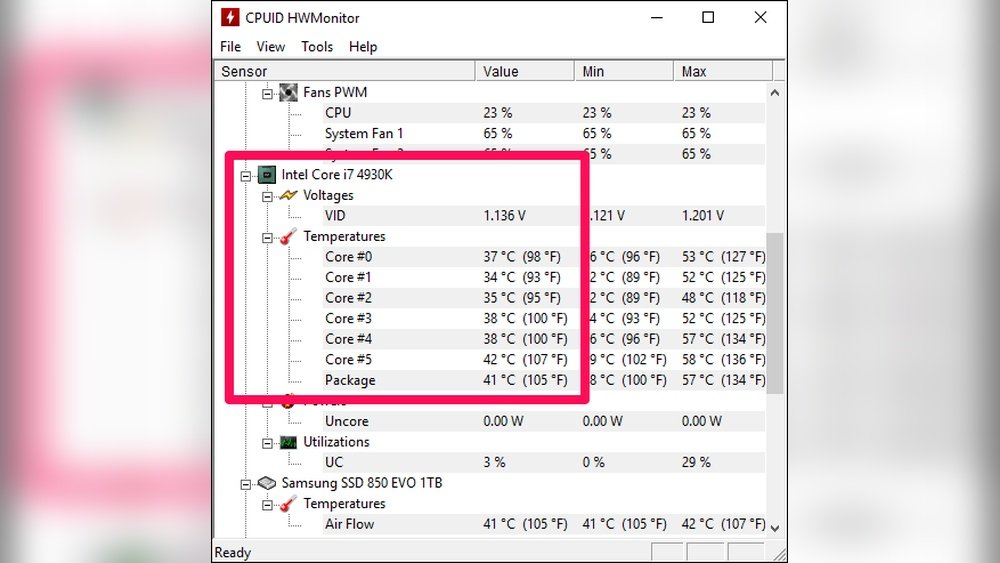
HWMonitor shows real-time temperature of your CPU. It also tracks voltages and fan speeds. The interface is simple and easy to read. It supports most CPUs and hardware sensors. This software runs quietly in the background. It helps spot temperature spikes quickly.
Core Temp Features
Core Temp focuses only on CPU temperature. It shows temperature for each CPU core separately. You can see load and frequency of your processor too. It alerts you if the CPU gets too hot. Core Temp uses little system resources. It works well on all Windows 10 versions.
Speccy Benefits
Speccy gives a full report of your PC. It includes CPU temperature and other hardware info. The interface is colorful and easy to use. It shows temperature in real time. Speccy helps you understand your computer better. It is good for beginners and advanced users.

Credit: www.youtube.com
Install And Use Hwmonitor
HWMonitor is a simple tool to check your CPU temperature on Windows 10. It shows real-time data about your computer’s hardware. This helps you keep your PC safe from overheating. HWMonitor is free and easy to use for anyone.
Download And Install Steps
First, visit the official CPUID website to download HWMonitor. Choose the free version for basic CPU temperature readings. Click the download link and save the file to your computer.
Next, open the downloaded file to start the installation. Follow the on-screen instructions carefully. Choose the installation folder and wait for the process to finish.
Once installed, launch HWMonitor from your desktop or Start menu.
Navigating The Interface
The HWMonitor window shows a list of hardware components. Look for the section labeled with your CPU model. Each item has temperature, voltage, and fan speed readings.
The layout is simple and easy to read. Temperatures are shown in Celsius by default. You can switch to Fahrenheit in the settings if needed.
Reading Cpu Temperature Data
Find the temperature values under your CPU name. You will see “Core 0,” “Core 1,” and so on. These represent individual CPU cores.
The temperature readings update in real-time. Normal CPU temperature ranges from 30°C to 70°C during use. Values above 80°C may indicate overheating.
Use this data to monitor your PC’s health and avoid damage.
Monitor Temperature In Real-time
Monitoring your CPU temperature in real-time helps keep your computer safe. It shows if the CPU gets too hot. Overheating can cause slowdowns or damage. Watching the temperature lets you act fast.
You can see your CPU heat levels using special software. These tools show live data on your screen. This way, you always know your CPU’s condition while working or playing games.
Set Up Temperature Alerts
Many programs let you set alerts for high CPU temperature. Choose a safe temperature limit. When the CPU passes this limit, the software warns you. This helps prevent damage from overheating.
Alerts can be sounds or pop-up messages. You won’t need to watch the temperature all the time. The alert will tell you when action is needed.
Track Temperature During Gaming Or Heavy Use
Gaming and heavy tasks raise CPU temperature quickly. Tracking temperature during these times is important. It ensures your system stays cool and runs well.
Use monitoring tools to check CPU heat while playing games or using heavy software. Watch for temperature spikes. If it gets too high, pause or reduce the load to cool down.

Credit: softwareg.com.au
Optimize Cpu Temperature
Keeping your CPU temperature low helps your computer run better and last longer. High temperatures can slow down your PC or cause damage. You can take simple steps to keep your CPU cool and stable. These tips help control heat and improve performance.
Clean Dust And Improve Airflow
Dust blocks vents and fans, trapping heat inside your computer. Open your PC case and gently remove dust with a soft brush or compressed air. Clean the fans and vents carefully. Make sure cables do not block airflow. Good airflow moves hot air out and brings cool air in.
Apply Thermal Paste Correctly
Thermal paste helps move heat from the CPU to the cooler. Old or dried paste loses its power. Remove the old paste with isopropyl alcohol and a soft cloth. Apply a small pea-sized amount of new thermal paste in the center of the CPU. Then, attach the cooler evenly to spread the paste well.
Adjust Power Settings
Windows 10 lets you control CPU power to reduce heat. Open Power Options from the Control Panel. Select a balanced or power saver plan to lower CPU speed when not needed. This reduces heat and saves energy. You can also set the maximum processor state to a lower percentage for cooler running.
Troubleshoot Temperature Issues
CPU temperature issues can cause your computer to slow down or shut off suddenly. Troubleshooting these problems helps protect your device and keeps it running smoothly. Understanding the causes of high temperature is the first step to fixing the issue. Let’s explore how to find and solve overheating problems in Windows 10.
Identify Overheating Causes
Check if your PC is dusty or blocked by objects. Dust can clog fans and vents, stopping proper airflow. Make sure your computer is in a cool, open space. Running many programs at once can also heat up the CPU. Some apps use more power and cause more heat. Malware or background tasks may increase CPU work without your knowledge. Use Task Manager to see which apps use the most CPU.
Fix High Temperature Problems
Clean your PC’s fans and vents carefully with compressed air. Replace any broken or noisy fans to improve cooling. Adjust power settings to reduce CPU speed or switch to balanced mode. Update your BIOS and drivers to improve hardware efficiency. Use a cooling pad if you have a laptop. Close unused apps and background tasks to lower CPU load. If problems persist, consider reapplying thermal paste on your CPU or consulting a technician.
Frequently Asked Questions
How Can I Check Cpu Temperature On Windows 10?
You can check CPU temperature using third-party software like HWMonitor, Core Temp, or SpeedFan. These tools provide real-time temperature readings and system health details easily.
Is There A Built-in Way To See Cpu Temperature In Windows 10?
Windows 10 doesn’t have a built-in CPU temperature monitor. You need to use third-party applications or check BIOS/UEFI settings for temperature information.
What Is A Safe Cpu Temperature Range On Windows 10?
Generally, a safe CPU temperature ranges from 30°C to 70°C under normal use. Temperatures above 85°C may cause overheating and potential hardware damage.
Can High Cpu Temperature Affect Windows 10 Performance?
Yes, high CPU temperatures can cause Windows 10 to slow down, crash, or shut down unexpectedly to prevent damage. Monitoring temperature helps maintain optimal performance.
Conclusion
Monitoring your CPU temperature on Windows 10 helps protect your computer. It prevents overheating and keeps your system running smoothly. Use simple tools or built-in options to check the temperature often. Staying aware of your CPU’s heat can save you from hardware problems.
Keep your PC cool and enjoy better performance every day.
