
Want to know how hot your GPU is running right now? Keeping an eye on your GPU temperature is key to making sure your computer stays fast and safe.
If your graphics card gets too hot, it can slow down or even get damaged. But don’t worry—checking your GPU temperature is easier than you think. You’ll learn simple and effective ways to see your GPU’s temp, so you can protect your system and boost performance.
Ready to take control of your PC’s health? Keep reading!
Credit: www.gpu-mart.com
Why Monitor Gpu Temperature
Monitoring your GPU temperature is very important. It helps keep your computer running smoothly and safely. Your graphics card works hard, and knowing its temperature shows how well it handles the heat. This information helps you avoid problems before they start. Learning why you should watch your GPU temperature can save you time and money.
Impact On Performance
A hot GPU can slow down your computer. When the temperature rises too high, the GPU reduces its speed to cool down. This means games and apps run slower. Watching the temperature helps you keep your GPU fast and smooth. It ensures your system works at its best all the time.
Preventing Overheating
Overheating can cause serious damage to your GPU. It may crash your system or cause permanent harm. By tracking the temperature, you can stop the GPU from getting too hot. You can take steps like cleaning fans or adjusting settings. This keeps your computer safe and stable during use.
Extending Gpu Lifespan
High temperatures shorten your GPU’s life. Heat wears down parts inside the card. Lower temperatures keep the GPU healthy for many years. Monitoring temperature helps you spot problems early. This care helps your GPU last longer and saves you money on repairs or replacements.
Credit: www.gpu-mart.com
Signs Of High Gpu Temperature
High GPU temperature can harm your computer. It lowers performance and can cause damage. Watching for signs helps you fix problems early. Knowing these signs keeps your system safe and running well.
System Crashes And Freezes
Your computer may crash or freeze unexpectedly. Overheating makes the GPU unstable. Games or programs shut down without warning. Frequent crashes often point to high GPU heat. It can stop your work or play.
Reduced Frame Rates
Graphics slow down during games or videos. Frame rates drop below normal levels. This lag happens because the GPU slows to cool itself. Low frame rates spoil your experience. It signals your GPU is too hot.
Unusual Fan Noise
The GPU fan spins louder than usual. High speed means the GPU needs more cooling. The noise may be constant or sudden. Loud fans warn you of rising temperatures. Ignoring this can lead to bigger problems.
Built-in Tools To Check Gpu Temp
Checking your GPU temperature helps keep your computer safe. Overheating can cause slow performance or damage. Many computers have built-in tools to see GPU temperature. These tools are easy to use and do not need extra downloads.
Here are three built-in tools to check your GPU temperature on Windows and popular graphics cards.
Windows Task Manager
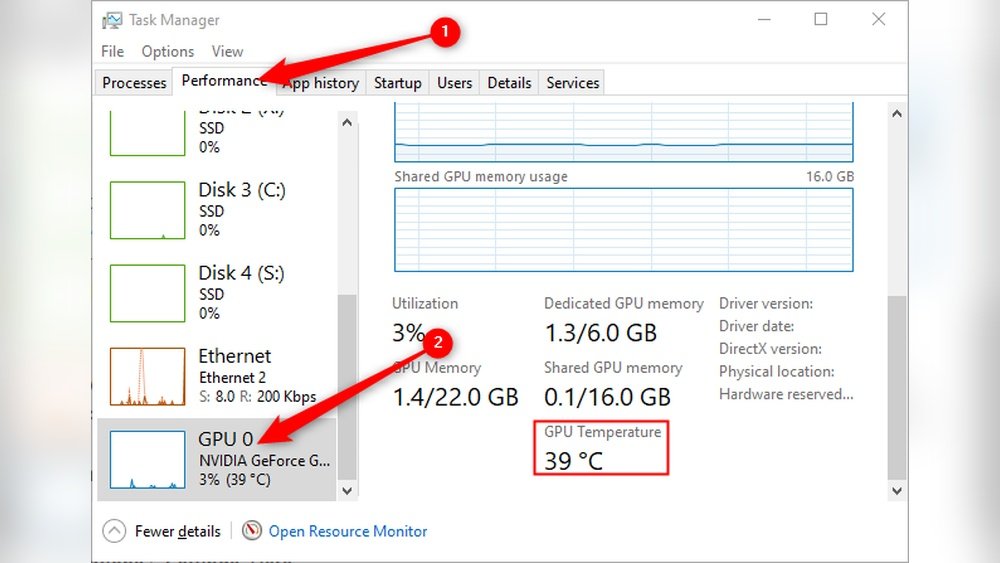
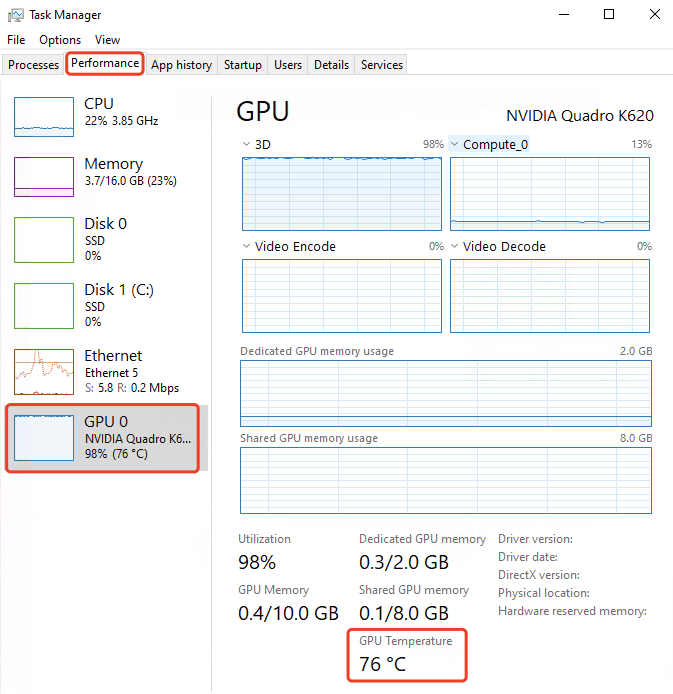
Windows Task Manager shows real-time GPU temperature on many systems. Press Ctrl + Shift + Esc to open it. Click the Performance tab. Select GPU from the side menu. You can see the current temperature and usage here. This tool is quick and simple for a basic check.
Nvidia Control Panel
NVIDIA Control Panel is for computers with NVIDIA graphics cards. Right-click the desktop and select NVIDIA Control Panel. Click System Information in the bottom-left corner. Look for the temperature under the Display or GPU section. This tool shows detailed info and helps you keep your GPU cool.
Amd Radeon Settings
AMD Radeon Settings works with AMD GPUs. Right-click the desktop and pick AMD Radeon Settings. Go to the Performance tab. Choose Temperature to see real-time GPU heat. This tool also offers tuning options to manage GPU temperature. It’s useful for AMD users who want quick temperature info.
Third-party Software Options
Third-party software gives clear and detailed info about your GPU temperature. These tools work with most graphics cards. They show real-time temperature and other key stats. This helps keep your GPU safe from overheating. Also, you can check how hard your GPU is working. Here are some popular options you can use.
Msi Afterburner
MSI Afterburner is a popular choice for monitoring GPU temps. It shows temperature, fan speed, and usage on one screen. You can customize the display to see only what you need. The software also lets you control fan speeds manually. This helps keep your GPU cool during heavy use.
Hwmonitor
HWMonitor is simple and easy to use. It lists all your system’s hardware temps, including the GPU. The interface is clean and shows current, minimum, and maximum temps. It updates in real time to keep you informed. HWMonitor works with most GPU brands.
Gpu-z
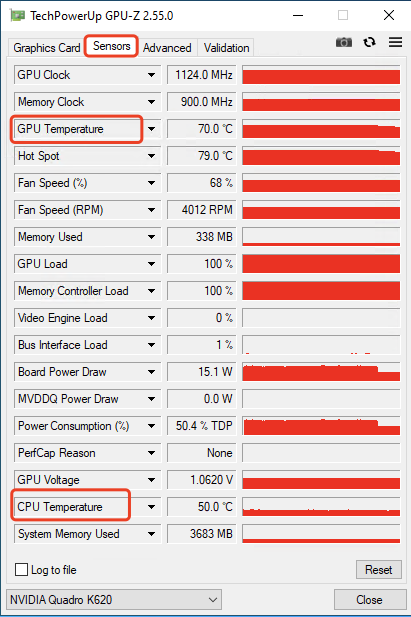
GPU-Z focuses only on your graphics card details. It shows temperature, clock speeds, and memory usage clearly. The software is lightweight and runs without slowing your PC. It also offers sensor logging to track temps over time. GPU-Z is great for quick, detailed GPU info.
Using Command Line To Monitor Gpu
Monitoring your GPU temperature is important for maintaining your computer’s health. Command line tools offer a quick way to check GPU temperature without extra software. These tools work on many systems and give real-time information. Below are simple methods using command lines to monitor your GPU temperature easily.
Nvidia Smi Tool
NVIDIA SMI is a command-line utility for NVIDIA GPUs. It shows temperature, usage, and other details. To check temperature, open your command prompt or terminal. Type nvidia-smi and press Enter. The tool will display the current GPU temperature in Celsius.
This tool works with most NVIDIA drivers. It updates data quickly and is easy to use. You can also use it in scripts for regular monitoring. This makes it handy for troubleshooting or keeping your GPU safe.
Powershell Scripts
PowerShell scripts help Windows users check GPU temperature via command line. Scripts can access hardware data and display temperature readings. You can find or write simple scripts that use WMI or third-party modules.
To run a script, open PowerShell as an administrator. Paste the script and run it. The output will show GPU temperature and other useful info. Using scripts allows automated checks and custom alerts. This method is flexible and works well on Windows.
Tips To Maintain Safe Gpu Temperature
Keeping your GPU temperature safe is important for its performance and lifespan. High temperatures can slow down your computer and cause damage over time. Use simple methods to keep your GPU cool and running well.
Improving Airflow
Good airflow helps remove hot air inside your computer case. Make sure your case has enough space around it for air to flow freely. Use case fans to push cool air in and pull hot air out. Avoid blocking vents with cables or other objects. This keeps the GPU cooler and prevents overheating.
Regular Cleaning
Dust and dirt block airflow and trap heat. Clean your computer regularly to remove dust. Use a soft brush or compressed air to clean fans and vents. Do this every few months to keep your GPU cool. Clean parts work better and last longer.
Adjusting Fan Curves
Fan curves control how fast your fans spin based on temperature. Increase fan speed when the GPU gets hot. Use software from your GPU maker to set custom fan curves. Faster fans cool better but can be louder. Find a balance that keeps the GPU cool and noise low.
Credit: www.how2shout.com
Frequently Asked Questions
How Can I Check My Gpu Temperature On Windows?
You can check GPU temperature using software like MSI Afterburner, HWMonitor, or GPU-Z. These tools display real-time temperature and other GPU stats easily.
What Is A Safe Gpu Temperature Range?
A safe GPU temperature typically ranges between 30°C and 85°C. Temperatures above 90°C may cause overheating or damage.
Does Gpu Temperature Affect Gaming Performance?
Yes, high GPU temperatures can reduce performance by causing thermal throttling. Keeping temperatures low ensures smooth gaming.
Can I Monitor Gpu Temperature Without Extra Software?
Yes, some GPUs and laptops have built-in utilities or BIOS options to view temperature, but third-party software offers more detailed info.
Conclusion
Keeping an eye on your GPU temperature helps your computer run better. High temperatures can cause problems and slow down your system. Use simple tools to check the GPU heat often. This helps you avoid damage and keeps games and apps smooth.
Remember, regular checks protect your hardware and save money. Stay aware, stay safe.
