
Are you worried your computer might be running too hot? Knowing how to see your CPU temp is the first step to keeping your device safe and running smoothly.
If your CPU gets too hot, it can slow down your system or even cause damage. But don’t worry—checking your CPU temperature is easier than you think. You’ll discover simple ways to monitor your CPU temp quickly and accurately. Keep reading, and you’ll learn how to protect your computer before problems start.
Why Monitor Cpu Temperature
Monitoring your CPU temperature helps keep your computer safe and fast. It shows how hot your CPU is while working. High temperatures can cause many problems. Knowing your CPU temperature allows you to act before issues start. Here are the main reasons to watch your CPU temperature closely.
Impact On Performance
High CPU temperature slows down your computer. The CPU reduces speed to avoid damage. This drop in speed lowers overall performance. Watching the temperature helps keep your system running smoothly. Cooler CPUs perform better and faster.
Preventing Overheating
Overheating can cause your computer to shut down suddenly. It may also damage parts inside your PC. Monitoring temperature helps stop overheating before it happens. You can fix cooling problems early and avoid big repairs. Safe temperatures keep your computer stable and reliable.
Extending Cpu Lifespan
Heat shortens the life of your CPU. Constant high temperatures cause wear and tear. Keeping your CPU cool helps it last longer. Monitoring temperature helps you protect your investment. A cooler CPU means fewer breakdowns and more years of use.
Signs Of High Cpu Temperature
High CPU temperature can cause many problems with your computer. It is important to know the signs of overheating. Spotting these signs early helps protect your CPU from damage. Your computer might show different symptoms when the CPU gets too hot.
System Slowdowns
Your computer may start to run slower than usual. Programs take longer to open. Tasks that were quick before might lag. This slowdown happens because the CPU lowers its speed to cool down. It tries to avoid damage by reducing performance. Slowdowns are often the first sign of high CPU temperature.
Unexpected Shutdowns
The computer may turn off without warning. This sudden shutdown happens to protect the CPU. If it gets too hot, it shuts down to stop damage. Losing work or data can happen with these shutdowns. It is a clear sign that the CPU temperature is too high.
Fan Noise Increase
The cooling fan might become louder than usual. Fans work harder to cool the hot CPU. You may hear a constant or louder buzzing sound. This noise shows the CPU is overheating. The fan tries to bring the temperature down quickly.
Built-in Tools To Check Cpu Temp
Checking your CPU temperature helps keep your computer safe. Overheating can cause slowdowns or damage. Many computers come with built-in tools to monitor CPU temperature. These tools are easy to use and do not need extra software.
Bios/uefi Monitoring
BIOS or UEFI is the firmware that runs before Windows starts. It shows basic information about your hardware. You can access it by pressing a key like F2 or Delete during startup. Inside BIOS/UEFI, look for a hardware or system health menu. There, you will find your CPU temperature. This method shows the temperature when the computer is idle. It does not update during heavy use. Still, it is a simple way to check if the CPU is running too hot.
Windows Task Manager Limitations
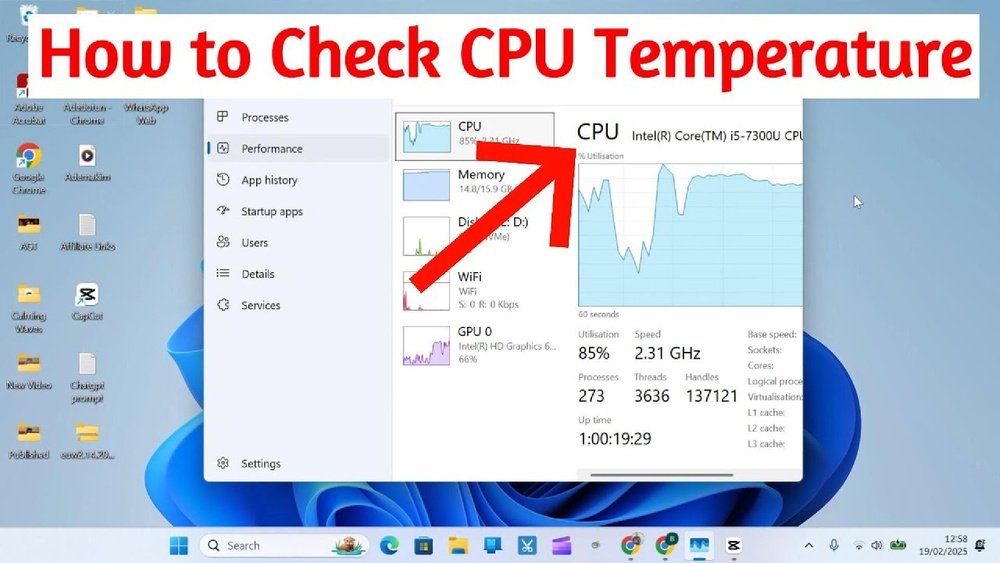
Windows Task Manager is useful for many tasks. It shows CPU usage, memory, and running apps. But it does not show CPU temperature. This is a common question from users. Task Manager lacks sensors to read hardware temperatures. To see CPU temperature in Windows, you need special software. Built-in tools alone may not give real-time temperature data. Knowing this helps avoid confusion when searching for CPU temperature.

Credit: softwareg.com.au
Popular Third-party Software
Popular third-party software offers a simple way to check your CPU temperature. These tools show detailed information about your processor’s heat levels. They help you monitor your PC’s health and avoid overheating. Most of these programs are free and easy to use. Below are some well-known options to consider.
Core Temp
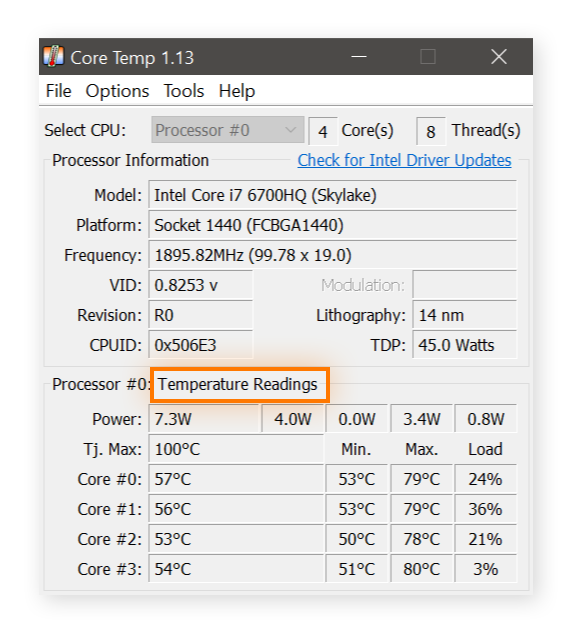
Core Temp is a lightweight tool that shows the temperature of each CPU core. It supports most Intel and AMD processors. The interface is clean and easy to read. Core Temp updates temperatures in real-time. You can also set alerts if the CPU gets too hot.
Hwmonitor
HWMonitor tracks not only CPU temperature but also voltages and fan speeds. It supports many hardware components. The program presents data clearly with simple graphs. It works with most Windows versions. HWMonitor helps spot hardware issues early.
Speccy
Speccy gives a full overview of your PC’s hardware, including CPU temperature. It shows detailed specs for each part. The interface is user-friendly and colorful. Speccy also reports hard drive health and memory usage. It is good for beginners and experts alike.
Real Temp
Real Temp is designed mainly for Intel processors. It shows accurate temperatures for each core. The program also calculates CPU load and distance to thermal shutdown. It has a simple layout with useful features. Real Temp helps keep your processor safe.
Using Software To Track Cpu Temperature
Using software to track your CPU temperature is an easy way to protect your computer. This method gives real-time data about how hot your processor gets. Monitoring temperature helps avoid overheating and keeps your PC running smoothly. Many free and paid tools are available for this purpose. These programs show clear temperature readings and often offer extra features like alerts.
Downloading And Installing
First, choose a CPU temperature monitoring tool. Popular options include HWMonitor, Core Temp, and SpeedFan. Visit the official website of the tool you want. Download the setup file suitable for your operating system. Run the installer and follow the on-screen instructions. The installation usually takes just a few minutes. After installation, launch the software to start monitoring.
Reading Temperature Data
Open the software and locate the CPU temperature section. Most programs show temperatures in Celsius or Fahrenheit. Look for the core temperatures listed under your CPU name. Normal idle temperatures usually range between 30°C and 50°C. Heavy use can raise temperatures to 70°C or higher. Keep an eye on sudden spikes that may indicate issues.
Setting Alerts
Many programs allow you to set temperature alerts. This feature warns you if the CPU gets too hot. Find the alert or warning settings inside the software. Set a safe temperature limit, like 80°C. The software will notify you via sound or a pop-up message. Alerts help prevent damage by giving you time to cool your PC.
Credit: www.youtube.com
Tips To Keep Cpu Temperature Low
Keeping your CPU temperature low helps your computer run smoothly. High temperatures can slow down your system and cause damage. Simple steps can reduce heat and protect your CPU. Follow these tips to keep your CPU cool and extend its life.
Improving Airflow
Good airflow moves hot air out and brings cool air in. Arrange cables inside your case to avoid blocking vents. Use fans to push air through the case. Place your computer in a cool, open space. Avoid keeping it near heat sources or inside closed cabinets.
Cleaning Dust Regularly
Dust blocks airflow and traps heat inside your computer. Clean dust from fans, vents, and heatsinks often. Use a soft brush or compressed air to remove dust. Make cleaning part of your regular computer care routine. This simple step helps keep temperatures down.
Applying Thermal Paste
Thermal paste helps transfer heat from the CPU to the cooler. Over time, it can dry out and lose effectiveness. Remove old paste and apply a fresh, thin layer on the CPU. This improves heat transfer and lowers CPU temperature. Use quality thermal paste for best results.
Upgrading Cooling Solutions
Stock coolers may not be enough for heavy use. Consider upgrading to a better air cooler or liquid cooling system. More powerful coolers move heat away faster. Choose a cooler that fits your case and CPU socket. Better cooling keeps your CPU safer under load.
When To Seek Professional Help
Knowing your CPU temperature is useful for basic monitoring. Sometimes, problems may go beyond simple fixes. At that point, seeking professional help is wise. Experts can diagnose issues that are hard to spot. They also offer solutions to protect your computer.
Persistent Overheating Issues
Repeated high CPU temperatures can damage your computer. If your CPU stays hot despite cleaning and cooling attempts, there might be a deeper problem. Professionals can check the internal parts and cooling system. They use tools to find hidden faults causing the heat. Ignoring constant overheating can lead to crashes or hardware failure.
Hardware Replacement Options
Some overheating problems come from broken parts. Fans, thermal paste, or even the CPU itself might need replacing. Professionals know which components to replace safely. They also install parts correctly to prevent future heat issues. Trying to replace hardware without experience can cause more damage.
Credit: www.avast.com
Frequently Asked Questions
How Can I Check My Cpu Temperature On Windows?
You can check CPU temperature using free tools like HWMonitor or Core Temp. Install and run the software to view real-time CPU temps easily.
Is Bios A Good Place To See Cpu Temperature?
Yes, BIOS shows CPU temperature under hardware monitoring. Restart your PC, enter BIOS by pressing a key, and find temperature info in system status.
What Is The Normal Cpu Temperature Range?
Normal CPU temps range between 30°C to 50°C while idle. Under heavy load, temps up to 80°C are acceptable but should not exceed 90°C.
Can High Cpu Temperature Damage My Computer?
Yes, high CPU temperatures can cause system instability and hardware damage. Regular monitoring helps prevent overheating and prolongs your CPU’s lifespan.
Conclusion
Knowing your CPU temperature helps keep your computer safe. You can check it with simple tools and steps. Watch for high temps to avoid damage and slowdowns. Regular checks keep your system running smooth and cool. Stay aware, and your PC will last longer.
Easy to do, worth the effort. Keep your CPU cool and your computer happy.
