
Are you curious if your XMP (Extreme Memory Profile) is enabled on your computer? Knowing this can help you unlock the full potential of your RAM and boost your system’s performance.
But how can you check it quickly and easily? That’s where CPU-Z comes in. You’ll learn step-by-step how to see if XMP is enabled using CPU-Z, so you can make sure your PC is running at its best. Keep reading to find out how to get this crucial info in just a few clicks!

Credit: glennsqlperformance.com
What Is Xmp
XMP stands for Extreme Memory Profile. It is a technology developed by Intel to help users easily set higher memory speeds on their computers. Many RAM sticks come with XMP profiles that store optimized settings. These profiles allow the motherboard to run RAM at faster speeds than the standard specifications.
Without XMP, the RAM often runs at slower default speeds. Enabling XMP lets you get better performance from your memory. It adjusts timings, voltage, and frequency to match the profile stored in the RAM. This is especially useful for users who want smoother multitasking or better performance in tasks like video editing and gaming.
How Does Xmp Work?
XMP works by loading pre-set memory settings stored on the RAM modules. These settings include the best speed and timings that the RAM can handle safely. When enabled in the BIOS, the motherboard reads the XMP profile and applies these optimized settings. This process is simple and avoids the need for manual tuning.
Why Use Xmp?
Using XMP helps improve the overall speed of your system. Faster RAM can lead to better application performance and quicker data processing. For many users, enabling XMP is an easy step to boost their PC without buying new hardware. It ensures the RAM operates at its full potential without complex adjustments.
Compatibility Of Xmp
XMP is mainly supported on Intel motherboards but many AMD boards also support it. The RAM must have XMP profiles to use this feature. Not all RAM modules come with XMP. Checking the RAM specifications before buying can help ensure compatibility.
Why Xmp Matters
Checking if XMP is enabled helps confirm your RAM runs at its best speed. CPU-Z shows this quickly by displaying memory details. Knowing this ensures better computer performance and stability.
What Is Xmp?
XMP stands for Extreme Memory Profile. It is a feature that lets your computer use faster RAM speeds. RAM usually runs at a default speed set by the manufacturer. XMP allows your system to run RAM at higher speeds safely.
This means better performance without manual changes in BIOS. It is designed to make memory overclocking easy and stable.
How Xmp Improves Performance
Enabling XMP helps your computer run tasks faster. It boosts memory speed, which improves loading times and multitasking. Programs open quicker, and games run smoother. Even video editing and design software benefit from faster RAM.
The CPU communicates better with memory at higher speeds. This results in a more responsive and efficient system.
Why You Should Check Xmp Status
Not all computers have XMP enabled by default. Without it, your RAM runs at slower speeds. This can limit your computer’s full potential. Checking XMP status ensures your system uses the best memory speed available.
Using tools like CPU-Z helps confirm if XMP is active. This simple step can improve your PC’s overall performance and stability.
Installing Cpu-z
CPU-Z is a small tool that helps check your computer’s hardware details. It shows if XMP (Extreme Memory Profile) is enabled on your RAM. To use CPU-Z, you must first install it on your PC. The installation is quick and simple.
Follow the steps below to download and install CPU-Z safely and correctly. This guide works for Windows computers and does not require advanced skills.
Downloading Cpu-z
Open your web browser and go to the official CPU-Z website. Look for the download section. Choose the version that matches your system (32-bit or 64-bit). Click the download button to save the installer file on your computer.
Running The Installer
Find the downloaded file in your Downloads folder. Double-click the file to start the installation. A setup window will open. Follow the instructions on the screen. Accept the license agreement and choose the installation folder. Click “Next” to continue.
Completing The Installation
Wait for the installation process to finish. It usually takes less than a minute. Once done, click “Finish” to close the setup. CPU-Z will now be ready to use. You can open it from the Start menu or desktop shortcut.

Credit: www.reddit.com
Launching Cpu-z
Launching CPU-Z is the first step to check if XMP is enabled on your system. This free tool shows detailed information about your CPU, motherboard, and memory. It helps you understand your computer’s hardware without opening the case.
Starting CPU-Z is quick and easy. After launching, you will see different tabs. Each tab offers specific information about your hardware components. The “Memory” tab is the key place to check XMP status.
Downloading And Installing Cpu-z
First, download CPU-Z from the official website. Choose the correct version for your operating system. The installation process is simple and fast. Follow the on-screen instructions to install the software.
Opening Cpu-z On Your Computer
Once installed, open CPU-Z by clicking its icon. It may take a few seconds to load all hardware data. Wait for the main window to appear before proceeding.
Navigating To The Memory Tab
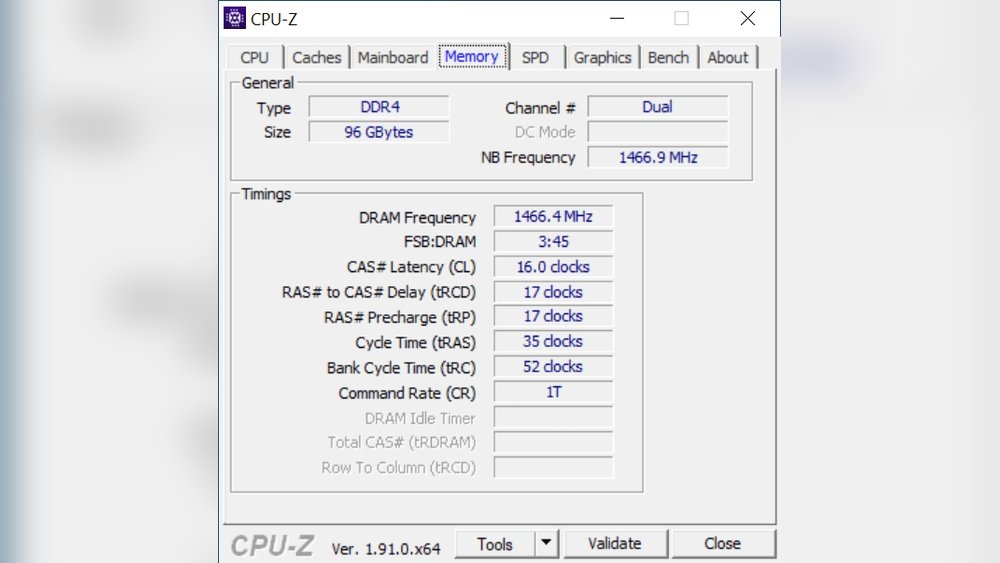
After CPU-Z opens, click the “Memory” tab at the top. This tab shows your RAM details. Look here to find information about your memory’s frequency and timings.
Locating The Xmp Information
In the “Memory” tab, check the “DRAM Frequency” and “SPD” sections. If XMP is enabled, you will see profiles listed under SPD. You can compare frequency values to confirm XMP activation.
Checking Xmp Status
Checking if XMP is enabled is important for your PC’s memory performance. XMP lets your RAM run at faster speeds than default settings. CPU-Z is a free tool that helps you see this information quickly.
In this section, you will learn how to check the XMP status step-by-step. The process is simple and does not require technical skills.
Navigate To Memory Tab
Open CPU-Z and find the tab labeled “Memory” at the top. This tab shows details about your RAM. Take a moment to look at the information displayed here.
Identify Xmp Profile
Look for the “XMP” field in the Memory tab. If XMP is enabled, it will show the profile name or “Profile 1”. If you see “Disabled,” XMP is not active.
Verify Memory Speed
Check the “DRAM Frequency” value in the same tab. Multiply this number by two to get the actual RAM speed. Compare this speed to your RAM’s rated XMP speed to confirm if XMP is working.
Credit: www.overclock.net
Troubleshooting Xmp Detection
Troubleshooting XMP detection can solve many common memory issues. XMP profiles help your RAM run at higher speeds. Sometimes, CPU-Z does not show XMP enabled. This section explains simple steps to fix this problem. Follow each step carefully to check your system.
Bios Settings Check
Enter the BIOS menu during system startup. Look for the XMP option in the memory settings. Make sure XMP is enabled or set to Profile 1. Save changes and restart your computer. If XMP is off, CPU-Z will not detect it.
Updating Bios
Old BIOS versions may not support newer XMP profiles. Visit your motherboard manufacturer’s website. Download the latest BIOS update for your model. Follow the instructions to update your BIOS safely. An updated BIOS improves memory compatibility and detection.
Compatibility Issues
Check if your motherboard supports XMP profiles. Some older boards do not support XMP at all. Also, verify that your RAM modules have XMP profiles. Mismatched or unsupported hardware can prevent XMP detection. Use compatible components for best results.
Benefits Of Enabling Xmp
Enabling XMP (Extreme Memory Profile) on your computer can improve the performance of your RAM. It allows the memory to run at its rated speed instead of the default slower speed. This leads to faster data access and better overall system responsiveness.
Many users do not realize how much difference enabling XMP can make. It can help with tasks such as gaming, video editing, and running multiple applications smoothly. The benefits of enabling XMP go beyond just raw speed.
Improved System Speed
XMP lets your RAM run at its designed speed. This means programs load faster. The system can handle more tasks at once. Faster RAM reduces delays and lag.
Better Gaming Experience
Games need fast memory to run well. With XMP enabled, frame rates improve. Game worlds load quicker, and gameplay feels smoother. This results in less stutter and better visuals.
Enhanced Multitasking
Running many apps at the same time needs fast memory. XMP helps your system switch quickly between tasks. This means less waiting and better productivity.
Optimized Performance For Software
Software like video editors and design tools benefit from fast RAM. Enabling XMP helps these programs run without slowdowns. This boosts your workflow and saves time.
Frequently Asked Questions
What Is Xmp And Why Enable It In Cpu-z?
XMP (Extreme Memory Profile) boosts RAM speed beyond standard settings. Enabling it in CPU-Z helps verify if your memory runs at optimal performance.
How To Check If Xmp Is Enabled In Cpu-z?
Open CPU-Z and go to the “Memory” tab. Look for the “DRAM Frequency” and “Timings” to identify if XMP profiles are active.
Can Cpu-z Show Detailed Xmp Profile Information?
Yes, CPU-Z displays XMP details like frequency, timings, and voltage under the Memory tab, confirming if XMP is enabled and properly configured.
Does Enabling Xmp Improve Overall Pc Performance?
Enabling XMP optimizes RAM speed, which can enhance gaming, multitasking, and system responsiveness, leading to noticeable performance improvements.
Conclusion
Checking XMP status in CPU-Z is quick and simple. Open CPU-Z and find the memory tab. Look for the XMP option to see if it’s enabled. Enabling XMP helps your RAM run at its rated speed. This can improve your computer’s overall performance.
Remember to save changes in BIOS if needed. Now you know how to check XMP in CPU-Z easily. Keep your system running smoothly with this simple step.
