

Are you planning to upgrade your computer’s memory but unsure if the new RAM will work with your system? Picking the right RAM isn’t just about size or speed—it’s about making sure it matches your motherboard and processor perfectly.
Using incompatible RAM can cause your computer to crash, slow down, or not start at all. You’ll discover simple ways to check if your RAM is compatible, so you can avoid costly mistakes and boost your PC’s performance with confidence.
Keep reading, and you’ll learn exactly what to look for before making your next RAM purchase.
Check Your Motherboard Specs
Checking your motherboard specs is the first step to see if your RAM is compatible. The motherboard controls which types of RAM it can use. Knowing this helps avoid buying the wrong memory. It also ensures your system runs smoothly and fast.
Find Your Motherboard Model
Start by finding the exact model of your motherboard. You can check inside your PC case for a label or printed name. Another way is to use a system information tool on your computer. This model number is key to find detailed specs.
Consult The Manufacturer’s Website
Visit the motherboard maker’s official website. Enter your model number in the search bar. The site will show the product page with full specifications. This page tells you which RAM types and speeds are supported.
Identify Supported Ram Types
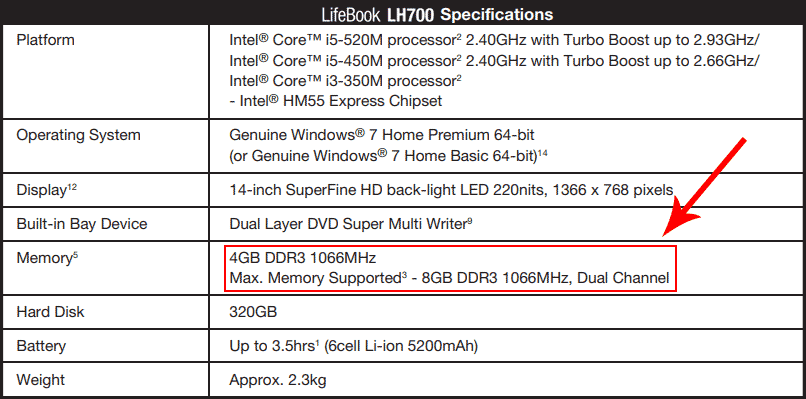
Look for the RAM section in the specs. It lists the RAM types, such as DDR3, DDR4, or DDR5. Check the maximum RAM speed your motherboard can handle. Also, note the maximum RAM size for each slot. Match these details with the RAM you want to buy.
Credit: vixencomposites.com
Know Ram Types And Speeds
Knowing the types and speeds of RAM helps you pick the right memory for your computer. Different RAM types and speeds affect how well your system runs. Understanding these details ensures your RAM fits and works properly.
Let’s explore the main RAM types and how to match their speed with your motherboard.
Ddr Generations Explained
RAM comes in different DDR versions: DDR3, DDR4, and DDR5. Each generation is faster and more efficient than the last. DDR3 is older and slower, mostly found in older computers. DDR4 is common now and offers good speed and stability. DDR5 is the newest, designed for high performance but works only with compatible motherboards.
Each DDR type has a unique shape and pin layout. This prevents installing the wrong RAM in your system. Your motherboard supports only one DDR type, so check this before buying.
Matching Ram Speed With Motherboard
RAM speed is measured in MHz, like 2400 MHz or 3200 MHz. Your motherboard supports certain speeds. Using RAM faster than your motherboard supports won’t harm your system but will run at the motherboard’s maximum speed.
Choosing RAM with the right speed helps your computer run smoothly. Check your motherboard’s manual or website for supported RAM speeds. Buy RAM that matches or is close to this speed for best results.
Consider Ram Capacity And Slots
Understanding RAM capacity and slots is key to choosing the right memory for your computer. It affects how much memory you can install and how your system performs. Knowing these details helps avoid buying incompatible RAM.
Maximum Ram Supported
Your motherboard sets the limit on the total RAM it can handle. Each model supports a maximum amount of memory. Check your motherboard’s manual or website for this number. Installing more RAM than the limit will not work.
Number Of Ram Slots Available
Motherboards come with a set number of RAM slots. These slots hold the memory sticks. Count how many slots your motherboard has. This tells you how many RAM sticks you can install. More slots mean more room for RAM upgrades.
Dual Channel And Performance
Using two RAM sticks in pairs can boost speed. This is called dual channel mode. It improves how fast your system can access memory. To use dual channel, install matching RAM sticks in the correct slots. Check your motherboard guide for slot pairing.
Check Ram Voltage And Timings
Checking RAM voltage and timings is important for compatibility. These factors affect how well the memory works with your motherboard and CPU. Using the wrong voltage or timings can cause system crashes or slow performance. Understanding these details helps ensure your RAM runs smoothly.
Voltage Requirements
RAM voltage is the power needed for the memory to run. Motherboards have specific voltage limits. Using RAM with higher voltage than supported can damage your system. Most modern RAM runs at 1.2V or 1.35V. Always check your motherboard’s manual for voltage support before buying RAM.
Cas Latency And Timings Impact
CAS latency is a key timing that shows delay before RAM responds. Lower CAS latency means faster performance. Timings are numbers like 16-18-18-36 that show RAM speed steps. Matching timings with your system helps avoid errors. RAM with very different timings can cause instability or reduce speed.
Use Compatibility Tools
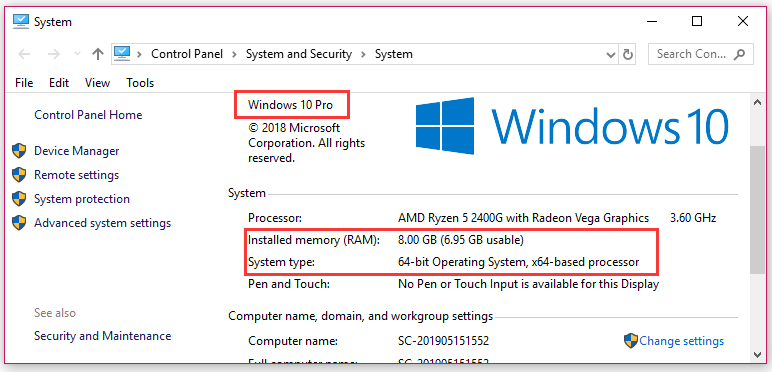
Using compatibility tools saves time and avoids errors when choosing RAM. These tools help check if the RAM matches your computer’s motherboard and processor. They offer easy ways to find the right type, speed, and size. No guesswork needed.
Online Ram Compatibility Checkers
Online checkers let you enter your computer model or motherboard name. They show which RAM types fit your system. Some tools list supported speeds, sizes, and brands. This helps pick RAM that works well and runs smoothly. Most sites update regularly for accuracy.
Manufacturer Ram Configurators
Many RAM makers offer configurators on their websites. You select your device or motherboard model. The tool suggests RAM modules designed for your system. This ensures full compatibility and good performance. Manufacturer tools also warn about unsupported options.
Credit: vixencomposites.com
Inspect Physical Size And Form Factor
Checking the physical size and form factor of RAM is crucial before buying. RAM sticks come in different shapes and sizes. These must fit your computer’s motherboard and case. Otherwise, your new RAM won’t work or fit properly. This step helps avoid extra costs and hassle.
Dimm Vs So-dimm
There are two common RAM sizes: DIMM and SO-DIMM. DIMM modules are long and used in desktop computers. SO-DIMM modules are smaller and fit laptops or small PCs. Each motherboard only supports one size type. Installing the wrong size is impossible and can damage the system. Check your device manual to find the correct form factor.
Clearance With Cpu Cooler
RAM sticks must fit without touching the CPU cooler. Some coolers are large and cover the RAM slots. Tall RAM modules can hit the cooler, causing problems. Make sure the RAM height matches the space under the cooler. Measure the clearance to avoid any physical conflicts. This step ensures smooth installation and good airflow inside the case.
Verify Bios And Firmware Updates
Verifying BIOS and firmware updates is key to ensuring RAM compatibility. These updates can improve hardware support and fix bugs. Without the latest BIOS and firmware, your system might not recognize new RAM modules. Checking and updating these components helps avoid compatibility issues and system errors.
Updating Bios For Ram Support
The BIOS controls basic hardware functions. It also manages memory settings. Manufacturers release BIOS updates to support new RAM types and speeds. Visit your motherboard maker’s website for update files and instructions. Follow their steps carefully to avoid problems. A BIOS update can enable your system to use higher capacity or faster RAM.
Checking Firmware Compatibility
Firmware is software inside hardware components. It controls how devices work with your system. Some RAM modules need specific firmware versions to work properly. Check your device and motherboard documentation for firmware details. Use tools or the manufacturer’s site to confirm compatibility. Installing the right firmware avoids errors and improves stability.
Test New Ram Before Full Installation
Testing new RAM before full installation helps avoid problems later. It ensures the RAM works well with your system. Testing saves time and prevents damage to your computer. You can catch errors early and fix them quickly.
Using Memtest86
MemTest86 is a free tool for checking RAM health. It runs tests outside your operating system. Download MemTest86 on a USB drive and boot from it. The software scans your RAM for errors and faults. Let it run for several passes to find issues. No errors mean your RAM is likely compatible and stable.
Running Stress Tests
Stress tests push your RAM to its limits to check stability. Use software like Prime95 or AIDA64 for this task. Run the test while monitoring your computer’s performance. Watch for crashes or unusual slowdowns during the test. If your system stays stable, the RAM is good to install fully.

Credit: softwareg.com.au
Frequently Asked Questions
How Do I Check Ram Compatibility With My Motherboard?
Check your motherboard’s manual or website for supported RAM types, speeds, and sizes. Use online tools like CPU-Z or Crucial’s compatibility checker to verify RAM compatibility quickly.
Can Different Ram Brands Work Together Properly?
Yes, different RAM brands can work together if they match in type, speed, and voltage. Mixing brands may cause instability, so using identical RAM modules is recommended for best performance.
Does Ram Speed Affect Compatibility With My Pc?
RAM speed must be supported by your motherboard and CPU to be compatible. Using higher-speed RAM than supported may cause the system to run at lower speeds or fail to boot.
How Many Ram Slots Should I Consider For Compatibility?
Check the number of RAM slots on your motherboard. Installing RAM modules in matched pairs across slots optimizes performance and ensures compatibility with dual-channel memory architecture.
Conclusion
Checking RAM compatibility helps your computer run smooth and fast. Know your motherboard type and RAM specs before buying. Match the RAM speed and size with your system needs. Avoid mixing different brands or speeds to prevent issues. Taking these steps saves time and money.
Now, you can confidently choose the right RAM for your PC. Simple and careful checks make a big difference. Your computer will thank you for it.
