
Is your computer feeling slower than usual or suddenly shutting down? These could be signs that your CPU is overheating.
But how can you be sure? Knowing how to check your CPU temperature is crucial to keeping your computer running smoothly and avoiding costly damage. You’ll discover simple ways to see if your CPU is overheating and learn what steps you can take to fix it before it’s too late.
Keep reading—you don’t want to miss these easy tips that can save your device and your day.
Credit: www.reddit.com
Common Signs Of Cpu Overheating
CPU overheating can cause serious problems for your computer. Recognizing the common signs helps prevent damage. Watch for these warning signals to keep your CPU safe and your system running smoothly.
Frequent System Crashes
One clear sign of CPU overheating is frequent system crashes. Your computer may suddenly stop working without warning. These crashes happen more often during heavy tasks. Overheating causes the CPU to fail temporarily.
Unexpected Shutdowns
Unexpected shutdowns are another symptom of a hot CPU. The system powers off to protect itself from damage. This safety feature prevents permanent harm. If shutdowns happen regularly, check your CPU temperature.
Slow Performance
Overheating can make your computer run slower. The CPU reduces its speed to cool down. This causes lag and delays in programs. Slow performance is a sign your CPU needs attention.
Unusual Fan Noise
Louder or unusual fan noise means the CPU is working hard to cool. The fan speeds up as temperature rises. Strange sounds from the fan may indicate overheating. Listen closely to detect this early warning.
Credit: www.avg.com
Checking Cpu Temperature
Checking your CPU temperature helps you know if it is too hot. A hot CPU can slow down your computer or even cause damage. You can find out the temperature using tools built into your system or by using software. Knowing the ideal temperature range helps you decide if your CPU is safe or overheating.
Using Built-in Bios Tools
BIOS has a simple way to check CPU temperature. Restart your computer and press the BIOS key during startup. This key is usually F2, Delete, or Esc. Inside BIOS, look for a menu called “Hardware Monitor” or “PC Health.” Here, you can see the current temperature of your CPU. This method does not need any extra software. It shows the temperature before your operating system loads.
Third-party Monitoring Software
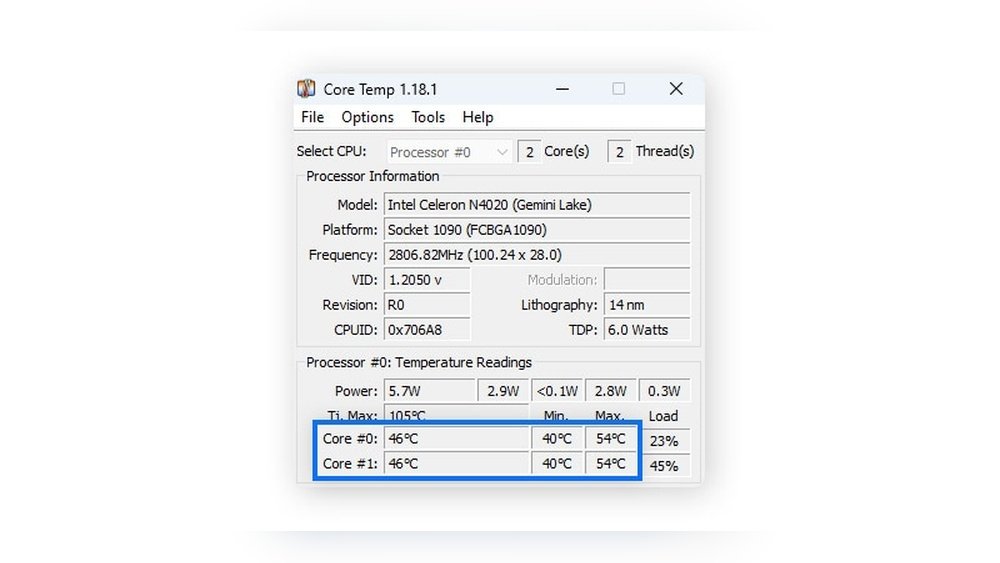
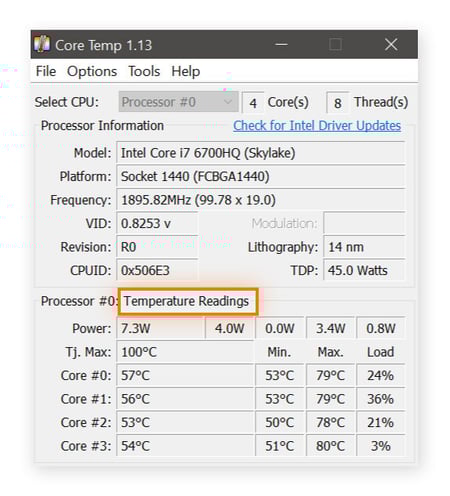
You can also use software tools to check your CPU temperature. Programs like HWMonitor, Core Temp, or SpeedFan are popular choices. These tools show real-time temperature while you work or play games. They also give details about other system parts like fan speed and voltages. Most software is free and easy to install. They update the data every second or few seconds.
Ideal Temperature Ranges
Normal CPU temperature is usually between 30°C and 50°C when idle. Under heavy use, it can rise to 70°C or 80°C. Temperatures above 90°C are too high and can cause problems. If your CPU reaches these levels, check your cooling system. Cleaning dust from fans or applying new thermal paste may help. Keeping your CPU cool extends its life and keeps your computer fast.
Physical Inspection Tips
Checking your CPU for overheating starts with a simple physical inspection. This helps find visible problems that stop your CPU from cooling well. You do not need special tools. Just look closely inside your computer case. Notice any signs of dust, worn parts, or broken fans. These clues often show why your CPU runs too hot.
Dust And Dirt Accumulation
Dust builds up inside your PC over time. It blocks air flow and traps heat. Look at the CPU fan and nearby areas. If you see dust covering the blades or vents, clean it out carefully. Use a soft brush or canned air to remove dirt. Keeping these parts clean helps cool your CPU better.
Thermal Paste Condition
Thermal paste sits between your CPU and its heat sink. It helps move heat away from the processor. Over time, this paste can dry out or crack. This reduces its ability to cool. Open your PC case and check the paste if you can. If it looks dry or missing, apply new thermal paste for better heat transfer.
Fan And Heat Sink Functionality
Fans and heat sinks work together to cool your CPU. Check if the fan spins smoothly and without noise. A slow or noisy fan may fail soon. Also, make sure the heat sink sits firmly on the CPU. Loose heat sinks cause poor heat transfer. Tighten any screws if needed and replace broken fans immediately.
Credit: www.avast.com
Preventing Cpu Overheating
Preventing CPU overheating is crucial for keeping your computer safe. High temperatures can slow down your PC or cause permanent damage. Simple steps can help keep your CPU cool and extend its life.
Improving Airflow
Good airflow inside your computer case moves hot air out and brings cool air in. Arrange cables neatly to avoid blocking air paths. Use fans to push air through your case efficiently. Place your PC in a spot with enough space around it to breathe.
Regular Cleaning
Dust builds up and blocks airflow. Clean your computer often to keep dust away from fans and vents. Use a soft brush or compressed air to remove dust carefully. Regular cleaning helps fans work better and cool your CPU.
Upgrading Cooling Solutions
Stock coolers may not be enough for heavy use. Consider better cooling options like larger fans or liquid coolers. Quality coolers remove heat faster and keep the CPU temperature low. Check compatibility before buying new cooling parts.
Frequently Asked Questions
How Can I Check If My Cpu Is Overheating?
You can check CPU temperature using software like HWMonitor or Core Temp. Look for temperatures above 80°C under load, which indicate overheating.
What Are Common Signs Of Cpu Overheating?
Signs include frequent shutdowns, slow performance, random crashes, and loud fan noise. These symptoms suggest your CPU is running too hot.
Can Overheating Damage My Cpu Permanently?
Yes, prolonged overheating can cause permanent damage. It reduces CPU lifespan and may lead to hardware failure if not addressed.
How Often Should I Monitor My Cpu Temperature?
Monitor your CPU temperature regularly, especially during heavy use or gaming. Weekly checks help prevent overheating issues early.
Conclusion
Checking your CPU temperature helps keep your computer safe. High heat can cause slowdowns and damage parts. Use simple tools to watch your CPU’s heat levels. Clean fans and good airflow stop overheating problems. Catch issues early to avoid costly repairs.
Stay aware and keep your PC running smooth. It’s worth the small effort for long computer life.
