
Wondering how much RAM your computer has? Knowing this simple detail can make a big difference in how smoothly your device runs.
Whether you’re planning to install new software, play games, or just want to speed up your system, checking your RAM is the first step. You’ll learn easy ways to find out your computer’s RAM without any tech headaches. Keep reading—you’ll be surprised how quick and straightforward it is!
Check Ram On Windows
Checking the amount of RAM on your Windows computer is simple. Knowing your RAM helps you understand your computer’s speed and multitasking ability. Windows offers several easy ways to find this information without extra software.
Use System Settings
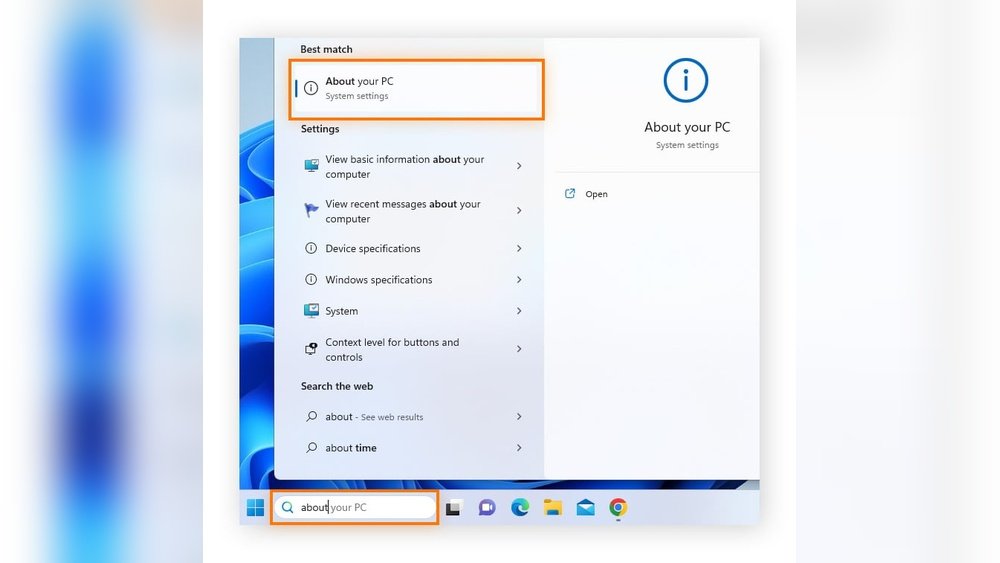
Open the Start menu and click on Settings. Choose “System” from the options. Select “About” at the bottom of the sidebar. Under “Device specifications,” you will see the installed RAM listed. This method is quick and shows basic RAM info.
Try Task Manager
Right-click the taskbar and select “Task Manager.” Click the “Performance” tab at the top. Select “Memory” from the left menu. Here, you can view total RAM and how much is in use. This view also shows RAM speed and form factor.
Access System Information
Press Windows + R keys to open the Run box. Type “msinfo32” and press Enter. The System Information window opens. Find “Installed Physical Memory (RAM)” on the right side. This tool gives detailed system data including RAM size.

Credit: garinfobahn.com
Find Ram On Mac
Finding out how much RAM your Mac has is simple. Knowing your RAM helps you understand your computer’s speed and ability. This guide shows two easy ways to check your Mac’s RAM.
Open About This Mac
Click the Apple icon in the top-left corner of your screen. Select About This Mac from the menu. A window appears with an overview of your Mac.
Look for the Memory section in the Overview tab. It shows the total RAM installed. This method is quick and clear for any Mac user.
Use Activity Monitor
Open Activity Monitor by searching it in Spotlight or finding it in the Utilities folder. Click the Memory tab at the top.
Here, you can see detailed information about RAM usage. Look at the Physical Memory line to find total RAM. This tool helps monitor how your RAM is used in real-time.
Check Ram On Linux
Checking the RAM on a Linux computer is simple and quick. You can use built-in tools to find out how much memory your system has. Knowing your RAM helps you understand your computer’s speed and performance.
This guide shows two easy ways to check RAM on Linux: using terminal commands and the system monitor.
Use Terminal Commands
Open the terminal to start. Type free -h and press Enter. This command shows total, used, and free memory in a readable format.
Another command is cat /proc/meminfo. It displays detailed memory info, but it looks more technical.
To see the exact RAM size, type sudo dmidecode -t memory. This command needs administrator rights and shows detailed memory specs.
Check System Monitor
Most Linux systems have a system monitor app. Open it from the menu or by typing gnome-system-monitor in the terminal.
Look for the “Resources” tab. It shows memory use and total RAM graphically. This method is easy for users who prefer not to use commands.
System Monitor gives a quick view of your RAM and system health at a glance.
Identify Ram Type And Speed
Knowing your RAM type and speed helps you understand your computer’s performance. RAM type means the generation, like DDR3 or DDR4. Speed shows how fast your RAM works, measured in MHz. This information is useful when upgrading or troubleshooting your PC.
Use Third-party Tools
Third-party tools show detailed RAM info easily. Programs like CPU-Z or Speccy list your RAM type and speed. Download and install the tool. Open it and find the memory section. You will see the RAM generation and its frequency. This method works on most Windows PCs.
Check Bios Or Uefi
BIOS or UEFI provides hardware details directly from your motherboard. Restart your computer and enter BIOS/UEFI by pressing keys like F2, Del, or Esc. Navigate to the system information or memory tab. Here, you can see your RAM type and speed. This method does not need extra software.
Tips To Manage Ram Effectively
Managing your computer’s RAM is important for smooth performance. Good RAM management helps your computer run faster and avoids slowdowns. You can use simple tips to keep your RAM usage under control. These tips make your system more efficient and responsive.
Try these easy ways to manage your RAM better. They work for most computers and improve your experience.
Close Unnecessary Programs
Running many programs at once uses a lot of RAM. Close apps you do not need right now. This frees up memory and helps your computer work faster. Check your taskbar or task manager to find and close unused programs.
Optimize Startup Items
Many programs start automatically when your computer turns on. Too many startup items use RAM and slow boot time. Disable programs you do not need at startup. Use your system settings or task manager to change startup programs easily.
Upgrade Ram When Needed
If your computer feels slow often, more RAM can help. Adding RAM gives your system more memory to work with. Check your computer’s RAM limit before upgrading. This is a simple way to improve speed for demanding tasks.

Credit: www.esseg.eu

Credit: vixencomposites.com
Frequently Asked Questions
How Do I Check Ram Size On Windows?
Open Task Manager by pressing Ctrl + Shift + Esc. Click the Performance tab, then select Memory. Your total RAM size displays at the top right. This method works on Windows 10 and 11.
How Can I Find Ram Capacity On Mac?
Click the Apple menu, then About This Mac. The Overview tab shows your Mac’s RAM size under Memory. This is the quickest way to check RAM on any macOS device.
Is There A Command To See Ram On Linux?
Yes, open the terminal and type free -h. This command shows used and available RAM in a human-readable format. It works on most Linux distributions.
Can I Check Ram Size Without Opening The Computer?
Yes, you can check RAM size via system settings or commands. Physical inspection isn’t necessary unless you want to upgrade or replace it.
Conclusion
Knowing how much RAM your computer has helps you understand its speed. It guides you in choosing the right software and games to run. Checking RAM is quick and easy using built-in tools. You can also upgrade your RAM for better performance.
Keep your computer’s memory in mind to avoid slowdowns. Now, you can check your RAM anytime without trouble. Simple steps lead to better computer use and decisions.
