
Wondering how much RAM your computer has? Knowing your RAM size is key to understanding your device’s speed and performance.
Whether you want to run new software smoothly or just want to boost your system’s efficiency, checking your RAM is the first step. You’ll learn simple and quick ways to find out exactly how much RAM you have—no tech jargon, no confusion.
Ready to unlock the secret to a faster, smarter computer? Keep reading.

Credit: www.pcmag.com
Check Ram On Windows
Checking the amount of RAM on your Windows computer is simple. RAM affects your system speed and multitasking ability. Knowing your RAM helps you understand your computer’s performance.
This section shows easy ways to check RAM on Windows. Use the built-in tools and commands to find this information quickly.
Use System Settings
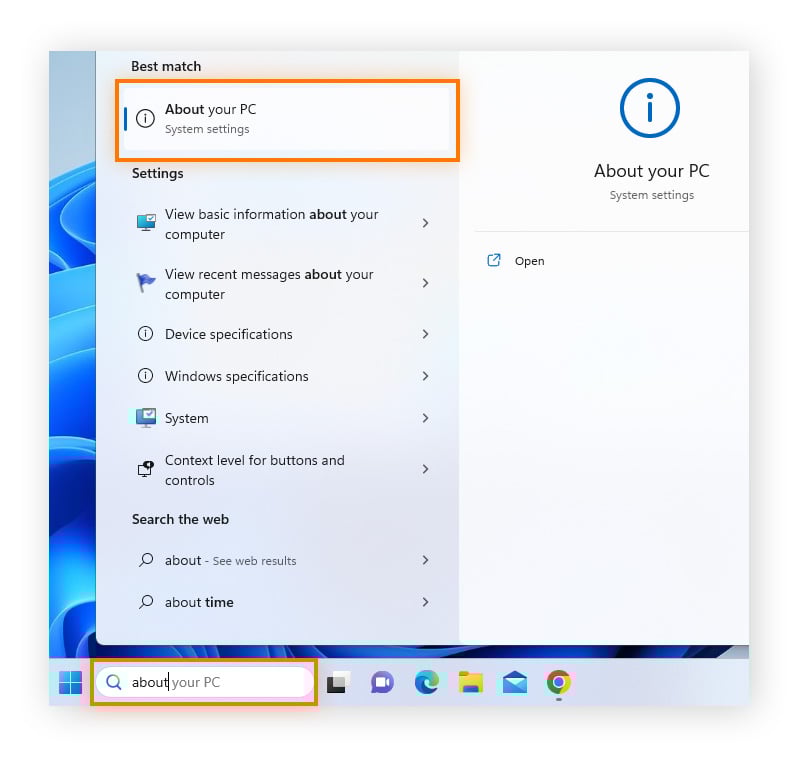
Open the Start menu and click the Settings icon. Select “System” from the list. Next, click “About” at the bottom of the left menu. Look under “Device specifications” for “Installed RAM.” The number shows how much RAM your PC has.
Access Task Manager
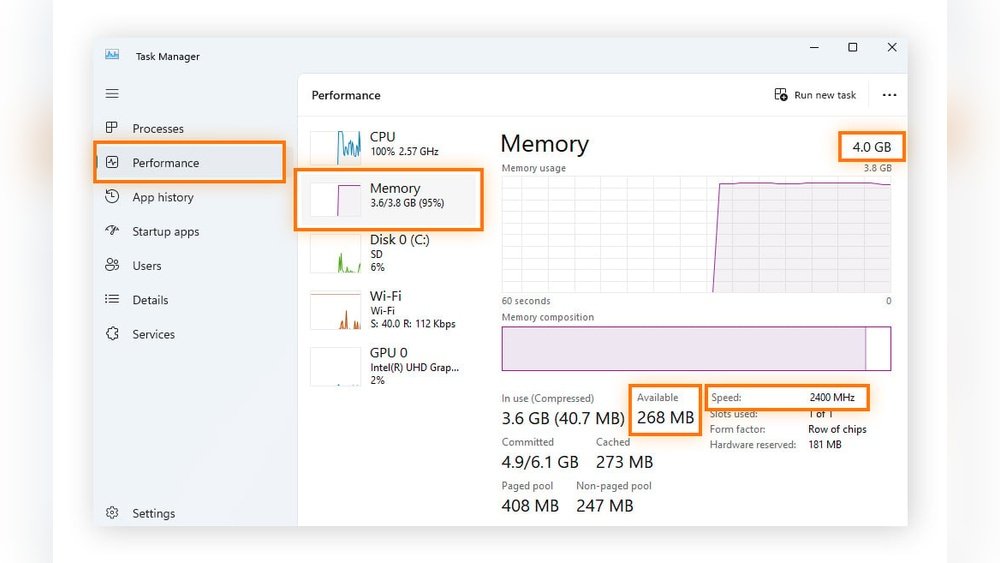
Right-click the taskbar and choose “Task Manager.” Click the “Performance” tab at the top. Select “Memory” from the side menu. You will see your total RAM and how much is in use. This tool also shows RAM speed and form factor.
Run Command Prompt Commands
Press Windows + R keys to open the Run box. Type “cmd” and press Enter to open Command Prompt. Type “wmic MEMORYCHIP get Capacity” and press Enter. This shows RAM size in bytes. Divide the number by 1,073,741,824 for gigabytes.
Credit: www.avast.com
Check Ram On Mac
Checking how much RAM your Mac has is quick and easy. Knowing your Mac’s memory helps with performance and software choices. You can find this information in just a few steps without extra tools.
Here are two simple ways to check your Mac’s RAM details.
About This Mac
Click the Apple icon in the top-left corner of your screen. Select “About This Mac” from the menu. A window will appear showing an overview of your Mac’s specs.
Under the “Overview” tab, you will see the memory size listed as “Memory.” This number tells you how much RAM is installed on your Mac. It is usually shown in gigabytes (GB).
System Report Details
In the “About This Mac” window, click the “System Report” button. This opens a detailed hardware report. Look for the “Memory” section in the sidebar.
Here, you can see each RAM slot and how much memory it holds. This helps to understand your Mac’s memory layout better. It is useful for upgrades or troubleshooting.
Check Ram On Linux
Checking the RAM on a Linux system helps you understand your computer’s memory capacity. This is important for running programs smoothly and managing tasks efficiently. Linux offers simple ways to find this information using built-in tools.
Use Terminal Commands
Open the Terminal to check RAM quickly. Type free -h and press Enter. This shows total, used, and free memory in a readable format. Another command is cat /proc/meminfo. It displays detailed memory stats. For a brief summary, use vmstat -s. These commands work on most Linux systems.
Check System Monitor
System Monitor provides a graphical way to see RAM. Open it from your applications menu. Look for the “Resources” or “Memory” tab. It displays total RAM and current usage. This tool is easy to use for beginners. It updates data in real-time for better tracking.
Use Third-party Tools
Using third-party tools is a simple way to check how much RAM your computer has. These apps show detailed information about your system’s memory. They often offer more info than built-in system tools. Third-party tools work on different operating systems, making them handy for many users.
Popular Ram Checking Apps
Many apps help you see your RAM size easily. CPU-Z is one popular choice. It provides clear details about your RAM type and speed. Another app, Speccy, shows an overview of all hardware parts, including RAM. For Windows users, Task Manager can be enhanced with tools like HWMonitor. These apps are free or offer free versions. They are easy to download and use.
Benefits Of Using Tools
Third-party tools give precise RAM information. They show total RAM, used RAM, and free RAM. These tools help identify RAM speed and type. They also reveal if your RAM is running at full capacity. Many tools display real-time RAM usage. This helps understand how your computer handles memory. Some tools offer alerts for memory issues. They help keep your system running smoothly.
Tips For Managing Ram
Managing your computer’s RAM helps it run smoother and faster. Good RAM management avoids slowdowns and crashes. It makes your work and play more enjoyable. Simple tips can improve how your RAM works. These tips help you get the most from your current RAM.
Free Up Memory
Close apps you do not use. Each app uses some memory. Too many apps open at once slow your PC. Restart your computer to clear memory. Delete old files and programs you do not need. Use built-in tools to check memory use. This frees RAM for tasks that need it.
Upgrade Ram
Adding more RAM increases your computer’s power. More RAM means your computer can handle more tasks. Check what type and size of RAM your PC needs. Buy RAM that matches your system’s specifications. Installing RAM is usually simple and fast. More RAM helps with heavy tasks like video editing or gaming.

Credit: vixencomposites.com
Frequently Asked Questions
How Do I Check Ram On Windows 10?
To check RAM on Windows 10, open Settings, go to System, then About. Your installed RAM is listed under Device specifications.
Can I See Ram Details On Mac?
Yes, click the Apple menu, select About This Mac, and view memory information under the Overview tab.
What Command Shows Ram On Linux?
Use the command free -h in the terminal. It displays total, used, and free RAM in a human-readable format.
How To Check Ram Size On Android?
Go to Settings, then About Phone, and tap on Memory or RAM to see your device’s RAM size.
Conclusion
Knowing how much RAM your computer has helps you understand its speed. You can check RAM using simple steps on any device. This information guides you when installing new software or upgrading hardware. Always keep your system updated for the best performance.
Small checks like this save time and avoid problems later. Stay curious and keep learning about your computer’s parts. It makes using technology easier and less confusing.
