
Are you curious about how much of your computer’s CPU is being used right now? Knowing your CPU usage can help you understand if your computer is running smoothly or if something is slowing it down.
Whether you’re trying to boost your gaming performance, troubleshoot a lagging system, or just want to keep your device healthy, checking your CPU usage is a simple step you can take. You’ll learn easy and quick ways to see how much CPU your computer is using, so you can take control and keep things running fast.
Keep reading—you’ll be surprised how simple it is!
Credit: www.totalplumbingfl.com
Check Cpu Usage On Windows
Checking CPU usage on Windows helps you see how hard your processor works. It shows which programs use the most power. This info helps you fix slow or unresponsive computers. Windows offers simple tools to monitor CPU use in real-time. These tools are easy to access and understand.
Using Task Manager
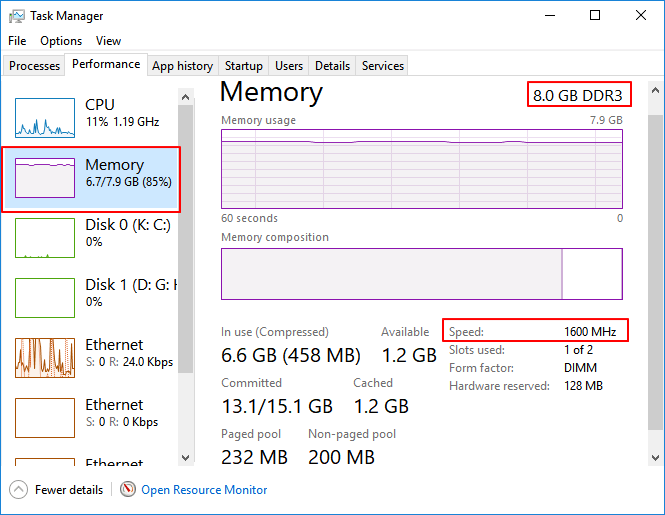
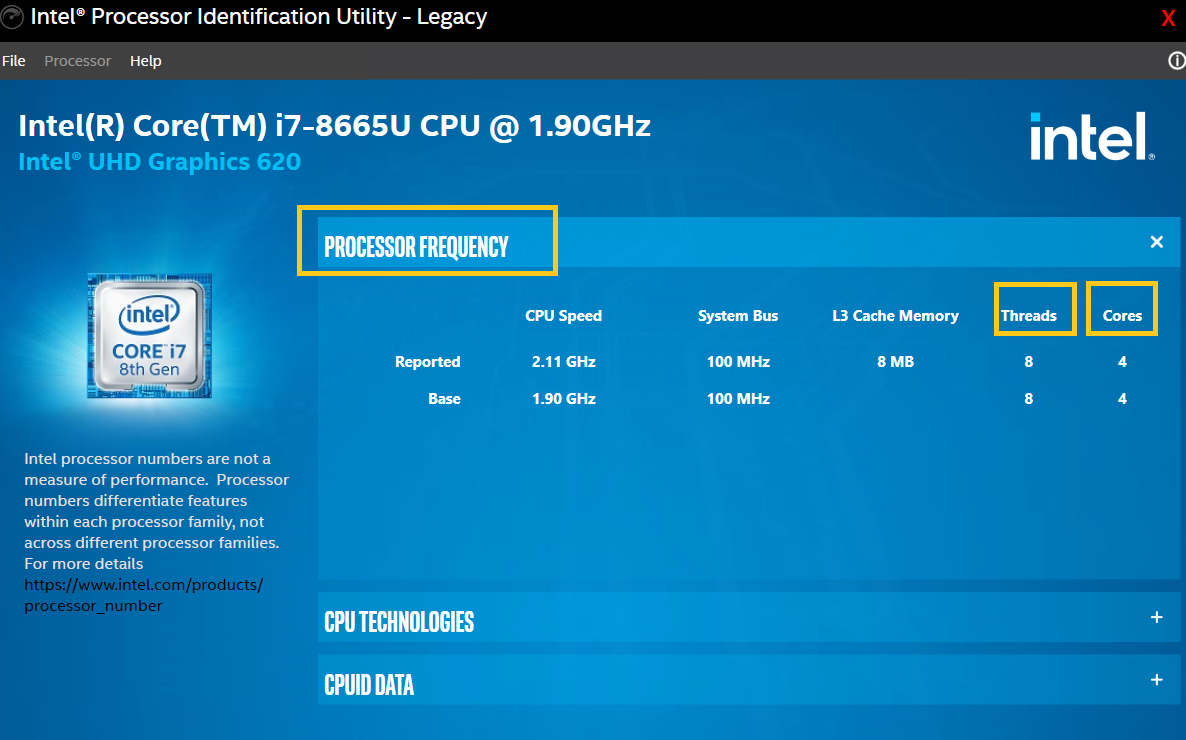
Task Manager is the quickest way to check CPU usage. Press Ctrl + Shift + Esc to open it. Click the Performance tab. Here, you see CPU usage as a percentage. It also shows CPU speed and core count. You can watch which apps use the most CPU under the Processes tab. Sort by the CPU column to find heavy users.
Using Resource Monitor
Resource Monitor gives detailed CPU info. Open it by typing Resource Monitor in the Start menu. Click the CPU tab to view CPU usage by processes. You see CPU usage per core and total usage. It also shows services and handles linked to each process. This helps find specific tasks using CPU power.
Using Command Prompt
Command Prompt offers a text-based way to check CPU load. Open it by typing cmd in the Start menu. Enter the command wmic cpu get loadpercentage. It shows the current CPU load as a number. This method is fast and works well for scripts. It gives a quick snapshot of CPU use without opening windows.
Credit: www.intel.com
Check Cpu Usage On Mac
Checking CPU usage on a Mac helps you understand how much power your computer uses. It shows which apps or processes use the most CPU. This can help you find slow apps or fix performance issues. There are simple ways to check CPU usage using built-in tools on your Mac.
Using Activity Monitor
Activity Monitor is a built-in app that shows real-time CPU usage. Open it from the Applications folder or search with Spotlight. Click the CPU tab to see all processes and their CPU percentage. The list updates automatically, showing which apps use the most CPU. At the bottom, you see the total CPU load. This tool helps spot heavy CPU users quickly.
Using Terminal Commands
The Terminal app can also show CPU usage with commands. Open Terminal from the Utilities folder. Type top -l 1 | grep "CPU usage" and press Enter. This shows a summary of CPU usage by system, user, and idle time. Another command, ps -A -o %cpu,command | sort -r | head -10, lists the top 10 CPU-using processes. Terminal commands are fast and useful for quick checks.
Check Cpu Usage On Linux
Checking CPU usage on Linux helps you understand how your system works. It shows how much processing power your computer uses at any time. This information helps you find slow programs or fix performance issues. Linux offers simple tools to check CPU usage quickly and clearly.
Using Top Command
The top command shows real-time CPU usage. Open the terminal and type top. The screen updates with CPU, memory, and running processes. Look at the line starting with %Cpu(s): to see CPU load. Press q to exit the tool.
Using Htop Tool
htop is an enhanced version of top. It shows CPU usage in color bars for easy reading. Install it with sudo apt install htop on Ubuntu. Run htop in the terminal. Use arrow keys to navigate and F10 to quit. This tool is more user-friendly.
Using System Monitor
Most Linux desktops have a System Monitor app. It shows CPU use with graphs and lists of processes. Open the app from your menu or search bar. Click the CPU tab to see current usage. This method is simple for users who prefer a graphical interface.

Credit: runcloud.io
Third-party Cpu Monitoring Tools
Third-party CPU monitoring tools offer a deeper view of your computer’s performance. They provide detailed data beyond what built-in system tools show. These tools help track CPU usage over time and alert you about unusual activity.
Many of these programs are easy to install and use. They give clear graphs and reports, making it simple to understand your CPU’s workload. Some tools also monitor other system parts like memory and disk usage.
Popular Software Options
Several reliable third-party tools are popular among users. Core Temp is known for showing real-time CPU temperatures and load. HWMonitor offers detailed info on CPU, GPU, and system sensors. Another option, CPU-Z, provides in-depth data on CPU specs and performance. For continuous tracking, programs like Open Hardware Monitor display live usage stats and log data for review.
Features To Look For
Choose tools with easy-to-read interfaces and clear data displays. Real-time monitoring is essential for spotting spikes in CPU use. Alerts or notifications help catch problems early. Look for software that supports logging to save usage history. Compatibility with your operating system matters too. Lightweight programs that do not slow your computer are best.
Interpreting Cpu Usage Data
Understanding CPU usage data helps you keep your computer healthy. It shows how hard your processor works at any time. This information can help you spot problems early and avoid slowdowns. It also helps decide if you need to upgrade your hardware or close some programs.
Normal Usage Levels
Most computers use between 5% and 20% of CPU during light tasks. Browsing the web or typing usually keeps usage low. Watching videos or listening to music may raise usage a bit. Under heavy tasks like gaming or video editing, usage can reach 80% to 90%. Occasional spikes above 90% are normal but should not last long.
Identifying High Usage Causes
High CPU usage means the processor is very busy. It can slow down your computer and drain the battery fast. Check task manager or system monitor to see which programs use the most CPU. Some apps or background processes can use too much power. Malware or viruses may also cause high usage. Closing or updating these programs can reduce the load. Restarting your computer may help clear temporary issues.
Tips To Reduce High Cpu Usage
High CPU usage can slow down your computer and cause frustration. Reducing CPU load helps your system run smoother and faster. Use simple steps to lower CPU use and improve performance.
Closing Unnecessary Programs
Many programs run in the background and use CPU power. Close apps you do not need right now. Check your task manager to see which programs use the most CPU. Closing these programs frees up resources for important tasks.
Managing Startup Items
Some programs start automatically when you turn on your computer. These programs use CPU even if you do not need them. Disable unnecessary startup items to reduce CPU load. This also speeds up your computer’s boot time.
Updating Drivers And Software
Outdated drivers and software can cause high CPU usage. Keep your drivers and software up to date. Updates fix bugs and improve efficiency. This helps your CPU run tasks with less effort.
Frequently Asked Questions
How Can I Check Cpu Usage On Windows?
Open Task Manager by pressing Ctrl + Shift + Esc. Click the “Performance” tab. Select “CPU” to view real-time usage percentage and details.
What Tool Shows Cpu Usage On Mac?
Use the Activity Monitor app on Mac. Open it from Applications > Utilities. Click the “CPU” tab to see current CPU usage.
Can I Monitor Cpu Usage On Linux?
Yes, use commands like top or htop in the terminal. These display real-time CPU usage and process details effectively.
Why Is My Cpu Usage Always High?
High CPU usage can be caused by background programs, malware, or heavy applications. Identify and close unnecessary processes to reduce usage.
Conclusion
Checking your CPU usage helps keep your computer running smoothly. You can find this info using simple tools on your device. Watching your CPU use can help spot problems early. It also helps you decide when to close heavy apps.
Knowing your CPU load keeps your system healthy and fast. Try these steps often to stay in control. Managing CPU use is easy with the right approach. Keep your computer working well by staying aware of its power use.
