
Are you worried your GPU might be running too hot? Knowing how to see your GPU temp is key to keeping your computer safe and running smoothly.
If your graphics card gets too warm, it can slow down your games, cause crashes, or even damage your hardware. But don’t worry—checking your GPU temperature is easier than you think. You’ll discover simple, quick ways to monitor your GPU temp so you can catch problems early and keep your system cool.
Keep reading to learn exactly what to do and protect your PC today.
Credit: www.readwritesolutions.com
Check Gpu Temp Using Built-in Tools
Checking your GPU temperature helps keep your computer safe. Overheating can cause slow performance or damage. Many computers have built-in tools to check GPU temperature. These tools are easy to use and require no extra software. Learn how to find GPU temperature using built-in options on Windows and popular graphics cards.
Windows Task Manager
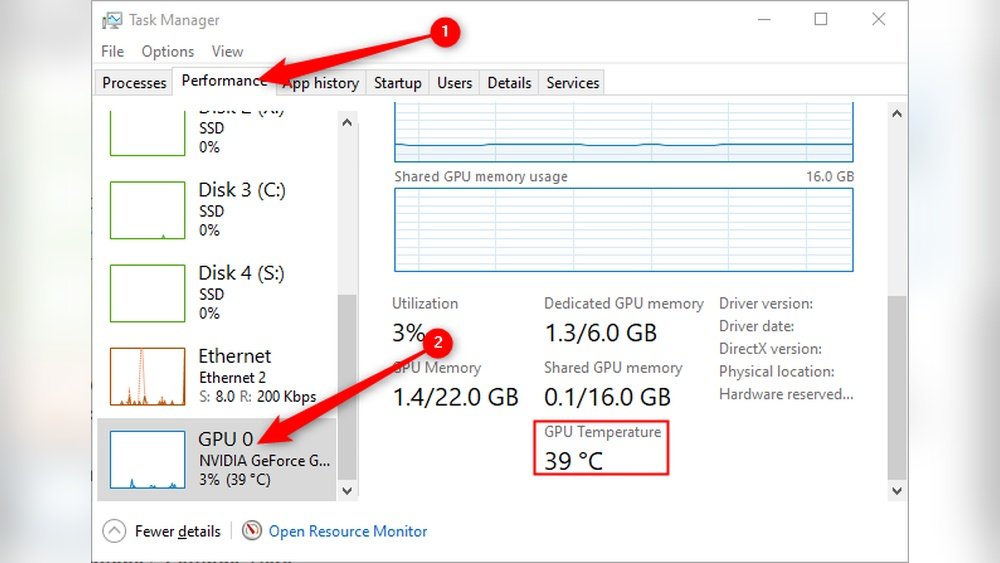
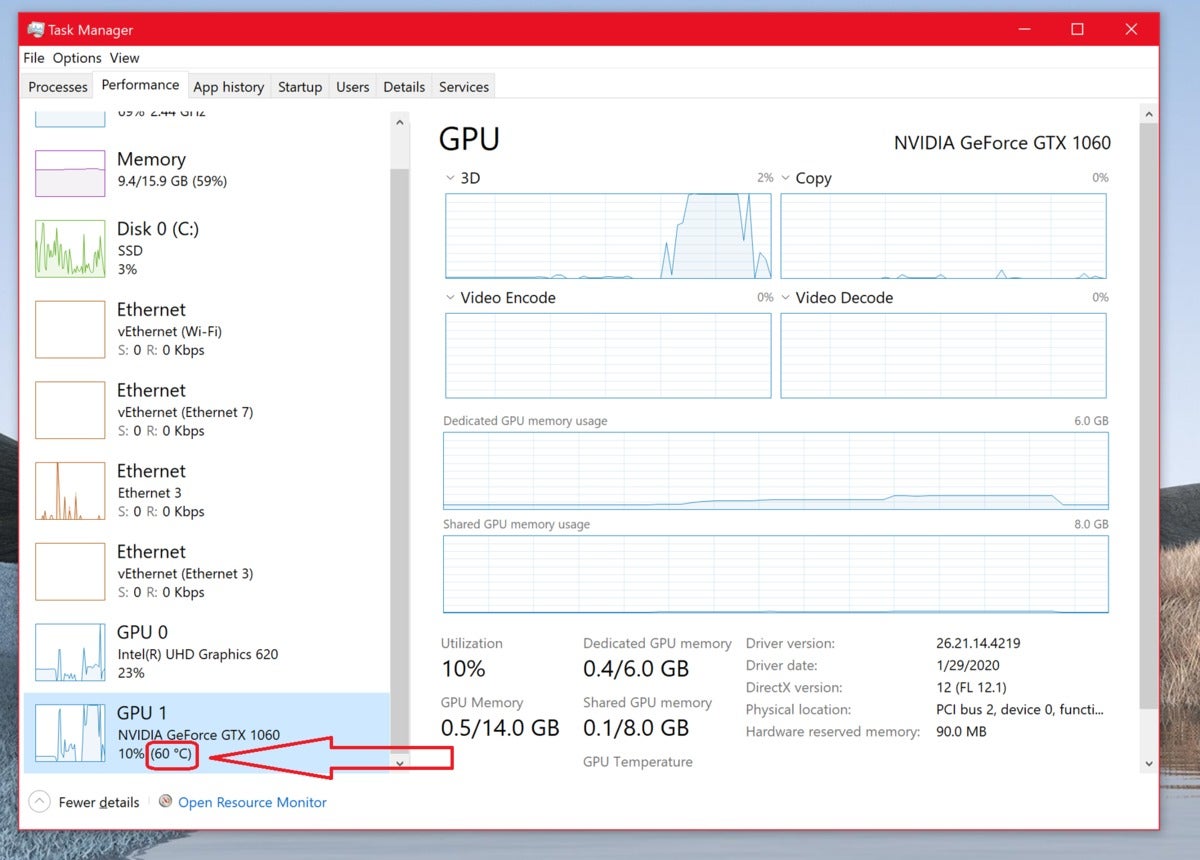
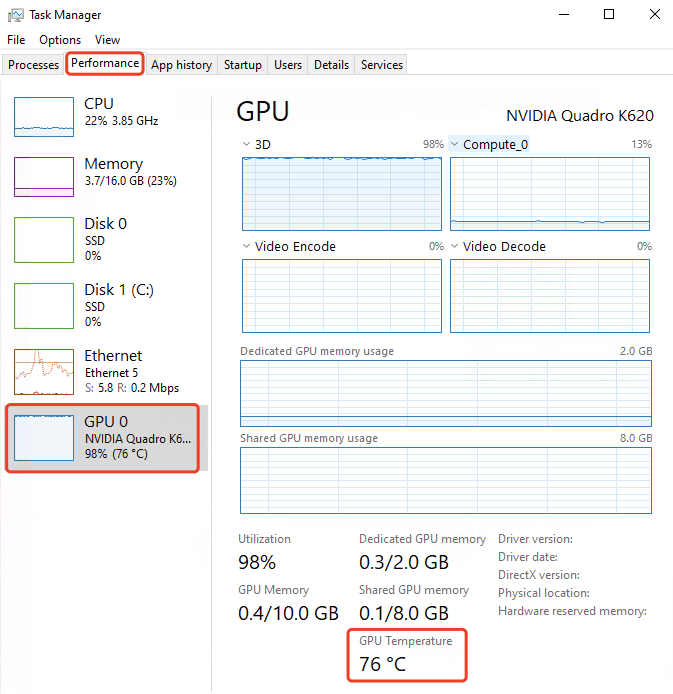
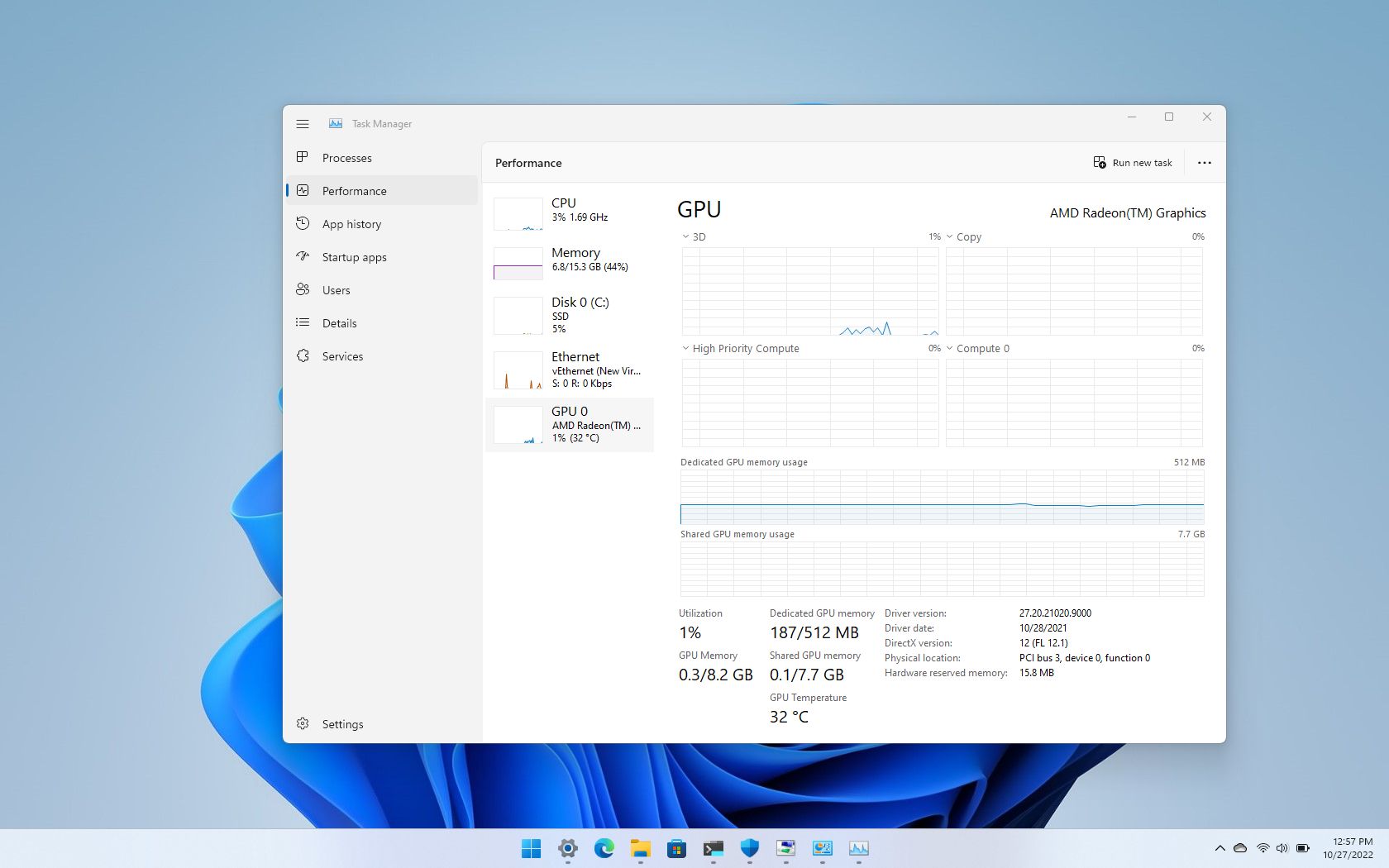
Windows Task Manager shows basic GPU details, including temperature on some systems. Press Ctrl + Shift + Esc to open Task Manager. Click the “Performance” tab. Select “GPU” from the list on the left. Look for the temperature reading near the bottom. This method works best on Windows 10 and 11.
Nvidia Control Panel
NVIDIA Control Panel offers detailed GPU info for NVIDIA graphics cards. Right-click on the desktop and select “NVIDIA Control Panel.” Go to the “Performance” or “System Information” section. Here, you can see the GPU temperature and usage stats. Keep this panel open while running games or apps to monitor heat.
Amd Radeon Software
AMD Radeon Software lets you view GPU temperature easily for AMD cards. Open the software from the Start menu or system tray. Click on the “Performance” tab. Select “Temperature” to see real-time GPU heat. You can also customize alerts for high temperatures in this app.
Credit: www.gpu-mart.com
Use Third-party Software
Checking your GPU temperature is important to keep your computer safe. Third-party software helps you see the exact temperature of your GPU. These programs are easy to use and give accurate results. You can monitor your GPU while gaming or working on heavy tasks. Below are some popular tools you can use to check your GPU temperature.
Msi Afterburner
MSI Afterburner is a popular tool for GPU monitoring. It shows real-time temperature and fan speed. You can also adjust your GPU settings with it. The interface is simple and clear for beginners. It works with most graphics cards, not just MSI brand. The software runs quietly in the background while you use your PC.
Hwmonitor
HWMonitor provides detailed information about your PC hardware. It tracks temperature, voltage, and fan speed of your GPU. The program supports many hardware types, giving a full system overview. The layout is straightforward, showing all readings in one place. HWMonitor is lightweight and does not slow down your computer.
Gpu-z
GPU-Z focuses on detailed information about your graphics card. It displays GPU temperature along with clock speeds and memory usage. This tool is small and easy to install. It offers a simple way to check your GPU health quickly. GPU-Z is great for users who want fast and clear data.
Monitor Gpu Temp Through Bios
Checking your GPU temperature through BIOS is a basic way to keep track of your graphics card’s health. BIOS is the system your computer uses before Windows or other software loads. It shows important hardware information, including temperature readings.
This method works well if your computer does not have extra software for monitoring. The BIOS gives a quick and direct look at the GPU temperature without needing to open any programs. It helps spot overheating issues early, which can protect your computer from damage.
Accessing Bios To Check Gpu Temperature
Turn off your computer first. Then press the BIOS key while turning it back on. Common keys include Delete, F2, or Esc. Watch the screen for instructions. The BIOS screen will appear after pressing the right key.
Inside BIOS, use the arrow keys to navigate. Look for sections named “Hardware Monitor,” “PC Health,” or “Status.” These areas often show temperature details, including GPU temp if supported.
Understanding Temperature Readings In Bios
Temperature readings show how hot your GPU is running. Normal GPU temperatures usually range between 30°C and 60°C at rest. Higher temps mean your GPU works hard or faces cooling issues.
Check the readings carefully. BIOS may list temperatures in Celsius or Fahrenheit. Note the number and compare it with safe ranges from your GPU’s manual or website.
Limitations Of Monitoring Gpu Temp In Bios
Not all BIOS versions show GPU temperatures. Sometimes only CPU or system temps appear. BIOS updates may add this feature, but it depends on your motherboard.
BIOS does not provide real-time temperature changes like software does. It shows a snapshot at startup only. For ongoing monitoring, consider using dedicated GPU temperature tools.
Track Gpu Temp On Laptops
Tracking the GPU temperature on laptops helps keep your device safe and fast. High temperatures can slow down your laptop or cause damage. Checking the GPU temp often lets you act early. You can use software made by the laptop maker or other trusted apps. Both options show real-time temperature and help you watch your GPU’s health.
Manufacturer Software
Many laptop makers include software to monitor hardware. This software often shows GPU temperature clearly. Brands like Dell, HP, and ASUS offer such tools. These apps are easy to install and use. They work well with your laptop’s specific hardware. Using manufacturer software ensures accurate temperature readings. It also helps avoid conflicts with the system. Check your laptop’s support page for available software.
Third-party Apps
Third-party apps provide a wider range of features. They work on many laptop brands and models. Popular apps include HWMonitor, MSI Afterburner, and GPU-Z. These apps show detailed GPU stats and temps. Some offer alerts if temperatures get too high. They are simple to download and free to use. Choose apps with good reviews and regular updates. This ensures reliable and safe monitoring of your GPU temperature.
Interpret Gpu Temperature Readings
Understanding GPU temperature readings helps keep your computer safe. It shows how hard your graphics card works. Temperatures that are too high can cause damage. Reading these numbers correctly protects your PC and improves performance.
Safe Temperature Ranges
Most GPUs run well between 30°C and 70°C. Idle temperatures often stay near 30°C to 40°C. Under load, it is normal to see 60°C to 70°C. Some high-end cards can handle up to 85°C safely. Check your GPU’s manufacturer guide for exact numbers. Staying below the max limit prevents hardware problems.
Signs Of Overheating
Overheating happens if temperatures go above safe limits. Your computer may slow down or freeze. You might hear loud fan noise as it tries to cool down. Crashes or shutdowns can also occur. Visual glitches or artifacts on the screen are warning signs. Watch temperature spikes during gaming or heavy tasks.
Tips To Lower Gpu Temperature
Keeping your GPU cool is important for better performance and longer life. High temperatures can cause your GPU to slow down or even stop working. The tips below will help you lower your GPU temperature easily.
Improve Airflow
Good airflow inside your computer case helps cool the GPU. Make sure cables are tidy and not blocking air. Place fans to push hot air out and pull cool air in. Use cases with good ventilation for better airflow.
Clean Dust Buildup
Dust blocks air and traps heat inside your PC. Open your case and gently clean dust from fans and vents. Use a soft brush or compressed air to remove dust. Clean your PC every few months to keep it cool.
Adjust Fan Speeds
Fans control how much air flows over your GPU. Increase fan speed to cool your GPU faster. Use software tools to set fan curves for better cooling. Higher fan speeds reduce temperature but may cause more noise.
Credit: hognerdobrasil.com.br
Frequently Asked Questions
How Can I Check My Gpu Temperature On Windows?
You can check GPU temperature using software like MSI Afterburner or HWMonitor. These tools display real-time temps easily. Open the program and look for the GPU temperature reading. They work for most graphics cards and provide accurate temperature data.
What Is A Safe Gpu Temperature Range?
A safe GPU temperature usually ranges between 30°C and 70°C under normal use. Temperatures above 85°C can cause overheating and damage. It’s important to monitor temps during gaming or heavy tasks to avoid performance issues or hardware failure.
Can I See Gpu Temperature Without Extra Software?
Some GPUs and laptops show temperature in BIOS or via manufacturer software. Also, Windows Task Manager in newer versions shows GPU temperature. However, third-party apps offer more detailed and continuous monitoring for better accuracy.
Why Is Monitoring Gpu Temperature Important?
Monitoring GPU temperature prevents overheating, which can reduce performance and cause hardware damage. It helps maintain system stability during gaming or rendering tasks. Keeping temps in check extends your GPU’s lifespan and ensures smooth operation.
Conclusion
Knowing your GPU temperature helps keep your computer safe. It stops overheating and saves your hardware. Use simple tools to check temps easily. Watch your GPU during heavy tasks like gaming or editing. Stay aware of normal and high temperatures.
This way, you can fix problems early. Keep your PC running smooth and cool. Checking GPU temps is a smart habit for every user.
