
Are you curious about the graphics card inside your PC but don’t know where to look? Knowing how to see your GPU can help you understand your computer’s power and improve your gaming or work experience.
Whether you want to check if your GPU meets a game’s requirements or troubleshoot performance issues, this simple guide will show you exactly how to find that information fast. Keep reading to discover easy steps that anyone can follow—no tech jargon, just clear answers for your PC.
Check Gpu Via Device Manager
Checking your GPU through the Device Manager is a quick way to find out what graphics card your PC uses. This tool is built into Windows and shows detailed info about hardware components. You do not need extra software or tools to do this.
Here is a simple guide to help you check your GPU using Device Manager.
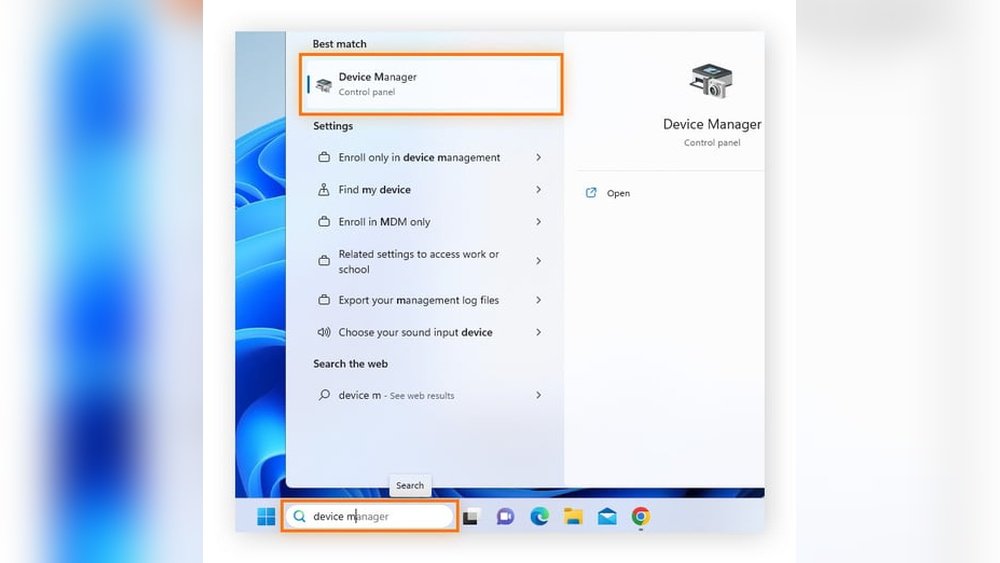
Open Device Manager
Press the Windows key and the letter R at the same time. This opens the Run box. Type devmgmt.msc and press Enter. The Device Manager window will open, showing a list of hardware categories.
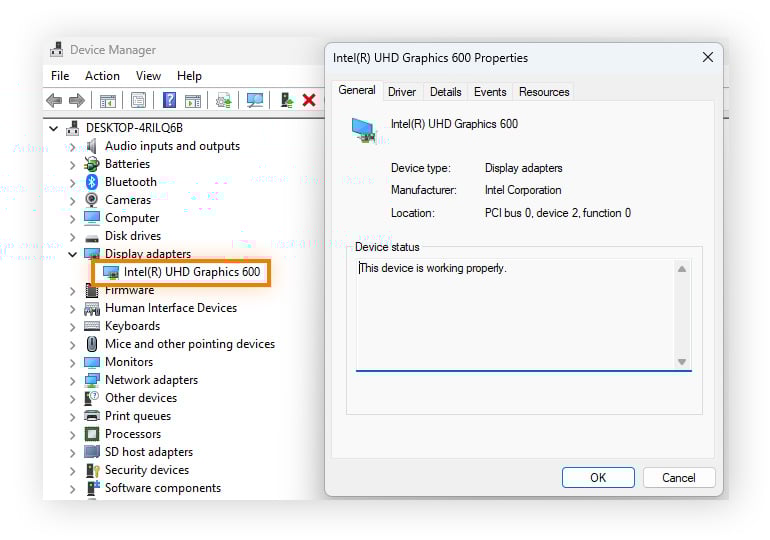
Locate Display Adapters
Look for the category named Display adapters. Click the small arrow next to it. This will expand the category and reveal the devices listed under it. The GPU or graphics card is shown here.
Identify Your Gpu Model
Read the name of the device under Display adapters. This is your GPU model. It might say something like NVIDIA GeForce, AMD Radeon, or Intel HD Graphics. This name helps you know what graphics hardware your PC uses.
Credit: www.avast.com
Use Directx Diagnostic Tool
The DirectX Diagnostic Tool is a simple way to check your PC’s GPU. It gives clear details about your graphics card and its features. This tool comes built into Windows, so no extra download is needed. Anyone can use it to find GPU information fast and easy.
Using the DirectX Diagnostic Tool helps you understand your computer’s graphics capabilities. It shows the name, manufacturer, and memory of your GPU. This information is useful for gaming, video editing, or troubleshooting.
Launch Dxdiag
Press the Windows key and R at the same time. This opens the Run box. Type dxdiag and press Enter. The DirectX Diagnostic Tool window will open. It may take a few seconds to load all details.
Navigate To Display Tab
Look at the top tabs in the Dxdiag window. Click the one called “Display.” This tab shows all graphics-related information. If you have multiple GPUs, each will have its own tab.
Read Gpu Details
Check the “Device” section for your GPU’s name and manufacturer. The “Display Memory” shows the video RAM size. Other details include driver version and feature levels. These help you know your GPU’s power and compatibility.
Access Gpu Info With Settings App
Accessing your GPU information through the Settings app is simple and quick. It helps you understand your computer’s graphics capabilities without extra software. This method works on most Windows PCs and shows clear details about your graphics hardware.
Open System Settings
Click the Start menu and select the gear icon to open Settings. This opens the main system menu where you can find various options. The Settings app controls many parts of your computer, including display and graphics.
Go To Display Section
In Settings, click on “System” and then select “Display” from the sidebar. This section manages screen resolution, brightness, and graphics settings. It also contains information about your display adapters and GPU.
View Graphics Settings
Scroll down in the Display section and click “Graphics settings.” Here, you see the GPU used for specific apps or processes. You can check which GPU is active and learn its name and type. This helps confirm your PC’s graphics hardware easily.
Utilize Task Manager For Gpu Info
Task Manager is a built-in tool in Windows that shows your PC’s hardware details. You can easily check your GPU info here without extra software. It gives real-time data on how your GPU works and its specs. This helps you understand your PC’s graphics power and performance.
Open Task Manager
Press Ctrl + Shift + Esc on your keyboard to open Task Manager. You can also right-click the taskbar and select Task Manager from the menu. The window will pop up showing running apps and processes.
Switch To Performance Tab
Click the Performance tab at the top of Task Manager. This section shows detailed info about your CPU, memory, disk, and GPU. If you don’t see the tabs, click “More details” at the bottom first.
Find Gpu Usage And Specs
Look for the GPU section in the left sidebar under Performance. Select it to see GPU usage graphs and real-time activity. You can also find the GPU name, memory size, and driver version here. This info helps you track your graphics card’s health and speed.
Third-party Tools For Gpu Detection
Third-party tools help you find detailed information about your GPU. They show specs that Windows might not display. Using these tools makes it simple to check your graphics card’s model, memory, and performance data.
Many tools are free and easy to use. They provide clear, organized data in one place. These programs work well for both beginners and advanced users.
Gpu-z Overview
GPU-Z is a popular tool for checking your GPU details. It displays the exact model, clock speeds, and memory type. The interface is simple and shows real-time sensor data. It also reports driver versions and BIOS information. GPU-Z is lightweight and does not slow down your PC.
Speccy Overview
Speccy is a full system information tool with a GPU section. It gives an easy-to-read summary of your graphics card. The report includes the GPU name, memory, and temperature. Speccy also shows other hardware details like CPU and RAM. It is a good choice for overall PC health checks.
Choosing The Right Tool
Select a tool based on your needs. GPU-Z is great for detailed GPU data and real-time monitoring. Speccy works well if you want a quick overview of your whole system. Both tools are user-friendly and free to download. Use the tool that feels easiest for you to understand.

Credit: breezeresidency.com
Checking Gpu On Different Windows Versions
Checking the GPU on your PC helps you know your graphics card details. Different Windows versions have various ways to show this information. Some methods are simple, while others need a few more steps.
Knowing how to find your GPU can help with gaming, software, or troubleshooting. Below are easy methods for different Windows versions.
Windows 10 Methods
Open the Start menu and type “Device Manager.” Click on it. Find “Display adapters” and expand it. Your GPU name will appear here.
You can also press Windows + R keys, type “dxdiag,” and hit Enter. In the DirectX Diagnostic Tool, go to the Display tab. Your GPU information is under Device.
Windows 11 Methods
Click the Start button and open Settings. Select System, then choose Display. Scroll down and click on Advanced display. Your GPU details show under Display information.
Another way is to use Task Manager. Press Ctrl + Shift + Esc. Go to the Performance tab, then click GPU. This shows your GPU name and usage.
Older Windows Versions
For Windows 7 or 8, open the Start menu. Type “Device Manager” and open it. Look for Display adapters and expand. Your GPU is listed there.
You can also use the DirectX Diagnostic Tool. Press Windows + R, type “dxdiag,” and press Enter. Check the Display tab for GPU details.

Credit: www.youtube.com
Frequently Asked Questions
How To Check Gpu On Windows 10 Pc?
Open Task Manager by pressing Ctrl+Shift+Esc. Click the Performance tab. Select GPU to view its details and usage stats.
Can I View Gpu Info Using Directx Diagnostic Tool?
Yes, press Win+R, type dxdiag, and hit Enter. Check the Display tab for GPU model and driver info.
How To Find Gpu Model Via Device Manager?
Right-click Start, select Device Manager. Expand Display adapters to see the installed GPU name and details.
Is There A Command Prompt To See Gpu?
Type “wmic path win32_videocontroller get name” in Command Prompt. It shows the GPU model installed on your PC.
Conclusion
Finding your PC’s GPU is simple and quick. Just follow the steps shared above. Knowing your GPU helps you understand your computer better. It also guides you in choosing the right software or games. Keep checking your GPU regularly to stay updated.
This small task can improve your PC experience a lot. Don’t hesitate to explore more about your hardware. It makes you confident when buying or upgrading parts. Your PC’s power is clearer once you see the GPU inside.
