
Wondering how hot your CPU is running on your Windows 11 PC? Keeping an eye on your CPU temperature is crucial to avoid overheating, slowdowns, or even hardware damage.
But finding this info isn’t always straightforward. In this guide, you’ll learn simple, effective ways to check your CPU temp quickly and accurately. Whether you’re a gamer, a professional, or just want to keep your system healthy, these tips will help you stay in control and protect your computer.
Keep reading to discover the easiest methods to monitor your CPU temperature on Windows 11!
Check Cpu Temp With Task Manager
Checking your CPU temperature helps you keep your computer safe and running well. Windows 11 has many built-in tools. Task Manager is a common one. It shows many details about your system. But does it show CPU temperature? Let’s explore what Task Manager can do.
Accessing Task Manager In Windows 11
To open Task Manager, press Ctrl + Shift + Esc keys. Another way is right-clicking the Start button. Then select Task Manager from the menu. The Task Manager window will open.
Finding Cpu Information In Task Manager
Click the Performance tab at the top of Task Manager. On the left side, select CPU. You will see CPU usage and speed here. This section shows how busy your processor is.
Checking Cpu Temperature In Task Manager
Task Manager does not display CPU temperature by default. It only shows CPU usage and speed. To see temperature, you need other tools. Task Manager alone cannot show CPU heat.
Use Windows Settings For Cpu Info
Windows 11 provides basic CPU information through its Settings app. It helps to check your processor’s details without extra software. This method does not show CPU temperature but offers useful data about your CPU model and speed. Understanding these details helps monitor your computer’s performance.
Accessing CPU info in Windows Settings is simple. It works well for users who want quick and easy details about their processor. Follow the steps below to find this information.
Open The Settings App
Click the Start button on your taskbar. Select the Settings gear icon from the menu. Alternatively, press Windows key + I on your keyboard. The Settings window will appear on your screen.
Navigate To System Section
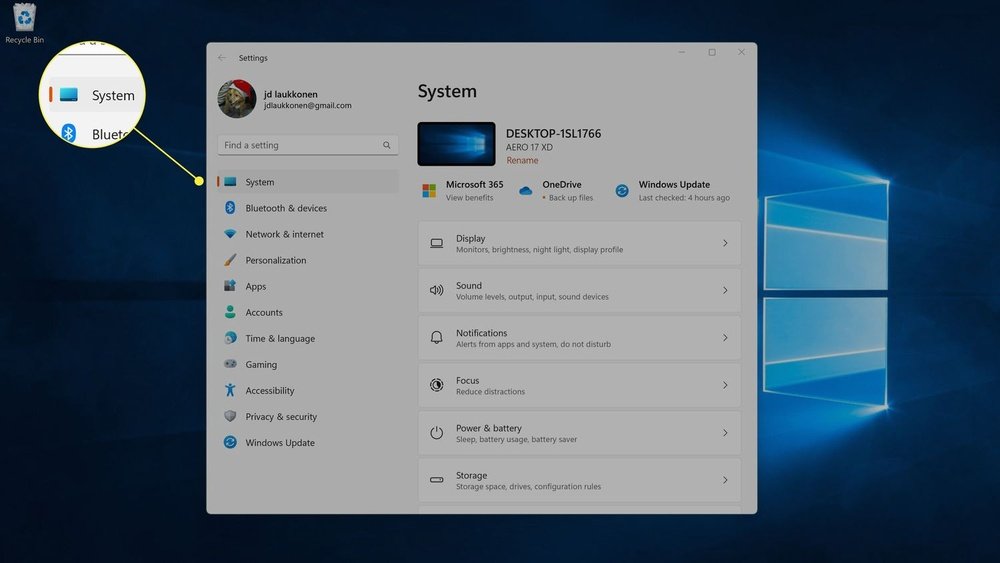
In Settings, click on the System tab. It is usually the first option on the left side. This section contains information about your PC’s hardware and software.
View About Page
Scroll down in the System menu. Click on About at the bottom of the list. This page shows basic details about your device, including processor type and installed RAM.
Check Processor Details
On the About page, look for the Device specifications section. Here you find your CPU model and speed. This data helps identify your processor’s capabilities and compatibility.
Third-party Apps For Cpu Temperature
Monitoring your CPU temperature is important for keeping your PC healthy. Windows 11 does not show CPU temperature by default. Third-party apps fill this gap. They offer detailed and real-time temperature data. These apps also provide extra features like fan speed and system load monitoring. Using third-party tools is an easy way to keep an eye on your CPU’s health and performance.
Popular Cpu Monitoring Tools
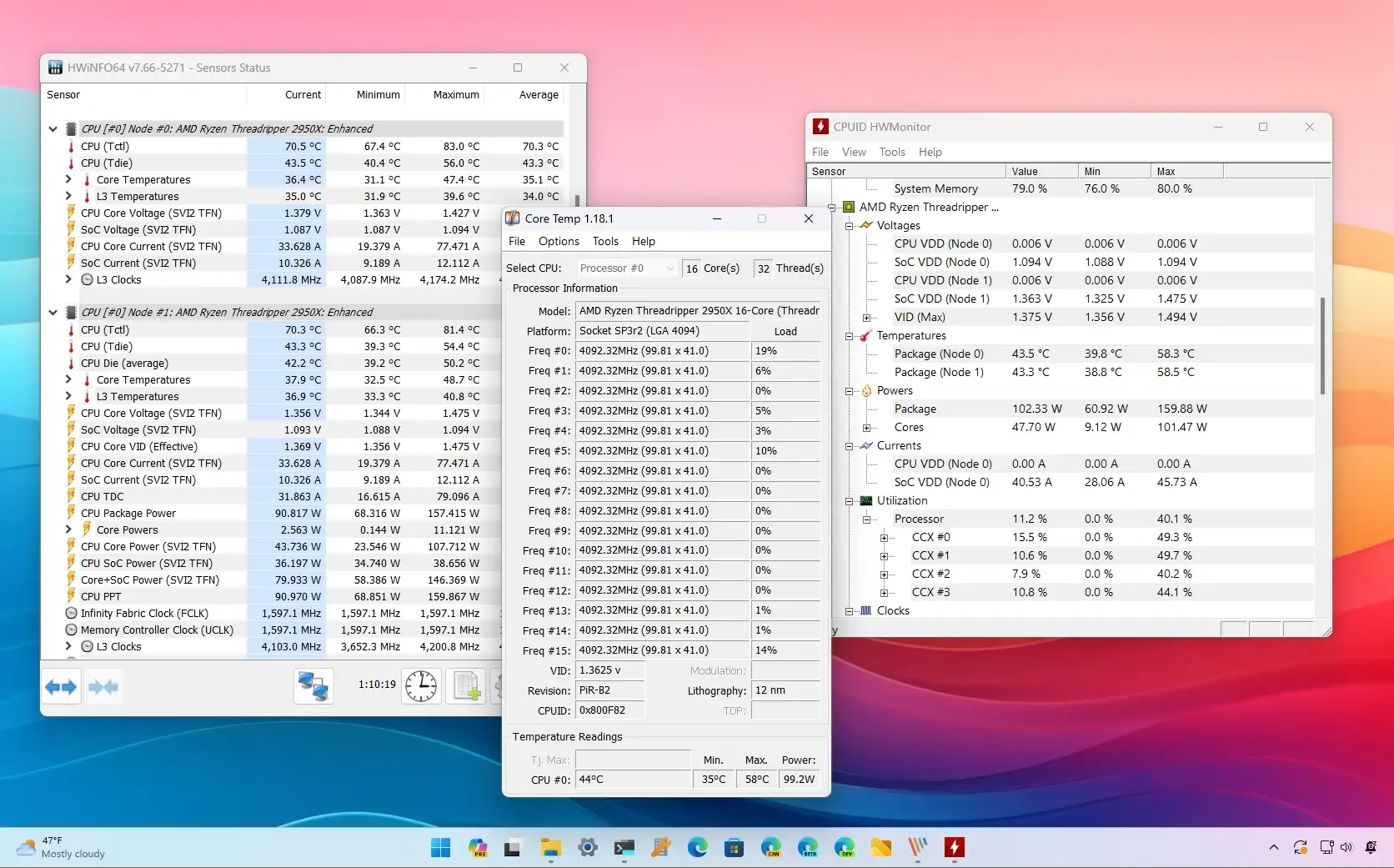
Several trusted apps help you track CPU temperature. Core Temp is simple and widely used. HWMonitor shows detailed info about many hardware parts. SpeedFan lets you monitor temperature and control fan speeds. MSI Afterburner is popular among gamers for its real-time stats. These tools work well on Windows 11 and offer clear temperature readings.
Installation Guide
Download the app from its official website. Avoid third-party sites to stay safe. Open the installer file after download. Follow the on-screen instructions carefully. Choose default options for an easy setup. Finish installation and restart your computer if needed. Launch the app to check your CPU temperature.
Using Apps To Track Temp
Open the monitoring app after installation. Look for the CPU temperature section. Most apps show temperature in Celsius and Fahrenheit. Watch the numbers while running your PC normally. High temperatures might mean your CPU is working too hard. Use the app regularly to avoid overheating issues. Some apps also alert you if temperatures get too high.
Credit: pureinfotech.com
Using Bios To View Cpu Temp
Checking your CPU temperature through BIOS is a direct and reliable method. It shows real-time temperature without extra software. BIOS gives hardware-level data that helps monitor your CPU health. This is useful if you suspect overheating or want to keep your PC safe.
Accessing Bios On Windows 11
First, save all your work. Restart your PC. While it boots, press the BIOS key repeatedly. Common keys are F2, Delete, or Esc. The screen will show the BIOS or UEFI menu. If Windows 11 loads, try again with a different key.
You can also access BIOS via Windows settings. Open Settings, then go to System > Recovery. Click Restart now under Advanced startup. Choose Troubleshoot > Advanced options > UEFI Firmware Settings. Then click Restart to enter BIOS.
Locating Cpu Temperature Data
Inside BIOS, find the Hardware Monitor or PC Health section. This area displays temperature readings, fan speeds, and voltages. Look for CPU Temperature or similar terms. The numbers here show your CPU’s current heat level.
Temperature is usually shown in Celsius. Normal CPU temps range between 30°C and 50°C at idle. Higher numbers mean the CPU is working harder or may be overheating. Use this data to decide if cooling needs improvement.
Interpreting Cpu Temperature Levels
Understanding CPU temperature is important to keep your computer healthy. Monitoring the temperature helps avoid damage and improves performance. Knowing what numbers mean safe or risky is key. This guide explains how to interpret CPU temperature levels clearly.
Safe Temperature Ranges
A typical CPU temperature during normal use stays between 30°C and 50°C. Light tasks like browsing or writing keep it low. Under heavy work, like gaming or video editing, 60°C to 80°C is common. Temperatures below 85°C are usually safe for most CPUs. Different models have slightly different safe limits. Check your CPU’s specs for exact numbers. Staying in the safe range prevents hardware problems and keeps your PC stable.
Signs Of Overheating
High CPU temperatures can cause issues. If your PC feels very hot or the fan runs loud, it may be overheating. Sudden shutdowns or slow performance also hint at heat trouble. Overheating can damage parts and shorten your CPU’s life. Watch for temperatures above 90°C. This level is unsafe and needs quick action. Cooling solutions like cleaning fans or applying new thermal paste help lower heat.
:max_bytes(150000):strip_icc()/A3-CheckCPUTemperatureinWindows11-annotated-7777f3a0139042ed84a35e292c8e5310.jpg)
Credit: www.lifewire.com
Tips To Lower Cpu Temperature
Keeping your CPU temperature low is key to a healthy PC. High temperatures can cause slowdowns and damage parts. Simple steps help your computer run cooler and last longer.
Improving Airflow
Good airflow moves hot air away from your CPU. Arrange cables neatly to avoid blocking fans. Use extra fans if your case supports them. Keep your PC in a cool, open space.
Cleaning Hardware
Dust buildup traps heat inside your computer. Clean fans and vents regularly using compressed air. Wipe off dust on the heatsink carefully. This helps your CPU cool down faster.
Updating Drivers
Outdated drivers can cause your CPU to work harder. Check for updates on your motherboard and graphics card. New drivers improve performance and can reduce heat. Use official websites for safe downloads.

Credit: www.wikihow.com
Frequently Asked Questions
How Can I Check Cpu Temperature On Windows 11?
You can check CPU temperature using third-party apps like HWMonitor or Core Temp. Windows 11 doesn’t offer built-in CPU temperature monitoring. These tools provide real-time temperature readings and detailed hardware info, ensuring you monitor your PC’s health easily.
Does Windows 11 Have Built-in Cpu Temperature Monitoring?
No, Windows 11 does not have built-in CPU temperature monitoring. You need to use third-party software to view your CPU’s temperature. Popular apps like HWMonitor, Core Temp, or MSI Afterburner work well for this purpose.
What Is The Safe Cpu Temperature Range In Windows 11?
A safe CPU temperature range is typically between 30°C and 70°C under normal use. Temperatures above 80°C can indicate overheating and may cause system instability. Always keep your PC cool to maintain performance and hardware longevity.
Can I Monitor Cpu Temperature Without Installing Software?
No, Windows 11 does not provide CPU temperature info without third-party software. To monitor temperature, you must install trusted tools like HWMonitor or Core Temp. These apps are lightweight and easy to use for accurate readings.
Conclusion
Checking your CPU temperature on Windows 11 helps keep your PC healthy. It shows if your computer runs too hot or works fine. Use simple tools or built-in features to watch the temperature. Regularly checking avoids slowdowns and damage. Stay aware of your CPU’s heat for better performance.
A cool PC lasts longer and runs smoother. Keep an eye on the numbers and act if they rise too high. This small step helps you protect your device every day.
