
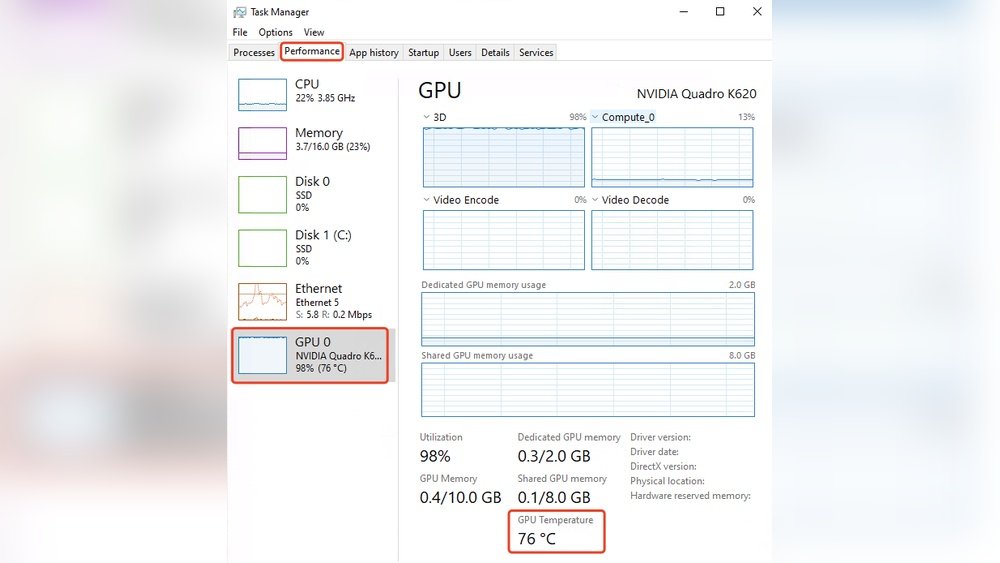
Are you worried your computer might be running too hot? Knowing how to see your CPU and GPU temperature is key to keeping your device safe and performing well.
If your system gets too hot, it can slow down, crash, or even get damaged. But don’t worry—you don’t need to be a tech expert to check these temperatures. You’ll discover simple, easy ways to monitor your CPU and GPU temps so you can catch problems early and keep your computer running smoothly.
Keep reading to learn how to protect your gear and boost its lifespan with just a few clicks.

Credit: openhardwaremonitor.org
Why Monitor Cpu And Gpu Temps
Monitoring CPU and GPU temperatures is important for every computer user. These parts generate heat while working. Too much heat can cause problems. Knowing the temperature helps keep your system safe and working well. It gives you a chance to fix issues before they become serious.
Impact On Performance
High temperatures make CPUs and GPUs slow down. This is called thermal throttling. The system reduces speed to cool down. This means less power for your tasks or games. Watching the temperature helps keep your computer fast and smooth.
Preventing Overheating Damage
Heat can damage computer parts. It may cause crashes or sudden shutdowns. Long exposure to heat can burn out components. Checking temps helps avoid overheating. It protects your hardware from costly damage.
Extending Hardware Lifespan
Cooler parts last longer. Heat wears out CPUs and GPUs faster. Keeping temps low reduces stress on components. This means your computer stays reliable for years. Monitoring temps helps you care for your hardware properly.
Signs Of High Temperature Issues
High temperatures in your CPU and GPU can cause serious problems. These parts get very hot during use. If the heat is too much, your computer may not work well. It is important to know the signs that show your CPU or GPU is too hot. Watch for these signs to protect your device.
System Slowdowns
Your computer may start running slower than usual. Programs take longer to open. Tasks that were quick become frustrating. This happens because the CPU and GPU reduce speed to cool down. It is a safety feature but affects performance.
Unexpected Shutdowns
The device may turn off without warning. This protects the hardware from heat damage. Sudden shutdowns can cause data loss. It is a clear sign that temperatures are dangerously high. Do not ignore these shutdowns.
Fan Noise Increase
The cooling fans work harder as temperature rises. You will hear louder fan noise than normal. Fans spin faster to push hot air out. This noise is a warning that your system is getting too hot. Check your CPU and GPU temperatures soon.
Tools For Checking Cpu Temperature
Checking your CPU temperature helps keep your computer safe and fast. High temperatures can cause damage or slow down your PC. Many tools show real-time CPU temperatures. These tools range from built-in system features to easy-to-use apps. Some tools work on all computers. Others need installation or some technical skill.
Built-in Bios/uefi Monitoring
Every modern computer has BIOS or UEFI firmware. This system runs before your operating system starts. It shows basic hardware info, including CPU temperature. To access it, restart your PC and press a key like F2 or Delete. You will see a menu with system health or hardware monitoring. This method shows temperature without any extra software. But it only works before Windows or macOS loads. You cannot check temperature while using your PC.
Third-party Software Options
Many free apps show CPU temperature in real time. Popular options include HWMonitor, Core Temp, and SpeedFan. These programs display detailed temperature data for each CPU core. They also show fan speeds and voltages. You can leave them running in the background. This helps track temperature during gaming or heavy work. The software is easy to install and use. They work on Windows and some have Mac versions. Always download from official sites to avoid malware.
Using Command Line Utilities
Advanced users can check CPU temperature via command line. Linux users have tools like lm-sensors and hddtemp. These tools show temperature data in terminal windows. Windows users can use PowerShell scripts or third-party CLI tools. This method needs some technical knowledge. It is good for scripts or remote monitoring. Command line tools do not need a graphical interface. They work well on servers or minimal systems.
Tools For Checking Gpu Temperature
Checking the GPU temperature helps keep your computer safe. High temperatures can slow down your system or cause damage. Many tools let you see your GPU temperature easily. These tools vary from software made by the graphics card maker to third-party apps and in-game overlays. Each option has unique features and benefits.
Graphics Card Software
Most GPU makers offer their own software. Examples include NVIDIA’s GeForce Experience and AMD’s Radeon Software. These programs show real-time temperature data. They also allow you to adjust settings for better cooling. Using official software ensures accurate readings. It fits well with your graphics card model.
Third-party Monitoring Apps
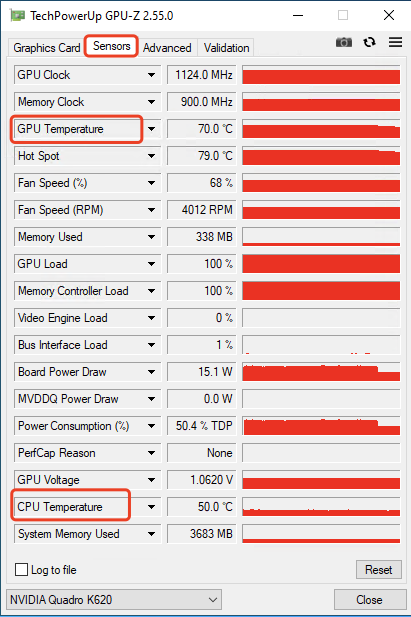
Third-party apps work with many hardware types. Popular choices are HWMonitor, MSI Afterburner, and GPU-Z. These apps show detailed temperature stats. Some also track fan speed and voltage. They help you monitor your GPU without extra costs. These apps often have simple interfaces for easy use.
In-game Overlays
In-game overlays display temperature while you play. Tools like MSI Afterburner and RivaTuner Statistics Server offer this feature. Overlays show GPU temperature without leaving the game. This helps spot overheating during heavy use. They also display other useful stats like frame rates.
Step-by-step Guide To Monitor Temps
Monitoring your CPU and GPU temperatures is important. It helps keep your computer safe and running well. This step-by-step guide shows how to check these temperatures easily. Follow each step to stay informed about your system’s health.
Downloading And Installing Software
First, choose a reliable temperature monitoring tool. Popular options include HWMonitor, Core Temp, and MSI Afterburner. Visit the official website to download the software. Avoid third-party sites to prevent malware. Run the installer and follow the on-screen instructions. After installation, open the program to start monitoring.
Configuring Alerts And Logs
Set up alerts to get notified if temperatures rise too high. Most software allows you to configure warning limits. Choose safe temperature thresholds for both CPU and GPU. Enable logging to keep records of temperature changes. Logs help track performance over time and spot problems early.
Interpreting Temperature Readings
Check the temperature numbers displayed in the software. CPU temps usually range from 30°C to 70°C during normal use. GPU temps can be a bit higher, often up to 80°C under load. If temperatures go beyond safe limits, consider improving cooling or reducing workload. Consistently high temps can cause hardware damage.
Credit: www.gpu-mart.com
Tips To Keep Temps Low
Keeping your CPU and GPU temperatures low helps your computer run better. High temperatures can slow down your system and cause damage. Simple steps can keep your hardware cool and safe. Here are some easy tips to maintain low temps.
Improving Airflow
Good airflow moves hot air out and cool air in. Arrange cables neatly to avoid blocking vents. Make sure fans blow air in the right direction. Use extra case fans if needed for better circulation.
Cleaning Dust And Debris
Dust blocks airflow and traps heat inside your PC. Clean your computer regularly with a soft brush or compressed air. Pay attention to fans, vents, and heat sinks. Keep your workspace dust-free to reduce buildup.
Applying Thermal Paste
Thermal paste helps heat move from CPU or GPU to the cooler. Old paste can dry out and lose efficiency. Remove old paste gently and apply a new, thin layer. This improves heat transfer and lowers temperatures.
Upgrading Cooling Solutions
Stock coolers may not be enough for heavy use. Consider better air coolers or liquid cooling systems. Larger fans and heatsinks cool more effectively. Choose cooling solutions that fit your case and needs.
When To Seek Professional Help
Knowing when to seek professional help is important for your CPU and GPU health. Some problems need expert care to avoid damage. Simple fixes might not solve serious overheating or hardware issues.
Recognize the signs that require a technician’s attention. Early action can save your computer from bigger problems. Trust professionals to handle complex repairs safely and correctly.
Persistent Overheating
Constant high temperatures can harm your CPU and GPU. If your device heats up quickly and often, it needs professional checkup. Overheating that lasts after cleaning fans or reapplying thermal paste is a warning sign. Experts can find hidden causes like faulty cooling systems or damaged parts.
Hardware Replacement Signs
Cracks, strange noises, or sudden shutdowns mean hardware might fail. Professionals can test and replace damaged CPUs or GPUs. Avoid using broken components to prevent further damage. Only trained technicians should open and repair inside your computer.
Warranty And Support Options
Check your device’s warranty before any repair. Many manufacturers offer free support for hardware problems. Using authorized service centers keeps your warranty valid. Professionals provide proper service and genuine parts under warranty terms.

Credit: www.shoshitamam.com
Frequently Asked Questions
How Can I Check My Cpu Temperature On Windows?
You can check CPU temperature using software like HWMonitor or Core Temp. These tools display real-time CPU temps clearly. Simply download, install, and open the app to view your CPU temperature readings easily.
What Is The Best Software To Monitor Gpu Temperature?
Popular GPU monitoring tools include MSI Afterburner, GPU-Z, and HWMonitor. They provide accurate temperature readings and real-time stats. Download and run any of these to keep track of your GPU temperature effectively.
Why Is Monitoring Cpu And Gpu Temperature Important?
Monitoring prevents overheating, which can damage hardware and reduce performance. Keeping temps in check ensures stable operation and longer device lifespan. It also helps identify cooling issues early.
Can I See Cpu And Gpu Temperatures Without Extra Software?
Some BIOS/UEFI setups show CPU temps, but GPU temps usually require software. Windows doesn’t display temps natively. Using monitoring software is the easiest and most reliable method.
Conclusion
Knowing your CPU and GPU temperatures helps keep your computer safe. High temps can cause slowdowns or damage. Use easy tools to check these temps regularly. Watch for numbers that seem too high. Taking simple steps can improve your computer’s life and performance.
Stay aware and keep your system cool. It’s a small effort that makes a big difference.
