

Are you curious about what’s happening inside your computer right now? Knowing how to see your CPU details can give you a clear picture of your system’s power and performance.
Whether you want to check if your processor is running smoothly or plan an upgrade, understanding your CPU is the first step. You’ll learn simple and quick ways to see your CPU information without any hassle. Keep reading, and you’ll gain the confidence to manage your computer like a pro.
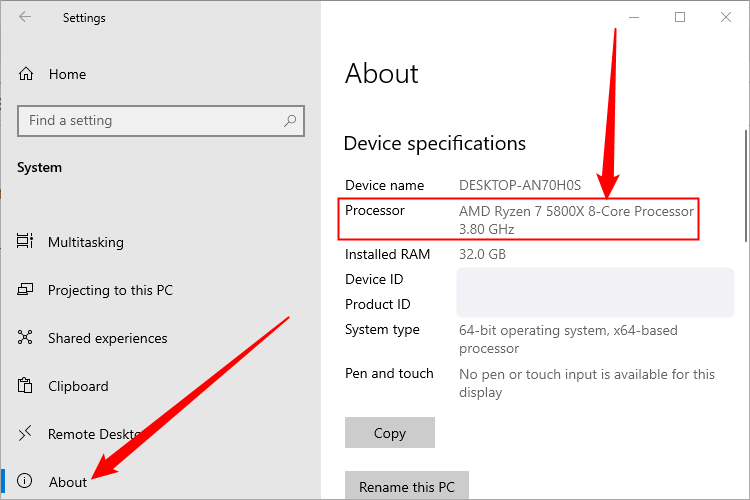
Credit: www.howtogeek.com
Check Cpu Speed On Windows
Checking your CPU speed on Windows helps you understand your computer’s performance. It tells you how fast your processor runs. This can help with troubleshooting or deciding if you need an upgrade.
Windows offers simple tools to see this information. You do not need extra software. Just follow a few easy steps.
Use Task Manager
Open Task Manager by pressing Ctrl + Shift + Esc. Click the “Performance” tab. Select “CPU” from the left menu. You will see the CPU speed near the top right. It shows the current speed in GHz. This method is quick and easy.
Access System Information
Press Windows key + R to open the Run box. Type “msinfo32” and press Enter. The System Information window opens. Look for “Processor” in the right pane. You will find the CPU speed listed there. This tool gives detailed info about your hardware.
Try Command Prompt
Open Command Prompt by typing “cmd” in the Start menu. Type the command: wmic cpu get name, maxclockspeed. Press Enter. The output shows your CPU name and max speed in MHz. This method is useful for quick checks using text commands.
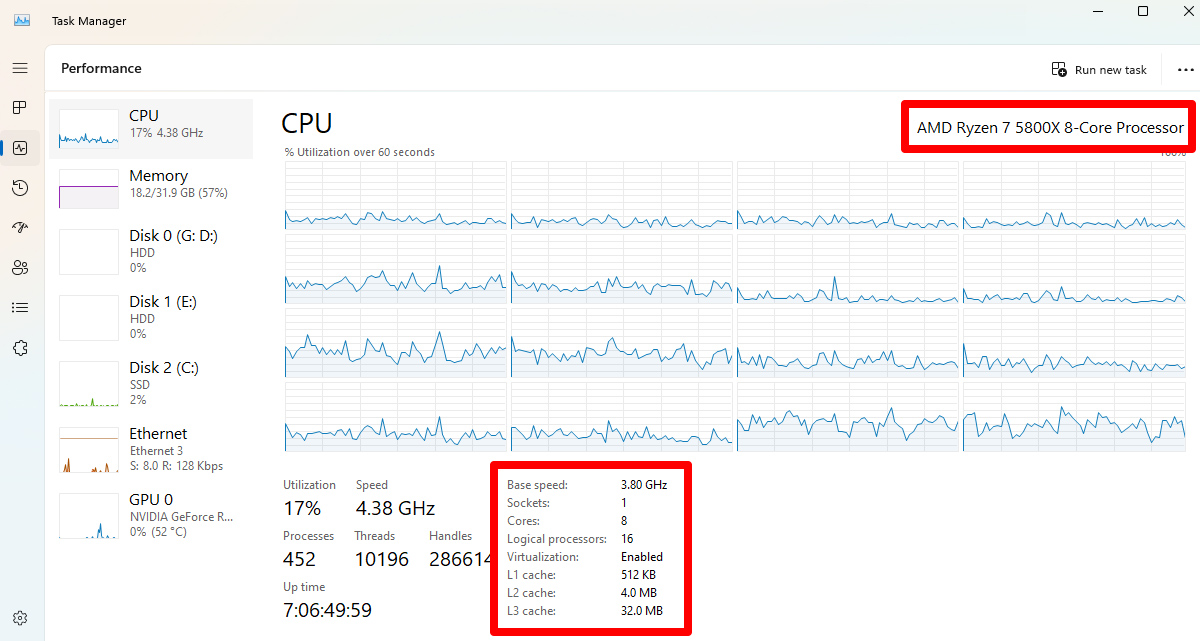
Credit: rog.asus.com
Check Cpu Speed On Mac
Checking your Mac’s CPU speed helps you understand its performance. You can find this information quickly using built-in tools. Knowing the CPU speed can help with tasks like software updates or troubleshooting.
Open About This Mac
Click the Apple icon in the top-left corner of the screen. Select “About This Mac” from the drop-down menu. A window will appear showing your Mac’s basic information. Here, you can see the processor type and speed. This gives a quick overview of your CPU performance.
Use System Report
Inside the “About This Mac” window, click the “System Report” button. This opens a detailed system overview. In the sidebar, select “Hardware” and then “Processor.” You will find specific details about your CPU speed and cores. This method shows more in-depth information about your Mac’s processor.
Check Cpu Speed On Linux
Checking your CPU speed on a Linux system helps you understand your computer’s performance. It shows how fast your processor runs. This information is useful for troubleshooting and system monitoring. Linux offers simple ways to find this data using built-in tools.
Use Terminal Commands
The terminal provides quick commands to check CPU speed. Open the terminal and type lscpu. This command displays detailed CPU information including speed. Look for “CPU MHz” or “CPU max MHz” to see current and maximum speeds.
Another useful command is cat /proc/cpuinfo. It lists details for each CPU core. Find the “cpu MHz” line to check the speed of each core. These commands work on most Linux distributions.
Check Cpu Info File
The /proc/cpuinfo file contains CPU details. You can view it by running cat /proc/cpuinfo. It shows speed and other CPU features.
This file updates in real time. It reflects the current speed your CPU runs at. Reading this file helps you monitor CPU performance easily without extra software.
Use Third-party Software
Using third-party software is one of the easiest ways to see your CPU details. These tools show real-time data about your processor. They help you check CPU usage, temperature, and speed. You get more detailed information than built-in system tools. Many of these apps are free and simple to use. They work on different versions of Windows, Mac, and Linux.
Popular Cpu Monitoring Tools
Several CPU monitoring tools are widely used. CPU-Z gives detailed info about your CPU model and speed. HWMonitor shows temperatures, voltages, and fan speeds. Core Temp focuses on monitoring CPU temperature in real time. Speccy provides a full system overview including CPU details. Task Manager
Installing And Running Tools
Download the software from the official website only. Avoid unknown sources to keep your computer safe. Installation is usually quick and simple. Follow the on-screen instructions to finish setup. After installation, open the app to view CPU stats. Most tools update data automatically every few seconds. You can also customize settings to fit your needs.
Tips For Accurate Cpu Speed Reading
Getting an accurate reading of your CPU speed helps you understand how well your computer works. Many factors affect the speed shown by tools. Follow these simple tips to get a clear and true measurement of your CPU’s performance.
These tips make sure the CPU speed you see matches the real performance of your system. It helps avoid confusion and wrong conclusions about your computer’s power.
Close Background Applications
Background apps use CPU power and slow down speed tests. Shut down all programs not needed during the check. This frees up resources for a better measurement.
Use Task Manager on Windows or Activity Monitor on Mac. This stops hidden apps from affecting your CPU speed reading.
Check Cpu Under Load
CPU speed changes based on the work it handles. Checking speed with no tasks gives a low number. Test your CPU while running a heavy program.
Use stress test tools or open multiple apps for a load check. This shows the CPU speed when it works hard, giving a true idea of performance.
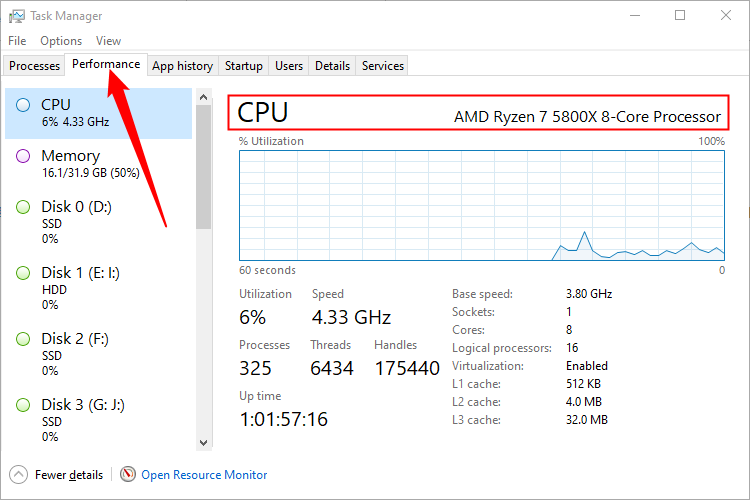
Credit: www.howtogeek.com
Frequently Asked Questions
How Can I Check My Cpu On Windows?
Open Task Manager by pressing Ctrl+Shift+Esc. Click the Performance tab, then select CPU. You will see your CPU model, speed, and usage details.
How To View Cpu Details On Mac?
Click the Apple menu, select “About This Mac. ” Your CPU information appears under the “Overview” tab, showing model and speed.
What Tool Shows Cpu Usage In Real Time?
Task Manager on Windows and Activity Monitor on Mac display real-time CPU usage. These tools help monitor performance effectively.
Can I See Cpu Temperature On My Computer?
Yes, use third-party apps like HWMonitor or Core Temp for Windows. Macs require specialized apps like iStat Menus for temperature monitoring.
Conclusion
Knowing how to see your CPU helps you understand your computer better. It shows your device’s power and performance. You can check it in simple steps on any system. This knowledge helps you decide when to upgrade or fix your computer.
Keep these tips in mind to find your CPU easily. Stay curious and explore your device’s details often. It makes using technology less confusing and more fun.
