
Are you looking to boost your computer’s speed without spending extra money? Overclocking your CPU can unlock hidden power and make your system run faster.
But here’s the catch: if you don’t do it right, you risk damaging your hardware or causing crashes. What if you could safely push your CPU to perform better, without the fear of breaking it? In this guide, you’ll discover simple, clear steps to overclock your CPU safely, protect your investment, and enjoy smoother, faster performance.
Keep reading, and you’ll learn how to get the most out of your computer with confidence.
Why Overclock Your Cpu
Overclocking your CPU means running it faster than the factory speed. This can make your computer work better and faster. Many people overclock to get more power without buying new parts. Understanding why you might want to overclock helps you decide if it fits your needs.
Performance Gains
Overclocking improves your CPU speed and overall performance. Tasks like gaming, video editing, and software running become faster. Faster processing means less waiting time. It helps your computer handle heavy jobs with ease.
Cost Efficiency
Buying a new CPU can be expensive. Overclocking lets you get more from your current one. It saves money by increasing power without extra costs. This makes your system feel newer without spending a lot.
Learning Experience
Overclocking teaches you about computer hardware and software. You learn how CPUs work and how to adjust settings safely. It builds your skills and confidence with technology. This knowledge can help with future upgrades or repairs.
Essential Overclocking Tools
Overclocking a CPU can boost your computer’s speed and performance. But it requires careful steps and the right tools to stay safe. Using essential tools helps you control settings, check temperatures, and test stability. These tools make overclocking easier and reduce risks of damage.
Here are the main tools needed for safe overclocking.
Bios And Uefi Basics
The BIOS or UEFI is the first place to start overclocking. This is the system software that controls hardware settings. You can change CPU frequency, voltage, and other options here. Learning how to navigate BIOS or UEFI is key. Take small steps and save your changes carefully. This helps avoid system crashes or damage.
Monitoring Software
Monitoring software tracks your CPU’s temperature and speed in real time. It shows if your CPU is running too hot or unstable. Good monitoring tools include HWMonitor, Core Temp, and CPU-Z. These apps help you keep an eye on your system while testing new settings. Watching temperatures prevents overheating and hardware damage.
Stress Testing Programs
Stress testing programs check if your overclock is stable. They push your CPU to work hard for a long time. Prime95, AIDA64, and IntelBurnTest are popular options. Running these tests finds errors or crashes early. This ensures your overclock works well under heavy use. Stop testing if your CPU gets too hot or your PC crashes.
Preparing Your System
Before you start overclocking your CPU, get your system ready. Proper preparation helps keep your hardware safe and stable. It also makes the process smoother and more efficient. Focus on three key areas: hardware compatibility, BIOS updates, and cooling solutions. Each step plays a big role in successful overclocking.
Check Hardware Compatibility
Not all CPUs and motherboards support overclocking. Check your CPU model and motherboard specs first. Make sure they allow overclocking features. Some chipsets and processors have limits or no support at all. Also, verify your RAM and power supply can handle extra load. Using compatible hardware avoids damage and system crashes.
Update Bios
Updating your BIOS ensures better performance and stability. Manufacturers release updates that fix bugs and improve overclocking options. Download the latest BIOS version from your motherboard’s website. Follow the update instructions carefully. A fresh BIOS can unlock new settings and make your system more reliable for overclocking.
Improve Cooling Solutions
Overclocking increases CPU heat. Good cooling prevents overheating and damage. Check your current cooling system. Stock coolers might not be enough. Consider upgrading to a better air cooler or liquid cooling. Also, clean dust from fans and heatsinks. Proper airflow inside your case is crucial. Cooler temperatures help maintain stable overclock settings.
Credit: www.geekompc.com
Step-by-step Overclocking Process
Overclocking your CPU can boost your computer’s speed. The process requires careful steps to avoid damage. Follow this guide for a safe and steady overclock.
Adjusting Cpu Multiplier
Start by entering your BIOS or UEFI settings. Find the CPU multiplier option. Increase it slowly, one step at a time. Each step raises your CPU speed a bit. Save settings and reboot your PC after each change.
Tweaking Voltage Settings
Higher speeds need more power. Adjust the CPU core voltage carefully. Increase voltage in small increments only. Watch the temperature closely to avoid overheating. Too much voltage can harm your CPU.
Testing Stability
After changes, test your system’s stability. Use stress-testing software to check performance. Run tests for at least 30 minutes. If your PC crashes or freezes, reduce settings. Stability ensures your overclock works well and safely.
Managing Heat And Power
Managing heat and power is key to safe CPU overclocking. Overclocking pushes your CPU beyond its normal limits. This causes it to use more power and produce more heat. Without control, this can damage your hardware. Careful heat and power management keeps your system stable and safe.
Monitoring Temperatures
Temperature monitoring helps you track CPU heat in real time. Use software tools to check temps frequently. Watch for spikes that may harm the CPU. Aim to keep temperatures below the maximum safe limit. Cooling efficiency depends on how well you watch these numbers.
Optimizing Fan Curves
Fan curves control how fast your fans spin based on temperature. Set fans to increase speed as the CPU gets hotter. This improves cooling without making too much noise. Test different fan speeds to find a balance. Proper fan curves help maintain steady CPU temperatures.
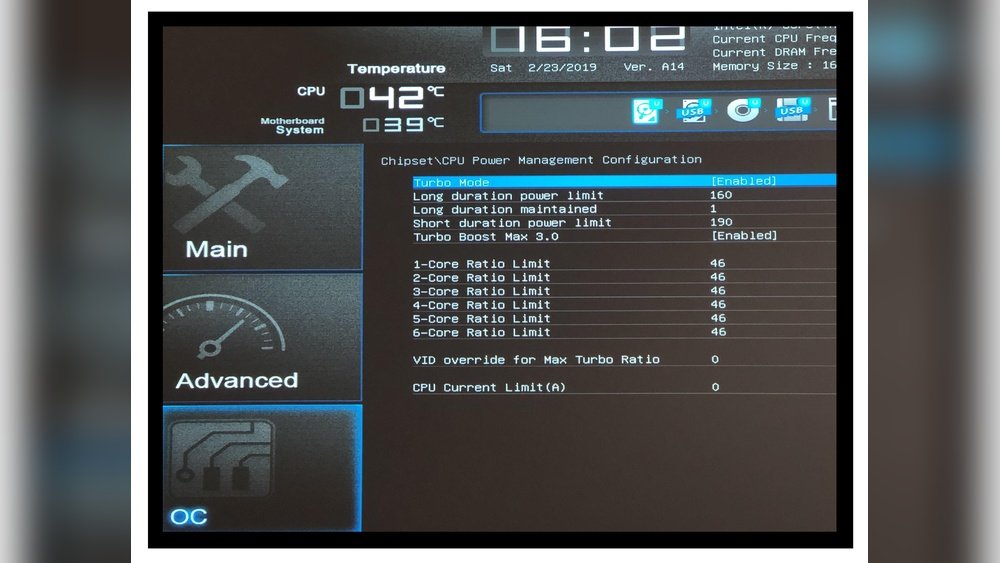
Power Limit Adjustments
Adjusting power limits controls how much energy the CPU uses. Lowering power limits can reduce heat and prevent crashes. Raising limits may increase performance but also increases heat. Change power limits slowly and test stability after each step. Correct power settings keep overclocking safe and efficient.
Troubleshooting Common Issues
Overclocking your CPU can boost performance but may cause issues. Knowing how to fix common problems helps keep your system stable. Troubleshooting saves time and protects your hardware.
System Crashes
Crashes often happen from unstable overclock settings. Lower the clock speed or increase voltage slightly to improve stability. Test changes with stress tools to find safe limits. Avoid pushing the CPU beyond its capabilities.
Thermal Throttling
Throttling slows the CPU to prevent overheating. Check your cooling system for dust or poor airflow. Upgrade your cooler if temperatures stay high. Keep the case well-ventilated to help heat escape. Monitor temperatures during heavy use.
Boot Failures
Boot issues may occur after aggressive overclocking. Reset BIOS settings to default to regain access. Try increasing the CPU voltage in small steps. Ensure your motherboard supports the selected overclock values. Save changes carefully and reboot often.
Overclocking Safety Tips
Overclocking a CPU can boost your computer’s speed. It also raises risks to your hardware. Following safety tips helps prevent damage and keeps your system stable. Careful steps protect your investment and improve performance without problems.
Avoiding Excessive Voltage
Never increase the CPU voltage too much. High voltage causes extra heat. It can shorten the CPU’s life or cause permanent damage. Use the lowest voltage that keeps your system stable. Monitor temperatures often during testing to stay safe.
Gradual Increment Approach
Increase clock speeds in small steps. Test your system for stability after each change. This method helps find the highest safe speed. It also avoids sudden crashes or data loss. Patience is key to a successful overclock.
Backup Configurations
Save your original BIOS or UEFI settings. Keep backup profiles for your overclocked setup too. If something goes wrong, restore your system quickly. Backups prevent long downtime and protect your data.

Credit: www.avast.com

Credit: www.hp.com
Frequently Asked Questions
What Is Cpu Overclocking And Is It Safe?
CPU overclocking means increasing your processor’s speed beyond its default. When done correctly with proper cooling, it is safe and boosts performance. However, improper overclocking can cause overheating and damage your CPU.
How Do I Check Cpu Temperature While Overclocking?
Use software like HWMonitor or Core Temp to track CPU temperature. Keep temperatures below 85°C to prevent overheating and ensure stable overclocking performance.
What Cooling Solutions Work Best For Overclocked Cpus?
High-quality air coolers or liquid cooling systems are best for overclocked CPUs. Efficient cooling prevents overheating and maintains stable performance during heavy workloads.
Should I Increase Cpu Voltage When Overclocking?
Increasing CPU voltage can improve stability at higher speeds but raises heat output. Adjust voltage carefully and monitor temperatures to avoid damaging your CPU.
Conclusion
Overclocking your CPU can boost performance if done with care. Keep an eye on temperatures and voltages to avoid damage. Test stability often to ensure smooth operation. Use good cooling and never rush the process. Small steps lead to safer results.
Remember, patience protects your hardware. Enjoy faster speeds without risking your computer’s health. Safe overclocking is about balance and caution. Stay informed and take your time. Your CPU will thank you.
