
Have you ever updated your GPU drivers only to find your games or programs acting strangely afterward? It’s frustrating when new drivers cause more problems than they fix.
But don’t worry—you can easily roll back your GPU drivers to the previous version and get everything working smoothly again. In this guide, you’ll discover simple, step-by-step instructions that anyone can follow. By the end, you’ll know exactly how to fix driver issues and keep your system running at its best.
Keep reading—you’re just a few clicks away from solving your GPU headaches.
Credit: www.drivereasy.com
Reasons To Roll Back Gpu Drivers
GPU drivers control how your graphics card works with your computer. Sometimes, new driver updates cause problems instead of fixing them. Rolling back GPU drivers means going back to an older version. This can solve many issues and make your system stable again.
Common Gpu Driver Problems
New drivers may cause your screen to flicker or go black. Games might crash or run slower than before. Some apps may not open or freeze during use. Graphics settings can reset or not save. Problems like these often start after updating drivers.
When Rolling Back Helps
Rolling back helps when your GPU acts strange after an update. It restores the last working driver version. This fixes crashes, freezing, and display errors. It also improves performance if the new driver slows down games. Rolling back is simple and often solves driver troubles fast.
Preparing For Driver Rollback
Preparing for a GPU driver rollback is important to avoid problems. It helps ensure your system stays stable and works well after changes. Taking a few simple steps before rolling back can save time and trouble later.
This section explains how to check your current driver version and back up important data. These steps give you a safety net and clear information about your system.
Checking Current Driver Version
Knowing your current driver version is the first step. This helps you confirm the driver you want to roll back from. You can find the version in the Device Manager or GPU control panel.
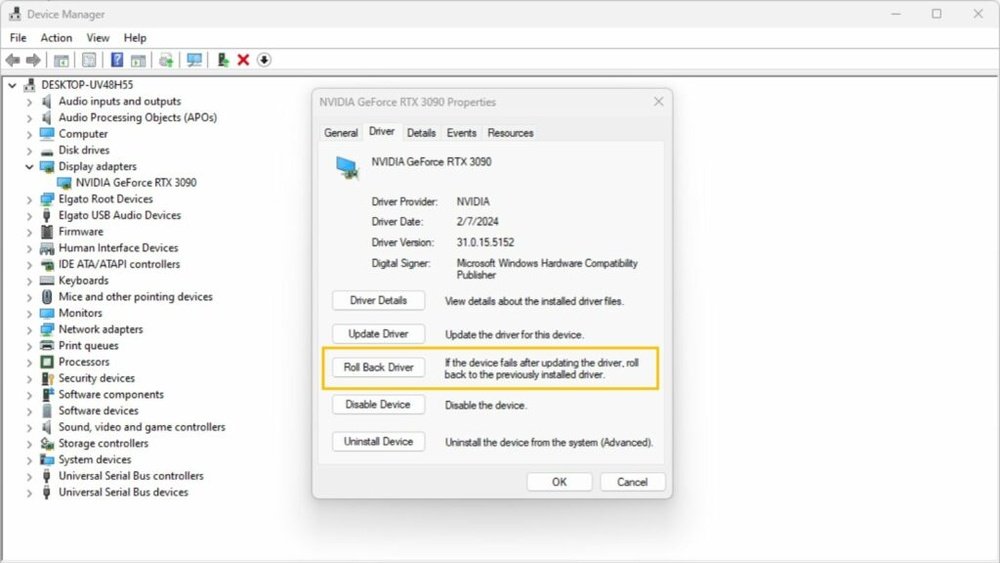
Open Device Manager by typing it in the search bar. Expand the Display Adapters section. Right-click your GPU and select Properties. Go to the Driver tab to see the version number and date.
Write down this information. It helps track changes and ensures you roll back correctly.
Backing Up Important Data
Backing up data protects your files in case something goes wrong. Save your important documents, pictures, and work files before starting the rollback. Use an external drive or cloud storage for backups.
Also, create a system restore point. This allows you to return your computer to its current state if issues appear after the rollback. Search for “Create a restore point” in Windows, then follow the prompts.
Having backups and restore points ready makes the rollback safer and less stressful.
Step-by-step Rollback Process
Rolling back GPU drivers can fix issues caused by recent updates. This step-by-step guide walks you through the process. Follow these simple steps to return to a previous driver version safely.
Accessing Device Manager
Press Windows + R keys to open the Run box. Type devmgmt.msc and press Enter. This opens the Device Manager window. Here, you manage all hardware devices on your PC.
Locating Gpu Driver Properties
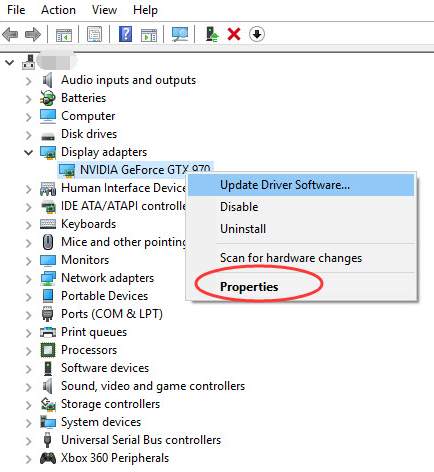
Find the category named Display adapters and click the arrow next to it. Right-click your GPU device and select Properties. A new window will appear with driver details and options.
Initiating Driver Rollback
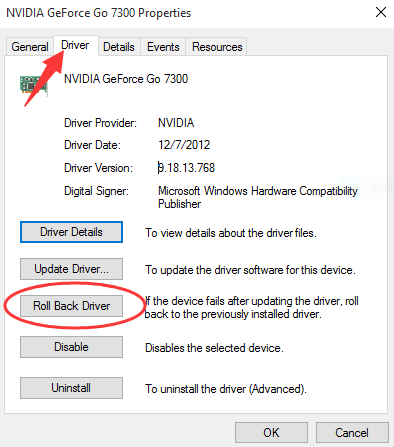
In the Properties window, click the Driver tab. Look for the Roll Back Driver button and click it. Follow the prompts to confirm. This process restores the previous driver version.
Restarting Your Computer
Close all windows and restart your PC. The rollback takes effect after reboot. Check if your GPU works better with the old driver.
Credit: www.drivereasy.com
Alternative Rollback Methods
Alternative rollback methods provide different ways to restore your GPU drivers. These methods help when the standard rollback option is not available or does not work properly. Using these approaches can fix issues caused by new driver updates.
These methods often involve using special software from the GPU maker or installing drivers manually. Both options give you more control over the rollback process and can solve complex driver problems.
Using Manufacturer’s Software
GPU makers like Nvidia and AMD offer software that manages driver updates and rollbacks. These tools scan your system and let you choose a previous driver version to install. The software handles the uninstall of the current driver and the installation of the older one.
Using the manufacturer’s software ensures you get the correct and compatible driver version. The software often includes extra features to optimize GPU performance and fix driver errors. It is a safe and easy way to roll back drivers without manual steps.
Manual Driver Installation
Manual driver installation means downloading the older driver version yourself. Visit the official GPU manufacturer website and find the exact driver you want. Download the driver package and prepare your system by uninstalling the current driver first.
After uninstalling, run the downloaded installer and follow the instructions to install the older driver. This method takes more time and care but works well when automated tools fail. Make sure to choose the right driver version for your GPU model and operating system.
Troubleshooting Post-rollback Issues
After rolling back your GPU drivers, some issues might appear. These problems can affect your graphics performance or system stability. Troubleshooting helps fix these issues quickly. This section guides you through checking and solving common post-rollback problems.
Verifying Driver Functionality
Start by checking if the rolled-back driver works properly. Open the Device Manager and find your GPU under Display adapters. Right-click and select Properties. Look for a status message that says the device is working correctly.
Run a graphics test or open a game to see if visuals are smooth. Watch for crashes or glitches. If performance seems poor, the driver may not be fully compatible with your system.
Check the driver version in the properties tab. Confirm it matches the version you rolled back to. This step ensures the rollback process completed successfully.
Fixing Common Errors
Some errors might occur after rollback. The screen may flicker or resolutions may change unexpectedly. Restart your computer to refresh system settings.
Update your operating system to the latest version. Sometimes, OS updates fix driver conflicts. Reinstall the rolled-back driver if problems persist. Use the manufacturer’s official website for the correct driver files.
Clear old driver files using a tool like Display Driver Uninstaller. This tool removes leftover files that cause conflicts. After cleanup, install the driver again. Monitor your system for improvements.

Credit: softwareg.com.au
Preventing Future Gpu Driver Problems
Preventing future GPU driver problems helps keep your computer running smoothly. Regular care reduces crashes and graphics issues. It also saves time and frustration. Using simple habits protects your system from common driver troubles.
Keeping Drivers Updated Safely
Always update GPU drivers carefully. Avoid automatic updates from unknown sources. Visit the official website of your GPU brand for downloads. Choose stable versions over beta or test releases. Back up important files before updating drivers. This way, you keep your system secure and stable.
Using System Restore Points
Create system restore points before making driver changes. Restore points save your system state at a specific time. If a new driver causes problems, restore your system to that point. This method quickly fixes issues without reinstalling everything. It offers a simple safety net for driver updates.
Frequently Asked Questions
How Do I Roll Back Gpu Drivers On Windows?
To roll back GPU drivers, open Device Manager, find your GPU under “Display adapters,” right-click, select “Properties,” and go to the “Driver” tab. Click “Roll Back Driver” to revert to the previous version. Restart your computer to apply changes.
Why Should I Roll Back Gpu Drivers?
Rolling back GPU drivers can fix issues caused by new updates. It helps resolve crashes, performance drops, or compatibility problems after a recent driver install. Reverting ensures your GPU runs smoothly with stable, tested drivers.
Can I Roll Back Gpu Drivers Without Uninstalling?
Yes, using Device Manager’s “Roll Back Driver” option lets you revert without uninstalling. This method is safe and keeps your settings intact while restoring the previous driver version quickly.
When Is It Necessary To Roll Back Gpu Drivers?
Roll back GPU drivers if your system crashes, games stutter, or visual glitches appear after a driver update. It’s often needed when new drivers cause instability or reduce performance unexpectedly.
Conclusion
Rolling back GPU drivers helps fix many common graphics issues. It lets you return to a stable version quickly. Always create a system restore point before starting. Follow the steps carefully to avoid mistakes. This process keeps your computer running smoothly.
Keep your drivers updated, but know how to undo changes. Now, you can handle driver problems with confidence. Simple, clear steps make the rollback easy to do. Your graphics performance will stay reliable and steady.
