
Is your GPU acting up or running slower than usual? You’re not alone, and the good news is that sometimes all it takes is a simple restart to get things back on track.
Knowing how to restart your GPU can save you time, frustration, and even prevent costly repairs. You’ll discover easy steps to quickly refresh your graphics card and improve your system’s performance. Keep reading—you’re just a few clicks away from giving your GPU the reset it needs.
Signs Your Gpu Needs A Restart
Your GPU works hard to keep graphics smooth and clear. Sometimes, it may slow down or act strangely. These are signs your GPU might need a restart. Restarting your GPU can clear errors and improve performance. Recognizing these signs early helps prevent bigger problems.
Common Performance Issues
Your computer may run slower than usual. Games or apps might lag or stutter. Frame rates drop without reason. These problems often mean your GPU is overloaded. A restart can refresh its processes and fix slowdowns.
Visual Artifacts And Glitches
Strange lines, colors, or shapes appear on your screen. Graphics look broken or flicker. These glitches show your GPU struggles to render images. Restarting your GPU can clear these visual errors quickly.
System Crashes And Freezes
Your computer may freeze or crash during use. The screen might go black or show error messages. These crashes often link to GPU issues. Restarting your GPU resets its state and helps stabilize your system.
Credit: thimpress.com
Simple Gpu Restart Methods
Restarting your GPU can fix many common graphics problems. Simple restart methods help refresh the GPU without complex steps. These quick fixes often solve issues like screen flickering, lag, or driver errors. Try these easy methods before seeking technical help. Each step takes only a few minutes and does not require special skills.
Using Device Manager
Open Device Manager from the Start menu. Find “Display adapters” and expand it. Right-click your GPU device and select “Disable device.” Wait a few seconds, then right-click again and choose “Enable device.” This action restarts the GPU driver and hardware connection. It often clears minor glitches and makes the GPU work smoothly again.
Restarting Graphics Drivers
Press the Windows key + Ctrl + Shift + B simultaneously. The screen will blink or flicker briefly. This shortcut restarts the graphics driver immediately. It is a quick way to reset the GPU without closing any programs. Use this method if your screen freezes or shows strange colors.
Rebooting Your Computer
Turn off your computer completely. Wait for about 30 seconds to let the GPU power down. Turn the computer back on. This full reboot resets all hardware, including the GPU. It is the most reliable way to fix deeper issues that other methods cannot handle. Save your work before restarting to avoid losing data.
Advanced Restart Techniques
Advanced restart techniques help fix deep GPU issues. These methods go beyond simple restarts. They target hardware settings and software controls. Use them carefully for best results. They can save time and avoid costly repairs.
Resetting Gpu Through Bios
Resetting your GPU through BIOS can clear hardware errors. Turn off your PC first. Enter BIOS by pressing the setup key during boot. Find the option to reset GPU or graphics settings. Save changes and restart your computer. This process refreshes GPU hardware controls.
Power Cycling Your Gpu
Power cycling means turning off the GPU completely. Shut down your PC and unplug it from power. Wait for at least one minute. This step drains residual power from the GPU. Plug your PC back in and start it up. Power cycling can fix temporary GPU glitches.
Using Third-party Tools
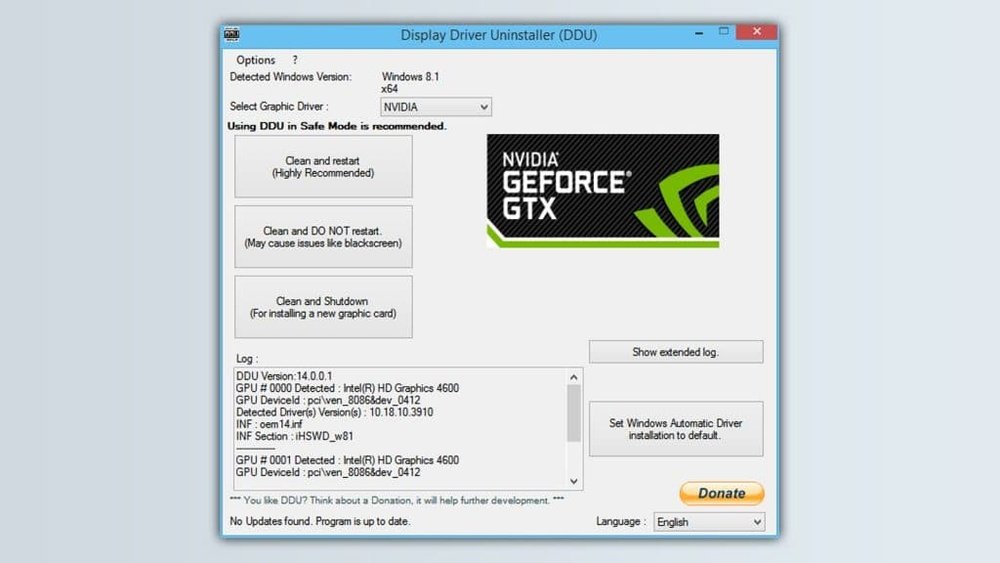
Third-party tools offer extra control over GPU settings. Programs like MSI Afterburner or GPU-Z provide restart options. These tools also monitor GPU temperature and usage. Use them to reset or refresh your GPU driver. They can improve performance and solve driver conflicts.

Credit: www.wikihow.com
Preventing Future Gpu Issues
Preventing future GPU issues helps keep your computer running smoothly. Taking simple steps can stop common problems before they start. This saves time and avoids frustration.
Keeping Drivers Updated
GPU drivers control how your graphics card works. Old drivers cause slowdowns and crashes. Check for updates often. Use the official website or software to download the latest drivers. Updated drivers improve performance and fix bugs.
Monitoring Gpu Temperature
High temperatures damage the GPU. Watch your GPU’s heat during use. Use software tools to track temperature. Keep your computer in a cool place. Clean dust from fans and vents regularly. Cooler GPUs last longer and work better.
Regular System Maintenance
Keep your system clean and organized. Remove unused programs and files. Run antivirus scans to catch malware. Update your operating system regularly. This reduces conflicts and improves GPU stability. Routine care keeps your PC in good shape.
When To Seek Professional Help
Knowing when to seek professional help for your GPU is important. Some problems need expert care. Trying to fix serious issues alone can cause more damage. This section explains clear signs that show you should get help from a technician.
Hardware Failures
Hardware failures are one of the main reasons to ask for help. If your GPU makes strange noises or your computer won’t start, it might be broken. Physical damage like burnt parts or loose connections needs professional repair. Avoid opening your GPU if you are not sure. A technician can diagnose and fix these problems safely.
Persistent Performance Drops
Performance drops that do not improve after restarting your GPU are a warning. Lagging games, freezing screens, or low frame rates can show serious issues. Problems like overheating or driver conflicts can cause this. If basic fixes don’t work, a professional can find the root cause. They can check hardware and software deeply to restore your GPU’s speed.
Warranty And Support Options
Check your GPU’s warranty before trying repairs. Many GPUs come with support from the manufacturer. Using professional help keeps your warranty safe. Some repairs need authorized service centers. Contacting support can save money on replacements or repairs. Professionals can also offer advice based on your GPU model and warranty terms.

Credit: techwiser.com
Frequently Asked Questions
How Do I Safely Restart My Gpu?
To safely restart your GPU, close all running applications first. Then, update your graphics drivers. Finally, reboot your computer to apply changes and refresh GPU performance.
Why Should I Restart My Gpu Regularly?
Restarting your GPU clears temporary data and resolves minor glitches. It helps maintain optimal performance and prevents overheating or crashes during heavy use.
Can Restarting My Gpu Fix Display Issues?
Yes, restarting the GPU can fix common display issues like flickering or freezing. It resets the graphics driver and refreshes the connection between hardware and software.
How Often Should I Restart My Gpu For Best Performance?
Restart your GPU weekly or after intensive gaming or rendering sessions. Regular restarts help avoid memory leaks and improve overall system stability.
Conclusion
Restarting your GPU can fix many common issues quickly. It helps your computer run smoother and keeps games or programs from crashing. Always follow the steps carefully to avoid mistakes. Regularly restarting your GPU can improve performance and reduce errors.
Keep your drivers updated for the best results. Simple actions can save you time and frustration. Now, you can handle GPU problems with more confidence. Try these tips next time your graphics card acts up.
