
Is your GPU acting up or causing your computer to slow down? Knowing how to reset your GPU can save you from frustrating crashes and poor performance.
Whether you’re a gamer, a designer, or just someone who wants smooth graphics, resetting your GPU might be the quick fix you need. In this guide, you’ll learn simple, step-by-step methods to reset your GPU safely and effectively. Stick with me, and by the end, you’ll have the confidence to get your graphics card running like new again.
Signs Your Gpu Needs Resetting
Your GPU plays a key role in your computer’s graphics and gaming performance. Sometimes, it may stop working properly. This can mean your GPU needs resetting. Recognizing the signs early helps keep your system running smoothly. Watch for common problems that show your GPU is struggling.
Common Performance Issues
Your computer may slow down during games or videos. Frame rates drop unexpectedly. Apps that use graphics may lag or stutter. This happens because the GPU cannot process data correctly. A reset can often fix these slowdowns and improve speed.
Visual Artifacts And Glitches
Strange lines, shapes, or colors appear on your screen. Images may flicker or look broken. These visual glitches happen when the GPU has errors in rendering. They can get worse over time. Resetting the GPU can clear these issues and restore normal visuals.
System Crashes And Freezes
Your computer may crash or freeze during graphic tasks. The screen could go black or show a blue screen error. These crashes happen when the GPU driver malfunctions or hardware faces issues. Resetting the GPU resets the connection and can stop these crashes.

Credit: www.wikihow.com
Preparing For A Gpu Reset
Preparing for a GPU reset is an important step before starting the process. It helps avoid data loss and hardware issues. Taking the right precautions makes the reset smooth and safe.
Follow these key steps carefully. Each one protects your computer and ensures the reset works well.
Backing Up Important Data
Save your files before resetting the GPU. Some settings or data may be lost during the reset. Use an external drive or cloud storage to keep your important documents safe. This step prevents unexpected data loss.
Updating Drivers
Check if your GPU drivers are up to date. Outdated drivers can cause problems during or after the reset. Visit the official website of your GPU manufacturer for the latest drivers. Download and install them to ensure compatibility and better performance.
Checking Hardware Connections
Make sure your GPU is properly connected to the motherboard. Loose cables or dust can cause hardware errors. Turn off your PC and open the case carefully. Inspect the GPU and clean any dust. Re-seat the card firmly to avoid connection issues.
Methods To Reset Your Gpu
Resetting your GPU can fix many common problems. It helps clear errors and improve performance. Different methods suit different needs. Choose the right one based on your comfort level and tools available. Here are simple ways to reset your GPU safely.
Using Device Manager To Reset
Open Device Manager on your Windows PC. Find the “Display adapters” section and expand it. Right-click your GPU and select “Disable device.” Wait a few seconds. Then right-click again and choose “Enable device.” This process restarts your GPU without uninstalling drivers.
This method is quick and does not require extra software. It works well for minor glitches and freezes.
Performing A Driver Reinstallation
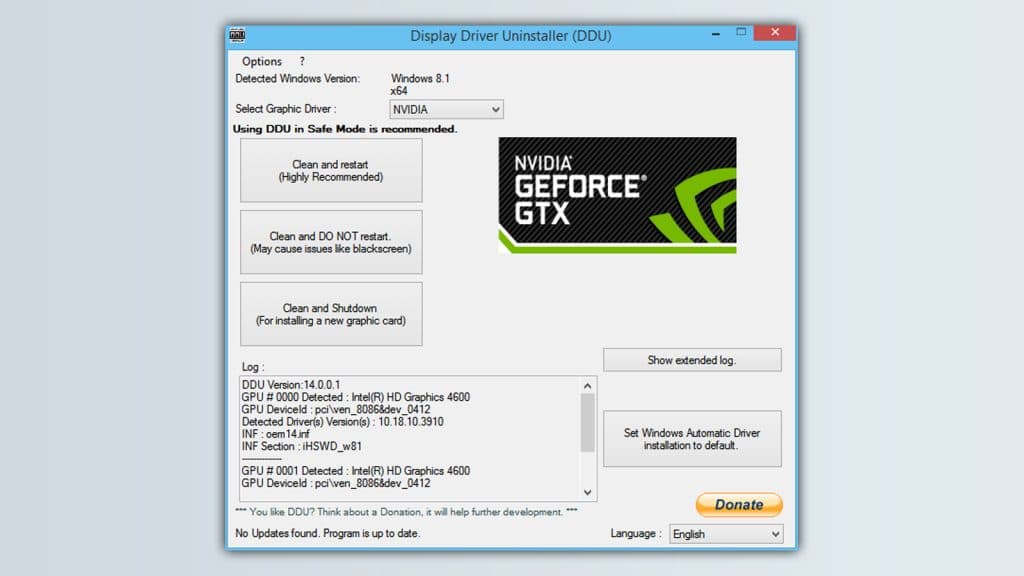
Uninstalling and reinstalling your GPU driver removes corrupt files. Go to Device Manager and right-click your GPU. Select “Uninstall device” and check “Delete the driver software.” Restart your computer.
After reboot, download the latest driver from the GPU manufacturer’s website. Install it by following on-screen instructions. This method fixes deeper software issues and improves stability.
Resetting Gpu Via Software Tools
Many GPU brands offer software to manage and reset hardware. Nvidia has GeForce Experience, AMD provides Radeon Software. Open the software and look for options like “Restore Defaults” or “Reset.”
These tools reset GPU settings without affecting other system parts. They can also update drivers and optimize performance. Use this method for a user-friendly reset experience.
Credit: totalplumbingfl.com
Advanced Reset Techniques
Advanced reset techniques help fix deep GPU issues. They go beyond simple restarts or driver updates. These methods can restore your GPU to its original state. Use them carefully, as they involve risks. Understanding each technique will guide you through the process safely.
Flashing Gpu Bios
Flashing the GPU BIOS means rewriting the card’s firmware. This can fix problems caused by corrupted BIOS settings. First, download the correct BIOS version from your GPU maker’s website. Use tools like NVFlash for NVIDIA cards or ATIFlash for AMD cards. Follow instructions carefully to avoid damaging your GPU. Backup your current BIOS before flashing. This step helps you restore it if something goes wrong. Flashing can improve stability and performance in some cases.
Factory Reset With Manufacturer Tools
Some GPU manufacturers offer official reset tools. These tools restore the GPU to factory settings. They remove custom settings and software changes. Visit your GPU maker’s support page to find these tools. Run the tool and follow the on-screen instructions. Factory reset can fix driver conflicts and software bugs. It is safer than BIOS flashing and easier to perform. Use this method if you want a clean slate without hardware risks.
Post-reset Optimization
After resetting your GPU, it’s important to optimize it for better performance. Resetting clears old settings and can improve stability. But the default settings may not suit your needs. Fine-tuning your GPU helps get the best balance of speed and quality. Post-reset optimization ensures smooth graphics and efficient power use.
Adjusting Gpu Settings
Start by opening your GPU control panel. Adjust basic settings like resolution and refresh rate. Check the power management mode and set it to maximum performance. Modify texture quality and anti-aliasing for better visuals. Lower settings can help if your system runs hot or slow. Save your changes and test the results.
Monitoring Performance
Use software tools to track GPU temperature and usage. Keep an eye on frame rates during games or apps. Watch for sudden drops or spikes in performance. Monitoring helps identify if your GPU runs too hot. It also shows if your adjustments improve speed. Regular checks prevent problems before they start.
Regular Maintenance Tips
Clean your GPU and computer case regularly to avoid dust buildup. Dust can block airflow and cause overheating. Update your GPU drivers often for better compatibility and fixes. Close unnecessary background apps to free GPU resources. Restart your computer occasionally to refresh system processes. These simple steps keep your GPU running well.
When To Seek Professional Help
Resetting your GPU can solve many common problems. Yet, some issues need expert care. Knowing when to seek professional help saves time and prevents damage. Certain signs show your GPU has serious problems. Understanding warranty options also protects your investment.
Hardware Failure Indicators
Watch for strange noises from your computer. Loud fans or clicking sounds may signal hardware failure. Screen glitches or sudden crashes also warn of GPU issues. If your PC won’t boot or shows black screens, stop and get help. Overheating that resets often means parts may be damaged. Physical damage, like burnt smells or visible burns, needs urgent expert check.
Warranty And Support Options
Check if your GPU is still under warranty before repairs. Most manufacturers cover hardware faults for a set time. Contact the seller or manufacturer support for repair or replacement. Keep purchase receipts and product details ready for faster service. Some brands offer online troubleshooting guides and chat support. Using warranty services ensures safe repairs without extra cost.

Credit: www.wikihow.com
Frequently Asked Questions
How Do I Reset My Gpu On Windows?
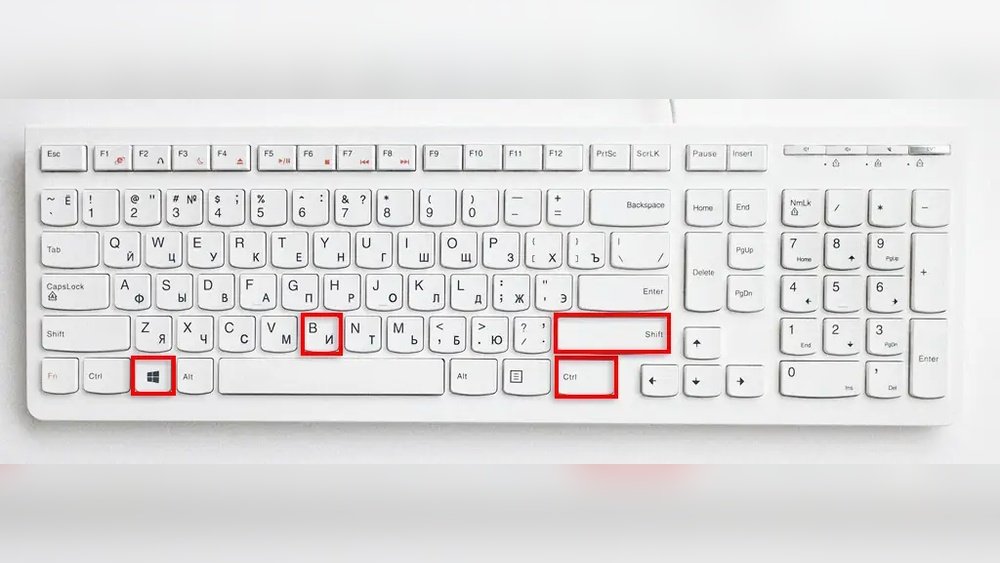
To reset your GPU on Windows, press Win + Ctrl + Shift + B. This shortcut restarts your graphics driver without rebooting the PC. It fixes minor display issues quickly and safely.
When Should I Reset My Gpu?
Reset your GPU if you experience screen glitches, crashes, or driver freezes. It helps resolve temporary graphics problems without reinstalling drivers or restarting your computer.
Can Resetting My Gpu Fix Overheating?
Resetting your GPU does not fix overheating issues. Overheating requires proper cooling solutions like cleaning fans, improving airflow, or adjusting GPU settings to lower temperatures.
Will Resetting My Gpu Erase Settings?
No, resetting your GPU using shortcuts or device manager does not erase custom settings. It only refreshes the driver to resolve display or performance glitches.
Conclusion
Resetting your GPU can fix many common problems fast. Follow the steps carefully and take your time. Keep your drivers updated to avoid future issues. Always restart your computer after resetting the GPU. Remember, a clean reset helps your system run smoother.
Troubleshoot calmly and don’t rush the process. This simple action can save you time and frustration. Try it next time your graphics card acts up. You’ll get better performance without much effort.
