
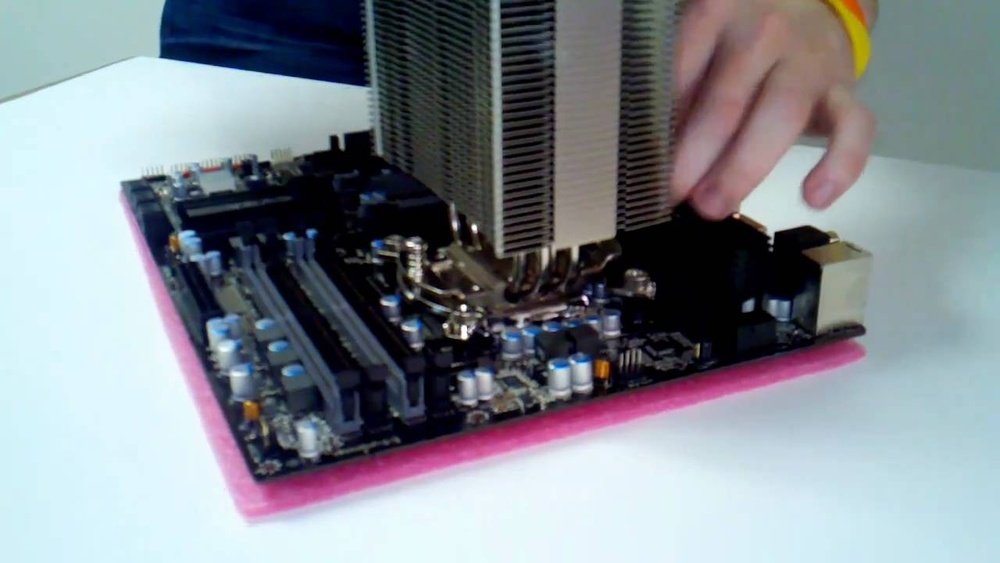
If your computer is acting slow, freezing, or not booting properly, the problem might be closer than you think—right under your motherboard’s hood. Knowing how to reseat your CPU can save you time, money, and frustration.
You don’t need to be a tech expert to do this. In fact, with the right steps, you can fix common hardware issues quickly and get your system running smoothly again. Keep reading, and you’ll learn exactly how to reseat your CPU safely and effectively.
This simple skill might just be the key to bringing your computer back to life.
Signs Your Cpu Needs Reseating
Knowing the signs that your CPU needs reseating can save your computer from serious problems. A CPU that is not seated properly may cause various issues. These signs often show up in your computer’s performance and temperature. Recognizing them early helps to fix the problem quickly.
Common Performance Issues
Your computer may slow down without clear reasons. Programs might freeze or crash often. The system could restart by itself. Sometimes, it fails to boot up properly. These problems can mean the CPU is not making good contact with the motherboard.
Overheating Symptoms
The CPU might get too hot during use. Fans run louder than usual to cool it down. The computer might shut off suddenly from heat. Overheating happens when the CPU is loose or the thermal paste is dry. Both cases need reseating and proper cooling.
Physical Inspection Tips
Turn off and unplug your computer before checking. Open the case carefully to see the CPU area. Look for dust or dirt around the CPU socket. Check if the CPU is loose or tilted. Also, inspect the thermal paste for cracks or dryness. These signs show the CPU needs reseating soon.

Credit: softwareg.com.au
Tools And Precautions
Reseating a CPU requires the right tools and careful steps. Using proper tools makes the task easier and safer. Taking precautions protects your computer parts from damage. Let’s see the tools you need and the safety steps to follow.
Required Tools
You need a small Phillips screwdriver to open your computer case. A clean, flat surface helps keep parts safe. Use a soft cloth or anti-static mat to place the CPU. Tweezers can help remove small screws or pins. Have thermal paste ready to reapply after reseating.
Safety Measures
Turn off your computer and unplug it from the power source. Wait a few minutes before opening the case. This stops any power flowing inside. Avoid touching other parts inside the computer to prevent damage. Keep liquids and food away from your workspace.
Handling Static Electricity
Static electricity can harm computer parts easily. Touch a metal object to discharge static before handling the CPU. Use an anti-static wrist strap for extra protection. Work in a room with low static, like one with carpet. Avoid wearing clothes that create static, such as wool.
Preparing Your Workspace
Preparing your workspace is the first step to reseat a CPU safely. It helps protect your computer parts and makes the process easier. A clean and well-lit area reduces mistakes and saves time. Grounding yourself prevents damage from static electricity. These simple steps create a safe environment for your work.
Clean And Organized Area
Choose a flat surface with plenty of space. Remove clutter and dust from the area. Keep tools and parts within reach. This keeps everything in order and avoids losing small items. A tidy workspace helps you focus better.
Proper Lighting
Good lighting is essential to see small components clearly. Use natural light or a bright desk lamp. Avoid harsh shadows or glare on the motherboard. Bright light reduces eye strain and prevents errors. It makes handling tiny screws and connectors easier.
Grounding Yourself
Static electricity can damage sensitive CPU parts. Touch a metal object connected to the ground before starting. Wear an anti-static wrist strap if possible. Avoid working on carpet or dry surfaces. Grounding yourself protects the CPU and motherboard from shocks.

Credit: aftershockpc.com.au
Removing The Cpu Cooler
Removing the CPU cooler is a key step before reseating the CPU. It requires care to avoid damage to the processor or motherboard. This process involves unplugging the fan, loosening screws, and gently lifting the cooler off. Take your time and follow each step carefully.
Unplugging Fans And Connectors
Start by unplugging the fan cable from the motherboard. This connector powers the cooler’s fan. Gently pull the connector straight out to avoid bending pins. Do not yank the cable itself. Keep the cable clear to prevent damage during removal.
Loosening Cooler Screws
Next, find the screws or clips holding the cooler in place. Use the right screwdriver to avoid stripping screws. Loosen each screw evenly by turning a little at a time. This prevents uneven pressure on the CPU. Remove all screws carefully and set them aside.
Lifting Off The Cooler
After loosening, gently lift the cooler straight up from the CPU. Do not twist or force it. The thermal paste may cause some resistance. If stuck, apply a slight rocking motion to break the seal. Place the cooler on a clean, safe surface once removed.
Detaching The Cpu
Detaching the CPU is the first step in reseating it properly. This process requires care and attention. The CPU and its socket are delicate. Handle both gently to avoid damage. Follow clear steps to remove the CPU safely.
Opening The Socket Lever
Start by locating the socket lever. It is a small metal arm beside the CPU. Lift the lever slowly. This action unlocks the CPU from the socket. Do not force the lever. It should move easily if lifted correctly.
Gently Removing The Cpu
Once the lever is open, lift the CPU straight up. Avoid twisting or bending it. Use your fingers to hold the CPU by its edges. Place it on a clean, flat surface. Do not touch the pins or contacts underneath.
Inspecting The Cpu And Socket
Check both the CPU and socket for dirt or damage. Look for bent pins or debris in the socket. Clean gently with a soft brush if needed. Ensure the area is free from dust before reseating the CPU.
Cleaning The Cpu And Cooler
Cleaning the CPU and cooler is a key step before reseating the CPU. Dirt, dust, and old thermal paste reduce cooling efficiency. Proper cleaning helps keep your computer running cool and stable. Follow these steps to clean the CPU and cooler carefully.
Removing Old Thermal Paste
Old thermal paste covers the CPU and cooler base. It must be removed for a fresh application. Use a soft cloth or paper towel to wipe off the paste. Be gentle to avoid damaging the CPU surface. Remove as much paste as possible before the next step.
Using Isopropyl Alcohol
Isopropyl alcohol cleans leftover thermal paste and oils. Use 70% or higher concentration for best results. Dampen a lint-free cloth or cotton swab with alcohol. Gently wipe the CPU and cooler surfaces until clean. Avoid soaking the components; use just enough to clean.
Drying The Surfaces
Let the CPU and cooler air dry completely after cleaning. Do not use cloths to dry; they can leave fibers behind. Wait a few minutes to ensure all alcohol evaporates. Dry surfaces ensure good thermal paste adhesion and better cooling.
Reseating The Cpu
Reseating the CPU is an important step in fixing computer issues. It means removing the processor and putting it back in its place. This can solve problems like freezing or failure to start. Doing it carefully keeps the CPU safe and helps the computer work better.
Aligning Cpu Pins
First, check the pins on the CPU. They must match the holes on the socket. Look for a small triangle on one corner of the CPU and the socket. This shows how to align them. Never force the CPU into the socket. It should fit easily if aligned right.
Placing The Cpu Correctly
Hold the CPU by its edges. Avoid touching the pins or the top surface. Gently place the CPU into the socket. It should sit flat without any pressure. If it does not fit, check the alignment again. Correct placement is key for good contact.
Securing The Socket Lever
Once the CPU is in place, lower the socket lever. This locks the CPU securely. Press the lever down with care until it clicks. Do not use too much force. The lever keeps the CPU stable and ensures proper connection.
Reapplying Thermal Paste
Reapplying thermal paste is a key step when reseating your CPU. It helps improve heat transfer from the CPU to the cooler. Old or dried-out paste can cause overheating and reduce performance. Applying fresh thermal paste ensures your CPU stays cool and runs smoothly.
Choosing The Right Amount
Use a small pea-sized amount of thermal paste. Too much paste can cause spillage and poor heat transfer. Too little paste leaves gaps, reducing contact between the CPU and cooler. A thin, even layer works best for proper cooling.
Application Techniques
Place the paste in the center of the CPU surface. When the cooler is installed, it will spread the paste evenly. Avoid spreading it manually to prevent air bubbles. Let the pressure from the cooler do the work.
Avoiding Common Mistakes
Do not reuse old thermal paste. Clean off all old paste with isopropyl alcohol before applying new paste. Avoid touching the CPU surface or cooler base after cleaning. Use just enough paste to cover the CPU evenly without overflow.
Reinstalling The Cpu Cooler
Reinstalling the CPU cooler is an important step after reseating the CPU. It helps keep the processor cool and prevents overheating. Proper installation ensures good contact between the cooler and CPU. This improves heat transfer and system stability.
Take care during this process. A poorly installed cooler can cause damage or poor performance. Follow the steps below to reinstall the CPU cooler correctly.
Positioning The Cooler
Place the cooler directly over the CPU. Align the mounting holes with the motherboard brackets. Avoid shifting the cooler once it touches the thermal paste. This keeps the paste layer even and effective. Double-check the cooler sits flat on the CPU surface.
Tightening Screws Evenly
Start tightening the screws by hand. Use a cross pattern: tighten one corner, then the opposite corner. This spreads pressure evenly across the CPU. Tighten screws gradually, not all at once. Do not overtighten; this can damage the motherboard or CPU.
Reconnecting Fans
Plug the CPU fan’s power connector into the motherboard. Make sure it is fully seated and secure. Check the cable routing to avoid blocking other components. Proper fan connection ensures the cooler works efficiently. Test the fan after powering on the system.
Testing And Monitoring
Testing and monitoring your CPU after reseating it is crucial. This step ensures the CPU works properly and prevents damage. Careful checks help catch problems early and keep your system stable.
Booting The System
Turn on your computer after reseating the CPU. Watch for any unusual sounds or error messages. Make sure the system starts normally without freezing or crashing. A successful boot means the CPU is seated correctly.
Checking Temperatures
Monitor the CPU temperature using software tools. Keep an eye on the temperature during idle and under load. High temperatures may mean the CPU is not making proper contact. Proper cooling is essential for CPU health.
Running Performance Tests
Run simple performance tests or benchmarks on your system. This checks the CPU’s speed and stability. Look for crashes or slowdowns during these tests. Stable performance confirms the CPU is working well after reseating.

Credit: www.youtube.com
Frequently Asked Questions
What Tools Do I Need To Reseat A Cpu?
You need a screwdriver, thermal paste, and an anti-static wrist strap. These tools help safely remove and reinstall the CPU without damage.
How Do I Safely Remove The Cpu From The Socket?
Power off and unplug your PC. Release the CPU socket lever gently, then lift the CPU straight up to avoid bending pins.
Why Should I Apply Thermal Paste When Reseating?
Thermal paste improves heat transfer between the CPU and cooler. Always clean old paste and apply a small new layer for optimal cooling.
Can Reseating A Cpu Fix Computer Overheating?
Yes, reseating can improve CPU contact with the cooler, reducing overheating. It helps if overheating is caused by poor CPU-cooler connection.
Conclusion
Reseating your CPU can fix many common computer issues. Take your time and follow each step carefully. Always handle the CPU and motherboard gently to avoid damage. Clean the area well before placing the CPU back. Make sure the CPU fits perfectly in its socket.
Secure the CPU cooler tightly but without force. Double-check all connections before turning your PC on. This simple task can improve your computer’s performance. Practice patience and care for the best results. You now have the basic knowledge to reseat a CPU safely.
