
Are you looking to boost your computer’s speed without spending a fortune? Replacing your RAM sticks is one of the easiest and most effective ways to do just that.
But if you’ve never opened up a PC before, the idea might feel a bit intimidating. Don’t worry—you’re in the right place. You’ll learn exactly how to replace your RAM sticks step by step, with clear instructions that anyone can follow.
By the end, you’ll have the confidence to upgrade your system and enjoy faster performance right away. Ready to get started? Let’s dive in!
Signs You Need More Ram
Knowing when to add more RAM is important for smooth computer use. RAM affects how fast your system runs and handles tasks. Watch for signs that your computer struggles with current memory limits. These signals help decide if you need to replace or add RAM sticks.
Slow Performance Indicators
Your computer may slow down during simple tasks. Programs take longer to open or respond. Web pages load slowly even with a good internet connection. Multitasking becomes hard, and switching between apps lags. These are clear signs that RAM is not enough.
Frequent Freezing Or Crashes
Apps freeze or close without warning. The system may restart by itself. You see error messages about memory issues. This happens when RAM cannot handle running programs. More memory can help reduce these interruptions.
Checking Current Ram Usage
Use the Task Manager or Activity Monitor to see RAM use. Check how much memory is free while using your computer. High RAM usage over 80% means your system needs more. This simple step confirms if you should upgrade your RAM sticks.
Choosing The Right Ram
Choosing the right RAM is key to improving your computer’s performance. It affects speed, multitasking, and overall system stability. Picking the correct type and size ensures your PC runs smoothly. Avoid buying RAM that your system cannot support. Follow these tips to select the best RAM for your machine.
Types Of Ram Modules
There are different types of RAM, such as DDR3, DDR4, and DDR5. Each type fits specific motherboard slots. DDR4 is the most common in modern PCs. DDR5 is newer but needs compatible hardware. Check your motherboard’s manual to know the right type. Using the wrong type will not fit or work.
Matching Speed And Compatibility
RAM speed is measured in MHz. Higher MHz means faster data transfer. Your motherboard supports certain speeds only. Choose RAM with a speed equal or lower than your motherboard’s max. Mixing different speeds can cause errors or slowdowns. Always check compatibility with your CPU and motherboard before buying.
Capacity Considerations
RAM capacity affects how many programs run at once. Common sizes are 4GB, 8GB, 16GB, and 32GB. More capacity means better multitasking and faster performance. For basic tasks, 8GB usually works well. Heavy tasks like video editing need 16GB or more. Check your system’s max RAM limit before upgrading.
Preparing Your Workspace
Preparing your workspace is the first step in replacing RAM sticks. A clean, organized area helps avoid mistakes and damage. It also makes the process faster and safer. Before opening your PC, set up a spot with good lighting and enough room to work comfortably.
Clear away any clutter and keep your tools nearby. This way, you won’t waste time searching for them during the upgrade. Safety is important too. Follow simple steps to protect your computer and yourself from static electricity.
Gathering Necessary Tools
Start by collecting all tools you need. Usually, a small Phillips screwdriver is enough. You may also want a soft cloth to rest your PC on. Avoid using magnetic tools that can harm your components. Keep your new RAM sticks ready and check they match your computer’s specifications.
Ensuring Static Safety
Static electricity can damage your computer parts. Touch a metal object to release static before handling components. Use an anti-static wrist strap if you have one. Work on a non-carpeted floor to reduce static build-up. Avoid wearing clothes that create static, like wool or polyester.
Powering Down Your Pc
Turn off your computer completely. Do not just put it to sleep or hibernate. Unplug the power cable from the outlet. Disconnect all other cables like the monitor and keyboard. Press the power button once to drain any leftover power inside. This step prevents electric shocks and protects your hardware.
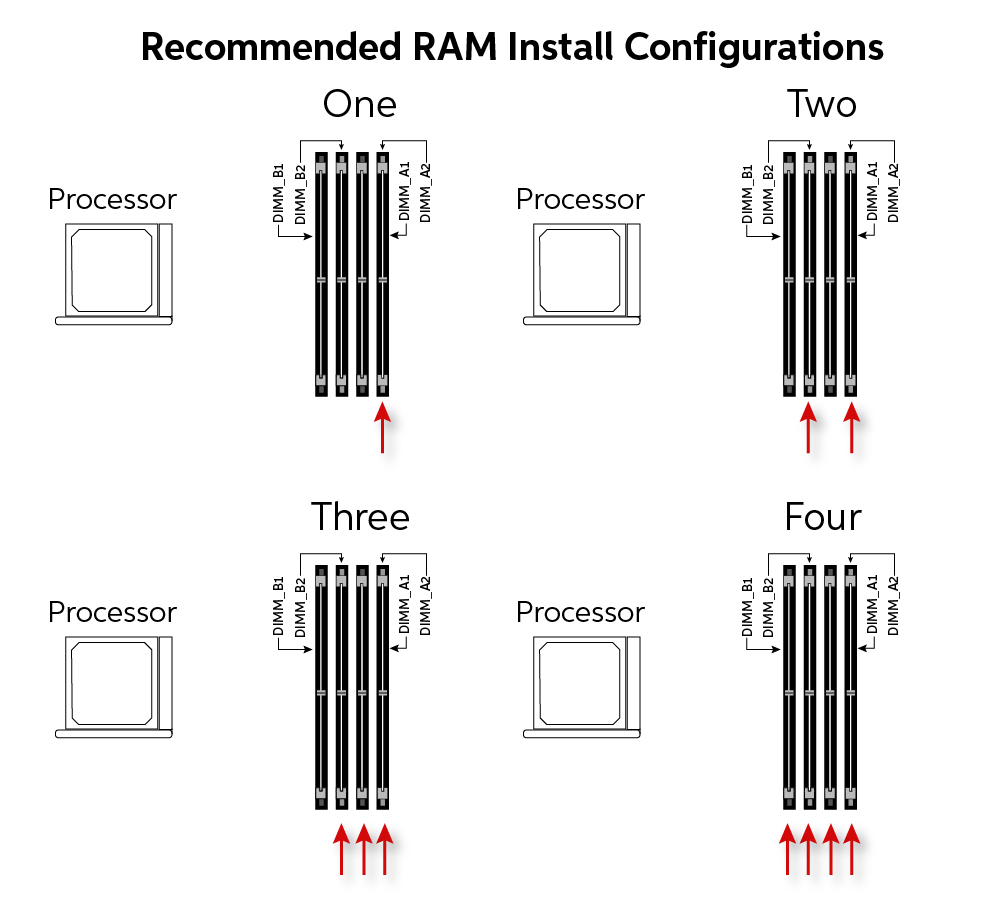
Credit: www.pwmachineservices.com
Removing Old Ram Sticks
Removing old RAM sticks is the first step in upgrading your computer’s memory. This process requires care to avoid damage to the components. Follow each step carefully to remove the RAM safely and prepare for new sticks.
Opening The Pc Case
Turn off your computer and unplug all cables. Place it on a clean, flat surface. Use a screwdriver to remove the screws on the back panel. Gently slide or lift the panel off to expose the inside of your PC.
Locating Ram Slots
Inside the case, look for long slots near the CPU. These are the RAM slots. They usually hold thin, rectangular sticks with chips on them. The sticks sit firmly in these slots, held by clips on each side.
Releasing The Ram Clips
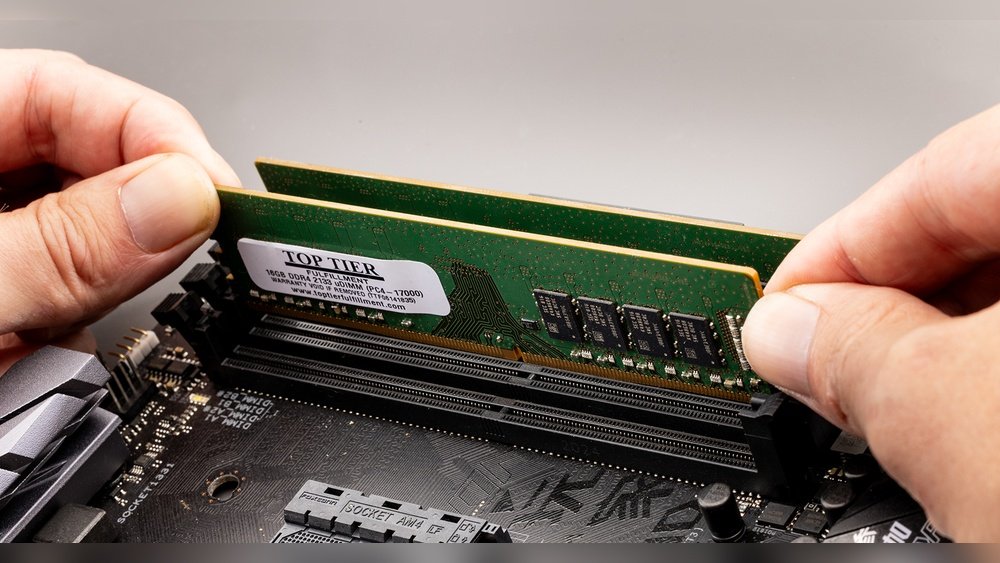
Find the small clips at both ends of each RAM stick. Push them outward gently. The RAM stick will pop up slightly. Carefully pull the RAM stick straight out of the slot. Repeat for all sticks you want to remove.
Installing New Ram Sticks
Installing new RAM sticks is a key step to improve your computer’s speed. It involves placing the memory modules correctly in your motherboard slots. Careful handling and correct installation ensure your computer works smoothly.
Aligning The Module Correctly
Find the notch on the RAM stick. Match it with the slot on the motherboard. The notch prevents incorrect placement. Hold the RAM stick firmly on both ends. Avoid touching the gold connectors to prevent damage.
Securing Ram Into The Slot
Place the RAM stick gently into the slot. Apply even pressure on both ends. Push down until you hear a click. The clips on the sides should snap into place. This locks the RAM securely in the slot.
Double-checking Installation
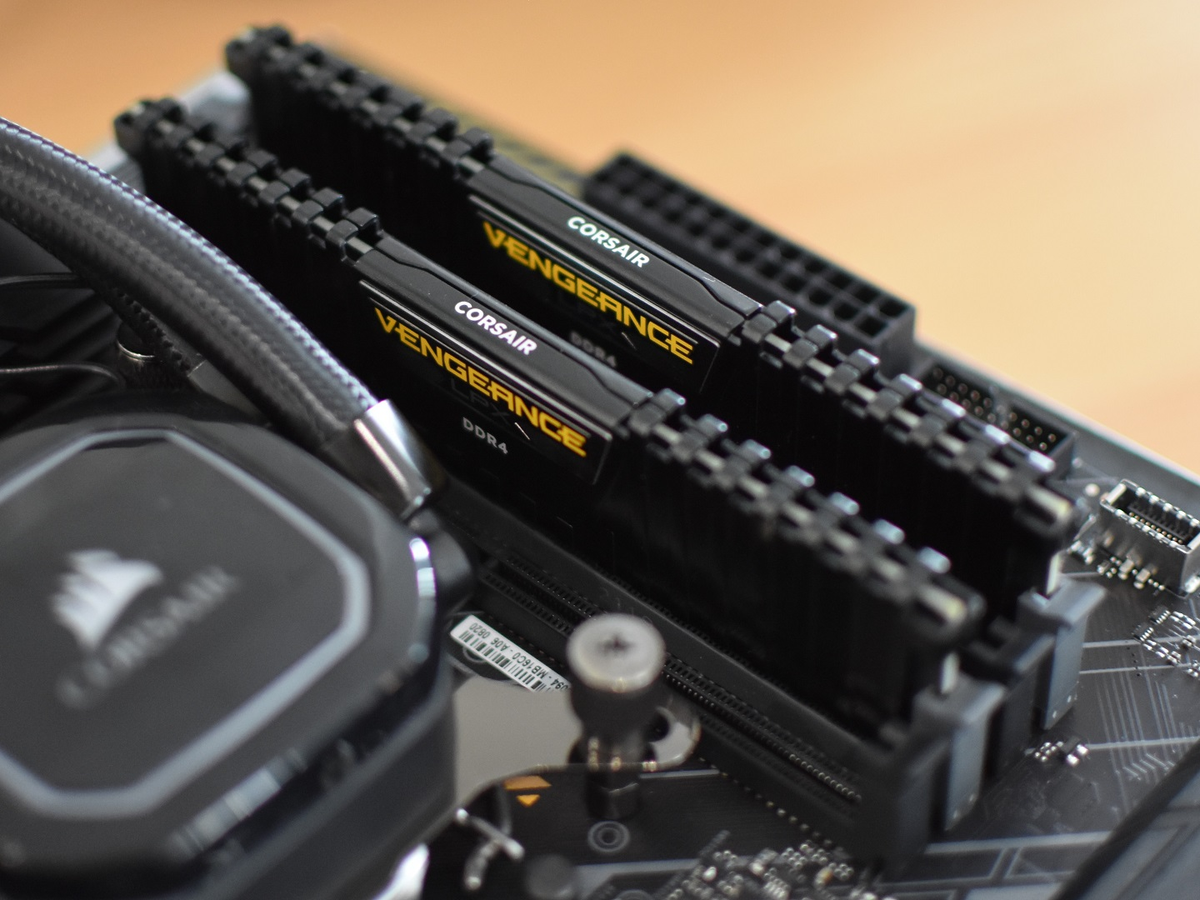
Look at the RAM sticks after installation. Check if the clips hold the RAM tightly. Make sure the RAM is level and not tilted. Re-seat the RAM if it feels loose. Proper installation avoids computer errors and crashes.
Credit: www.rockpapershotgun.com
Testing Your New Ram
Testing your new RAM is a crucial step after installing it. It ensures your computer runs smoothly and without errors. This process helps spot any issues early. It also confirms the RAM is working as expected. Follow these steps to test your new memory sticks properly.
Booting Up The Pc
Turn on your computer after installing the new RAM sticks. Watch for any unusual sounds or error messages. A normal startup means the RAM is likely installed correctly. If the PC does not boot, recheck the RAM placement. Make sure the sticks are firmly seated in their slots.
Verifying Ram Recognition
Once your PC boots, check if it recognizes the new RAM. Open the system settings or BIOS menu. Look for the total amount of installed memory. It should match the combined size of your old and new RAM sticks. This confirms your computer reads the new memory correctly.
Running Memory Diagnostics
Run a memory test to check for errors. Use built-in tools like Windows Memory Diagnostic or third-party apps. These tests scan the RAM for faults and stability issues. If errors appear, the RAM might be faulty or incompatible. Passing the test means your RAM is stable and ready to use.
Optimizing Performance Post-upgrade
After upgrading your RAM sticks, your computer can run faster and handle more tasks. To get the best results, you need to adjust some settings and check how your system works. This step helps your PC use the new memory well and stay stable.
Adjusting Virtual Memory Settings
Virtual memory acts as extra RAM using your hard drive. After adding more RAM, set virtual memory to help your computer work smoothly. Open system settings and find the virtual memory option. Change the size to automatic or increase it slightly for better performance.
Updating System Drivers
Drivers help your hardware talk to your operating system. New RAM may need updated drivers to work right. Check for updates on your motherboard or chipset drivers. Installing the latest drivers can prevent crashes and improve speed.
Monitoring System Stability
Watch your computer after the upgrade. Look for crashes, freezes, or slowdowns. Use tools like memory testers or system monitors. If problems occur, check your RAM seating or try different settings. Stable performance means your upgrade worked well.

Credit: www.wikihow.com
Frequently Asked Questions
How Do I Know If My Ram Needs Replacement?
If your computer frequently crashes or runs slowly, your RAM might be failing. Check system diagnostics or use memory testing software to confirm. Also, if your system doesn’t recognize installed RAM, replacement may be necessary.
What Tools Do I Need To Replace Ram Sticks?
You typically need a small screwdriver to open your computer case. An anti-static wrist strap helps prevent static damage. Some RAM modules require no additional tools for installation or removal.
Can I Replace Ram Sticks Myself Safely?
Yes, replacing RAM is safe if you follow precautions. Turn off and unplug your PC. Ground yourself to avoid static discharge. Handle RAM by its edges and avoid touching chips.
How Do I Choose Compatible Ram For Replacement?
Check your motherboard’s specifications for supported RAM type, speed, and size. Use system info tools or manuals to find compatible models. Ensure new RAM matches voltage and form factor requirements.
Conclusion
Replacing RAM sticks can improve your computer’s speed and performance. Follow each step carefully to avoid damage. Take your time and handle the parts gently. Double-check the connection before closing your computer case. After installation, test your system to ensure it works well.
Upgrading RAM is a simple way to boost your device. Feel confident to try this upgrade yourself. Enjoy a faster and smoother computer experience.
