
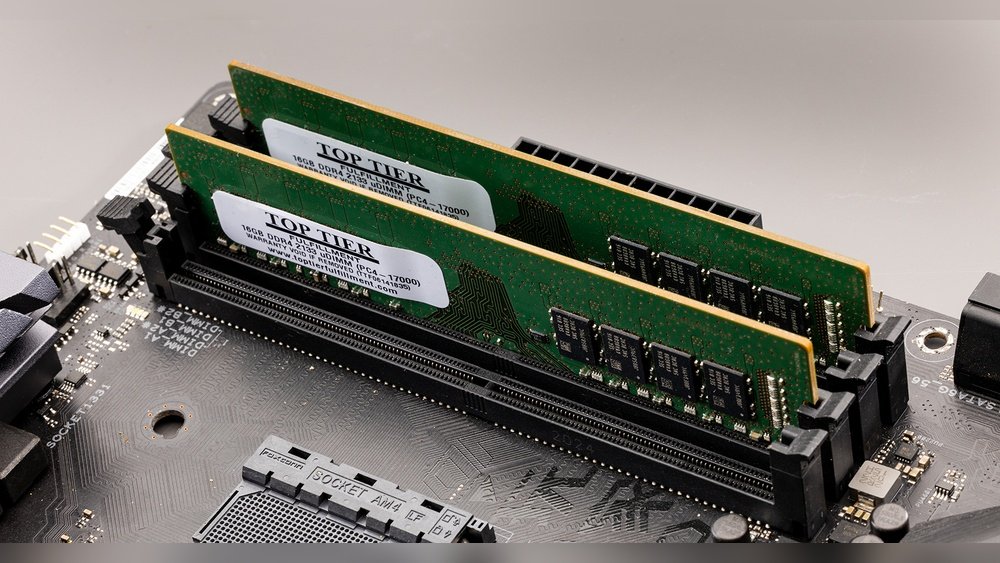
If your PC feels slow or struggles to run your favorite programs, upgrading your RAM can make a huge difference. But how do you replace RAM on your PC without breaking anything?
You might think it’s complicated, but with the right steps, you can do it yourself quickly and safely. You’ll learn exactly what you need to know to boost your computer’s speed and performance. Ready to unlock your PC’s full potential?
Let’s dive in!
Signs You Need More Ram
Knowing when your PC needs more RAM is key. RAM helps your computer run programs smoothly. Without enough RAM, your PC slows down and acts up.
Watch for clear signs that your RAM is full. These signs show your computer struggles to keep up. Let’s explore the main signs you need more RAM.
Slow Performance Indicators
Your PC takes longer to open apps or files. Simple tasks like browsing become sluggish. Programs freeze while loading or running. These are signs your RAM cannot handle the workload.
Frequent Freezing And Crashes
The screen may freeze during use. Apps might close without warning. Your PC could restart on its own. These crashes often happen because RAM is overloaded.
Multitasking Issues
Switching between programs feels slow and clunky. Running many apps at once causes lag. Your computer may struggle to keep all tasks active. This means your RAM is stretched too thin.
Credit: www.pwmachineservices.com
Choosing The Right Ram
Choosing the right RAM is important for your PC’s performance. The wrong type or size can cause problems. It is not just about buying the biggest RAM available. You need to know what fits and works well with your system.
This section helps you pick the best RAM by checking compatibility, understanding types and speeds, and deciding the right capacity for your needs.
Checking Compatibility
Check your PC’s motherboard manual first. It shows what RAM types and sizes the motherboard supports. Look for the maximum RAM capacity and slot count. Make sure your new RAM matches these limits.
Use free online tools by entering your PC model. These tools suggest compatible RAM options. Avoid buying RAM that does not fit your system’s requirements.
Understanding Ram Types And Speeds
RAM comes in different types like DDR3, DDR4, and DDR5. Your motherboard supports only one type. Check which one your PC uses and buy the same type.
RAM speed is measured in MHz. Higher speed means better performance but only if your motherboard supports it. Choose RAM with speed equal to or less than your motherboard’s maximum speed.
Determining Required Capacity
Think about what you use your PC for. Basic tasks need less RAM, like 4 to 8 GB. For gaming or video editing, 16 GB or more is better.
More RAM lets your PC handle more programs at once. Avoid buying too much RAM that your system cannot use. Balance your needs with your budget.
Preparing Your Workspace
Preparing your workspace is the first step to replace RAM on your PC safely. A clean and organized area helps avoid mistakes and keeps your parts safe. Take your time to set up before opening your computer case.
Proper preparation reduces the risk of damage to your computer components. Follow simple steps to get ready and protect your hardware.
Gathering Tools
Collect all necessary tools before starting. You will need a small screwdriver to open the case. A clean cloth can help keep parts free of dust. Having everything ready saves time and makes the process smooth.
Ensuring Static Safety
Static electricity can harm your PC parts. Use an anti-static wrist strap or touch a metal object to discharge static. Avoid working on carpet or in dry areas. Grounding yourself protects the sensitive RAM and motherboard.
Powering Down And Unplugging
Turn off your PC completely before working on it. Unplug the power cable from the socket. Disconnect all peripherals like keyboard and mouse. This step prevents electrical shock and damage to your computer.

Credit: www.youtube.com
Removing Old Ram Modules
Removing old RAM modules is the first step to upgrade your PC’s memory. It helps prepare your computer for new, faster RAM sticks. Careful removal protects your PC and the memory modules.
Follow simple steps to open the case, find the RAM slots, and release the clips holding the modules. This guide makes the process clear and easy.
Opening The Pc Case
Turn off your PC and unplug all cables. Place the computer on a flat surface. Use a screwdriver to remove screws from the side panel. Slide or lift the panel off gently. This gives you full access inside.
Locating Ram Slots
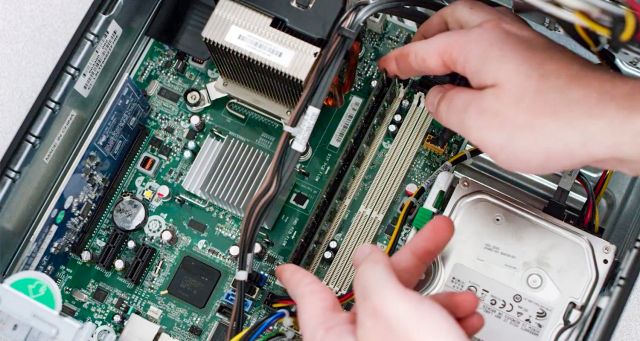
Look for long, thin slots near the CPU. These slots hold the RAM sticks. Usually, they are lined up side by side. The RAM modules are easy to spot because of their size and shape.
Releasing Ram Clips
Each RAM stick is held by small clips on both ends. Press these clips down or outwards carefully. The RAM will pop up slightly. Pull the module out slowly and straight. Avoid touching the gold pins on the bottom.
Installing New Ram Modules
Installing new RAM modules is a key step in upgrading your PC’s memory. This process improves speed and performance. It requires careful handling to avoid damage. Follow each step closely for best results.
Focus on correctly placing the RAM and securing it firmly. This ensures your PC recognizes the new memory without issues. Let’s break down the installation into simple parts.
Aligning Ram Correctly
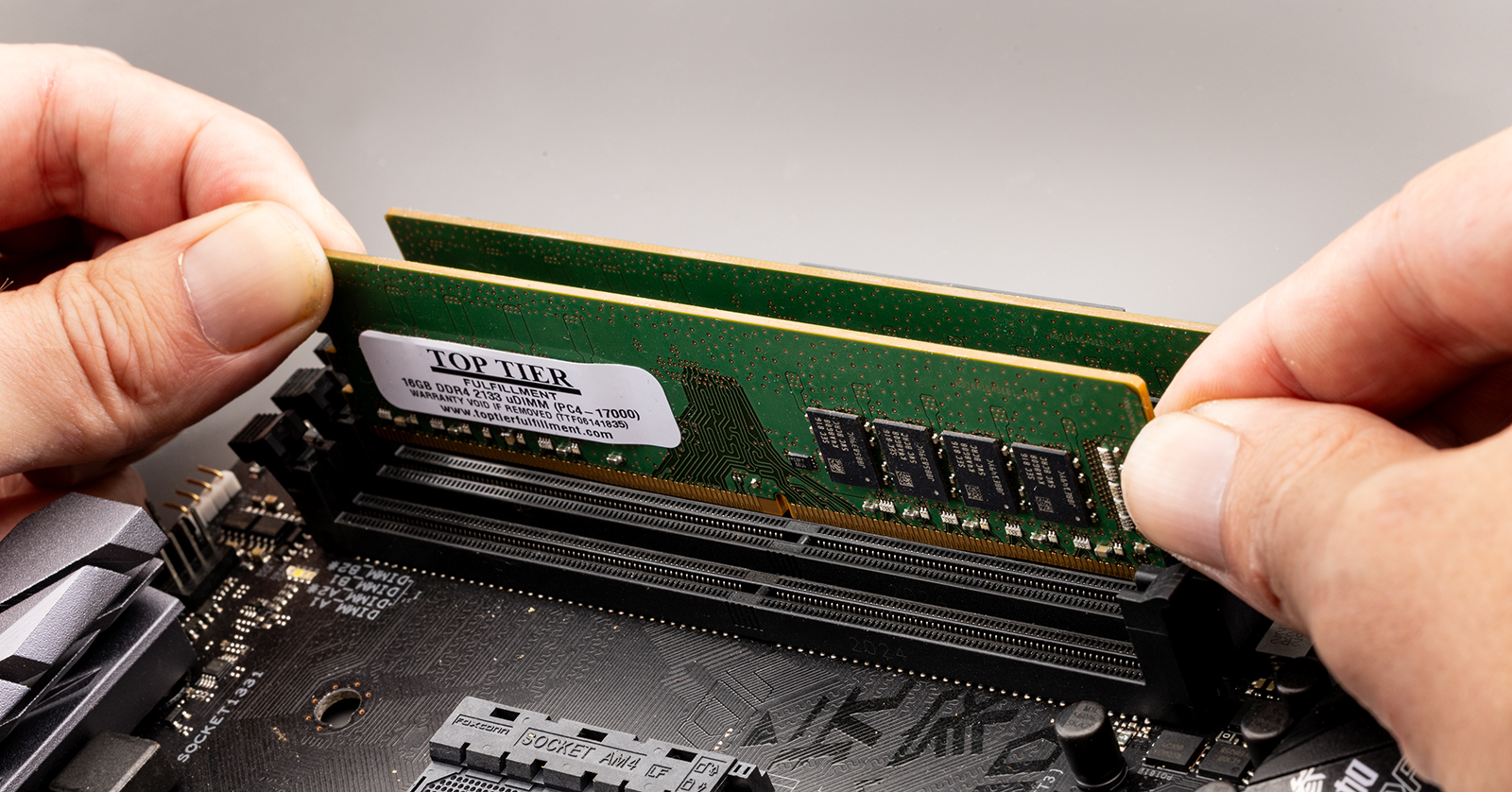
Check the notch on the RAM stick. It matches a key in the RAM slot. Hold the RAM so the notch lines up with the slot key. Never force the RAM into the slot. Proper alignment prevents damage to pins and connectors.
Seating Ram Firmly
Press the RAM module gently but firmly into the slot. Apply even pressure on both ends of the RAM stick. You will hear a soft click or feel it snap into place. This means the RAM is seated correctly. Avoid bending or twisting the module.
Securing Ram Clips
Push down the clips on both sides of the RAM slot. These clips hold the RAM securely in place. They should lock with a click sound. Double-check that clips are fully engaged. Loose clips can cause memory errors.
Credit: www.crucial.com
Testing The New Ram
After installing new RAM, testing it is very important. This step ensures the memory works well with your PC. Problems can cause crashes or slow performance. Testing helps catch issues early. Follow these simple steps to check your new RAM.
Booting Up Your Pc
Turn on your computer after installing the RAM. Listen for any unusual sounds or beeps. Beeps can mean memory errors. If the PC starts normally, it is a good sign. Watch the screen for any error messages during startup.
Checking System Recognition
Open your system settings to check the RAM size. On Windows, right-click “This PC” and select “Properties.” Look at the installed memory section. It should show the new total RAM. If the size is wrong, reseat the RAM sticks and try again.
Running Memory Diagnostics
Use a memory test tool for deeper checks. Windows has a built-in tool called “Windows Memory Diagnostic.” Search for it and run the test. The tool will check for errors and report results. You can also use third-party tools like MemTest86 for thorough testing.
Optimizing Performance After Upgrade
Upgrading your PC’s RAM can boost speed and multitasking. Yet, the upgrade alone is not enough. Optimizing your system after the upgrade ensures you get the best performance. Small steps after installing new RAM can make a big difference. Follow these tips to keep your PC running smoothly and fast.
Updating Bios If Needed
Your PC’s BIOS controls hardware communication. Some BIOS versions may not support new RAM properly. Check your motherboard’s website for BIOS updates. Updating BIOS can improve compatibility and performance. Always follow the instructions carefully to avoid errors. A smooth update helps your system recognize new memory fully.
Adjusting Virtual Memory Settings
Virtual memory helps when RAM runs low. It uses part of your hard drive as extra memory. After upgrading RAM, check virtual memory settings. Increase or decrease it based on your new RAM size. This balance prevents slowdowns and system errors. Adjust settings through the Control Panel or System Preferences.
Monitoring System Stability
New RAM may cause issues if not stable. Watch for crashes, freezes, or slowdowns after the upgrade. Use tools like MemTest86 to check RAM health. Run stress tests to ensure your PC stays stable under load. Stable memory means a smoother and more reliable computer experience.
Troubleshooting Common Issues
Replacing RAM on a PC can boost performance, but problems may arise. Knowing how to fix common issues saves time and stress. This guide covers frequent problems after a RAM upgrade and how to solve them.
Pc Fails To Boot
The PC may not start after installing new RAM. Check if the RAM sticks are fully seated in the slots. Power off the PC, remove the RAM, and reinstall it firmly. Ensure the RAM matches your motherboard specifications. Try booting with one stick at a time to find faulty modules.
Ram Not Detected
The system might not recognize the new RAM. Enter BIOS settings to see if the memory shows up there. Update your BIOS if it is outdated. Clean the RAM contacts with a soft cloth to remove dust. Confirm the RAM type is compatible with your motherboard.
System Instability After Upgrade
Random crashes or freezes can happen after adding RAM. Run a memory test tool to check for errors. Incorrect voltage or timing settings can cause instability. Adjust settings in BIOS to match the RAM’s specifications. Remove and reinstall the RAM to ensure proper connection.
Frequently Asked Questions
How Do I Know If My Pc Ram Needs Replacement?
Check for slow performance, frequent crashes, or error messages. Use memory diagnostic tools to test RAM health. If issues persist, replacing RAM may improve stability and speed.
What Tools Are Required To Replace Ram On A Pc?
You need a screwdriver to open the PC case. An anti-static wrist strap is recommended to prevent static damage. No special tools are needed to remove or install RAM sticks.
Can I Replace Ram Without Losing Data?
Yes, RAM replacement does not affect stored data on your hard drive. Always power off and unplug your PC before replacing RAM to avoid hardware damage.
How Do I Choose Compatible Ram For My Pc?
Check your motherboard’s specifications for supported RAM type, speed, and capacity. Use tools like CPU-Z or your PC manual to identify compatible RAM modules.
Conclusion
Replacing RAM on your PC is simpler than it seems. Take your time and follow each step carefully. Handle the components gently to avoid damage. Upgrading RAM can improve your computer’s speed and performance. This small change makes a noticeable difference.
Now, you can enjoy a smoother and faster PC. Keep your tools ready for future upgrades. Stay confident and enjoy your improved system.
