
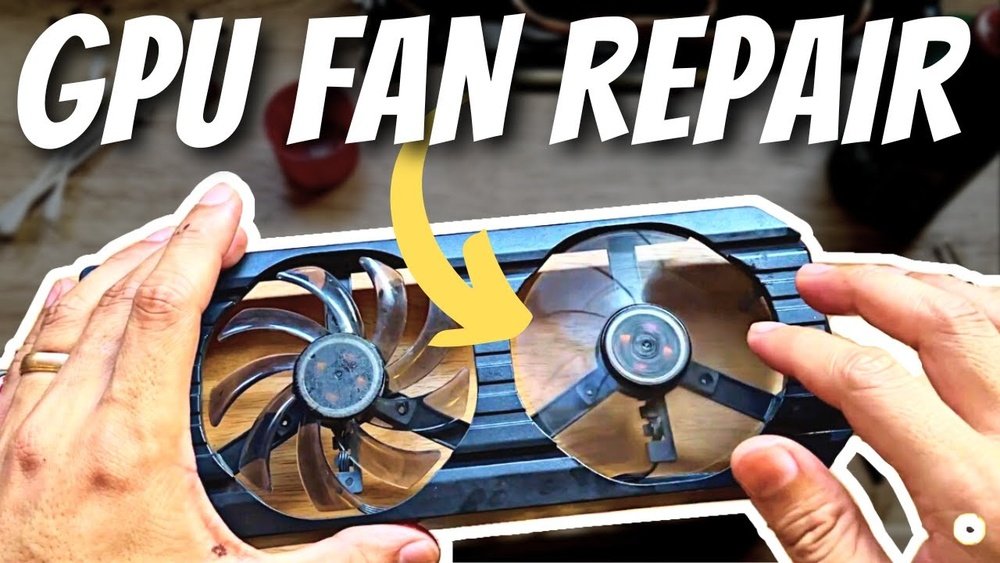
Is your GPU fan making loud noises or not spinning at all? A faulty fan can cause your graphics card to overheat, leading to poor performance or even damage.
But don’t worry—you can fix this yourself. In this guide, you’ll learn exactly how to replace your GPU fan step-by-step. By the end, your graphics card will be running cooler and quieter, saving you money and hassle. Ready to bring your GPU back to life?
Let’s dive in.

Credit: www.martinispa.com
Signs Of A Failing Gpu Fan
A GPU fan helps keep your graphics card cool. Over time, the fan can wear out or stop working well. Recognizing signs of a failing GPU fan can save your computer from damage. Watch for changes in how your computer sounds or performs. Early detection helps you fix the problem quickly.
Overheating Symptoms
Your computer may get hotter than usual. The screen might freeze or shut down suddenly. Overheating can cause your GPU to slow down or stop working. Check the temperature with software tools if you notice these signs.
Unusual Noises
The fan may make strange sounds like grinding or rattling. These noises mean the fan blades or motor might be damaged. Dust or dirt buildup can also cause loud noises. Listen carefully for any new or odd sounds.
Performance Drops
Your games or apps may run slower than before. Frame rates can drop, causing lag or stuttering. A failing fan cannot cool the GPU properly, leading to slow performance. Monitor your system during heavy use to spot these drops early.

Credit: www.youtube.com
Tools And Materials Needed
Replacing a GPU fan needs the right tools and materials. Having everything ready saves time and avoids damage. This section covers what you need to replace a GPU fan safely and effectively.
Essential Tools
You need a small Phillips screwdriver to remove screws. A pair of tweezers helps handle tiny parts. A plastic spudger or pry tool is useful to open the GPU casing carefully. A can of compressed air cleans dust from the fan area. A small container keeps screws safe during the process.
Replacement Fan Options
Choose a replacement fan that matches your GPU model. Original manufacturer parts fit best and last longer. Third-party fans can be cheaper but check reviews first. Make sure the fan size and connector type match your GPU. This ensures proper installation and functioning.
Safety Gear
Wear an anti-static wrist strap to prevent static damage. Work on a clean, non-metal surface to avoid shorts. Use gloves to keep oils and dirt off the fan. Ensure good lighting to see small parts clearly. These steps protect both you and your GPU.
Preparing Your Workspace
Preparing your workspace is the first step to replacing a GPU fan safely and smoothly. A clean and organized area helps avoid mistakes and protects delicate parts. Take time to set up your space before starting the repair.
Static-free Environment
Static electricity can damage your GPU’s sensitive parts. Work on a surface that does not create static, like wood or plastic. Avoid carpeted floors. Use an anti-static wrist strap to ground yourself. Touch a metal object to release static before handling the GPU.
Organizing Components
Keep all screws, cables, and parts in small containers or trays. Label them if possible to avoid confusion later. Use a clean cloth or mat to place your GPU and tools. Organizing parts prevents loss and speeds up reassembly. A tidy workspace makes the process less stressful.
Credit: www.reddit.com
Removing The Gpu From Your Pc
Removing the GPU from your PC is the first step to replace its fan. It needs care and attention to avoid damage. Follow each step carefully to ensure safety and success.
Power Down And Unplug
Turn off your computer completely. Do not just put it to sleep or hibernate. Unplug the power cable from the wall socket. This stops any electricity from flowing inside the PC. Touch a metal part to discharge static electricity from your body.
Opening The Case
Find the screws holding the side panel of your PC case. Use a screwdriver to remove them. Slide the panel off gently. Keep the screws in a safe place. Now you can see the inside of your computer clearly.
Disconnecting The Gpu
Locate the GPU inside the case. It usually sits in a long slot on the motherboard. Unplug any power cables connected to the GPU. Unscrew the bracket screws that hold the GPU in place. Press the release tab on the PCIe slot carefully. Pull the GPU out slowly and straight. Avoid bending or forcing it.
Taking Off The Old Fan
Removing the old GPU fan is the first step in replacing it. This process needs care and attention to avoid damage. Follow the steps carefully to make the process smooth and safe.
Locating Fan Screws
Look closely at your GPU. The fan is usually held by small screws. These screws are often on the back or around the fan. Use a small screwdriver to find and remove them. Keep the screws safe for later use.
Disconnecting Fan Cable
Find the cable connecting the fan to the GPU. It is a small wire with a plug. Gently unplug the cable by pulling the connector, not the wires. This step stops power to the fan and prevents damage.
Careful Removal
After unscrewing and unplugging, lift the fan slowly. Avoid using force or bending the fan. Check if anything still holds the fan to the GPU. Once free, place the old fan on a clean surface. This keeps parts safe and ready for the new fan.
Installing The New Gpu Fan
Installing the new GPU fan is a key step in fixing your graphics card. It needs care and accuracy to avoid damage. Follow these simple steps to set the fan correctly.
Positioning The Fan
Place the new fan carefully on the GPU. Align it with the screw holes and the heatsink. Make sure the fan blades face the right direction. Check that nothing blocks the fan’s movement.
Securing Screws
Use the screws from the old fan or new ones if provided. Tighten each screw a little at a time. This keeps the fan steady and prevents damage. Do not force the screws too hard.
Connecting The Fan Cable
Find the fan cable connector on the GPU board. Gently plug the fan cable into the connector. Ensure it fits snugly without bending pins. This powers the fan to keep your GPU cool.
Testing Your Replacement
Testing your replacement GPU fan is a crucial step after installation. It ensures the new fan works well and protects your graphics card from overheating. Proper testing helps avoid damage and keeps your PC running smoothly.
Reinstalling The Gpu
Carefully place the GPU back into the PCIe slot on the motherboard. Make sure it fits snugly and locks into place. Connect any power cables that were unplugged during removal. Secure the card with screws to prevent movement.
Powering On And Monitoring
Turn on your computer and watch for any unusual noises or smells. Check if your system boots up without errors. Open software tools to monitor GPU temperature and fan speed. Keep an eye on these readings to catch problems early.
Checking Fan Operation
Look closely at the fan blades to confirm they spin freely. The fan should start spinning as the GPU heats up. Listen for smooth, consistent sounds without rattling or grinding. If the fan runs well, your replacement is successful.
Maintaining Gpu Cooling
Maintaining GPU cooling is key for keeping your graphics card healthy. A well-cooled GPU runs smoothly and lasts longer. Dust, old thermal paste, and high temperatures can cause problems. Simple care steps help avoid overheating and damage.
Regular Cleaning
Dust blocks airflow and makes fans work harder. Clean your GPU fan and heatsink often. Use a soft brush or compressed air. Turn off your PC before cleaning. Avoid touching sensitive parts directly. Cleaning keeps the fan spinning freely and cools the GPU better.
Thermal Paste Replacement
Thermal paste helps transfer heat from the GPU chip to the cooler. Over time, it dries out and loses effect. Remove the old paste gently with alcohol and a cloth. Apply a small, even layer of new thermal paste. This improves heat flow and lowers temperatures.
Monitoring Temperatures
Check your GPU temperature regularly with software tools. High temperatures can harm performance and hardware. Ideal GPU temperature stays below 85°C during use. Stop using the PC if temperatures get too high. Monitoring helps you catch problems early and act fast.
Frequently Asked Questions
How Do I Know If My Gpu Fan Needs Replacement?
If your GPU overheats, makes loud noises, or stops spinning, the fan likely needs replacement. Check for dust buildup or physical damage first.
What Tools Are Required To Replace A Gpu Fan?
You typically need a screwdriver, thermal paste, and a replacement fan. Anti-static wristbands and a clean workspace help prevent damage.
Can I Replace A Gpu Fan Myself Safely?
Yes, with proper tools and precautions, you can replace it. Follow step-by-step guides and avoid static discharge to protect your GPU.
How Long Does It Take To Replace A Gpu Fan?
Replacing a GPU fan usually takes 20 to 40 minutes. Time varies based on your experience and GPU model complexity.
Conclusion
Replacing a GPU fan can keep your computer cool and running well. Follow each step carefully to avoid mistakes. Take your time and handle parts gently. A good fan helps stop overheating and noise. Now, you can enjoy better performance and longer GPU life.
Keep your tools ready for future fixes. Simple care makes a big difference in your PC’s health. Ready to try it yourself?
