
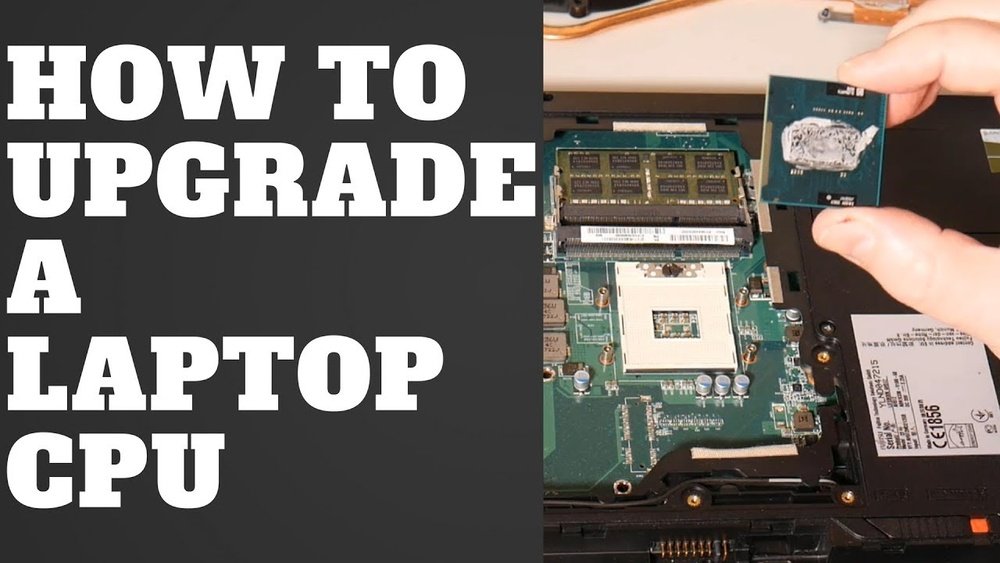
Thinking about upgrading your laptop’s performance? Replacing the CPU can make a huge difference, but it might seem tricky at first.
What if you could learn the exact steps to swap out your old processor safely and effectively? In this guide, you’ll discover clear, simple instructions that anyone can follow—even if you’re not a tech expert. By the end, you’ll know how to boost your laptop’s speed and power without spending a fortune on a new device.
Ready to take control of your laptop’s heart and give it a new life? Let’s dive in.
Credit: www.easeus.com
Preparing For Cpu Replacement
Preparing for a CPU replacement in a laptop is a key step. It helps avoid problems and saves time. Careful preparation ensures safety and success. Follow these steps before you start.
Gathering Necessary Tools
Collect all tools before opening your laptop. You will need a small screwdriver set. Use anti-static wristbands to protect components. Have thermal paste ready to reapply on the new CPU. A clean workspace helps keep parts safe.
Checking Laptop Compatibility
Verify that the new CPU fits your laptop model. Check the socket type and power needs. Look up your laptop’s manual or website for details. Using the wrong CPU can damage your device. Confirming compatibility saves time and money.
Backing Up Important Data
Save all your important files before starting. Use an external drive or cloud storage for backup. This protects your data in case of accidents. A simple backup prevents stress and data loss. Double-check that the backup works well.
Disassembling The Laptop
Disassembling a laptop is the first important step to replace its CPU. It requires careful handling to avoid damage. Follow each step with patience and attention.
Powering Down And Unplugging
Turn off your laptop completely. Do not just close the lid or put it to sleep. Unplug the charger and any other connected devices. This prevents electric shock and damage to parts.
Removing The Battery
Locate the battery release latch on the bottom of your laptop. Slide the latch to unlock and remove the battery. Some laptops have internal batteries that need extra steps. Removing the battery stops power flow during work.
Accessing The Cpu Compartment
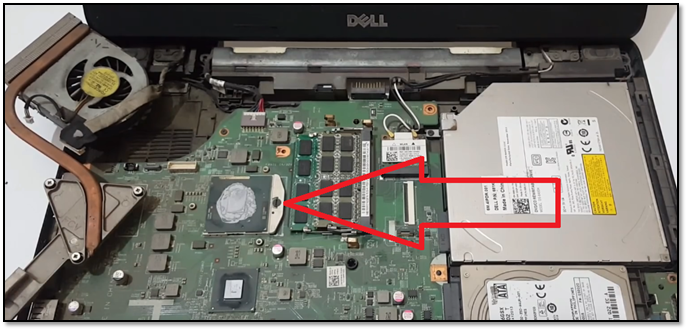
Flip your laptop upside down. Find the screws holding the back panel. Use a small screwdriver to remove them. Keep the screws safe and organized. Gently lift the panel to reveal the internal parts. The CPU is usually under a heat sink or fan assembly. Take care not to force any parts.
Removing The Old Cpu
Removing the old CPU is a key step in replacing it safely. This process requires care to avoid damage to the laptop’s delicate parts. Follow each step slowly and with focus. Preparation helps prevent mistakes and protects your device.
Start by clearing the cooling parts, then unlock the CPU socket. Finally, lift the CPU out gently. Each step matters for a smooth replacement.
Detaching Cooling Components
Cooling parts keep the CPU cool during use. These include the heat sink and fan. First, unplug the fan cable from the motherboard. Next, unscrew or release the clips holding the heat sink in place. Remove the heat sink carefully, without bending or breaking it. Set the cooling parts aside safely for reinstallation later.
Unlocking The Cpu Socket
The CPU socket holds the processor firmly on the board. Find the small lever or latch next to the socket. Gently lift or slide the lever to unlock the CPU. Avoid using force to prevent damage to the socket pins. The CPU should now be loose and ready to remove.
Lifting Out The Cpu Carefully
Hold the CPU by its edges. Do not touch the pins or contacts underneath. Slowly lift the CPU straight up from the socket. Place it on an anti-static surface or container. Avoid dropping or bending the CPU, as it is fragile. Now, the old CPU is safely removed.

Credit: www.youtube.com
Installing The New Cpu
Installing the new CPU in your laptop is a careful task. It needs patience and focus. Each step matters to keep the CPU safe and working well. This part of the process helps the laptop run faster and better.
Aligning The Cpu Correctly
Look for the small triangle on the CPU corner. Match it with the triangle on the socket. Do not force the CPU in place. It should fit gently and smoothly. Proper alignment prevents damage to pins and connectors.
Securing The Cpu In Socket
Lower the CPU into the socket carefully. Use the locking lever or latch to secure it. Lock it firmly but do not use too much force. A secure CPU stays stable during laptop use and cooling.
Applying Thermal Paste
Apply a small pea-sized dot of thermal paste on the CPU surface. The paste helps transfer heat from the CPU to the cooler. Spread it evenly by pressing the cooler on top. Too much paste can cause overheating, so use just enough.
Reassembling The Laptop
Reassembling the laptop is an important step after replacing the CPU. It needs care and attention to avoid damage. Take your time and follow each step carefully. This part brings your laptop back to life, making sure all parts work well together.
Reattaching Cooling System
Start by placing the cooling system back on the CPU. Align it carefully with the screw holes. Tighten screws evenly to avoid pressure on one side. Connect the cooling fan cable to the motherboard. This helps keep your laptop cool during use.
Replacing Battery And Covers
Put the battery back into its slot. Make sure it clicks into place firmly. Next, replace the laptop’s bottom cover or back panel. Tighten all screws securely but do not overtighten. This protects internal parts and keeps dust out.
Performing Final Checks
Check all connections before powering on the laptop. Ensure no cables are loose or pinched. Look for leftover screws or missing parts. Turn on the laptop and watch for normal startup. Listen for unusual noises or fan issues. These checks help confirm the CPU replacement was successful.

Credit: www.hp.com
Testing The New Cpu
Testing the new CPU is a key step after installation. It ensures the laptop runs smoothly and the upgrade works well. This part guides you through checking the CPU’s function and health. Simple tests help catch problems early. Follow the steps to confirm your laptop is ready.
Booting Up The Laptop
Turn on the laptop carefully. Watch the screen for any errors or unusual messages. The system should start normally and reach the desktop. If the laptop fails to boot, check the CPU installation again. Make sure the CPU sits correctly in its socket. Listen for beeps or warning sounds from the laptop.
Monitoring Performance And Temperature
Use software tools to track CPU speed and temperature. The CPU should run at its rated speed without overheating. Keep an eye on the temperature during light and heavy tasks. High temperatures above 85°C may cause damage. Good airflow and thermal paste help keep the CPU cool.
Troubleshooting Common Issues
Restart the laptop if it freezes or shuts down unexpectedly. Check that the BIOS recognizes the new CPU. Update the BIOS if needed. Ensure the cooling system is clean and working. Replace thermal paste if the CPU runs hot. If problems persist, double-check all connections and seating of the CPU.
Frequently Asked Questions
How Do I Know If My Laptop Cpu Is Replaceable?
Most laptops have soldered CPUs, but some models allow replacement. Check your laptop’s service manual or manufacturer website to confirm CPU upgrade options.
What Tools Are Needed To Replace A Laptop Cpu?
You typically need a small screwdriver set, thermal paste, and an anti-static wrist strap to safely replace a laptop CPU.
Can I Use Any Cpu For My Laptop Upgrade?
No, you must use a compatible CPU that matches your laptop’s socket type and chipset specifications to ensure proper function.
How Do I Apply Thermal Paste When Replacing A Cpu?
Apply a small pea-sized amount of thermal paste in the center of the CPU. Spread evenly when the heatsink is installed.
Conclusion
Replacing a laptop CPU can seem tough, but it is doable. Take your time and follow each step carefully. Use the right tools and keep parts safe. Double-check connections before closing your laptop. Testing your laptop after replacement is important.
This upgrade can improve your laptop’s speed and performance. Stay patient and work slowly for best results. You can save money by doing it yourself. Keep learning and practicing for more tech skills. Simple steps lead to great improvements.
