
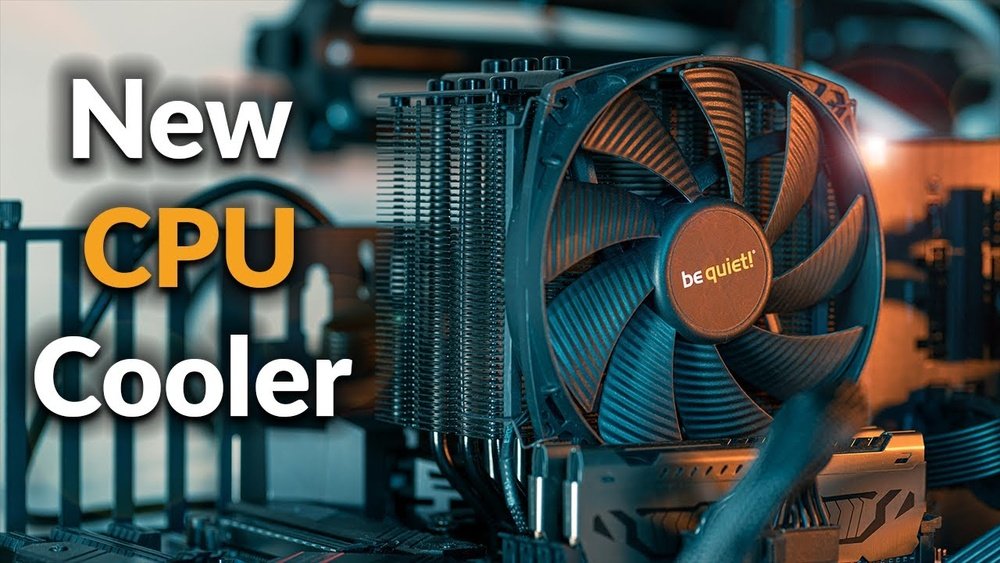
If your computer is running hotter than usual or making loud fan noises, it might be time to replace your CPU cooler. You don’t need to be a tech expert to do this—just a little patience and the right steps.
In this guide, you’ll learn exactly how to swap out your old cooler for a new one quickly and safely. By the end, you’ll know how to keep your CPU cool and your computer running smoothly. Ready to get started?
Let’s dive in!
Choosing The Right Cpu Cooler
Choosing the right CPU cooler is important for your computer’s health. A good cooler keeps the CPU temperature low. This helps your PC run smoothly and last longer. Picking the right cooler depends on several factors. These include the type of cooler, compatibility, and how well it cools while staying quiet.
Types Of Cpu Coolers
CPU coolers come in two main types: air coolers and liquid coolers. Air coolers use a fan and heat sink to move heat away. They are usually cheaper and easier to install. Liquid coolers use a pump and liquid to carry heat away from the CPU. They tend to cool better but cost more and need more care.
Compatibility With Your Cpu
Not all coolers fit every CPU or motherboard. Check the socket type of your CPU before buying a cooler. The cooler must support your CPU’s socket for proper installation. Also, see if the cooler fits inside your computer case. Some coolers are large and need extra space.
Cooling Performance And Noise Levels
Good cooling performance keeps your CPU temperature low under load. Look for coolers with high-quality fans and heat sinks. Noise levels matter too. Some coolers are very quiet, while others can be loud. Choose a cooler that balances cooling power and noise for your needs.
Gathering Necessary Tools
Gathering the right tools is the first step to replace a CPU cooler safely and efficiently. Having everything ready saves time and avoids frustration during the process. This section lists all the tools you need and explains basic safety steps.
Essential Tools Checklist
Prepare these tools before starting:
- Phillips-head screwdriver
- Isopropyl alcohol (at least 70%)
- Lint-free cloth or paper towel
- Thermal paste
- Anti-static wrist strap (optional but recommended)
- Plastic spudger or flat tool for removing the cooler
These tools help you remove the old cooler and install the new one properly.
Safety Precautions
Turn off and unplug your computer before opening it. Static electricity can harm computer parts.
Use an anti-static wrist strap or touch a metal surface to discharge static. Avoid working on carpeted floors.
Handle components gently. Do not force parts apart. Keep screws and small parts safe to avoid losing them.
Preparing Your Workspace
Preparing your workspace is the first step to replace a CPU cooler safely and efficiently. A clean and organized area helps avoid mistakes and keeps all parts within reach. It also protects your computer parts from damage. A good workspace reduces stress and speeds up the process.
Clearing And Organizing The Area
Start by clearing a large flat surface like a desk or table. Remove any clutter, papers, or drinks that could spill. Lay down a soft cloth or anti-static mat to protect parts. Arrange your tools and components neatly. Keep screws, brackets, and other small parts in a container. This stops them from getting lost during the replacement.
Handling Static Electricity
Static electricity can damage computer parts quickly. Touch a metal object connected to the ground before handling any components. Use an anti-static wrist strap if possible. Avoid working on carpet or wearing clothes that create static. Keep your hands dry and avoid rubbing your clothes. These steps prevent static shocks that harm your CPU or motherboard.

Credit: www.youtube.com
Removing The Old Cpu Cooler
Removing the old CPU cooler is the first step in installing a new one. It requires careful handling to avoid damage to your computer parts. Follow these simple steps to safely remove the cooler.
Take your time and work in a clean, static-free area. This helps protect your CPU and motherboard from harm.
Powering Down And Unplugging
Turn off your computer completely. Unplug the power cable from the wall socket or power supply. This stops electricity flow and keeps you safe. Wait a few minutes for the components to cool down before continuing.
Disconnecting The Cooler Fan
Locate the fan cable attached to the motherboard. Gently unplug the fan connector by pulling it straight out. Avoid tugging on the wires to prevent damage. Set the fan aside carefully.
Detaching The Cooler From The Cpu
Check how the cooler is mounted. Some use screws, others clips or levers. Loosen or release these carefully. Twist or lift the cooler slowly to break the thermal paste seal. Do not force it. Once loose, lift the cooler straight up and away from the CPU.
Cleaning The Cpu Surface
Cleaning the CPU surface is a key step in replacing a CPU cooler. Dirt or old paste can stop the cooler from working well. A clean surface helps the new thermal paste spread evenly. This makes the CPU cooler work better and keeps the CPU cool.
Take your time with cleaning. A clean CPU surface can stop overheating and improve your computer’s life.
Removing Old Thermal Paste
Start by turning off your PC and unplugging it. Remove the cooler carefully from the CPU. Use a soft cloth or paper towel to wipe off the old thermal paste. Do this gently to avoid scratching the CPU surface.
For sticky paste, use a small amount of isopropyl alcohol. It helps break down the old paste. Avoid using water or household cleaners. Let the surface dry completely before moving on.
Preparing For New Thermal Paste Application
Once the old paste is removed, check the CPU surface for dust or oil. Use a clean, lint-free cloth with a bit of isopropyl alcohol to clean it again. Make sure the surface is smooth and dry.
Do not touch the CPU surface with your fingers. Oils from your skin can reduce the paste’s effectiveness. Now, the CPU surface is ready for new thermal paste and the cooler installation.
Installing The New Cpu Cooler
Installing the new CPU cooler is a key step in keeping your computer running cool. It helps the processor stay at a safe temperature and avoid damage. Proper installation ensures good contact between the cooler and the CPU. This section explains how to apply thermal paste, mount the cooler, and connect the fan.
Applying Thermal Paste Correctly
Thermal paste fills tiny gaps between the CPU and cooler. This improves heat transfer. Use a small pea-sized amount in the center of the CPU. Avoid spreading it yourself. The pressure from the cooler will spread the paste evenly. Too much paste can cause overheating. Too little paste reduces effectiveness.
Mounting The Cooler Securely
Place the cooler carefully on top of the CPU. Align it with mounting holes on the motherboard. Press down gently but firmly. Tighten screws or clips in a diagonal pattern. This ensures even pressure on the CPU. Avoid overtightening to prevent damage. The cooler should not move once mounted.
Connecting The Cooler Fan
Find the CPU fan header on the motherboard. It is usually labeled “CPU_FAN.” Plug the cooler fan cable into this header. Ensure the connection is secure. This allows the motherboard to control fan speed. Check that the fan spins freely without obstruction. Proper connection helps maintain optimal CPU temperature.
Testing The New Cooler
Testing the new CPU cooler is a crucial step after installation. It ensures the cooler works properly and keeps your processor safe. You need to check if the cooler spins well and if the temperatures stay low. This step helps avoid overheating and system crashes.
Booting Up The System
Turn on your computer after installing the cooler. Listen carefully for any unusual noises from the fan. Watch the screen to confirm the system starts without errors. If the system does not boot, recheck the cooler’s installation.
Monitoring Temperatures And Fan Speeds
Use software tools to monitor CPU temperatures and fan speeds. The fan should spin smoothly and adjust speed based on temperature. Check that the CPU temperature stays within safe limits. High temperatures indicate poor contact or faulty cooler installation.

Credit: softwareg.com.au
Troubleshooting Common Issues
Troubleshooting common issues with your CPU cooler saves time and stress. Problems may arise even after careful installation. Understanding these issues helps you fix them quickly. This section covers three common problems and how to solve each.
Cooler Not Spinning
The CPU cooler fan may not spin at all. Check if the fan is connected to the motherboard properly. Look for loose or unplugged cables. Make sure the BIOS settings allow fan control. Dust or debris can block the fan blades. Clean the fan gently with compressed air. If the fan still won’t spin, the cooler might be faulty.
High Cpu Temperatures
High CPU temperatures signal poor cooling performance. Verify that the cooler sits firmly on the CPU. Apply fresh thermal paste between the CPU and cooler. Old or dried paste reduces heat transfer. Check if the fan speed increases with temperature. Poor airflow inside the case also raises temperatures. Remove dust from vents and fans to improve airflow.
Unusual Noises
Strange noises from the cooler can indicate problems. Rattling sounds may come from loose screws or parts. Tighten all mounting screws carefully. Squeaking or grinding noises often mean worn-out fan bearings. Replace the fan if noise persists. Avoid ignoring these sounds to prevent further damage.
Credit: www.reddit.com
Frequently Asked Questions
How Do I Safely Remove An Old Cpu Cooler?
First, power off and unplug your PC. Gently disconnect the cooler’s fan cable. Loosen screws or clips holding the cooler. Carefully twist and lift the cooler off the CPU. Avoid using excessive force to prevent damage.
What Thermal Paste Should I Use When Replacing?
Use a high-quality thermal paste for best heat transfer. Popular options include Arctic Silver 5 and Noctua NT-H1. Apply a pea-sized amount in the CPU center. Spread evenly or let the cooler spread it during installation.
How Do I Install A New Cpu Cooler Correctly?
Align the cooler mounting bracket with the CPU socket. Secure screws or clips evenly to avoid pressure points. Connect the fan cable to the motherboard header. Ensure the cooler sits flat and firmly on the CPU.
Can I Reuse Thermal Paste From Old Cpu Cooler?
No, always clean off old thermal paste completely. Use isopropyl alcohol and a lint-free cloth. Reapplying old paste reduces cooling efficiency and may cause overheating. Always apply fresh thermal paste for optimal performance.
Conclusion
Replacing a CPU cooler is easier than it seems. Take your time and follow each step carefully. Clean the old thermal paste well before applying new paste. Secure the cooler firmly but don’t overtighten screws. Check all connections to ensure the fan runs smoothly.
A cooler CPU means better performance and longer hardware life. You can do this yourself with patience and care. Keep your computer running cool and quiet. Simple actions make a big difference.
