
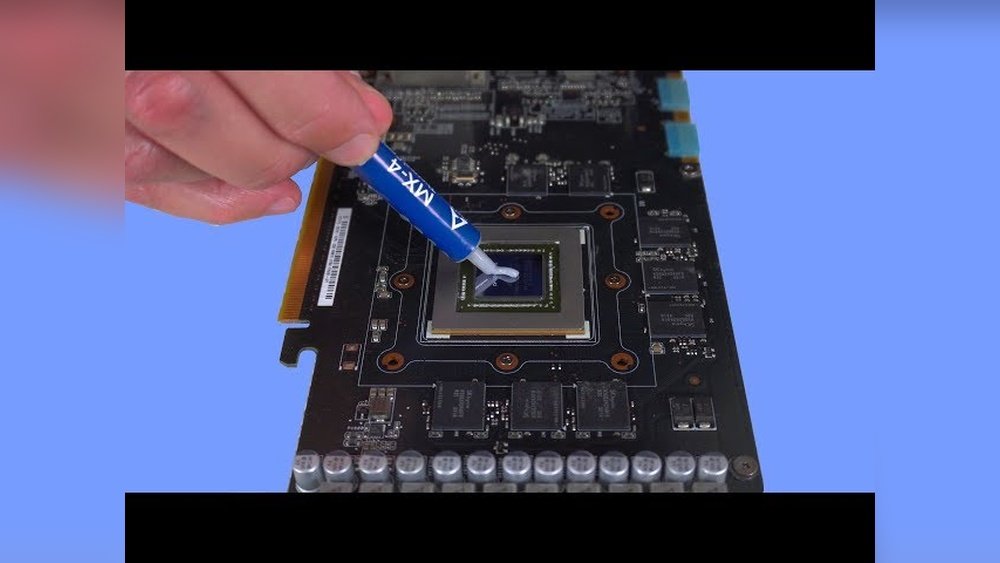
If your GPU is running hotter than it should or your gaming performance has dropped, it might be time to repaste your GPU. You might think this sounds complicated, but with the right steps, you can do it yourself and save money.
Imagine your graphics card running cooler, quieter, and more efficiently—this could be just a few simple actions away. In this guide, you’ll learn exactly how to repaste your GPU safely and effectively, even if you’ve never done it before. Keep reading, and you’ll have your GPU performing like new in no time.
Signs Your Gpu Needs Repasting
Knowing when your GPU needs repasting helps keep it working well. Thermal paste can dry out over time. This causes poor heat transfer from the GPU chip to its cooler. Watch for clear signs to avoid damage and higher temperatures.
Check your GPU often. Early detection can save you from bigger problems. Here are key signs that show your GPU might need fresh thermal paste.
Overheating Symptoms
Your GPU runs hotter than usual. Fans spin faster and louder. Your system might shut down or restart unexpectedly. High temperatures can reach 85°C or more during normal use. These are strong clues your thermal paste has dried out.
Performance Drops
Games and apps run slower. Frame rates drop without clear reason. The GPU throttles its speed to avoid overheating. This reduces the power and causes lag. Repasting can help restore smooth performance.
Visual Inspection
Remove the GPU cooler carefully. Look at the old thermal paste on the chip. It may appear dry, cracked, or flaky. Sometimes, the paste turns hard or powdery. Fresh paste looks smooth and moist. This visual check confirms the need for repasting.
Tools And Materials Required
Repasting a GPU needs the right tools and materials. Having everything ready makes the job easier and safer. This section explains what you need to repaste your GPU correctly.
Thermal Paste Types
Choose the right thermal paste for good heat transfer. There are several types: silicone-based, metal-based, and ceramic-based. Silicone paste is cheap and works well for basic needs. Metal-based paste has better heat conductivity but can be tricky to apply. Ceramic paste is safe and easy to use but less effective than metal types. Pick a paste that fits your skill level and GPU use.
Cleaning Supplies
Cleaning the old paste is vital before applying new paste. Use isopropyl alcohol with 90% or higher purity. It removes grease and dirt without damage. Soft lint-free cloths or coffee filters work well for wiping. Avoid paper towels as they leave fibers. Cotton swabs help clean small areas carefully. Clean surfaces ensure good contact between GPU and cooler.
Safety Gear
Protect yourself and your hardware during the process. Wear anti-static gloves or use an anti-static wrist strap. This prevents static electricity from damaging components. Work in a clean, dust-free area. Good lighting helps you see small parts clearly. Safety glasses protect eyes from accidental splashes. Take time to prepare for a safe repasting task.
Preparing Your Workspace
Preparing your workspace is the first step in repasting a GPU. A clean, organized area helps avoid mistakes. It also protects sensitive parts from damage. Setting up right makes the whole process smoother and safer.
Static Precautions
Static electricity can harm your GPU’s delicate circuits. Use an anti-static wrist strap to ground yourself. Touch a metal surface before handling the GPU. Avoid working on carpet or other static-prone surfaces. Keep humidity moderate to reduce static buildup.
Organizing Components
Gather all tools and materials before starting. Place screws, thermal paste, and cleaning supplies in small containers. Label parts if needed to remember their location. Keep everything within reach to avoid interruptions. A tidy setup saves time and reduces frustration.
Workspace Setup
Choose a flat, well-lit surface for your work. Use a soft mat to protect the GPU from scratches. Ensure good ventilation for drying thermal paste. Have paper towels and isopropyl alcohol ready for cleaning. A comfortable chair helps maintain focus and steadiness.

Credit: www.reddit.com
Removing The Gpu Cooler
Removing the GPU cooler is the first important step in repasting your graphics card. The cooler keeps your GPU cool, but over time, the thermal paste dries out. Replacing it helps your GPU run cooler and last longer. Be careful and gentle during this process. The parts inside are delicate and can break easily.
Unscrewing The Heatsink
Start by turning off your computer and unplugging the GPU. Find the screws holding the heatsink to the GPU board. Use the right screwdriver to avoid stripping them. Keep all screws in a safe place. Unscrew them slowly and evenly. This prevents damage to the GPU chip or board.
Disconnecting Fans And Cables
Look for any cables connecting the fans to the GPU board. These cables supply power to the fans. Gently unplug the cables from the connectors. Use a small tool if needed, but avoid pulling hard. Keep track of where each cable connects for reassembly later.
Handling Delicate Parts
The GPU has small, fragile parts inside. Avoid touching the GPU chip directly. Use anti-static gloves or wrist straps to protect it from static damage. Handle the cooler and fans with care to avoid bending or breaking them. Place removed parts on a clean, soft surface to keep them safe.
Cleaning Old Thermal Paste
Cleaning old thermal paste is a crucial step before applying new paste on your GPU. Removing the old layer ensures better heat transfer and prevents overheating. It also helps the new thermal paste stick properly to the GPU chip. This process requires care and the right materials to avoid damage.
Using Isopropyl Alcohol
Isopropyl alcohol is the best choice for cleaning thermal paste. Use a concentration of 90% or higher for effective cleaning. Apply a small amount on a lint-free cloth or cotton swab. Gently wipe the GPU surface to dissolve and lift off the old paste. Avoid pouring alcohol directly on the GPU to prevent damage.
Removing Residue Safely
Remove paste residue slowly and carefully. Do not use sharp tools or rough materials. These can scratch the GPU and harm its performance. Soft cloths or coffee filters work well to avoid damage. Repeat cleaning until no old paste or sticky residue remains.
Ensuring A Clean Surface
Make sure the GPU surface is dry and clean after wiping. Check for any leftover particles or oil stains. Use fresh isopropyl alcohol and a clean cloth if needed. A clean surface helps new thermal paste spread evenly and improves cooling.

Credit: www.reddit.com
Applying New Thermal Paste
Applying new thermal paste is a key step in repasting your GPU. It helps improve heat transfer from the GPU chip to the cooler. Good application keeps your GPU cool and running well. Poor application can cause overheating and damage.
Choosing The Right Amount
Use a small pea-sized drop of thermal paste. Too much paste can block heat transfer. Too little paste leaves air pockets. Both reduce cooling efficiency. The amount should just cover the GPU chip when spread.
Application Techniques
Place the drop in the center of the GPU chip. When you attach the cooler, it will spread the paste evenly. Avoid spreading the paste with your finger or tools. Let the cooler pressure do the spreading. This method ensures a thin, even layer.
Avoiding Common Mistakes
Do not apply too much paste. Avoid using old or dried paste. Clean the GPU chip and cooler surface well before applying. Avoid touching the paste with bare hands. Keep the surfaces dust-free for best results. These steps prevent poor heat transfer and overheating.
Reassembling The Gpu
Reassembling the GPU is a critical step after applying new thermal paste. It ensures your graphics card works well and stays cool. Handle each part carefully to avoid damage.
Securing The Heatsink
Place the heatsink back on the GPU chip gently. Align it with the screw holes. Tighten the screws in a crisscross pattern. This spreads pressure evenly. Do not overtighten. The heatsink must be snug but not forced.
Reconnecting Fans
Find the fan connectors on the GPU board. Plug them in firmly but carefully. Check that no wires are loose or pinched. Fans must spin freely to cool the GPU effectively.
Final Checks
Look over the GPU for any leftover parts or tools. Make sure all screws are tight and wires secure. Check the card fits well in its slot. Test the fan spins smoothly by turning the card gently. Ready to install back in the PC.

Credit: www.youtube.com
Testing Cooling Performance
Testing cooling performance is a key step after you repaste your GPU. It shows how well the new paste helps keep the GPU cool. This step ensures your GPU runs safely and stays efficient. You can check the temperatures and fan behavior to see the results clearly.
Benchmarking Tools
Use benchmarking tools to stress test your GPU. These tools put the GPU under heavy load. They help measure the cooling system’s strength. Popular options include FurMark and 3DMark. Run the tests for 10 to 15 minutes. Check if the GPU temperature stays stable and low.
Monitoring Temperatures
Monitor the GPU temperature during and after benchmarks. Use software like MSI Afterburner or HWMonitor. Keep an eye on the maximum and average temperatures. Compare these numbers to before repasting. A good repaste should lower the GPU temperature by several degrees.
Adjusting Fan Profiles
Adjust the fan speed to improve cooling. Use software controls or your GPU’s BIOS settings. Increase fan speed if temperatures are high. Lower fan speed if the GPU runs cool and quiet. Custom fan profiles help balance noise and cooling performance.
Tips For Long-term Gpu Maintenance
Keeping your GPU in good shape helps it work better and last longer. Regular care stops it from heating too much. This section shares easy tips for long-term GPU maintenance. Follow these steps to keep your graphics card cool and clean.
Regular Cleaning
Dust builds up inside your computer and on the GPU fan. This blocks airflow and makes the GPU hot. Clean your GPU every few months using a soft brush or compressed air. Avoid touching the fan blades directly. Keep your PC in a dust-free place to reduce dirt.
Thermal Paste Lifespan
Thermal paste helps move heat from the GPU chip to the cooler. Over time, it dries out and loses its power. Replace the paste every 1 to 2 years. Use a high-quality thermal paste and apply a thin, even layer. This keeps your GPU running at safe temperatures.
Optimizing Airflow
Good airflow inside your PC case lowers GPU temperature. Arrange cables neatly to avoid blocking air paths. Use multiple fans to push hot air out and bring cool air in. Keep your PC case clean and well-ventilated for better airflow.
Frequently Asked Questions
How Often Should You Repaste A Gpu?
Repasting a GPU is recommended every 1 to 2 years. This ensures efficient heat transfer and prevents overheating. Regular repasting maintains GPU performance and extends its lifespan.
What Materials Do I Need To Repaste A Gpu?
You need thermal paste, isopropyl alcohol, lint-free cloth, a screwdriver, and an anti-static wrist strap. These tools help safely remove old paste and apply new paste precisely.
Can Repasting Fix Gpu Overheating Issues?
Yes, repasting improves heat dissipation by replacing dried or old thermal paste. It reduces GPU temperatures and prevents throttling caused by overheating.
Is Repasting A Gpu Difficult For Beginners?
Repasting requires careful disassembly and cleaning but is manageable with patience. Following a step-by-step guide helps beginners avoid damage and ensures proper application.
Conclusion
Repasting a GPU helps keep it cool and working well. Take your time and follow the steps carefully. Clean old paste fully before adding new thermal paste. Use just the right amount to avoid mess. Tighten screws evenly to keep pressure balanced.
Regular maintenance can extend your GPU’s life. You don’t need to be an expert to do this. Simple care can prevent overheating and improve performance. Try repasting next time your GPU runs hot. Small actions can make a big difference.
