
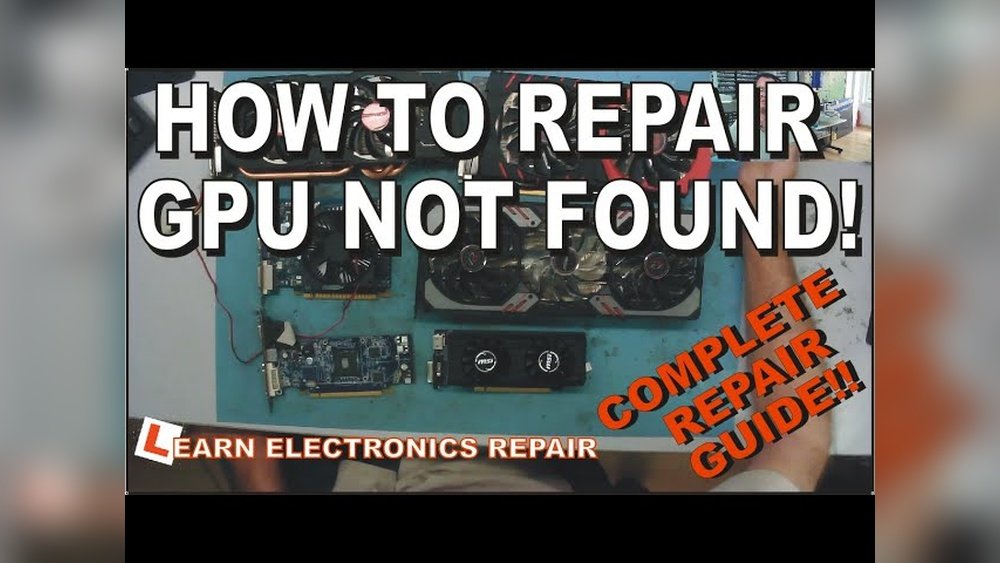
Is your GPU acting up or suddenly stopped working? You’re not alone, and the good news is—many common GPU problems can be fixed without spending a fortune on a replacement.
Imagine saving your money and getting your graphics card back to its peak performance with some simple steps you can do yourself. In this guide, you’ll discover clear, easy-to-follow tips to diagnose and repair your GPU. Keep reading, because your powerful gaming or creative setup depends on it, and you deserve a smooth, hassle-free fix.
Signs Of A Faulty Gpu
A faulty GPU can cause many problems with your computer. It affects graphics, video playback, and gaming. Knowing the signs helps you fix issues early and avoid bigger damage.
Detecting problems early saves time and money. Watch for unusual behavior and errors. This section explains common symptoms and how to diagnose GPU issues.
Common Symptoms
Screen flickering or strange lines on the display often indicate GPU problems. Crashes or freezes during graphic-heavy tasks are also warning signs.
Games or videos showing distorted images or colors suggest GPU trouble. Loud fan noise or overheating may point to hardware failure.
Blue screen errors and driver crashes can happen due to GPU faults. Slow performance in graphics tasks can mean the GPU is failing.
Diagnosing Gpu Issues
Start by checking the GPU temperature with software tools. High temperatures mean poor cooling or hardware stress.
Run stress tests designed for GPUs to find errors. Watch for crashes or artifacts during these tests.
Update or reinstall GPU drivers to rule out software problems. Faulty drivers can mimic hardware issues.
Try the GPU in another computer to confirm if it is the cause. If problems persist, the GPU likely needs repair or replacement.

Credit: budgetpcupgraderepair.com
Essential Tools And Materials
Repairing a GPU requires the right tools and materials. These help you work safely and effectively. Using proper tools prevents damage and saves time. Both hardware and software tools play important roles in the repair process.
Hardware Tools
Start with basic tools like screwdrivers and tweezers. A set of precision screwdrivers fits small screws on the GPU. Anti-static wrist straps stop static electricity from harming components. Thermal paste helps reapply heat transfer material between the GPU chip and cooler. Isopropyl alcohol cleans old thermal paste and dust from surfaces. A magnifying glass or microscope helps inspect tiny parts. A heat gun or soldering iron is needed for advanced repairs like fixing solder joints.
Software Utilities
Software tools diagnose GPU problems and monitor performance. GPU-Z shows detailed information about your graphics card. MSI Afterburner helps control fan speeds and clock settings. FurMark tests GPU stress and stability under load. Driver update tools ensure your GPU runs with the latest software. Benchmarks check if the GPU performs correctly after repairs.
Preparing For Repair
Preparing for a GPU repair is an important first step. It helps avoid damage and data loss. Taking time to get ready makes the repair process smoother. Follow clear steps to protect yourself and your device.
Safety Precautions
Turn off your computer and unplug it from power. Ground yourself to stop static electricity. Use an anti-static wrist strap or touch a metal object. Work on a clean, flat surface with good light. Avoid wearing loose clothes or jewelry that could catch on parts.
Backing Up Data
Save all important files from your computer. Use an external hard drive or cloud storage. Back up your game saves, photos, and documents. This protects your data if something goes wrong. Double-check that the backup works before starting repair.
Cleaning The Gpu
Cleaning the GPU is a key step in repairing it. Dust and dirt build up over time. This can cause the GPU to overheat and work poorly. Proper cleaning helps the GPU run cooler and last longer. The process involves removing dust and old thermal paste carefully.
Removing Dust And Debris
Start by turning off your computer and unplugging it. Open the case to access the GPU. Use a soft brush or canned air to remove dust from the GPU’s fan and heatsink. Avoid using a vacuum as it can damage the parts. Blow air gently to clear out debris from small spaces. Clean until no dust is visible. This helps improve airflow and cooling.
Cleaning Thermal Paste
Thermal paste connects the GPU chip to the heatsink. Old paste can dry out and reduce cooling efficiency. Remove the heatsink carefully. Use a soft cloth and isopropyl alcohol to clean the old thermal paste from the chip and heatsink. Wait until both surfaces are dry. Apply a small amount of new thermal paste evenly. Reattach the heatsink firmly. This step ensures good heat transfer and prevents overheating.
Replacing Thermal Paste
Replacing thermal paste is a key step in repairing a GPU. It helps keep the graphics card cool. Over time, thermal paste dries out. This causes higher temperatures and lower performance. Renewing the paste can improve cooling and extend the GPU’s life.
Choosing The Right Thermal Paste
Select thermal paste designed for electronics. Look for pastes with good heat conductivity. Avoid cheap or generic brands. They may not transfer heat well. Silicone-based or metal-based pastes work best. Check user reviews to find reliable options. A small tube usually lasts through many applications.
Applying Thermal Paste Properly
Clean old paste off the GPU chip with isopropyl alcohol. Use a soft cloth or cotton swab. Apply a small pea-sized drop of new paste in the center. Spread it evenly using a plastic card or let the heat spread it. Avoid using too much paste. Excess can cause overheating or mess inside the GPU.
Fixing Overheating Issues
Overheating is a common problem that can damage your GPU. Fixing it helps your graphics card last longer and work better. This section explains simple steps to reduce heat and improve cooling.
Improving Cooling Systems
Check the GPU fans and heat sinks for dust and dirt. Clean them carefully using compressed air or a soft brush. Clear airflow helps cool the GPU faster. Consider adding extra case fans to move air inside your computer. Proper ventilation reduces heat buildup. Using thermal paste between the GPU chip and cooler improves heat transfer. Replace old or dried thermal paste for better cooling results.
Adjusting Fan Settings
Adjust GPU fan speed using software tools provided by the GPU manufacturer. Increasing fan speed lowers temperature during heavy use. Set custom fan curves to balance noise and cooling. Monitor GPU temperatures to find the best fan settings. Avoid running fans at maximum speed all the time to prevent wear. Proper fan control keeps the GPU cool and quiet.
Repairing Physical Damage
Repairing physical damage on a GPU requires careful steps. This damage can be cracks, broken parts, or loose connections. Fixing these issues often restores the GPU’s function. Safety and precision are very important during the repair process.
Soldering Techniques
Soldering joins small parts and wires on the GPU. Use a fine-tip soldering iron for precision. Heat the joint just enough to melt the solder. Avoid overheating, as it can damage the GPU. Clean the area before soldering to improve connection. Practice steady hands to avoid short circuits. Use lead-free solder for safety and better results.
Replacing Damaged Components
Some GPU parts may need full replacement. Identify broken capacitors, resistors, or chips carefully. Use tweezers to remove damaged components gently. Match the new parts with exact specifications. Place the new parts correctly before soldering. Test the GPU after replacement to check function. Always work in a static-free environment to protect the GPU.
Updating And Reinstalling Drivers
Updating and reinstalling GPU drivers can fix many common graphics problems. Drivers are software that help your computer talk to the GPU. Old or corrupted drivers can cause crashes, slowdowns, or display errors. Installing the latest drivers often improves performance and stability. Reinstalling drivers removes damaged files and resets settings. Follow these steps carefully for the best results.
Downloading Latest Drivers
Start by finding the right driver for your GPU model. Visit the official website of your GPU manufacturer. For NVIDIA, go to the NVIDIA driver page. For AMD, check the AMD support site. Enter your GPU model and operating system. Download the latest driver version available. Save the file on your computer for easy access.
Using Safe Mode For Installation
Safe Mode loads only essential programs. This helps avoid conflicts during driver installation. Restart your computer and enter Safe Mode. On Windows, press F8 or Shift + Restart to open Safe Mode options. Once in Safe Mode, run the driver installer you downloaded. Follow the on-screen instructions to complete installation. After finishing, restart your computer normally.
Testing The Repaired Gpu
Testing the repaired GPU is a key step after fixing any issues. It confirms if the repairs work properly. Checking performance and stability prevents future problems. Testing also helps spot hidden faults early. Let’s explore how to test your GPU effectively.
Running Benchmark Tests
Benchmark tests measure the GPU’s power and speed. Use trusted software like 3DMark or Unigine Heaven. These tools push the GPU to its limits. They show if the card handles heavy loads well. Compare results to typical scores for your model. Low scores may mean repair issues still exist.
Monitoring Performance And Temperature
Watch the GPU’s temperature during and after tests. Use monitoring tools like MSI Afterburner or HWMonitor. Safe GPU temperatures usually stay below 85°C. High temperatures can cause damage or crashes. Also, check clock speeds and fan behavior. Stable readings mean your GPU runs smoothly now.

Credit: www.hierrossainz.com
When To Seek Professional Help
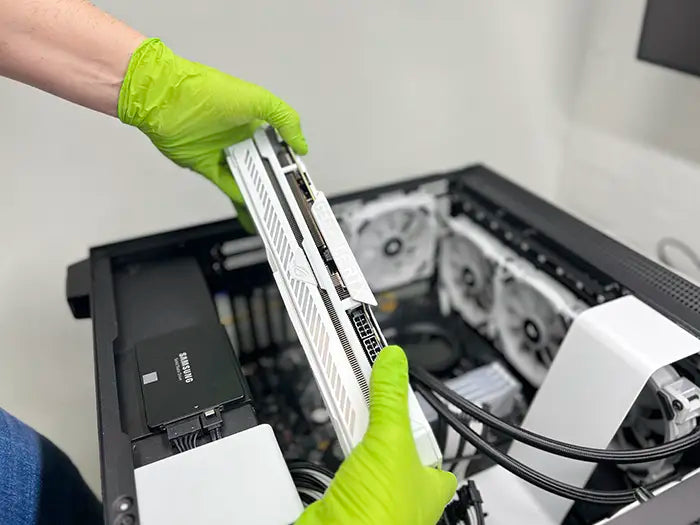
Knowing when to seek professional help for GPU repair is important. Some problems are simple and can be fixed at home. Others need expert tools and knowledge. Trying complex repairs alone may cause more damage. Recognizing the signs of serious issues saves time and money.
Identifying Complex Issues
Not all GPU problems are easy to spot. Overheating, strange noises, or frequent crashes may signal deep issues. Physical damage like broken fans or burnt parts needs expert care. Faulty drivers or software bugs usually do not require professional help. But hardware faults often do. Professionals can diagnose issues that are hidden or tricky.
Finding Reliable Repair Services
Choosing a trustworthy repair service is key. Check reviews and ratings before deciding. Look for certified technicians with GPU experience. Ask about warranty on repairs. Good services explain the problem and cost clearly. Avoid services that give vague answers or rush repairs. Reliable help ensures your GPU works well again.
Credit: primetechsupport.com
Frequently Asked Questions
How Do I Diagnose A Faulty Gpu?
To diagnose a faulty GPU, check for screen artifacts, crashes, or overheating. Use diagnostic tools like GPU-Z or MSI Afterburner to monitor performance and temperatures. Run stress tests to identify issues and ensure drivers are up to date for accurate results.
What Tools Are Needed To Repair A Gpu?
Essential tools include a screwdriver set, thermal paste, cleaning alcohol, and a soft brush. You may also need a multimeter for electrical testing and thermal pads. Proper tools ensure safe disassembly and effective GPU maintenance or repair.
Can I Fix Gpu Overheating Issues Myself?
Yes, you can fix overheating by cleaning dust from fans and heatsinks. Reapply thermal paste and improve case airflow. Regular maintenance helps prevent overheating and prolongs GPU life without professional help.
When Should I Replace Instead Of Repair A Gpu?
Replace your GPU if it has severe physical damage or persistent failures after repairs. Also, consider replacement if repair costs exceed the price of a new GPU. Upgrading may offer better performance and warranty benefits.
Conclusion
Repairing a GPU takes patience and care. Start by identifying the problem clearly. Use the right tools and follow step-by-step guides. Avoid rushing, as mistakes can cause more damage. Testing your GPU after repair is very important. Keep your system clean to prevent future issues.
Small fixes can save money and extend your GPU’s life. Stay calm, and take each step slowly. You can handle GPU repair with practice and focus.
