
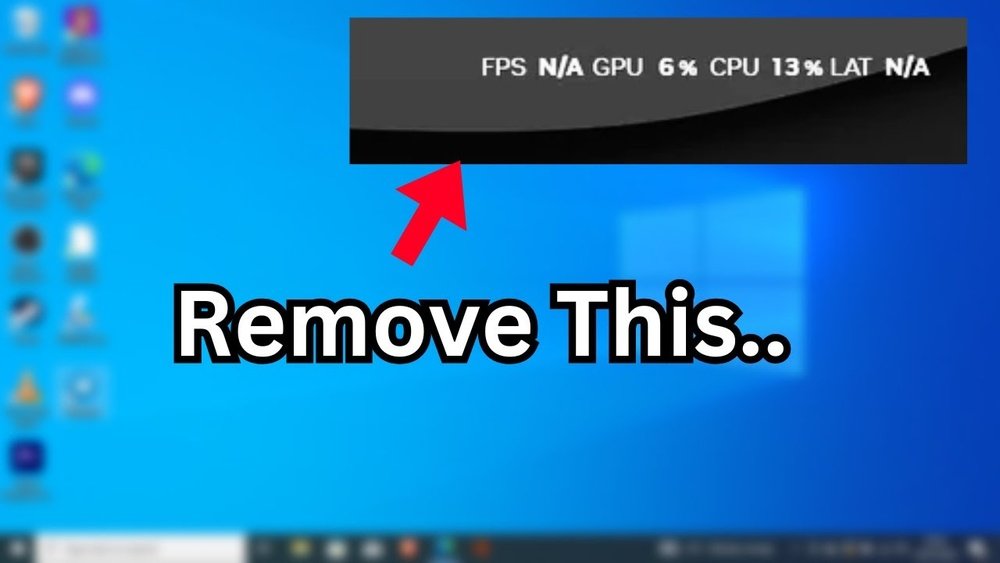
Are those numbers showing up on your screen—FPS, GPU, CPU, and LAT—getting in the way of your gaming or work? You’re not alone.
Many users find these stats helpful at first but soon want a cleaner, distraction-free display. If you’re wondering how to remove these overlays quickly and easily, this guide is made just for you. Keep reading, and you’ll learn simple steps to clear your screen and enjoy your games or tasks without those annoying numbers blocking your view.

Credit: www.reddit.com
Common Causes Of On-screen Fps, Gpu, Cpu, And Latency Displays
Seeing FPS, GPU, CPU, and latency data on your screen can be helpful for gamers and tech users. These numbers show how your computer performs during tasks or games. Sometimes, these displays appear without your intent. Understanding why they show up helps you remove them quickly.
Several common causes trigger these on-screen displays. They often come from software settings or background apps. Knowing the source guides you to the right fix.
Third-party Software And Overlays
Many apps add performance overlays. Programs like Discord, Steam, or GeForce Experience show FPS and hardware data. These overlays help monitor performance but can appear by default. They run in the background and activate with specific hotkeys or settings.
Game Or Application Settings
Some games include built-in performance displays. You can turn these on or off in the game menu. If the display stays on, it might be due to an accidental key press or saved profile setting. Checking the game’s options helps disable these overlays.
Graphics Card Drivers And Utilities
GPU drivers often come with monitoring tools. Nvidia, AMD, and Intel offer software that shows real-time stats. These tools may enable overlays automatically after updates. Driver control panels let you toggle these features on or off.
System Monitoring Tools
Tools like MSI Afterburner or RivaTuner show detailed hardware data. They can display FPS, CPU load, and latency on-screen. Users may forget to close these apps or disable their display options. These tools run quietly in the background and start with the system.

Credit: www.youtube.com
Disabling In-game Overlays
In-game overlays often show FPS, GPU, CPU, and latency info. These overlays can clutter your screen. Disabling them cleans your view and improves focus. It also helps reduce performance drops caused by overlays. Different platforms have different overlay settings. Let’s explore how to turn them off.
Steam Overlay Settings
Steam overlay shows FPS and other stats in games. To disable it, open Steam and go to Settings. Click on “In-Game” tab. Uncheck the box that says “Enable the Steam Overlay while in-game.” This stops Steam from showing the overlay during gameplay. Restart the game to apply changes.
Nvidia Geforce Experience
NVIDIA GeForce Experience has an overlay called “ShadowPlay.” Open the app and click on the gear icon for Settings. Find the “In-Game Overlay” toggle and switch it off. This removes FPS and other stats from the screen. Close and reopen your game to see the effect.
Amd Radeon Software
AMD users get overlay info from Radeon Software. Open the software and go to the “Settings” menu. Select the “Gaming” tab, then choose “Performance Monitoring.” Turn off the overlay options like FPS and hardware stats. This stops the display during your gaming sessions.
Xbox Game Bar
Xbox Game Bar is built into Windows and shows performance stats. Press Windows + G to open it. Click the Settings icon, then go to the “Gaming features” section. Turn off the “Performance” widget to hide FPS and latency info. This clears your screen of Xbox stats.
Turning Off Third-party Monitoring Software
Turning off third-party monitoring software is an easy way to remove FPS, GPU, CPU, and latency info from your screen. These apps show real-time data to help users track computer performance. Sometimes, this info can distract or clutter the screen. Disabling these tools stops the overlays and cleans up your display.
Msi Afterburner
MSI Afterburner is popular for GPU monitoring and overclocking. It shows FPS and hardware stats on your screen. To turn it off, open MSI Afterburner, go to the settings menu, and find the “On-Screen Display” tab. Uncheck the option to enable the overlay. Save changes and close the app. The performance numbers will disappear immediately.
Razer Cortex
Razer Cortex helps boost game performance and shows FPS counters. To disable its overlay, open Razer Cortex. Click on the “Performance” tab. Look for the FPS counter setting and switch it off. This stops the software from showing any data on your screen. Restart the game to confirm the overlay is gone.
Fps Monitor Apps
Other FPS monitor apps like Fraps or GeForce Experience also display performance info. Usually, you can disable these overlays within the app settings. Find the option labeled “Show FPS” or “Display Overlay” and turn it off. Closing the app also removes the data from your screen. Check your game after changes for a clean display.

Credit: www.reddit.com
Adjusting Graphics And System Settings
Adjusting graphics and system settings helps remove FPS, GPU, CPU, and latency displays from your screen. These settings control what appears during gameplay. Changing them makes your screen cleaner and less distracting.
Focus on each setting carefully. Small changes can hide the info without affecting game performance. The goal is a smooth and clear gaming view.
Game-specific Options
Many games have built-in options to show or hide FPS and system info. Check the game’s settings menu for these choices. Look under graphics or display sections. You can turn off overlays or performance stats here. This method stops the data from appearing only in that game.
Windows Game Mode
Windows Game Mode helps improve gaming performance. It also controls overlays and notifications. Open Windows Settings, go to Gaming, and select Game Mode. You can disable in-game overlays that show FPS and other stats. This keeps your screen free from extra info during all games.
Background Processes
Some software runs in the background and shows FPS or system info. Programs like MSI Afterburner or GeForce Experience often do this. Close or disable these apps if you want a clean screen. Use Task Manager to find and stop these processes. This prevents overlays from appearing across all games.
Updating Or Reinstalling Drivers
Updating or reinstalling drivers can help remove FPS, GPU, CPU, and latency info from your screen. Drivers control how your hardware talks to your software. Outdated or faulty drivers may cause on-screen overlays to appear. Fixing these drivers often stops the unwanted display of performance data.
Gpu Drivers
GPU drivers control your graphics card. They manage how games and apps show images. Sometimes, these drivers add overlays that show FPS or hardware stats. To update, visit the official website of your GPU brand. Download the latest driver for your model. Install it and restart your computer. This often removes the FPS and GPU info on screen.
Reinstalling helps if updates do not fix the issue. Uninstall the current GPU driver from your system settings. Then, download and install the driver again. This clears any corrupt files causing the overlay.
Cpu Chipset Drivers
CPU chipset drivers manage communication between your processor and other parts. Some software that shows CPU stats depends on these drivers. Outdated chipset drivers may cause constant display of CPU data on screen. Updating chipset drivers can stop this.
Go to your motherboard or CPU maker’s website. Find the latest chipset driver for your system. Download and install it carefully. Restart your PC to apply changes. This can remove CPU info from the screen. Reinstall the chipset driver if updating does not help. First, uninstall the old driver, then install the new one.
Resetting Display And Performance Settings
Resetting display and performance settings helps clear unwanted FPS, GPU, CPU, and latency information from your screen. This step fixes common display issues and returns your system to its original state. It ensures better performance and a clean screen view.
Resetting settings is simple and safe. It removes any changes that cause screen clutter or slowdowns. Follow these easy methods to restore your device’s display and performance to default.
Restoring Default Configurations
Restoring default configurations resets your display and performance settings. It removes custom overlays and performance counters from your screen. To do this, open your graphics control panel or game settings. Look for options like “Reset to Default” or “Restore Defaults.” Click these to clear all changes. This step often fixes unwanted FPS and latency displays.
Using System Restore Points
System restore points bring your computer back to a previous state. This helps if display issues started after recent changes. Search for “Create a restore point” in the Start menu. Open System Restore and pick a date before the problem began. Follow the instructions to restore your system. This method removes overlays and fixes performance data stuck on screen.
Frequently Asked Questions
How To Hide Fps Counter On Screen?
To hide the FPS counter, access your game or software settings. Look for the HUD, overlay, or performance section. Disable the FPS display option to remove it from your screen quickly and easily.
Can I Remove Cpu And Gpu Stats From Display?
Yes, CPU and GPU stats can be removed via the monitoring tool settings. Disable the overlay or performance metrics in the software to clear them from your screen.
What Causes Latency Display On Screen?
Latency or “lat” appears due to network or input delay monitoring tools. These tools show real-time lag data. You can turn off these overlays in the monitoring or game settings.
Are There Keyboard Shortcuts To Remove Performance Overlays?
Many software and games support hotkeys to toggle overlays. Check your application’s control settings for shortcut keys. Using these can instantly remove FPS, CPU, GPU, and latency displays.
Conclusion
Removing FPS, GPU, CPU, and latency info from your screen is simple. Follow the steps carefully and check your settings. Most games and apps let you turn off these displays easily. If one method doesn’t work, try another. Keep your screen clean and less distracting.
This way, you enjoy your game or work better. Remember, small changes can make a big difference in your experience. Stay patient and keep adjusting until you find what works best.
