
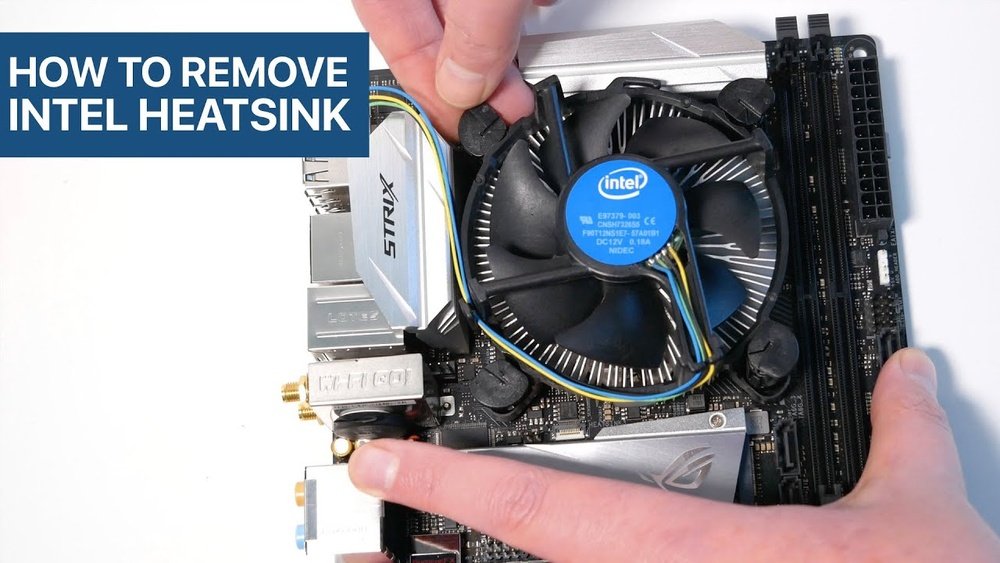
If you want to keep your computer running cool and quiet, knowing how to remove your CPU cooler is a must. Whether you’re upgrading your system, cleaning out dust, or replacing a faulty cooler, doing it the right way can save you from costly mistakes.
In this guide, you’ll learn simple, step-by-step instructions that anyone can follow—even if you’ve never opened a PC before. Stick with me, and you’ll gain the confidence to handle your CPU cooler safely and easily. Ready to get started? Let’s dive in.
Tools Needed
Removing a CPU cooler requires a few important tools. These tools help you work safely and easily. Having the right tools saves time and prevents damage to your computer parts. Prepare these items before starting the removal process.
Screwdrivers
Screwdrivers are essential for loosening and removing screws. Most CPU coolers use Phillips-head screws. A small to medium Phillips screwdriver fits best. Avoid using the wrong size to prevent stripping screws. Keep the screwdriver steady and apply gentle pressure.
Thermal Paste Cleaner
Thermal paste cleaner removes old thermal paste from the CPU and cooler base. Use a cleaner made for electronics or isopropyl alcohol with 90% or higher purity. Apply the cleaner with a lint-free cloth or cotton swab. This ensures a clean surface for new thermal paste application.
Anti-static Wrist Strap
An anti-static wrist strap protects your components from static electricity. Static can damage sensitive parts inside your computer. Wear the strap and connect it to a grounded metal part. This simple step helps keep your CPU and motherboard safe during removal.
Credit: docs.oracle.com
Preparing Your Workspace
Preparing your workspace is the first step before removing a CPU cooler. A clean and organized area helps you work safely and avoid mistakes. Setting up right makes the whole process easier and faster.
Power Off And Unplug
Turn off your computer completely. Unplug the power cable from the wall socket. This stops electricity from flowing to the PC. It prevents electric shocks and damage to your parts.
Clear Workspace
Find a flat, stable surface to work on. Remove any clutter, tools, or papers nearby. Keep only the essentials you need for the job. A tidy space reduces the chance of losing screws or parts.
Ground Yourself
Static electricity can harm computer parts. Touch a metal object or use an anti-static wristband. This releases any built-up electricity from your body. Grounding protects your CPU and other components from static damage.
Removing The Side Panel
Removing the side panel is the first step to access your CPU cooler. This step allows you to work inside the computer case safely. Be gentle and take your time to avoid damage.
Most computer cases have screws that hold the side panel in place. These screws keep the panel secure and protect internal parts.
Locate Screws
Look at the back of your computer case. You will find screws along the edges of the side panel. Usually, there are two or three screws. Use a screwdriver that fits the screw heads well. Keep the screws in a safe place once removed.
Remove Panel Carefully
After removing screws, hold the side panel firmly. Slide or pull the panel away from the case slowly. Avoid using too much force to prevent bending or breaking. Set the panel aside on a soft surface to avoid scratches. Now you have clear access to the CPU cooler and other parts.

Credit: www.youtube.com
Disconnecting The Cooler Fan
Disconnecting the cooler fan is an important step before removing the CPU cooler. It stops the fan from drawing power. This prevents any damage to the motherboard or fan itself. Careful handling during this step keeps your components safe.
Take your time and handle the fan connector gently. Avoid pulling the wires directly to stop any damage. Proper disconnection makes the whole removal process smoother and safer.
Find The Fan Connector
Look for the small connector attached to the motherboard. It usually sits near the CPU socket. The fan cable runs from the cooler to this connector. The connector often has 3 or 4 pins and a plastic clip.
Check the motherboard manual if you have trouble spotting it. Identifying the right connector avoids unplugging the wrong part.
Gently Unplug The Fan
Hold the connector, not the wires, to unplug the fan. Pull it straight out with a steady, gentle force. Avoid twisting or yanking the cable. This protects the pins inside the connector.
If it feels stuck, wiggle it slightly while pulling. Do not rush; patience prevents damage. After unplugging, keep the cable clear of other components.
Loosening The Cooler
Loosening the CPU cooler is a key step before removing it safely. The cooler is tightly fixed to the CPU to keep it cool. You must handle this process carefully to avoid damage to the processor or motherboard. Understanding the mounting system and how to release it helps make this step smooth and safe.
Identify Mounting Mechanism
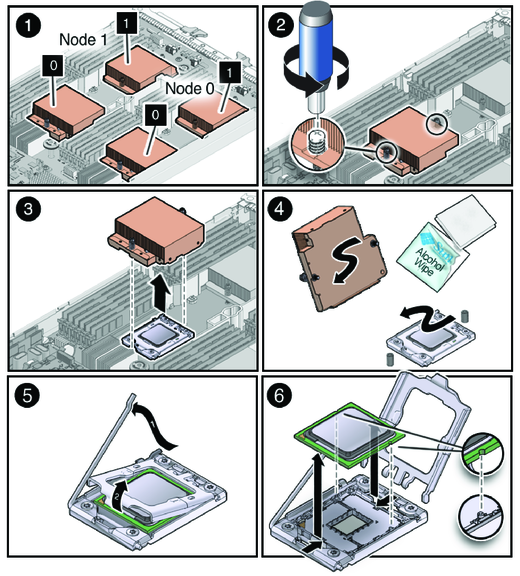
First, check how the cooler is attached to the CPU. Common types include screws, brackets, or clips. Look for screws around the cooler base or clips on the sides. Some coolers have a backplate under the motherboard holding it in place. Identifying this helps plan the loosening process.
Unscrew Or Release Clips
Use the right screwdriver to remove screws gently. Turn screws slowly to avoid stripping them. If clips hold the cooler, press or lift them carefully to release. Avoid using force. Cooling paste may make the cooler stick to the CPU, so wiggle it slightly while loosening screws or clips. This helps break the seal without damage.
Detaching The Cooler
Detaching the CPU cooler is a careful step in the removal process. It requires patience and a gentle touch. The cooler often sticks to the CPU due to the thermal paste. Pulling it off too fast can damage the processor or the motherboard. Follow the right way to avoid problems.
Take your time. Let the cooler come off smoothly without force. Use small, controlled movements to loosen it. This will protect your computer parts and make the job easier.
Wiggle And Lift Cooler
Start by gently wiggling the cooler side to side. This helps break the bond of the thermal paste. Do not twist or pull hard. After a few wiggles, try lifting the cooler slowly. Lift it evenly to avoid bending the CPU pins or socket. If it does not move, wiggle some more.
Avoid Pulling Forcefully
Never yank the cooler straight up. Pulling forcefully can cause serious damage. The CPU might stay stuck, or the cooler may break. Use gentle pressure and patience. If the cooler feels stuck, apply more wiggle movements. Let the thermal paste release naturally.
Cleaning The Cpu And Cooler
Cleaning the CPU and cooler is a key step after removing the cooler. Dirt and old thermal paste can reduce cooling performance. Proper cleaning helps the CPU run cooler and last longer.
Take your time to clean both parts carefully. This ensures a good connection when you reapply new thermal paste and reattach the cooler.
Remove Old Thermal Paste
Start by gently scraping off the old thermal paste from the CPU and cooler base. Use a plastic card or a soft cloth to avoid damage. Remove as much paste as possible before moving to the next step. Clean surfaces improve heat transfer.
Use Isopropyl Alcohol
Dip a lint-free cloth or cotton swab in isopropyl alcohol. Wipe the CPU and cooler base to remove any leftover paste and dirt. Alcohol evaporates quickly and leaves no residue. Let both parts dry completely before reapplying thermal paste and reinstalling the cooler.
Storing Or Replacing Cooler
After removing your CPU cooler, deciding what to do next is important. You can store the cooler safely for later use or replace it with a new one. Both options need care to keep your computer running well.
Safe Storage Tips
Clean the cooler gently before storing. Use a soft brush or cloth to remove dust. Avoid using water or strong chemicals. Store the cooler in a dry and cool place. Keep it in its original box or a padded container. Protect the fan blades from bending or breaking. Do not put heavy objects on top of the cooler. Label the storage box for easy finding later.
Choosing A New Cooler
Pick a cooler that fits your CPU socket type. Check the size to make sure it fits inside your case. Look for coolers with good heat dissipation and quiet fans. Consider your computer’s power and use. For gaming or heavy tasks, choose a stronger cooler. For simple use, a basic cooler is enough. Read user reviews to find reliable options. Compare prices and features before buying.

Credit: www.reddit.com
Frequently Asked Questions
How Do I Safely Remove A Cpu Cooler?
First, turn off and unplug your computer. Then, disconnect the cooler’s power cable. Loosen screws or clips holding the cooler. Gently twist and lift it off the CPU. Avoid forcing it to prevent damage.
What Tools Are Needed To Remove A Cpu Cooler?
Typically, you need a Phillips-head screwdriver for screws. Some coolers use clips, so no tools are required. Use rubbing alcohol and a lint-free cloth to clean thermal paste afterward.
Can I Reuse Thermal Paste When Removing A Cpu Cooler?
No, always clean off old thermal paste completely. Apply new thermal paste before reinstalling or replacing the cooler. This ensures proper heat transfer and prevents overheating.
How Do I Avoid Damaging The Cpu During Cooler Removal?
Handle the cooler gently, avoiding excessive force. Detach the cooler evenly to prevent bending the CPU pins. Ground yourself to avoid static electricity damage.
Conclusion
Removing a CPU cooler is simpler than it seems. Follow each step with care and patience. Keep your workspace clean and organized for safety. Use the right tools to avoid damage. Take your time and do not rush. You will protect your CPU and computer parts.
Now, you can replace or clean the cooler easily. Stay calm and confident throughout the process. This skill helps maintain your computer’s health and performance.
