
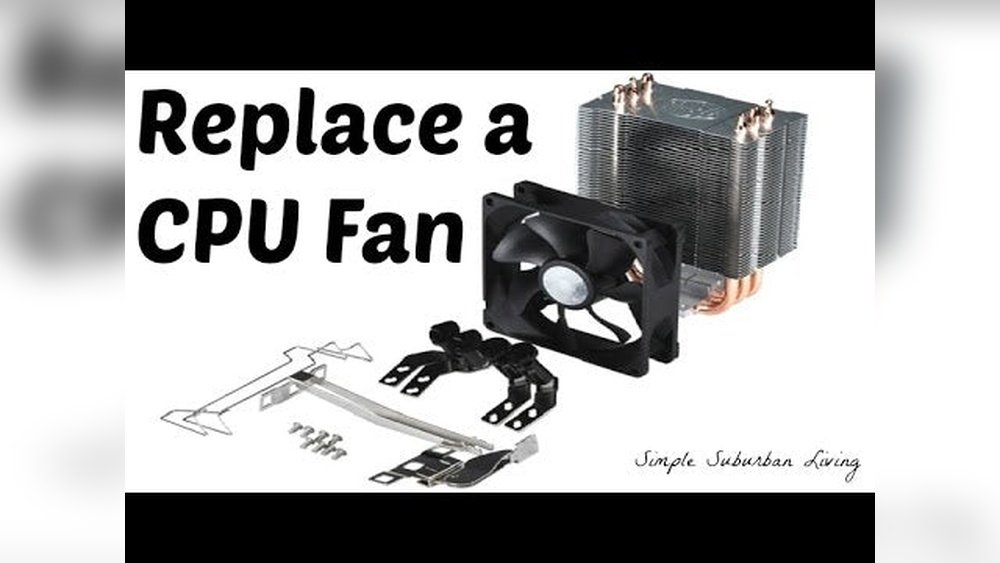
Is your Cooler Master CPU fan making noise or not working properly? You might be wondering how to remove it safely without damaging your computer.
Removing your CPU fan may seem tricky, but with the right steps, you can do it easily and confidently. In this guide, you’ll learn exactly how to take out your Cooler Master CPU fan quickly, so you can clean it, replace it, or upgrade your system.
Keep reading, and you’ll master the process in no time!

Credit: www.reddit.com
Tools Needed
Removing a Cooler Master CPU fan requires a few simple tools. These tools help you work safely and avoid damage. Having the right tools ready makes the process faster and easier.
Phillips Head Screwdriver
A Phillips head screwdriver is essential for loosening screws. Most Cooler Master fans use Phillips screws to attach the fan or heatsink. Choose a screwdriver that fits the screws well to avoid stripping them.
Anti-static Wrist Strap
An anti-static wrist strap protects your computer parts from static electricity. Static can harm sensitive components like the CPU and motherboard. Wear the strap and connect it to a grounded metal part before working inside your PC.
Small Container Or Magnetic Tray
Use a small container or magnetic tray to hold screws and small parts. This prevents losing them during removal. Keeping screws organized saves time when reassembling the fan.
Thermal Paste (optional)
If you plan to remove the fan and heatsink together, thermal paste is needed for reinstallation. It helps transfer heat from the CPU to the cooler. Old thermal paste must be cleaned off before applying new paste.
Preparing Your Workspace
Preparing your workspace before removing a Cooler Master CPU fan is important. A clean and organized area helps prevent damage and loss of small parts. It also makes the process faster and safer.
Clear a flat surface where you can place your computer and tools. Make sure there is good lighting to see all components clearly. This step avoids mistakes and helps you work with confidence.
Choose A Clean, Flat Surface
Pick a desk or table free of clutter. Dust and dirt can harm computer parts. A flat surface keeps your PC stable during the removal process. Avoid working on carpet or soft fabric.
Gather Necessary Tools
Collect all tools before you start. A screwdriver set is usually needed for CPU fan screws. Keep tools within easy reach to avoid searching mid-task. Using the right tools prevents damage to screws and parts.
Ensure Proper Lighting
Good light helps you see small screws and connectors clearly. Use a desk lamp or bright overhead light. Avoid shadows that hide important details. Proper lighting reduces errors and speeds up work.
Use Anti-static Precautions
Static electricity can damage computer parts. Wear an anti-static wrist strap if you have one. If not, touch a metal part of the case to discharge static. Working on a non-carpeted floor also helps reduce static risk.
Power Down And Unplug
Before removing the Cooler Master CPU fan, it is important to power down and unplug your computer. This step ensures your safety and prevents damage to the computer parts. Never work on your PC while it is still connected to power.
Unplugging stops all electrical current. This protects you from electric shock. It also prevents short circuits inside the computer. Safety first.
Shut Down Your Computer Properly
Click the start menu and select “Shut down.” Wait for the screen to go black. Make sure all lights on the computer are off before moving on.
Disconnect The Power Cable
Find the power cable at the back of your PC. Gently pull the plug out of the socket. Do not yank or twist it.
Unplug Other Connected Devices
Remove all USB devices, monitors, and other cables. This clears your workspace and stops accidental power-on. Keep your work area tidy.
Accessing The Cpu Fan
Accessing the CPU fan is the first step in removing your Cooler Master CPU fan. This process requires care and attention. You must prepare your workspace and tools before opening your computer case.
Knowing how to reach the CPU fan safely helps avoid damage. The fan sits on top of the CPU, inside the computer case. You need to remove some parts to get clear access.
Turn Off And Unplug Your Computer
Start by shutting down your PC completely. Unplug the power cable from the wall socket. This prevents electrical shocks and protects your components.
Open The Computer Case
Remove screws or release clips holding the case side panel. Slide the panel off gently to expose the internal parts. Keep screws safe for reassembly later.
Locate The Cpu Fan
Find the CPU cooler near the center of the motherboard. The CPU fan attaches directly to the heatsink. It usually has a power cable connected to the motherboard.
Disconnect The Fan Power Cable
Identify the small connector linking the fan to the motherboard. Carefully unplug the cable by pulling the connector, not the wires. This step ensures the fan is fully detached.
Disconnecting The Fan Cable
Disconnecting the fan cable is a key step in removing your Cooler Master CPU fan. It stops power to the fan and prevents damage. The cable connects the fan to the motherboard. Handle it with care to avoid breaking the pins or wires.
Take your time to identify the correct cable. It is usually a small, 3 or 4-pin connector attached to the motherboard near the CPU socket.
Locate The Fan Cable Connector
Open your PC case to see inside. Find the cable coming from the CPU fan. Follow it to where it plugs into the motherboard. The connector is small and close to the CPU socket.
Release The Connector Gently
Hold the connector firmly. Pull it straight out with a steady, gentle force. Avoid pulling the wires directly. Use your fingers to grip the plastic part only.
Check For Clips Or Locks
Some connectors have small clips or locks. Press or lift these clips before pulling the connector. This prevents damage to the cable or motherboard pins.
Removing The Cooler Master Fan
Removing the Cooler Master CPU fan is a straightforward task. It helps with cleaning or replacing the fan. You need to handle the fan carefully to avoid damage. Follow these simple steps to remove it properly.
Loosening Mounting Screws
Start by locating the screws that hold the fan to the heatsink. Use a suitable screwdriver to turn each screw counterclockwise. Loosen them gently without removing completely right away. This prevents the fan from falling suddenly.
Releasing Retention Clips
Some Cooler Master fans use retention clips instead of screws. Find the clips on the sides of the fan. Press or pull them carefully to release the fan from the heatsink. Take your time to avoid breaking the clips.
Lifting The Fan Carefully
Once screws or clips are loose, lift the fan slowly upwards. Avoid using force to prevent bending or breaking parts. Hold the fan by its edges, not the blades. Place it on a clean surface after removal.
Cleaning The Cpu And Fan
Cleaning the CPU and fan is important to keep your computer running cool. Dust and dirt can build up on the fan blades and CPU surface. This buildup blocks airflow and causes overheating. Regular cleaning helps your PC stay fast and prevents damage.
Take your time during cleaning. Use gentle tools and avoid harsh chemicals. Proper care extends the life of your CPU and fan.
Preparing The Workspace
Find a clean, flat area to work on. Use an anti-static mat or wrist strap. This protects your computer parts from static electricity. Gather soft brushes, compressed air, and microfiber cloths.
Cleaning The Cpu Surface
Remove old thermal paste carefully with isopropyl alcohol and a soft cloth. Apply new thermal paste after cleaning. This helps the CPU stay cool and work well. Avoid touching the CPU pins or socket.
Cleaning The Fan Blades
Use a soft brush to remove dust from fan blades. Blow compressed air to clear tight spots. Hold the fan blades still while cleaning. This prevents damage to the fan motor.
Reassembling The Cooler Master Cpu Fan
Put the fan back carefully on the CPU. Secure screws evenly to avoid pressure points. Reconnect the fan cable to the motherboard. Check that the fan spins freely before closing the case.

Credit: www.youtube.com
Troubleshooting Common Issues
Troubleshooting common issues is important when removing the Cooler Master CPU fan. Problems can slow down your work or cause damage. This guide helps you fix common problems fast. Follow simple steps to avoid trouble and keep your fan safe.
Fan Stuck Or Hard To Remove
Sometimes the fan feels stuck. It may be tight or stuck on the CPU. Try pressing the fan clips gently. Wiggle the fan slightly to loosen it. Avoid pulling hard to prevent damage. Use a small flat tool to lift clips if needed. Take your time to avoid breaking parts.
Cable Damage Prevention
Protecting the fan cable is very important. Do not pull the cable directly. Hold the connector when unplugging. Avoid bending the cable sharply. Keep cables away from sharp edges. Check cables for damage before reinstalling. Proper care helps keep the fan working well for a long time.

Credit: www.reddit.com
Frequently Asked Questions
How Do I Safely Remove A Cooler Master Cpu Fan?
First, power off and unplug your PC. Disconnect the fan’s power cable gently. Unscrew or unlock the fan from the heatsink carefully. Avoid forcing any parts to prevent damage.
What Tools Are Needed To Remove The Cpu Fan?
You generally need a Phillips-head screwdriver. Some models may require a flat-head screwdriver or special clips. Having an anti-static wrist strap is also recommended for safety.
Can I Remove The Cooler Master Cpu Fan Without Damaging Thermal Paste?
Yes, but be careful. After removal, clean off old thermal paste with isopropyl alcohol. Reapply new thermal paste before installing a replacement fan or heatsink.
How Often Should I Remove And Clean My Cpu Fan?
It’s best to clean your CPU fan every 3 to 6 months. Regular cleaning prevents dust buildup and maintains optimal cooling performance.
Conclusion
Removing a Cooler Master CPU fan is simple with the right steps. Always turn off your computer before starting. Gently unplug the fan’s power cable to avoid damage. Unscrew the fan carefully from the heatsink. Take your time and handle parts with care.
Clean dust from the fan and surrounding area. Reinstall or replace the fan as needed. Following these steps helps keep your computer cool and running well. Small actions can make a big difference in your PC’s health. Stay patient and work slowly for best results.
