
If you want to keep your AMD CPU running cool and quiet, knowing how to remove the CPU fan safely is essential. Whether you’re upgrading your cooler, cleaning out dust, or troubleshooting, taking off the fan without causing damage is a skill you need.
In this guide, you’ll find simple, step-by-step instructions that anyone can follow—even if you’re not a tech expert. Stick with me, and you’ll gain the confidence to handle your AMD CPU fan like a pro. Let’s get started!
Preparing For Removal
Preparing to remove an AMD CPU fan is key to a smooth process. Taking a few careful steps before you start saves time and prevents damage. Setting up correctly makes the removal easier and safer.
Gathering Necessary Tools
Collect the right tools before you begin. You will need a small Phillips screwdriver to remove screws. A clean cloth helps to wipe dust off the fan and surrounding parts. Have a container ready to keep screws safe and avoid losing them.
Powering Down And Unplugging
Turn off your computer completely. Do not just put it in sleep mode. Unplug the power cable from the wall socket or power strip. This step stops any chance of electrical shock or damage to parts. Wait a few minutes for the computer to cool down.
Grounding Yourself To Prevent Static
Static electricity can harm computer parts. Touch a metal part of your computer case to discharge static. Use an anti-static wrist strap if you have one. Avoid working on carpeted floors or dry areas that create static. Grounding protects your CPU and other components.
Credit: www.asus.com
Accessing The Cpu Fan
Accessing the CPU fan is the first step to remove it safely. This part keeps your AMD CPU cool during use. To reach it, you need to open the computer case carefully. Then, find the exact location of the fan on the motherboard. Knowing these steps helps avoid damage to other parts.
Opening The Computer Case
Start by turning off your computer and unplugging all cables. Place the computer on a flat, stable surface. Use a screwdriver to remove the screws from the side panel. Slide the panel off gently to expose the inside of the case. Keep the screws safe for later. Avoid touching other components inside the case.
Locating The Amd Cpu Fan
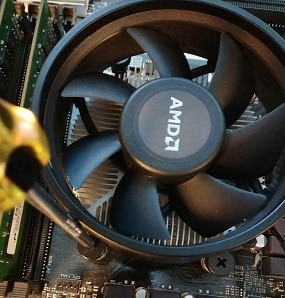
The CPU fan sits directly on top of the CPU heatsink. It is usually near the center of the motherboard. Look for a round fan with wires connected to the motherboard. The fan blades are easy to spot. Identify the small cable plugged into the CPU fan header. This cable powers the fan and needs to be unplugged carefully before removal.
Disconnecting The Fan
Disconnecting the AMD CPU fan is a key step before removing it. This process stops power flow to the fan. It helps avoid damage to the fan and motherboard. Handle the fan connector and cables gently. Careful steps prevent breaking any parts.
Unplugging The Fan Connector
Locate the fan connector on the motherboard. It usually has 3 or 4 pins. Hold the connector firmly. Pull it straight out with a steady hand. Avoid twisting or bending the pins. This ensures a clean unplug without damage.
Handling Fan Cables With Care
Fan cables are delicate and can tear easily. Do not pull the cables themselves. Always pull from the connector. Keep cables clear from sharp edges or moving parts. Arrange cables carefully to prevent tangling. Proper handling protects the fan and motherboard.

Credit: www.youtube.com
Removing The Fan From The Cpu
Removing the fan from an AMD CPU is a simple task with the right steps. This process helps in cleaning the fan or replacing it with a new one. Handling the fan carefully avoids damage to the CPU and motherboard.
Releasing The Fan Clips Or Screws
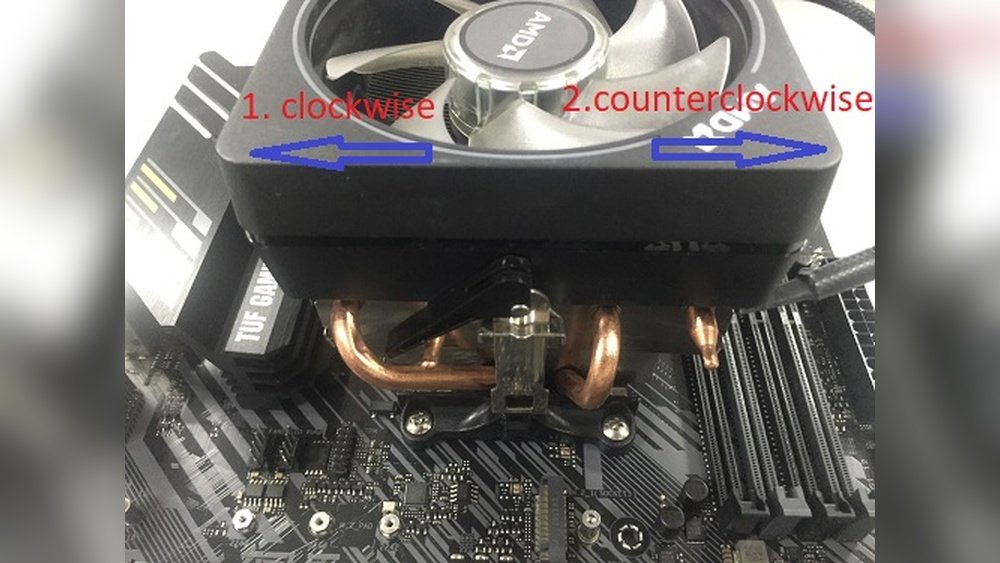
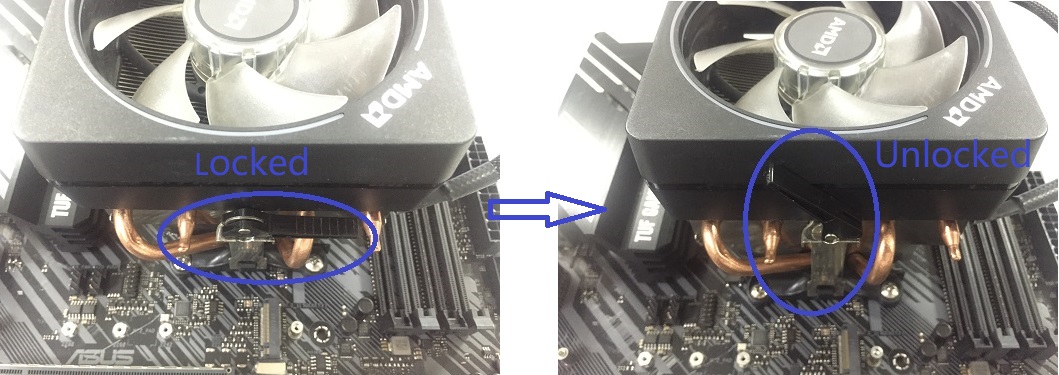
Most AMD CPU fans are secured by clips or screws. First, locate these clips or screws around the fan base. If your fan uses clips, gently press or lift them to release. For screws, use a screwdriver to turn them counterclockwise. Keep the clips or screws safe for reinstallation.
Lifting The Fan Off The Cpu
After releasing the clips or screws, the fan should be loose. Hold the fan by its edges and lift it straight up. Avoid pulling the fan by the wires. If the fan feels stuck, wiggle it gently to break the seal of the thermal paste. Lift slowly to prevent damage to the CPU surface.
Cleaning The Cpu Surface
Cleaning the CPU surface is a key step after removing the AMD CPU fan. This task helps keep the CPU cool and working well. Dust and old thermal paste can block heat from moving away from the CPU. A clean surface lets the new thermal paste spread evenly. This improves cooling and helps your PC run smoothly.
Take your time and be gentle. A clean CPU surface makes a big difference in performance. Follow the steps below to clean the CPU surface correctly before adding new thermal paste.
Removing Old Thermal Paste
Start by wiping off the old thermal paste. Use a soft cloth or paper towel. Avoid rough materials that can scratch the CPU surface. Apply a small amount of isopropyl alcohol to the cloth. Gently rub the paste until it dissolves and comes off. Repeat as needed. Make sure the surface is free from any residue or oil.
Preparing For New Thermal Paste Application
Wait for the CPU surface to dry completely. Check for any dust or particles. Use a clean, lint-free cloth to remove any remaining debris. Avoid touching the surface with your fingers. Your skin oils can reduce thermal paste effectiveness. Now, the CPU surface is ready for a fresh layer of thermal paste.
Troubleshooting Common Issues
Removing an AMD CPU fan can sometimes be tricky. Fans may stick due to dust, thermal paste, or tight clips. These common problems can slow down your work or cause damage. Knowing how to handle these issues helps keep your computer safe and working well.
Stubborn Fan Removal Tips
Start by gently wiggling the fan to loosen it. Avoid pulling hard, as this can break parts. Use a small flat tool to carefully lift the fan edges. Warm the CPU area slightly to soften the thermal paste. This makes the fan easier to remove. Clean any dust or debris before trying again.
Avoiding Damage To Cpu And Motherboard
Turn off the computer and unplug it first. Ground yourself to prevent static electricity damage. Handle the fan by its edges, not the wires or blades. Do not force the fan if it resists. Use slow, steady pressure instead. Keep thermal paste clean and apply fresh paste after removal.
Credit: www.amd.com
Frequently Asked Questions
How Do I Safely Remove An Amd Cpu Fan?
First, power off and unplug your computer. Then, disconnect the fan’s power cable from the motherboard. Unscrew or unclip the fan carefully. Finally, gently lift the fan and heatsink off the CPU without forcing it.
What Tools Are Needed To Remove Amd Cpu Fan?
You typically need a Phillips-head screwdriver for screws. Some fans use clips that require no tools. An anti-static wrist strap is recommended to avoid static damage.
Can I Reuse The Amd Cpu Fan After Removal?
Yes, you can reuse the fan if it’s undamaged. Clean off old thermal paste before reinstalling. Apply fresh thermal paste for optimal cooling performance.
How Do I Prevent Damage When Removing Amd Cpu Fan?
Avoid pulling the fan by the wires or cables. Unscrew or unclip carefully without forcing. Handle the CPU socket and surrounding motherboard gently to prevent damage.
Conclusion
Removing an AMD CPU fan is simple with the right steps. Turn off your PC and unplug it first. Gently disconnect the fan cable to avoid damage. Unscrew the fan carefully and lift it off. Clean the area if needed before placing a new fan.
Taking your time helps prevent mistakes. Follow these tips for a smooth fan removal process. Your computer will stay cool and work better afterward.
