
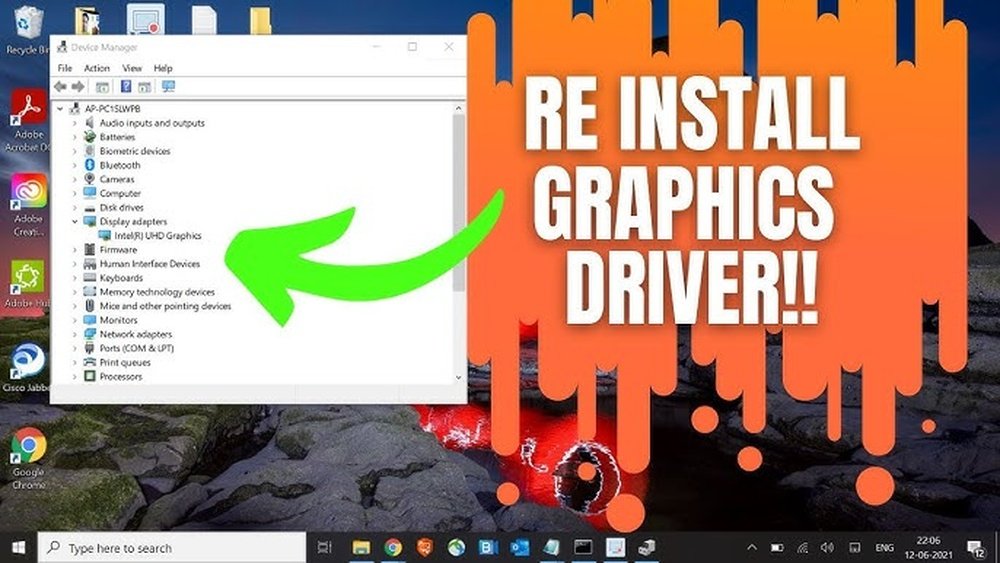
Is your computer acting slow, crashing, or showing strange visuals? The problem might be your GPU drivers.
Reinstalling these drivers can fix many issues and bring your system back to smooth performance. If you’re not sure how to do it, don’t worry—you’re in the right place. This guide will walk you through the simplest steps to reinstall your GPU drivers quickly and safely.
Keep reading, and you’ll have your graphics running perfectly in no time.
Identify Your Gpu Model
Knowing your GPU model is the first step to reinstall GPU drivers. The model tells you which driver to download. Using the wrong driver can cause problems. Check your GPU model carefully before proceeding.
This section shows two easy ways to find your GPU model. Both methods work on Windows computers.
Check Device Manager
Open Device Manager by pressing Windows + X keys. Then select “Device Manager” from the menu. Look for the “Display adapters” section and click the arrow to expand it. Your GPU model will appear under this section. Note down the exact name for later use.
Use Third-party Tools
Download a trusted system information tool like GPU-Z or Speccy. These tools provide detailed info about your GPU. Open the tool and find the GPU section. The tool will list the model name and other useful details. This method is helpful if Device Manager does not show clear info.
Credit: cruceroclick.com
Download The Correct Driver
Downloading the correct GPU driver is crucial for your computer’s performance. The right driver ensures your graphics card works smoothly. It fixes bugs and improves video and gaming quality.
Choosing the wrong driver can cause crashes or slowdowns. This section explains how to find and download the proper driver safely.
Visit Official Manufacturer Site
Start by going to the official website of your GPU maker. Common brands include NVIDIA, AMD, and Intel. Official sites provide the latest and safest drivers.
Avoid third-party sites to prevent downloading fake or harmful files. Official sites also offer clear instructions for installation.
Choose Compatible Driver Version
Select the driver version that matches your GPU model and operating system. Drivers differ for Windows, Mac, and Linux. Also, check the version number and release date.
Using a compatible driver avoids errors and ensures your GPU performs well. Read the driver details carefully before downloading.
Uninstall Existing Gpu Drivers
Removing old GPU drivers is the first step to reinstall them properly. Old drivers can cause conflicts and errors. Clearing them out ensures a clean start. This process helps your computer recognize the new driver without issues.
There are two common ways to uninstall GPU drivers: using Device Manager or special driver removal tools. Both methods are simple and effective. Choose one that suits your comfort level.
Use Device Manager
Open Device Manager by typing it in the search bar. Find “Display adapters” and expand the section. Right-click your GPU and select “Uninstall device.”
Check the box that says “Delete the driver software for this device.” Click “Uninstall” to remove the driver. Restart your computer to apply changes.
Employ Driver Removal Tools
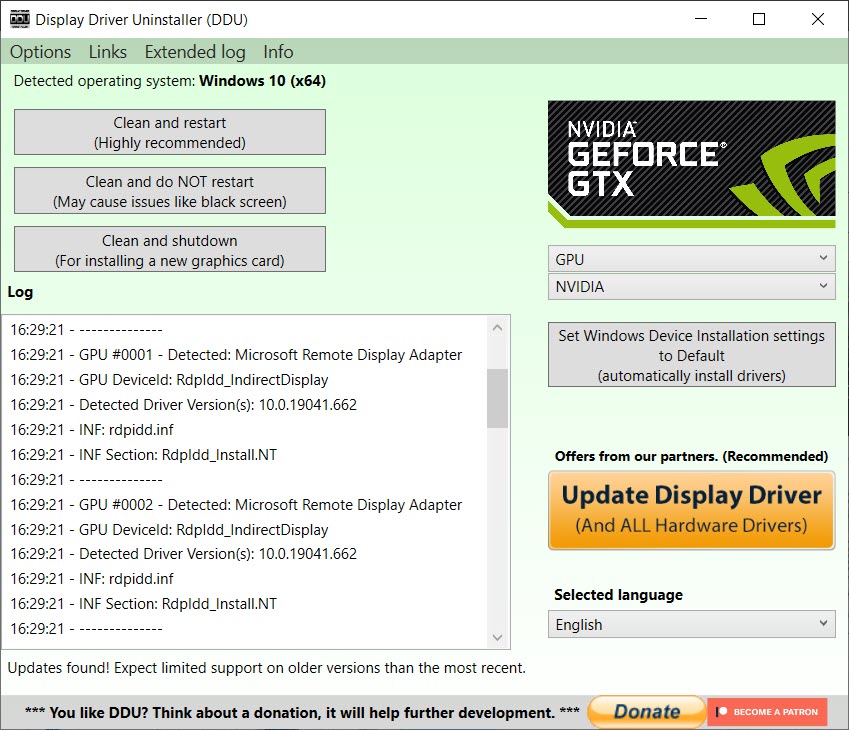
Driver removal tools remove all traces of GPU drivers. They clean leftover files and registry entries. This method is deeper than Device Manager.
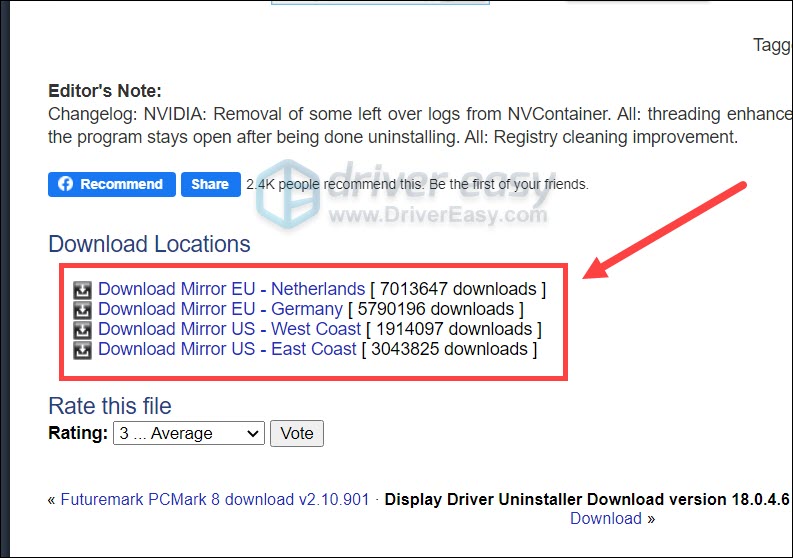
Download a trusted tool like Display Driver Uninstaller (DDU). Run it in Safe Mode for best results. Follow the tool’s instructions to uninstall the GPU drivers fully.
Credit: www.drivereasy.com
Install New Gpu Drivers
Installing new GPU drivers is important to keep your graphics card working well. Updated drivers fix bugs and improve performance. This step helps your computer run smoothly with the latest games and software.
After downloading the correct driver file, the next step is to install it properly. Follow each step carefully for the best results.
Run The Installer
Locate the downloaded driver file on your computer. It usually ends with .exe on Windows. Double-click the file to start the installation process. The installer will open and prepare to update your GPU drivers.
Follow On-screen Instructions
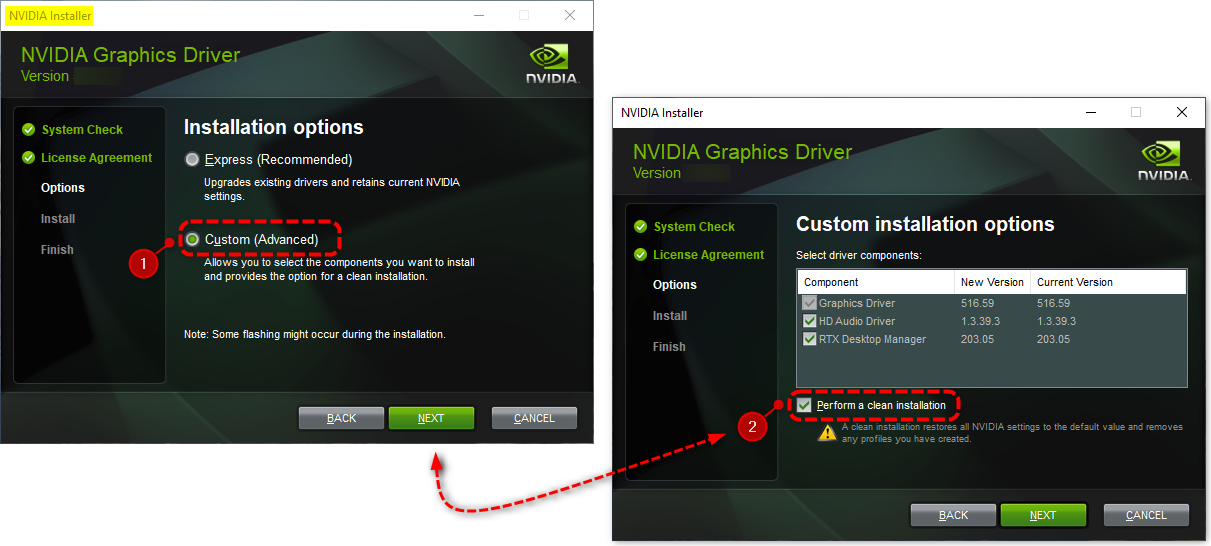
The installer will show simple instructions. Read each prompt carefully. Choose the installation type, usually “Express” or “Custom.” Express is faster and recommended for most users. Custom lets you select features to install. Click “Next” to continue through the steps. Wait for the installation to finish. Your screen may flicker during the update. Do not turn off your PC. Restart your computer if the installer asks you to. This completes the driver installation.
Verify Driver Installation
After reinstalling your GPU drivers, verifying the installation is important. This step ensures your graphics card works correctly. It helps avoid future issues and keeps your system stable.
Check your device status and test graphics performance. These checks confirm the drivers function as expected.
Check Device Manager Status
Open Device Manager on your PC. Look under “Display adapters” for your GPU name. If you see a yellow warning icon, the driver may have issues.
Right-click your GPU and choose “Properties.” Check the device status in the “General” tab. It should say, “This device is working properly.”
If the status shows errors, reinstall the driver or update it. This process ensures Windows recognizes your GPU correctly.
Test Graphics Performance
Run a simple graphics task, like playing a video or launching a game. Watch for smooth visuals and no crashes. Lag or glitches might mean driver problems.
You can also use benchmarking tools. These programs measure GPU speed and stability. Compare scores to your GPU’s normal performance.
Good graphics performance confirms the driver works well. It means you can enjoy better visuals and stable gaming.
Troubleshoot Common Issues
Troubleshooting common issues with GPU driver reinstallation saves time and effort. Problems can happen during installation or after updating drivers. Knowing how to fix these issues helps keep your system running smoothly. Below are simple steps to solve frequent problems.
Fix Installation Errors
Installation errors often occur due to corrupted files or incomplete downloads. Restart your computer before trying again. Use the official website to download the correct driver version. Disable antivirus software temporarily to avoid blocking the installation. Run the installer as an administrator for better access. Clear old driver files using a driver removal tool for a clean setup.
Resolve Driver Conflicts
Driver conflicts cause crashes and poor performance. Uninstall old or unused GPU drivers completely. Check for Windows updates and install any pending patches. Use Device Manager to see if multiple drivers are active. Disable or remove conflicting drivers to avoid clashes. Restart your PC to apply changes and test the new driver.
Credit: www.liftingitalia.com
Frequently Asked Questions
How Do I Uninstall Old Gpu Drivers Safely?
To uninstall old GPU drivers safely, use Device Manager or a dedicated tool like Display Driver Uninstaller. This ensures complete removal without leftover files that may cause conflicts during reinstallation.
Where Can I Download The Latest Gpu Drivers?
You can download the latest GPU drivers from the official manufacturer’s website, such as NVIDIA, AMD, or Intel. Always choose the correct model and operating system version for optimal performance.
What Is The Best Way To Reinstall Gpu Drivers?
The best way to reinstall GPU drivers is to first uninstall the current drivers, restart your PC, and then install the latest version from the official site. This prevents errors and ensures a clean installation.
How Often Should Gpu Drivers Be Updated?
GPU drivers should be updated every few months or when you encounter performance issues. Updates improve compatibility, fix bugs, and enhance gaming or application performance.
Conclusion
Reinstalling GPU drivers can fix many computer issues fast. Follow each step carefully for best results. Keep your drivers updated to avoid future problems. Restart your computer after installation to apply changes. Simple actions like these improve your system’s performance.
Stay patient and take your time during the process. Now, enjoy smoother graphics and better device stability. This guide helps you handle driver reinstallations with ease.
